Connect a Google Alias to Amplemarket
Last updated: August 12, 2026
Note: Although it is possible to connect to Google aliases to Amplemarket, it is recommend to use regular mailboxes over aliases where possible for better deliverability. Read more here.
If you do not have an alias set up, you first need to contact your Google Workspace admin who can add one following these steps
Generate an App Password on Google
From your Gmail, click your profile icon -> Manage Google Account
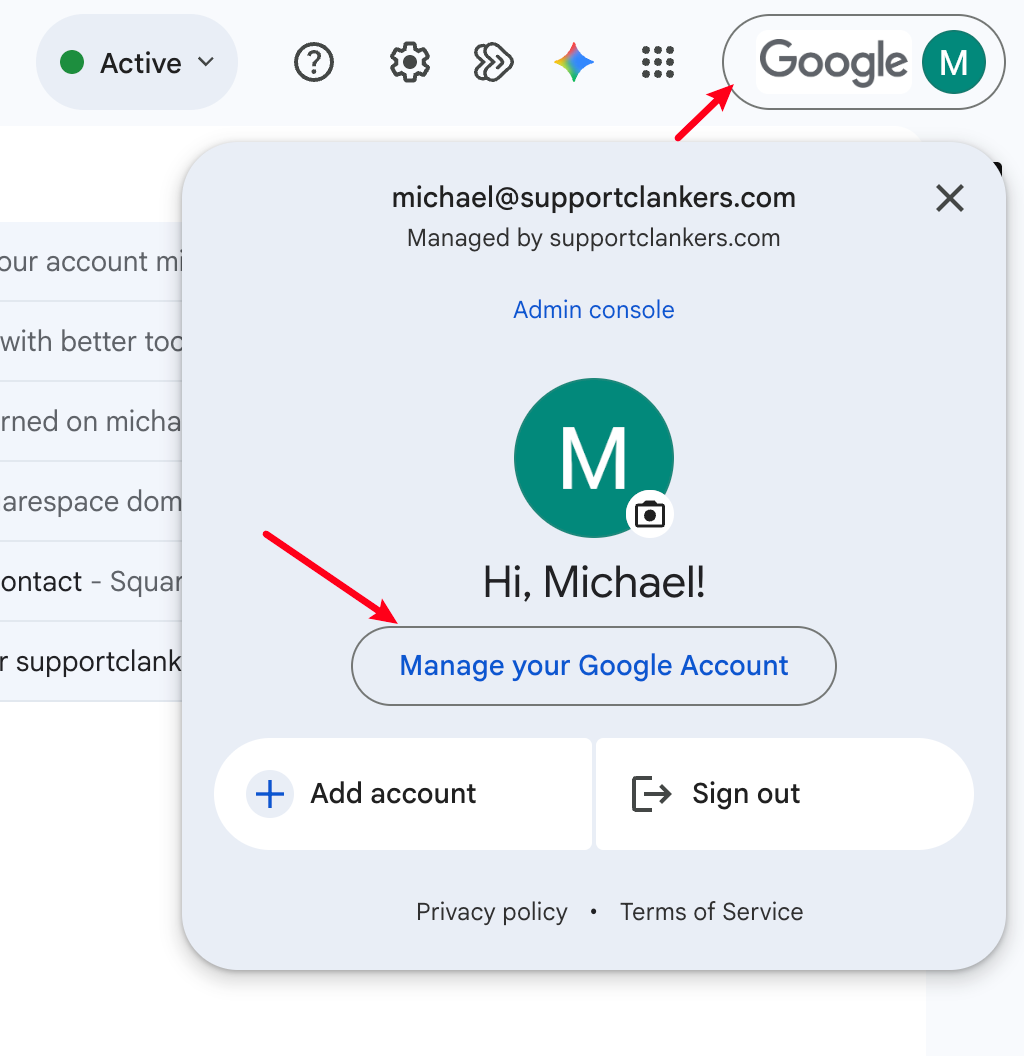
From there, click Security & Sign-In
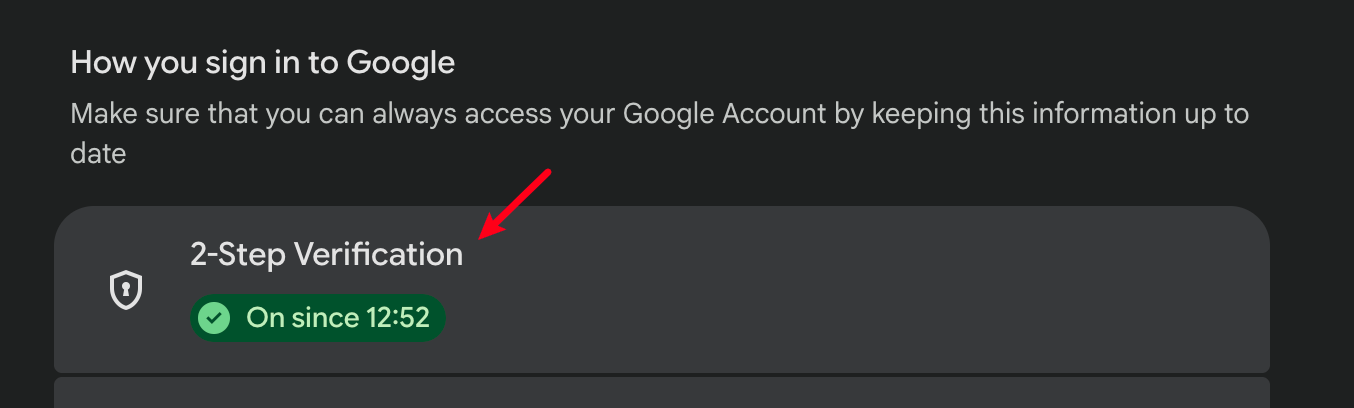
Under How you sign in to Google, click the 2-Step Verification option. If 2-Step Verification is not already enabled, it must first be enabled.
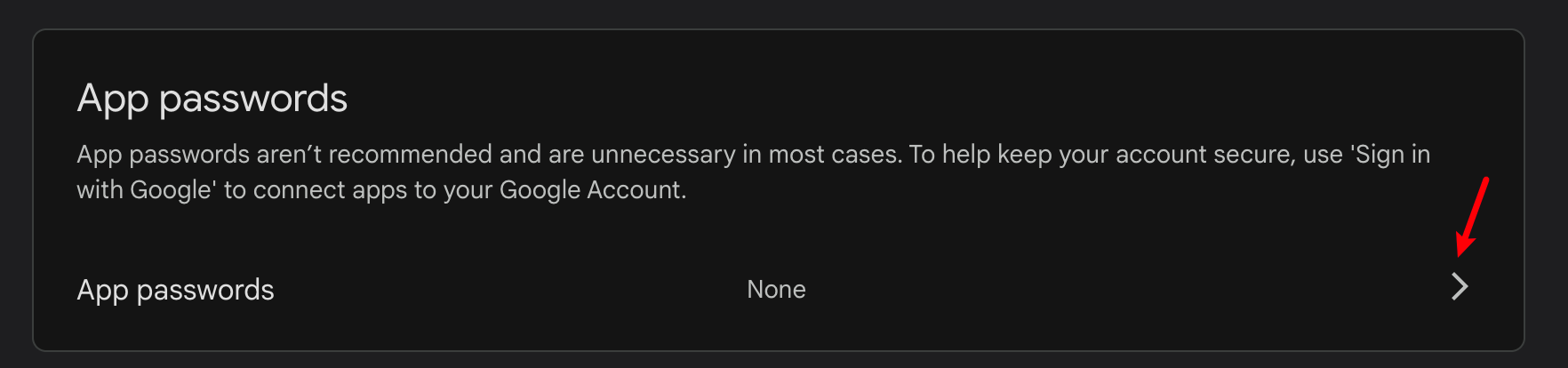
Scroll down to the App Passwords section and click on the arrow
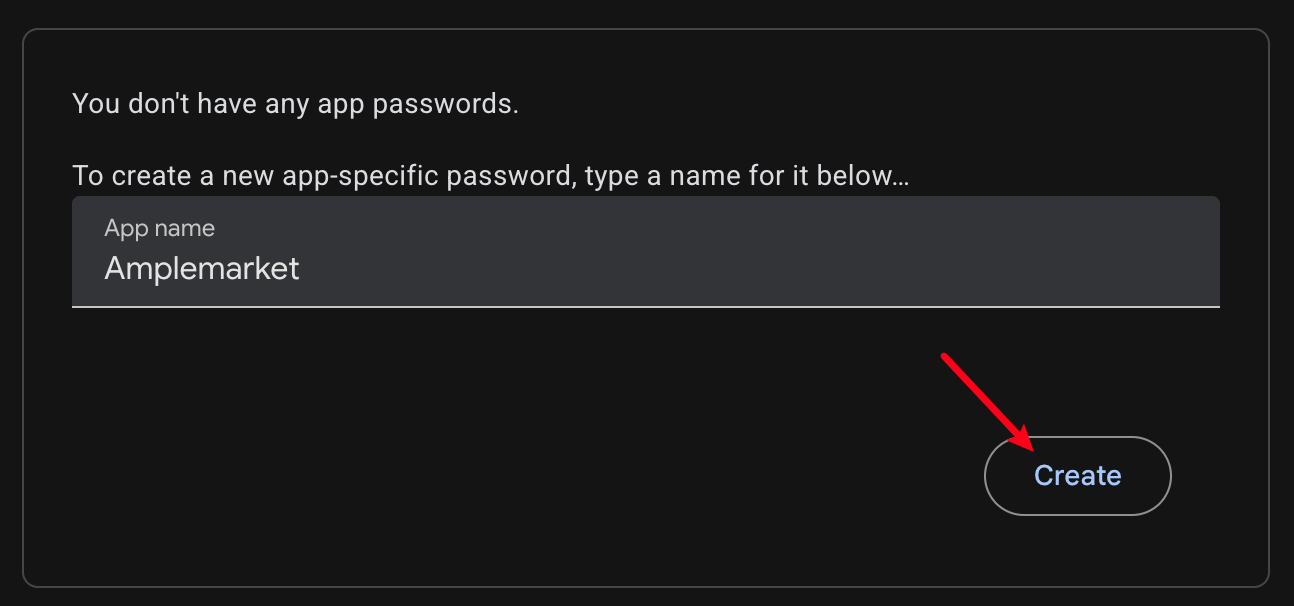
Give the App a name and click Create
A window will pop up with a generated password
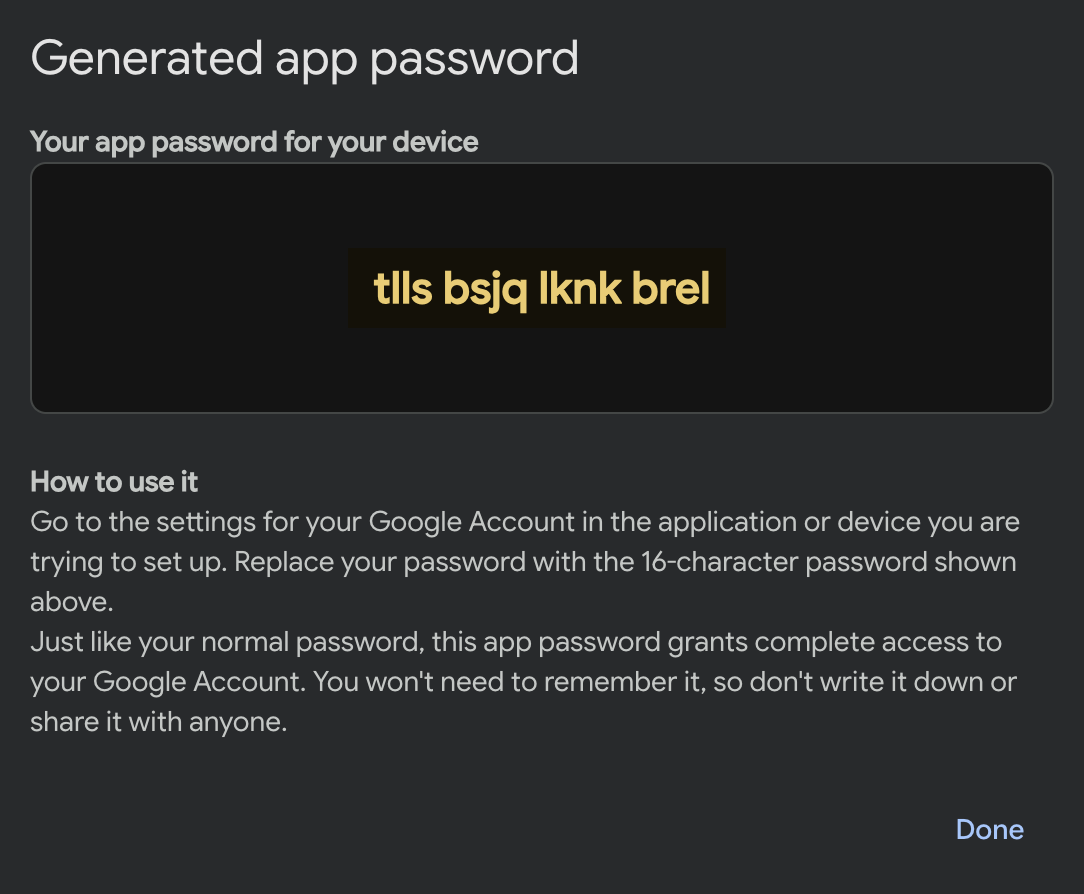
Copy this password and keep it, as it will be used to connect the alias to Amplemarket.
Add the Alias Mailbox in Amplemarket
Go to your Amplemarket mailbox settings
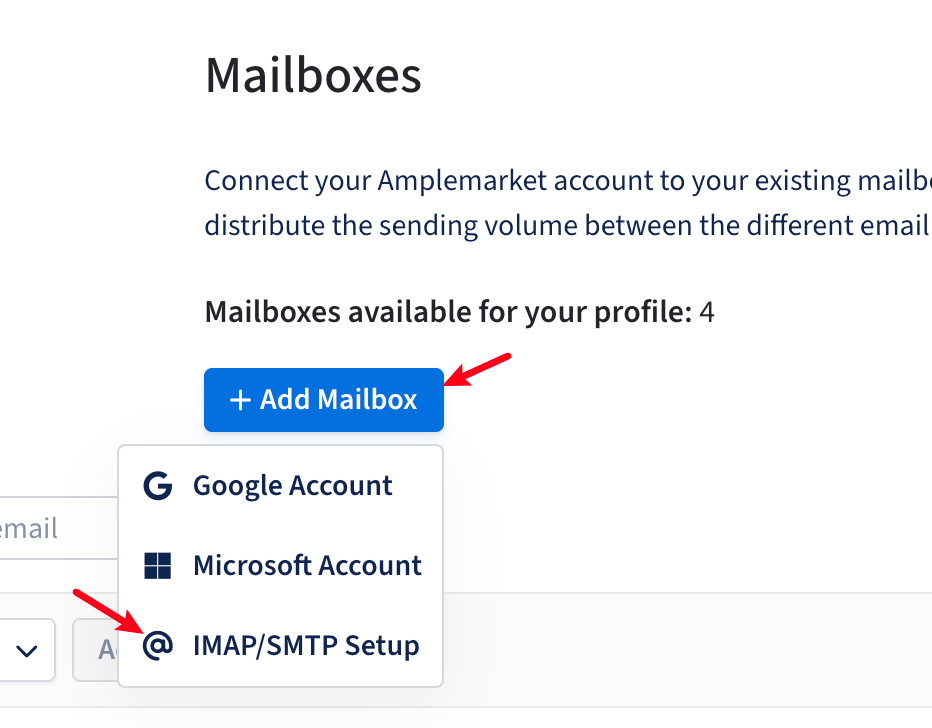
Click Add Mailbox and choose the IMAP/SMTP Setup
Fill out the form, substituting your own details in the fields highlighted
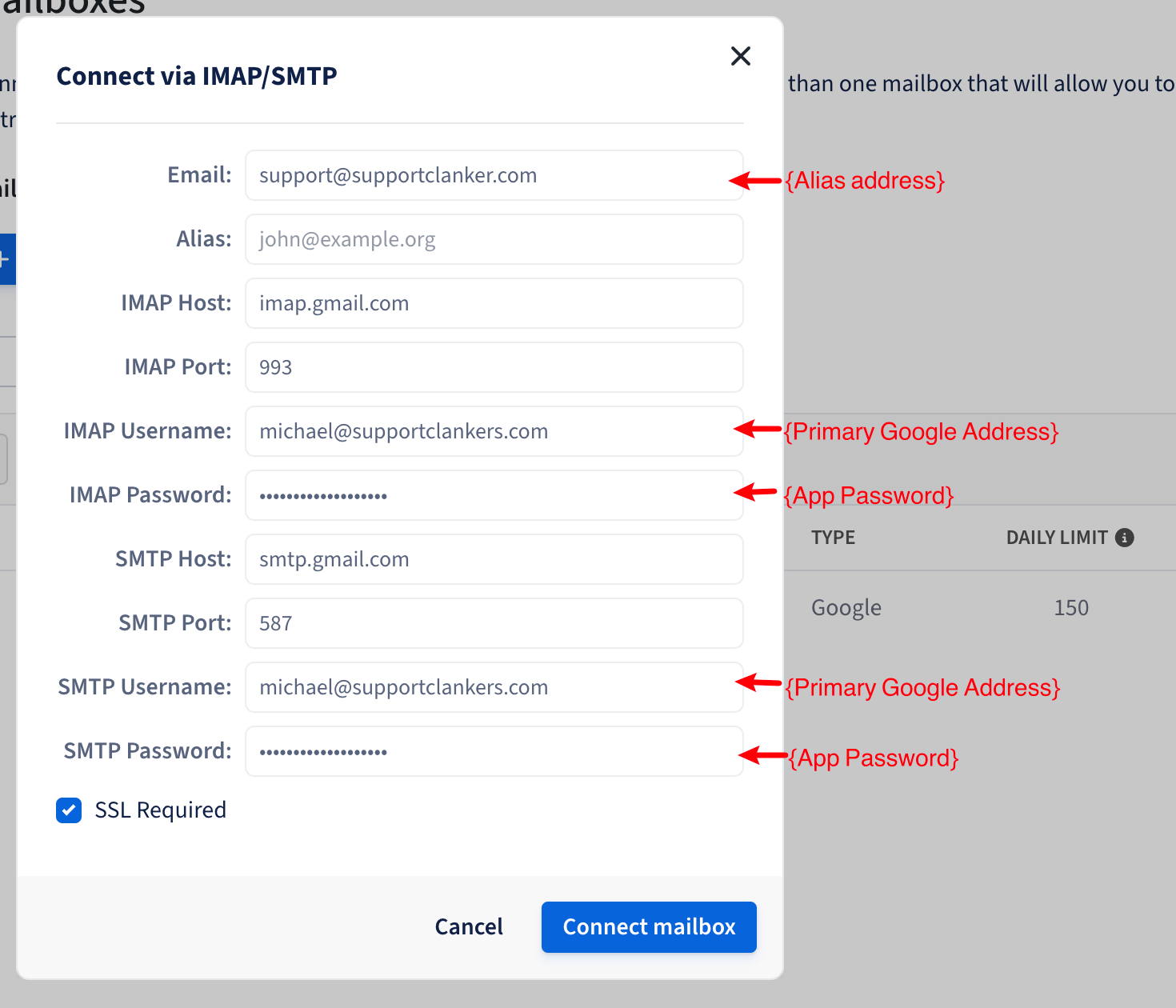
Click Connect Mailbox
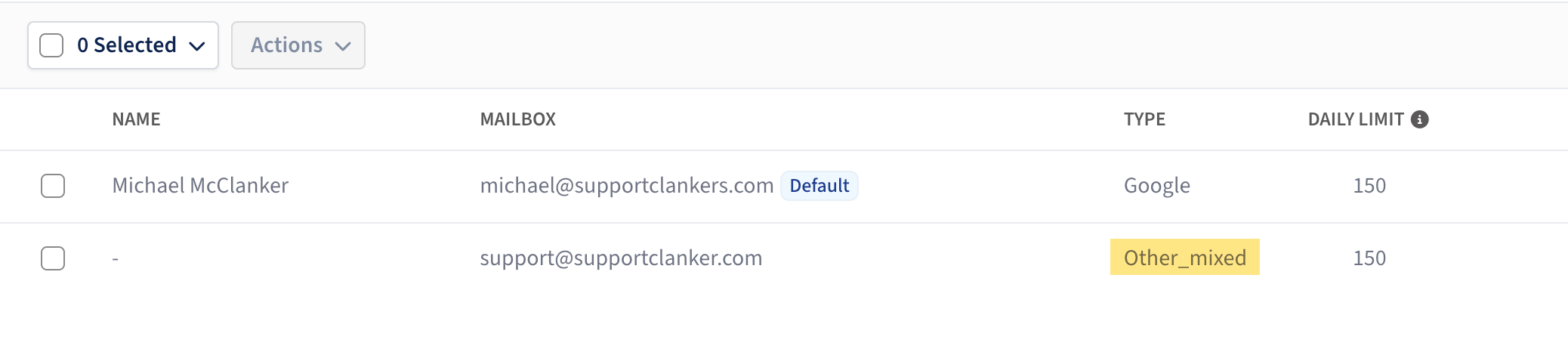
The mailbox should be connected with the Type set to Other/Mixed