Domain Settings for Microsoft 365 and Outlook
Last updated: July 16, 2026
In this article, we are going to cover the most important email domain settings in order to improve your email deliverability. Let's get started.
Note: If you are using Gmail please click here!
Domain registered on GoDaddy? Check the detailed instructions here!
Domain registered on DNSimple? Check the detailed instructions here!
General instructions for Microsoft 365 and Outlook Setup:
I am seeing an error related to Domain Authentication (SPF, DKIM, or DMARC). How can I solve it?

If you’re seeing the error above (or similar), it means that something has not been set up in your Domain Authentication configuration. Setting up your domain authentication configuration in its entirety is an important aspect of maintaining a healthy email deliverability reputation.
To solve Domain Authentication errors, follow the steps below:
If you haven’t set up Domain Authentication configurations, please follow all the steps for SPF, DKIM, and DMARC as described above according to your Email Service Provider (ESP)
If you already have configured everything above, now it’s time to test it:
Go to Amplemarket and head to the Domain Health Center page
There you can see all your Domains, including the ones that are experiencing Domain Authentication issues:
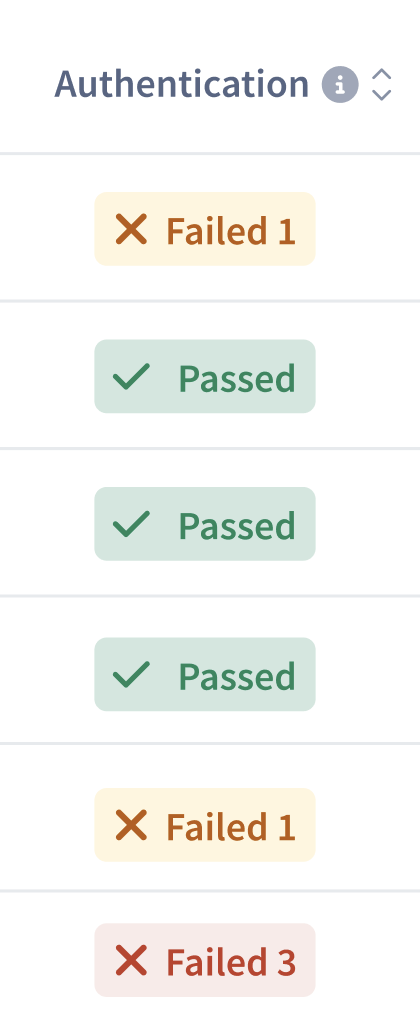
By clicking on the “Failed” icon you’ll be able to test your SPF, DMARC, and DKIM configuration:
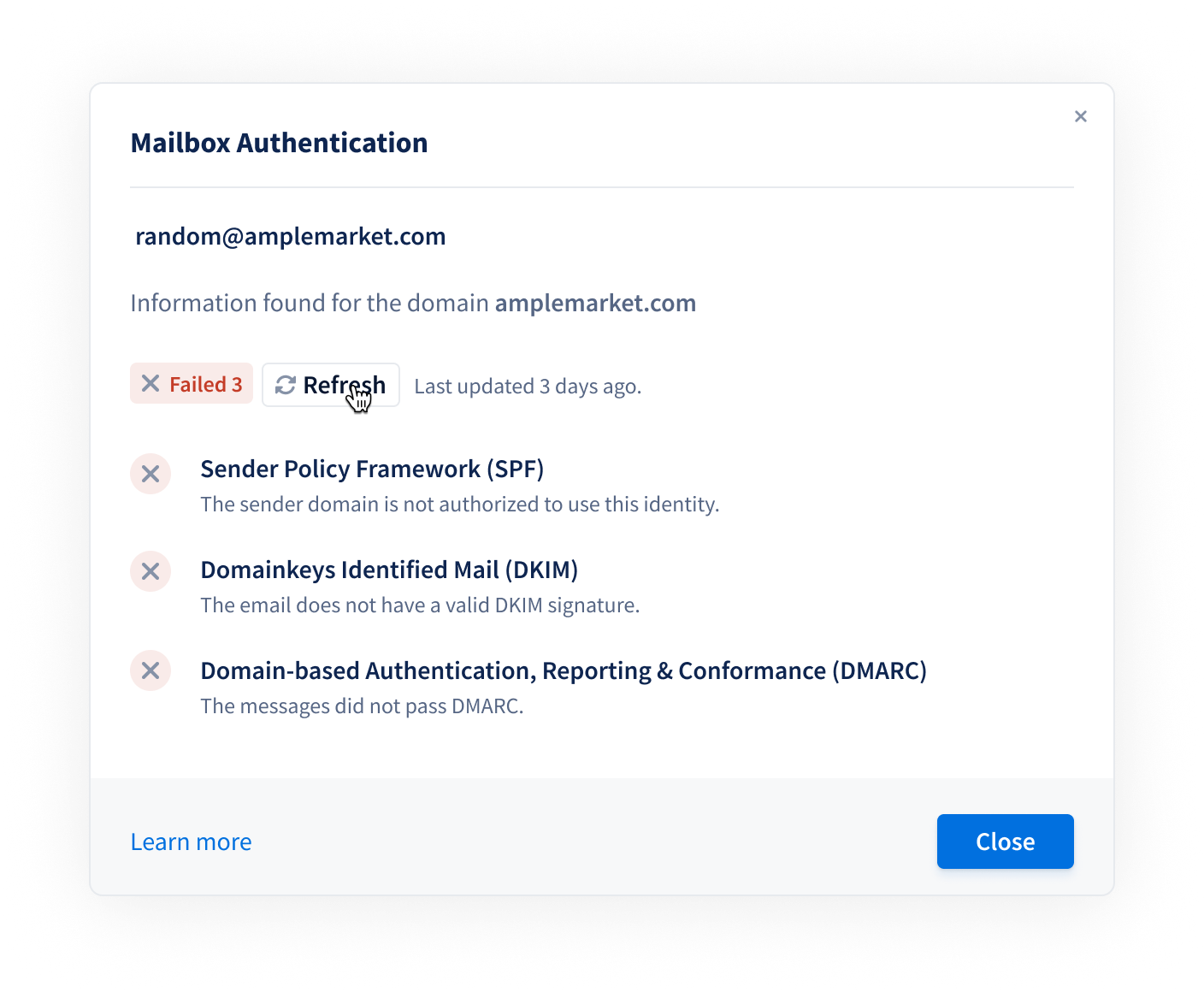
Then, by clicking on “Refresh”, we’ll check if your SPF, DKIM, and DMARC are properly configured. The test might take some minutes to be completed, so you can now leave this page.
If your Domain Authentication is properly configured, the error banner will disappear. You also should see the following result after your test is completed:
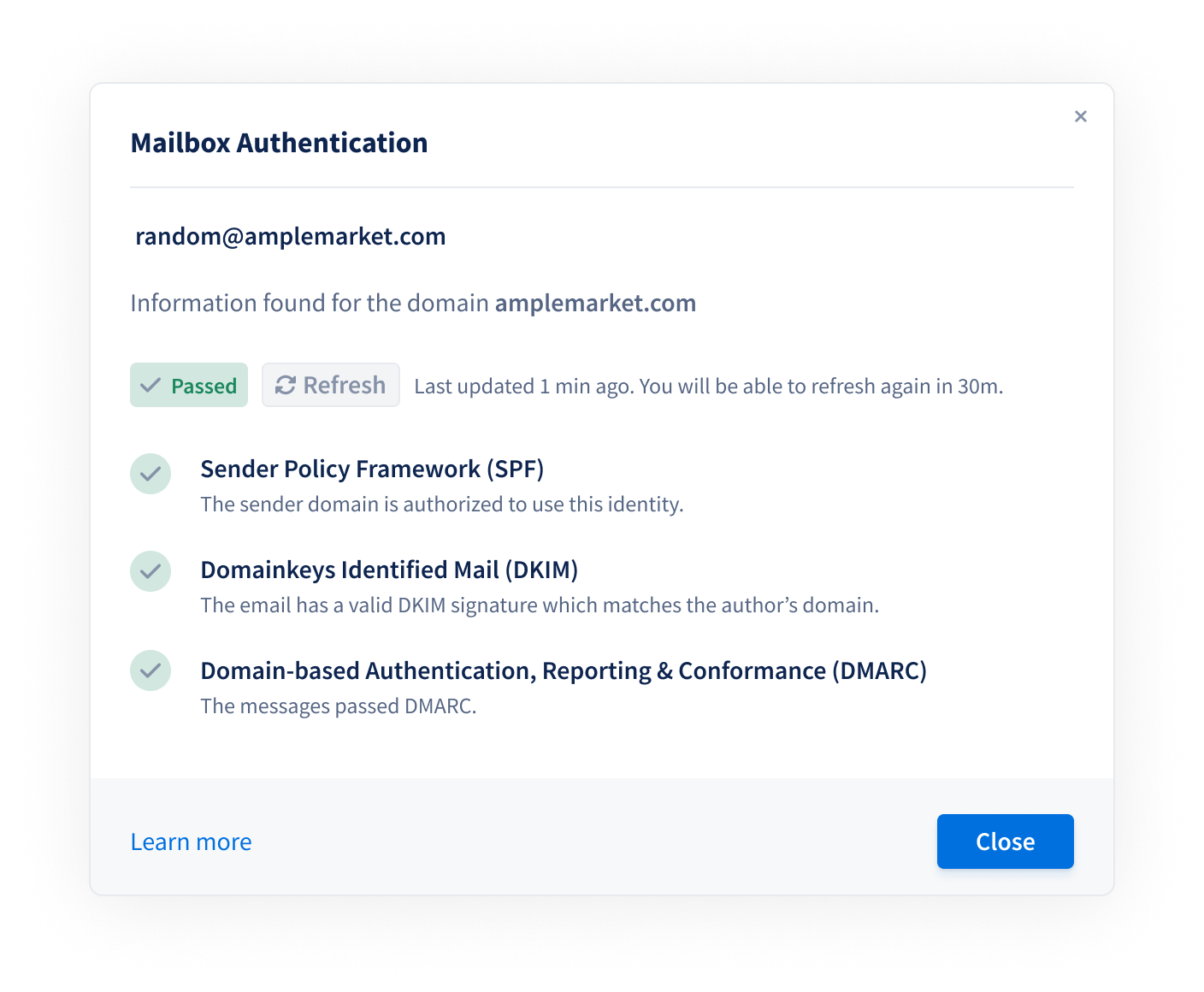
If, for any reason, the error banner is still surfacing, it means that something isn’t quite right with your Domain Authentication setup. Follow the steps provided by your ESP to properly configure it.
Microsoft + GoDaddy domain configuration
Microsoft + DNSimple domain configuration
My Microsoft account keeps getting restricted despite proper domain authentication. What can I do?
Even with correctly configured SPF, DKIM, and DMARC records, Microsoft 365/Outlook accounts may still face sending restrictions. This is a known issue where:
Microsoft doesn't provide clear reasons for mailbox restrictions
Once restricted, accounts become more susceptible to future restrictions
Microsoft may place flagged mailboxes in a "High Risk" IP pool, further reducing deliverability
Short-term solutions:
Use Amplemarket's Custom SMTP relay: This bypasses Microsoft's sending infrastructure entirely. Contact support to set up this free option that routes your emails through Amplemarket's Sendgrid instance.
Long-term solutions:
Set up multiple mailboxes: Distribute sending volume across several email accounts to reduce the load on any single mailbox
Use multiple domains: Purchase additional domains (e.g., yourcompany.ai, your-company.com) to further isolate reputation risks
Consider switching to Google Workspace: Google accounts experience these restriction issues less frequently than Microsoft accounts
Set up custom domain tracking: Configure a custom domain for open tracking to avoid using generic tracking domains
Optimize your email signature: Remove hyperlinks from signatures and keep them plain text only
Refine your targeting: Focus on highly targeted prospects rather than high-volume, broad campaigns
Note: If you're sending to highly regulated industries (healthcare, finance), consider disabling open tracking entirely, as these sectors often use stricter email security providers that flag tracking pixels.
France and Italy have issued guidance on the use of tracking pixels in emails. Depending on the purpose of the tracking and the applicable legal basis, prior recipient consent may be required before enabling email open tracking. Customers should review their practices, obtain consent where required, and disable open tracking where they do not have an appropriate legal basis. See the French CNIL recommendations and the Italian Data Protection Authority guidance for more details.