Roles & Permissions
Last updated: July 16, 2026
Roles control what each person on your team can see and do in Amplemarket. Every account comes with two built-in roles Admin and Sales Rep. Admins can create custom roles to match how their team works.
Video: managing roles & permissions
Watch this short walkthrough to see how to create custom roles, set their permissions, and assign them to your team.
What are roles?
A role is a named set of permissions. Every user has exactly one role, which decides what they can configure and which records they can see and act on.
Permissions come in two kinds:
Platform permissions — on/off toggles for account-wide features, such as creating users or defining personas.
Data access permissions — access to records like sequences and lists, scoped by who owns them.
Manage roles under Settings → Roles. Assign a role to a user under Settings → Users.
[Screenshot: Roles page showing System and Custom roles]
The two system roles
A new account comes with two System roles. System roles are built in and can't be edited, renamed, or deleted.
Admin has every permission. Admins can configure every feature and can see and act on every user's sequences, lists, tasks, mailboxes, and Unibox messages. An account must always keep at least one admin.
Sales Rep is the default role for new users and has limited access. Every object permission is scoped to the user's own records, and most platform permissions are off. Two are on by default:
Manage mailboxes — set daily email limits for mailboxes.
Export prospecting data — export data from Tasks, Contacts, Leads, and Lists.
The first user in an account is an Admin. Everyone invited after that starts as a Sales Rep unless you assign a different role.
Custom roles
When the two system roles don't fit, create a custom role with whatever mix of permissions your team needs. Common cases are a team lead who needs more than a Sales Rep without full admin access, or a junior rep who should be more restricted than the default. Custom roles can be renamed, edited, and deleted at any time.
You need the Manage users, teams, and roles permission to create or edit roles. Admins have it by default.
To create a role:
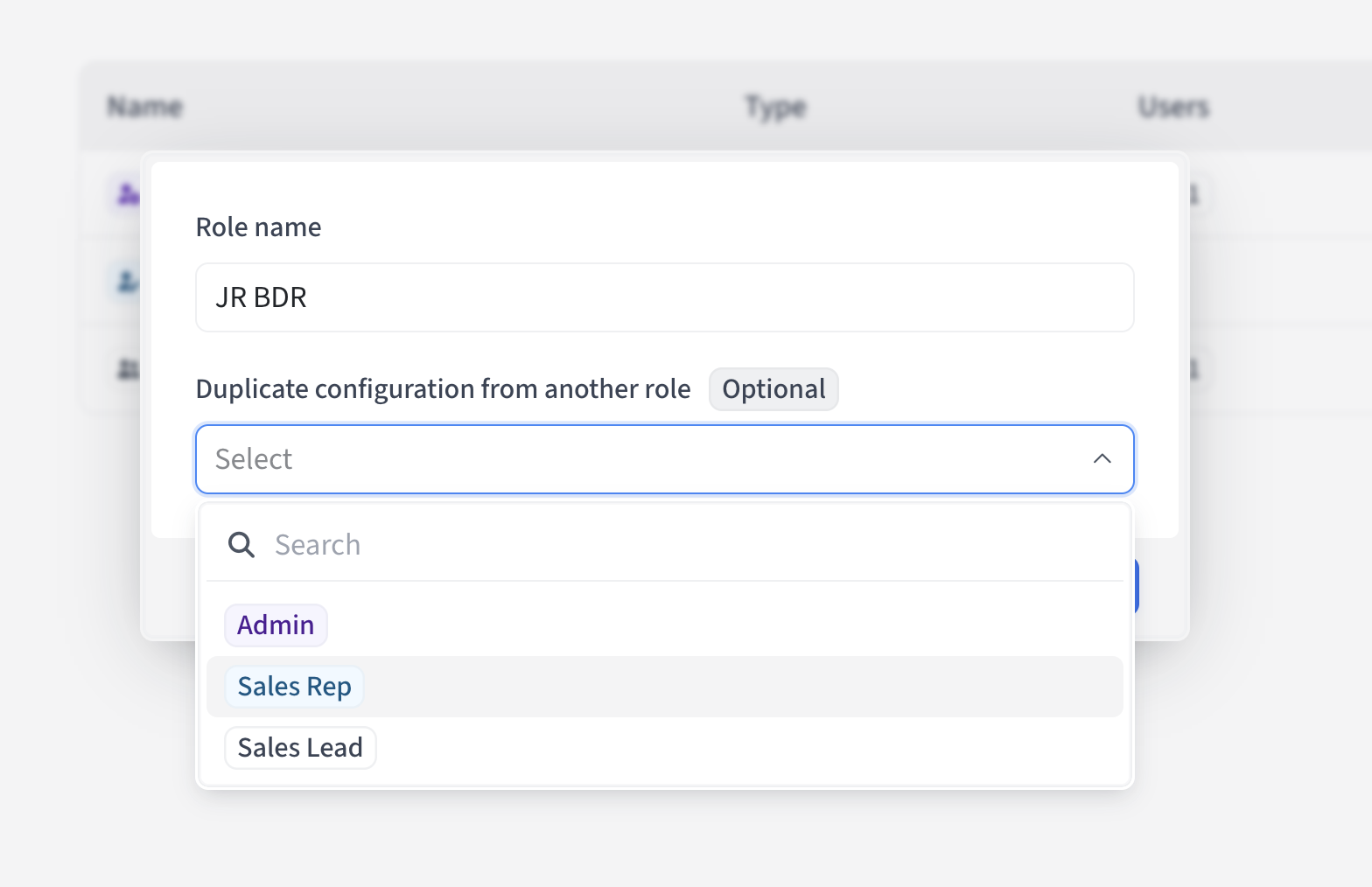
Go to Settings → Roles and click Create role.
Enter a name (unique, under 140 characters).
Optionally use Duplicate configuration from another role to start from an existing role's permissions. If you leave it blank, the role starts from the Sales Rep permission set.
Open the role and set each platform permission and object permission scope.
Save.
A new role starts with no users assigned. Assign users under Settings → Users.
Platform permissions
Platform permissions are on/off toggles in four categories.
Account administration
Manage users, teams, and roles — Invite and remove users, change roles, and create and assign teams.
Manage billing and invoices — Update billing details and payment methods, and access invoices.
Manage credits — View account credits and per-user usage, and set credit limits.
Platform configuration
Manage integrations & API keys — Connect CRM and third-party integrations, and manage API keys.
Manage safety settings & compliance — Set account-wide safety and compliance rules, including recently-contacted thresholds, sending limits, LinkedIn sending windows, unsubscribe enforcement, and open tracking.
Manage contacts & accounts — Configure how contacts and accounts are created and tracked (including off-platform tracking), and delete contacts and accounts.
Manage dialer & phone numbers — View, import, port, purchase, and assign phone numbers, and manage custom call dispositions.
Manage dialer Trust Hub — Submit and manage the Trust Hub for SHAKEN/STIR caller verification.
Manage mailboxes — Set daily email limits for mailboxes.
Export prospecting data — Export data from Tasks, Contacts, Leads, and Lists.
Go-to-market configuration
Manage personas — Create and edit buyer personas account-wide.
Manage territories — Create and edit territories and assign them to users or teams.
Manage competitor battlecards — Create, edit, and remove competitor battlecards.
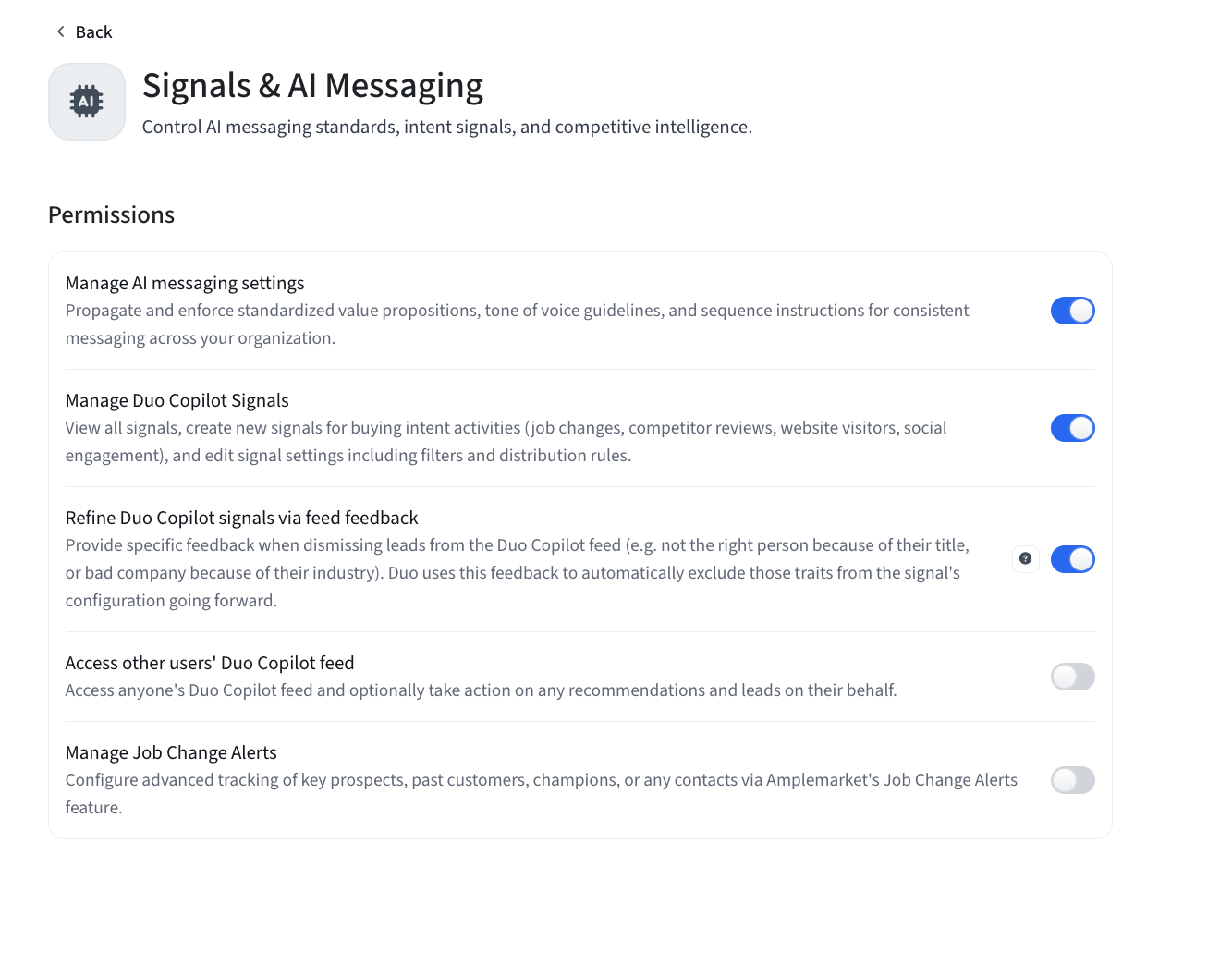
Signals & AI Messaging
Manage AI messaging settings — Propagate and enforce value propositions, tone of voice, and sequence instructions.
Manage Duo Copilot Signals — View, create, and edit Duo Copilot signals and their distribution rules.
Refine Duo Copilot signals via feed feedback — Give feedback when dismissing leads so Duo refines future recommendations.
Access other users' Duo Copilot feed — View and act on any user's Duo Copilot feed on their behalf.
Manage Job Change Alerts — Configure tracking of prospects, customers, and champions through Job Change Alerts.
Engagement and object permissions
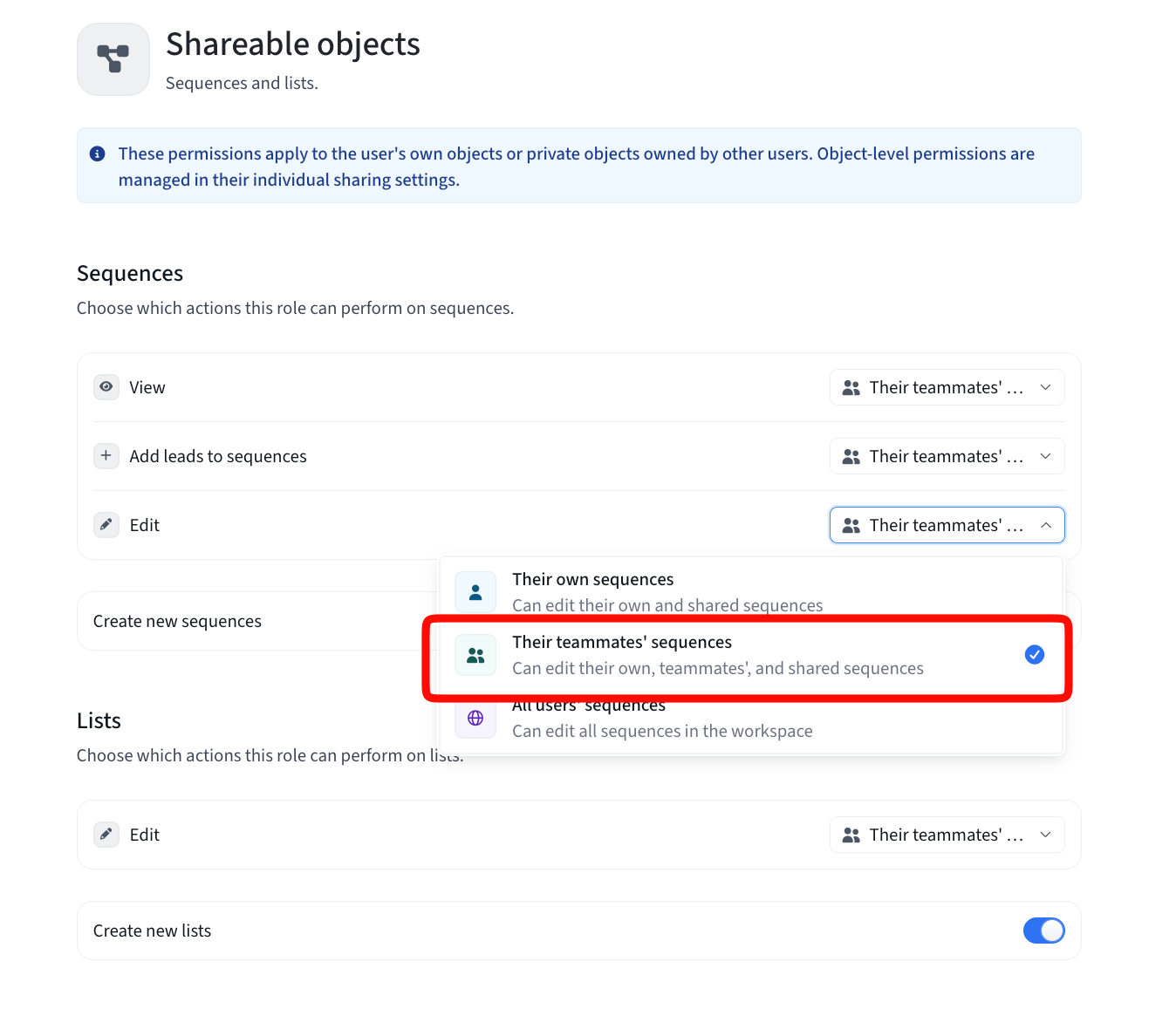
These permissions control which records a user can see and act on, scoped by ownership. For each one you pick a scope:
Their own — records the user owns.
Their teammates' — records owned by the user and other members of their teams.
All users' — every record in the account.
A user who isn't on a team sees only their own records when a permission is set to the teammates' scope.
In the role configuration these appear in two sections.
Engagement permissions
Unibox — set Inbox access and Outbox access scopes. Ownership follows the owner of the task or sequence lead.
Tasks — set the Task access scope.
Object permissions → Shareable objects
Sequences — set scopes for viewing, adding leads, and editing. A Create new sequences toggle controls whether the role can create sequences.
Lists — set the scope for editing. A Create new lists toggle controls whether the role can create lists.
The Create new sequences and Create new lists toggles are on by default, including for Sales Reps. Turn them off to restrict a role to only the sequences and lists shared with it.
📝 Note: Sequence visibility also depends on each sequence's own sharing setting. A sequence shared with the whole organization is visible regardless of a role's scope. See .
Assigning a role to a user
Go to Settings → Users.
Find the user and open their role.
Select the role and save. The change applies right away.
Deleting a role
You can delete custom roles only.
If no users have the role, deleting it removes it permanently.
If users have the role, you reassign them to another role first. The reassignment defaults to Sales Rep, and you'll see a confirmation of how many users were moved.
Two example setups
An elevated "Sales Lead" — more than a rep, less than an admin.
Create a role named Sales Lead and duplicate the configuration from Sales Rep.
In Go-to-market configuration, turn on Manage personas, Manage territories, and Manage competitor battlecards.
In Signals & AI Messaging, turn on Manage AI messaging settings, Manage Duo Copilot Signals, and Refine Duo Copilot signals via feed feedback.
In Engagement and Object permissions, set Unibox, Tasks, Sequences, and Lists to Their teammates' so the lead can see and act on their team's work.
Save, then assign the relevant reps under Settings → Users.
A locked-down "Junior BDR" — works only within what's shared to them.
Create a role named Junior BDR and duplicate the configuration from Sales Rep.
Turn off Manage mailboxes and Export prospecting data.
In Object permissions, turn off Create new sequences and Create new lists.
Save, then assign the user under Settings → Users.
Best practices
Start a custom role from a base role with Duplicate configuration from another role instead of building from scratch.
Create a role for each level of responsibility on your team rather than handing out admin access.
Use the teammates' scope with Teams to give leads visibility into their own team without exposing the whole account.
Keep the number of admins small. Every admin can see and change everything.
Frequently asked questions
Who can create and edit roles?
Anyone with the Manage users, teams, and roles permission, which admins have by default.
Can I edit the Admin or Sales Rep role?
No. Both are System roles. Create a custom role if you need a different set of permissions.
Can a user have more than one role?
No. Each user has exactly one role.
Why can't I remove admin from a user?
An account must always keep at least one admin. Assign the Admin role to someone else first.
Email open tracking compliance: Depending on the purpose and applicable legal basis, prior recipient consent may be required. Review your practices, obtain consent where required, and disable open tracking when you do not have an appropriate legal basis. See About Custom Trackers for details and regulator guidance.