CRM Enrichment
Last updated: October 7, 2026
CRM Enrichment fills in and refreshes your CRM records using Amplemarket data. You set up a job once, choose which records and fields to update, and Amplemarket does the rest. A job can run on a schedule, or run on new records as they are created.
Note: CRM Enrichment is a paid feature. If you are interested, contact us at support@amplemarket.com and we will help you get started.
Before you start
CRM Enrichment is controlled by a role permission. You need the CRM Enrichment permission (under Workflows & CRM Enrichment) to see it in the left menu and to create and manage jobs. It is on for admins by default. Admins can turn it on for other roles in the role settings.
If you don't see CRM enrichment in the left menu, your role doesn't have the permission, or CRM Enrichment isn't turned on for your account yet. Ask your admin or contact us at support@amplemarket.com.
Make sure your CRM integration is connected
CRM Enrichment can only update fields that are mapped as default fields in your CRM integration. If a field you want is missing, map it in the integration settings first.
It uses your existing CRM integration, so it follows the same access rules. If we are not allowed to update a field in your CRM, that field is skipped.
Create a job
In the left menu, click CRM enrichment.
Click Create job.
Step 1: Type
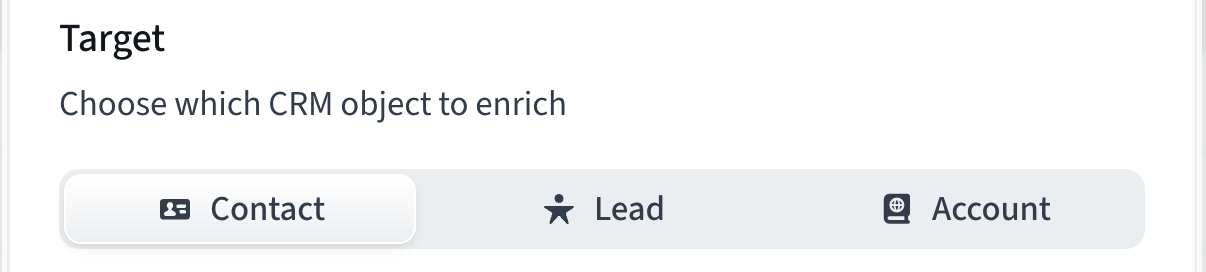
Choose Target:
Contact, Lead or Account
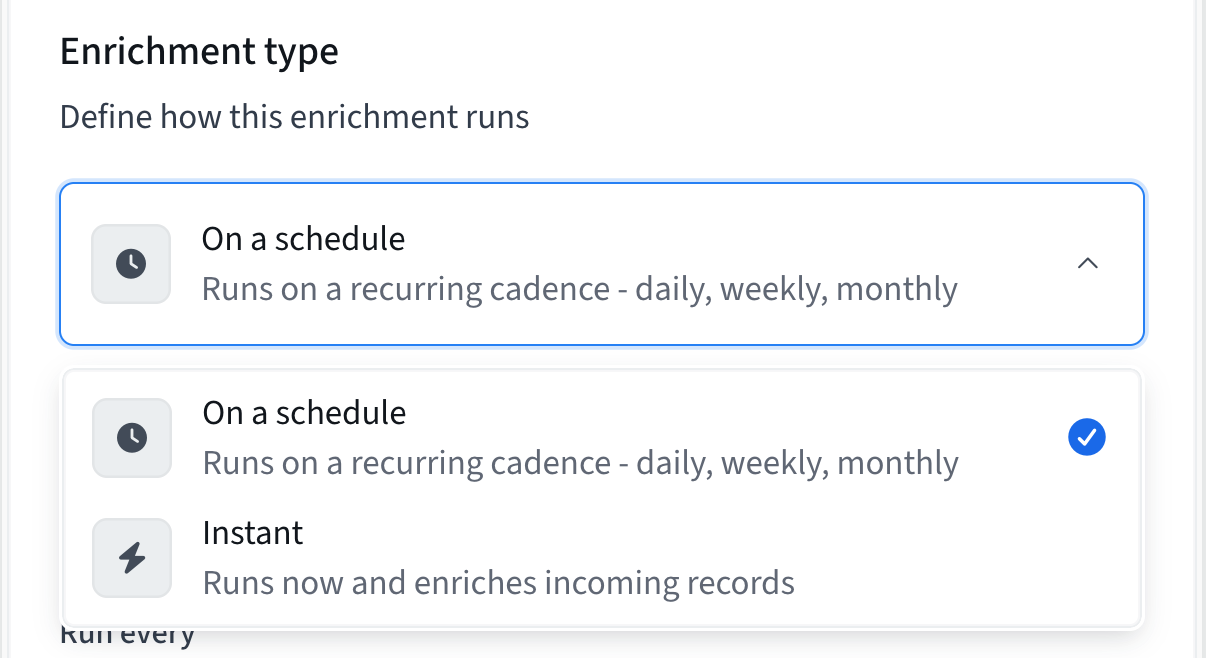
Then choose the Enrichment type:
On a schedule: the job runs again and again at the time you set. Use it to keep your CRM fresh. Set Run every to a number of days, weeks or months. The first run starts about 15 minutes after you launch the job.
Instant: the job enriches new records that are created in your CRM. Use it for things like new form submissions. Instant jobs check for new records about every 15 minutes. They only enrich records created after you launch the job. They do not go back over older records.
Step 2: Audience
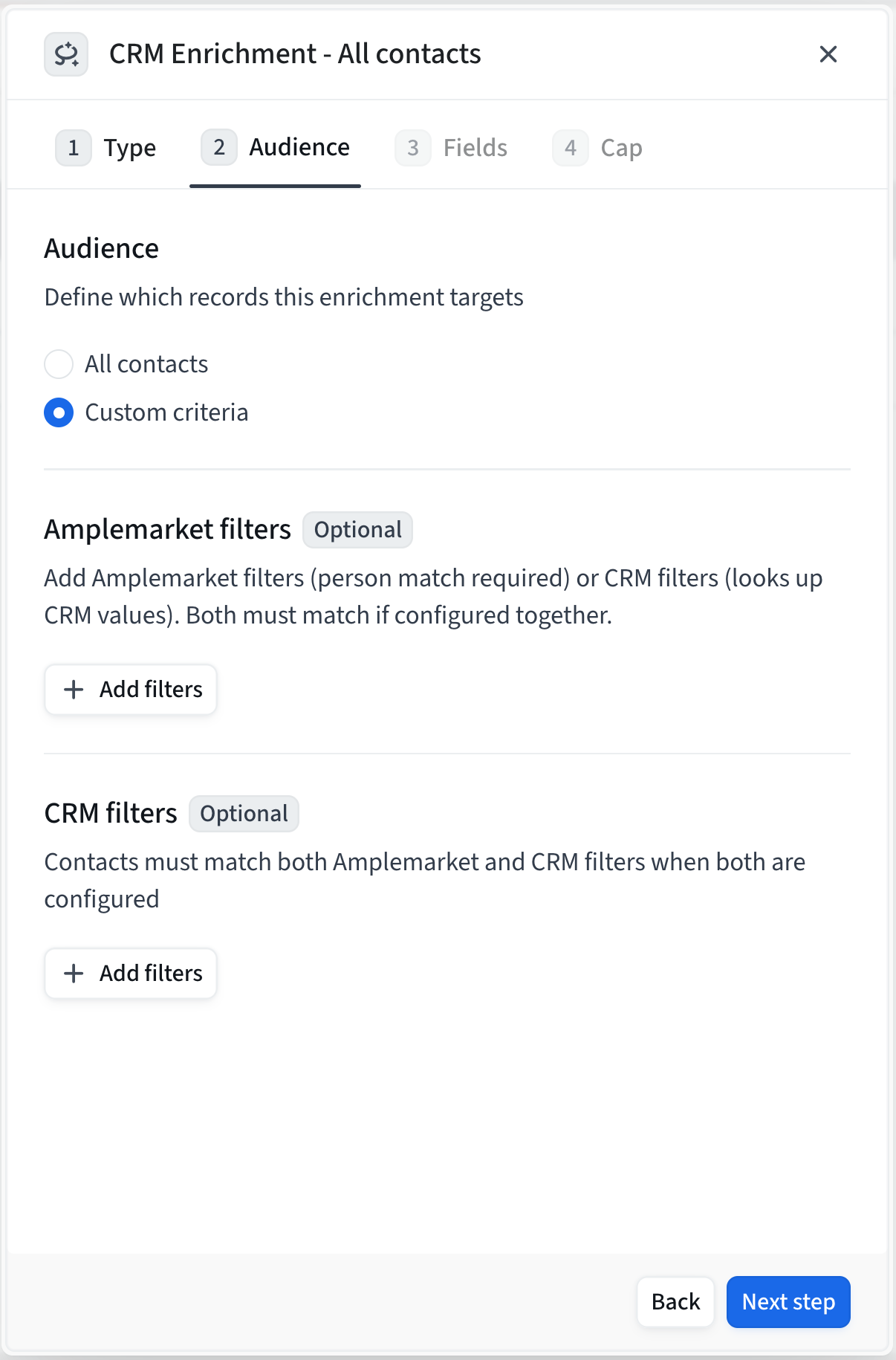
Choose who to enrich. You can enrich All contacts (or all leads, or all accounts), or choose Custom criteria to narrow it down.
With custom criteria you can use:
Amplemarket filters, such as industry or company size.
CRM filters, which use fields from your CRM integration.
If you use both, a record needs to match both. Filters work on the records that are already in your CRM. They do not find new contacts for you.
Step 3: Fields
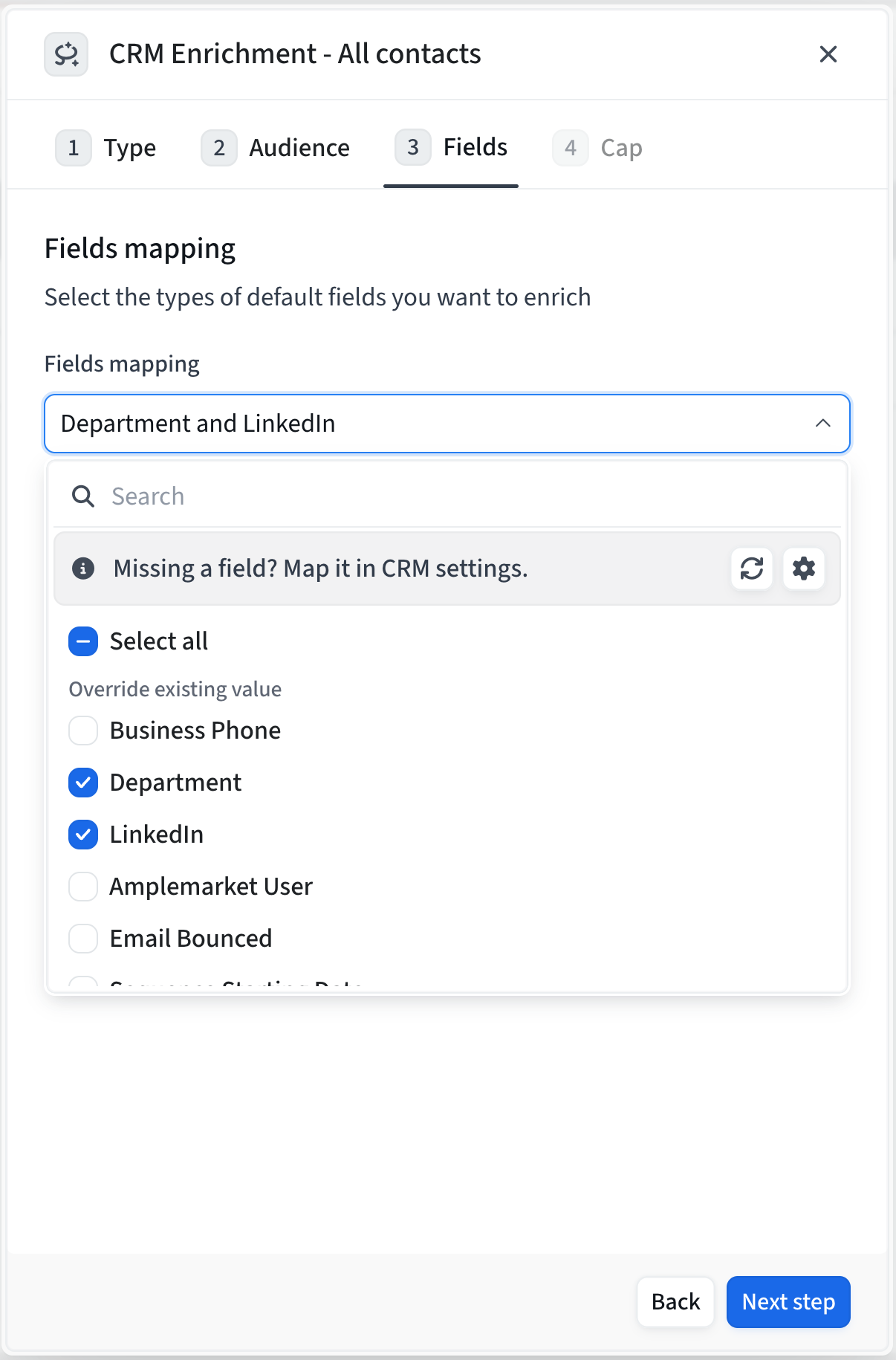
Choose which fields you want to enrich. The list shows the default fields mapped in your CRM integration, in two groups:
Override existing value: we replace what is in your CRM with the Amplemarket value.
Only fill if empty: we only add a value when the field is empty in your CRM.
These groups come from your integration mapping. To change one, update the mapping in your integration settings. If you can't see a field, click Map it in CRM settings in the field list.
Step 4: Cap
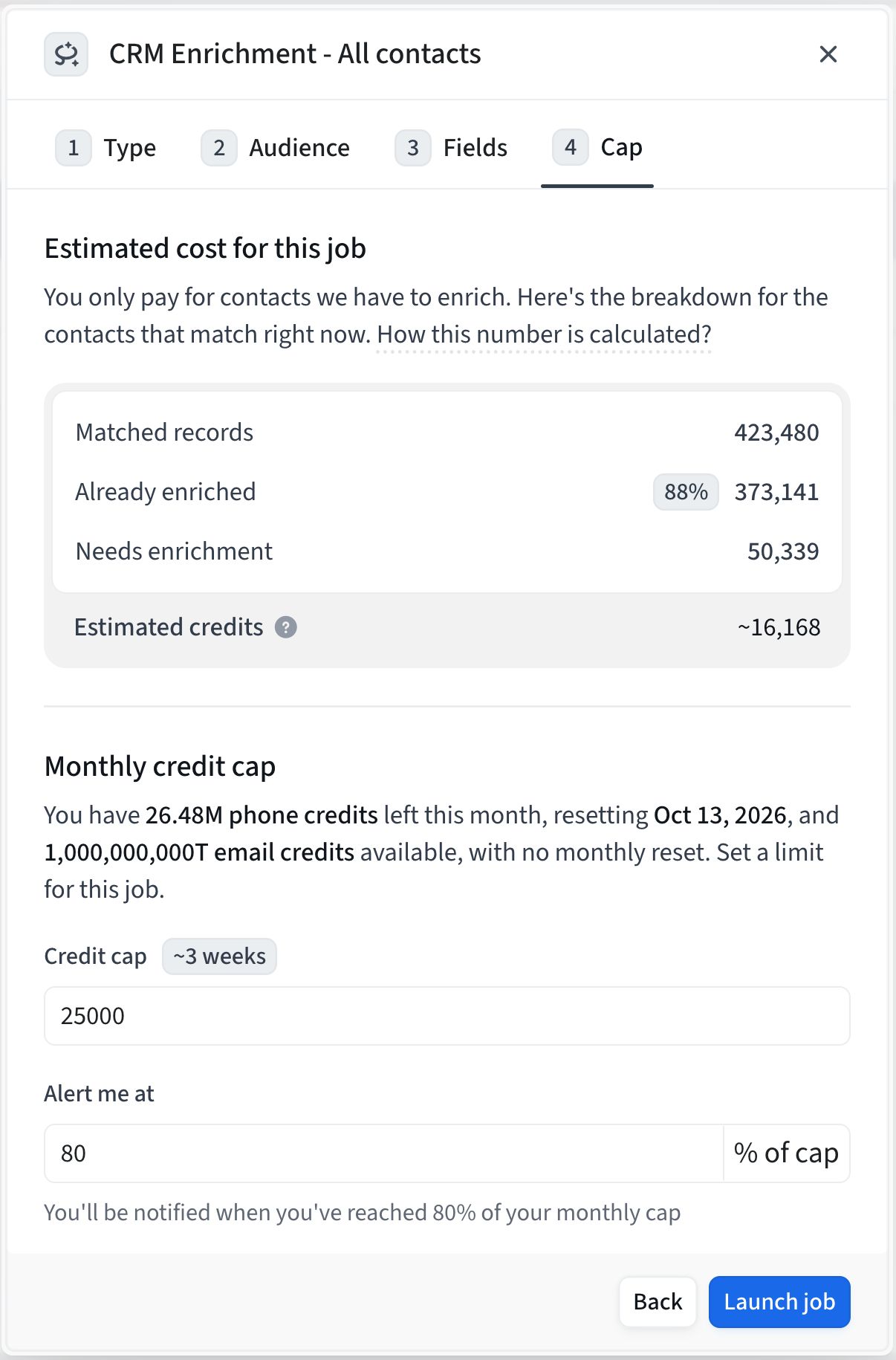
This step shows an estimate of what the job will cost, so you can check it before you start:
Matched records: how many records match your audience.
Already enriched: records that don't need new data.
Needs enrichment: records we expect to update.
Estimated credits: the credits we expect the job to use.
The estimate is a guide, so the real number can be a little different. Instant jobs don't show an estimate.
Then set two things to stay in control of your spend:
Credit cap: the most credits one run can use. When a run reaches the cap, it stops taking on new records and finishes the ones it already started. The records that are left wait for the next run, and the job keeps running.
Alert me at: a percentage of the cap, from 1 to 99. When a run reaches it, you get a notification in Amplemarket. It goes to the person who created the job.
Click Launch job when you are ready. You can change the cap later by clicking Edit job.
Read your results
After you launch a job, open it from the CRM enrichment page to see how it is doing. Scheduled jobs show each run in a list, so you can open any run.
The page shows:
Total records: how many records the run looked at.
In progress: records waiting to be written to your CRM.
Fully enriched: every field you asked for was updated.
Partially enriched: some fields were updated, but one or more were missing or could not be updated.
Couldn't enrich: we could not match the record, had no data for it, or your CRM did not accept the update.
Credits used: the credits spent by the run.
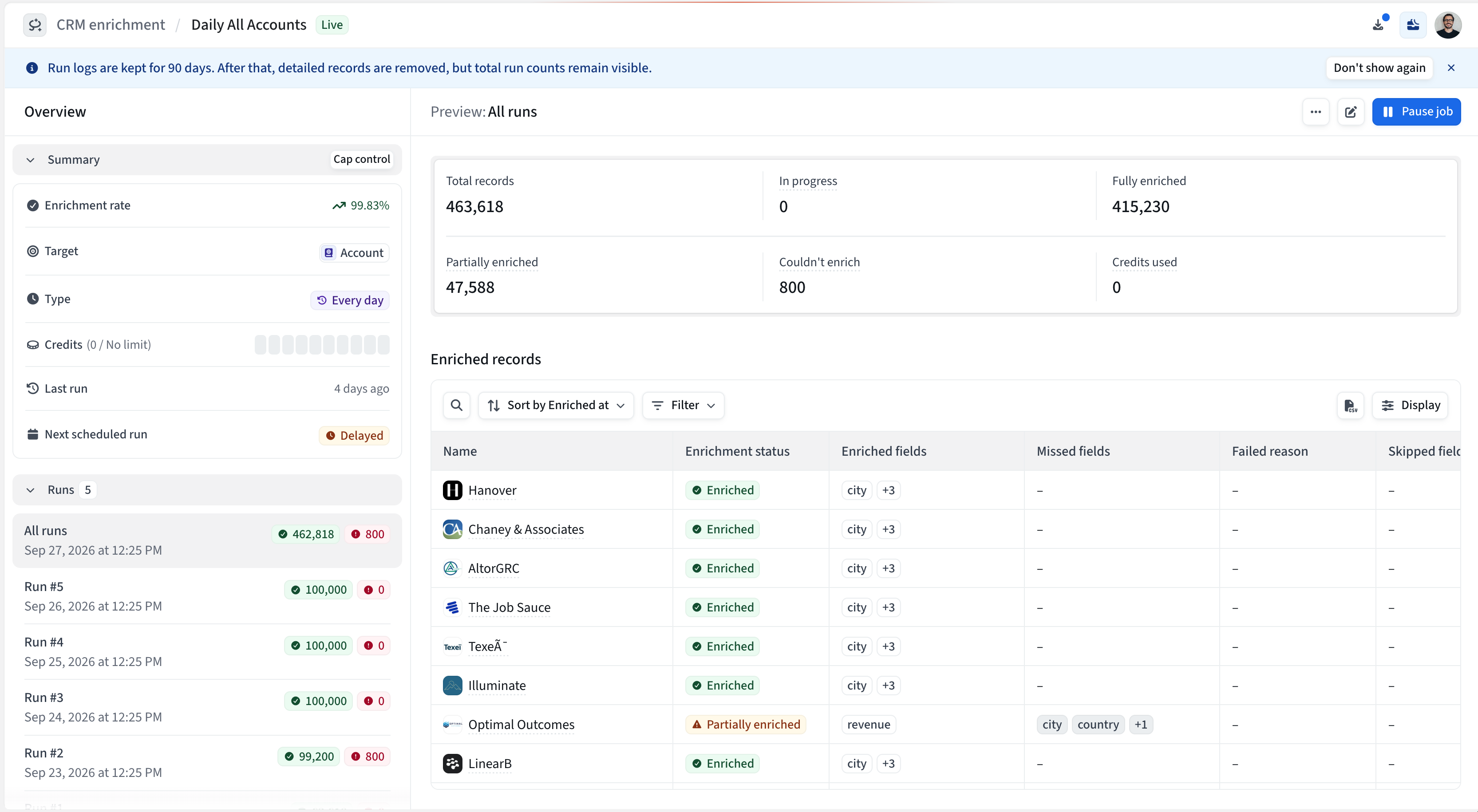
The table below lists every record, with these columns:
Enriched fields: what we updated.
Missed fields: what we could not find. We don't always have every data point for every person or company.
Skipped fields: fields that already had a value in your CRM and are set to "only fill if empty", so we left them alone.
Failed reason: why a record failed. For example, "Value rejected" means your CRM did not accept the value, and "Invalid CRM mapping" means the field can't be updated in your CRM.
Click Export to CSV to download the table. When it is ready, you will find it in the Download Center.
We keep the detail for each record for 90 days. After that, the details are removed, but the run totals stay.
Undo a run
If a run changes something you did not expect, you can revert it.
Open the job and select the run.
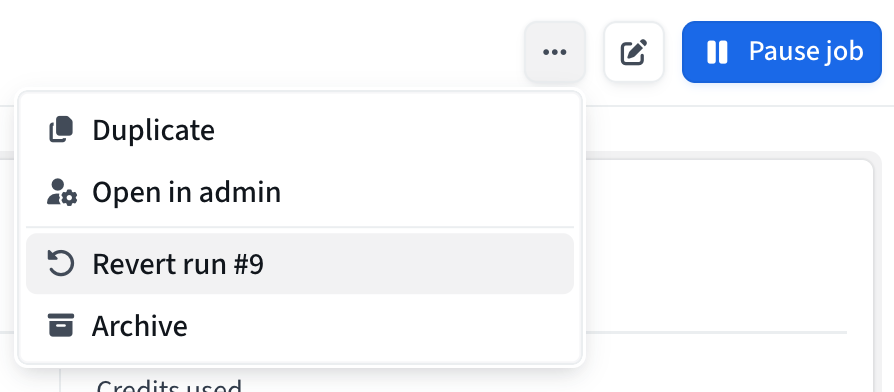
Click the menu at the top right and choose Revert run.
Tick the box to confirm and click Revert run.
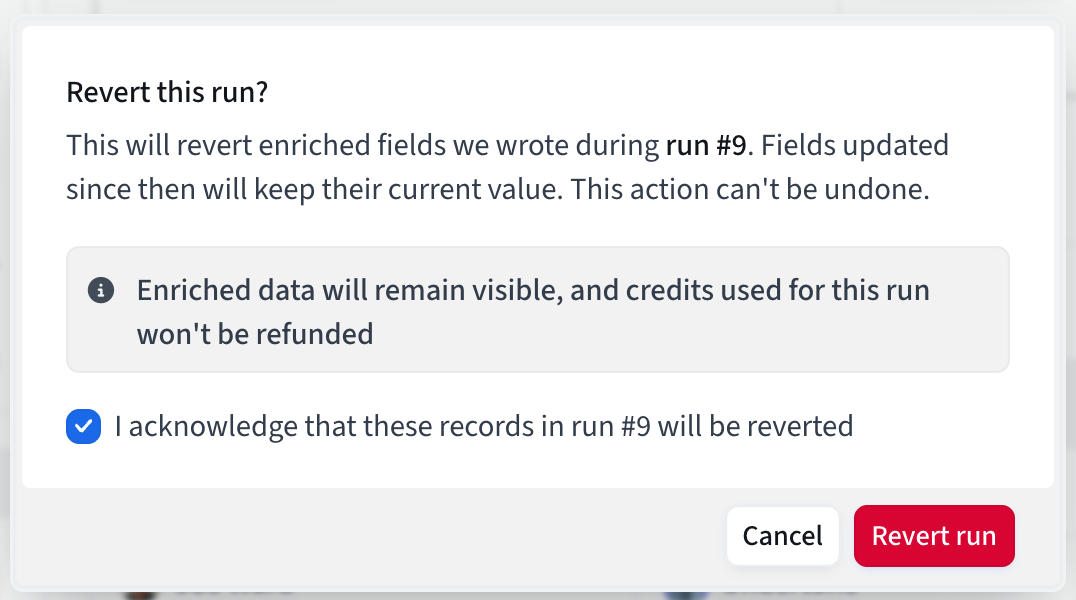
We put back the values that were in your CRM before the run. If a field was changed again after the run, it keeps its current value. You can revert each run once. Credits used by the run are not given back.
Manage a job
Edit job: change the name, audience, fields, schedule or cap. Changes apply from the next run.
Pause job and Resume job: pause a job to stop it, and resume it when you want it to run again. A run that is in progress is stopped when you pause. When you resume, the next run starts in about 15 minutes.
Archive: removes the job from use. You can restore it later. A run that is in progress is stopped, and records that were already sent to your CRM stay updated. Completed runs can still be reverted.
How credits work
Account enrichment uses no credits, however many records you update.
Contact and lead enrichment uses credits only when we need to reveal an email address or a phone number. Email reveals use email credits, and phone reveals use phone credits. They come from your existing balance, the same one you use in the rest of Amplemarket.
If we can't match a record, you are not charged. If a record fails to update, the credits for it are returned.
If we already revealed the email or phone number before, checking the record again costs nothing.
Reverting a run does not give credits back.
Limitations
Salesforce only. HubSpot is not supported.
Default mapped fields only. You can enrich the default fields mapped in your CRM integration.
Records per run. A run can process up to 100,000 records. If your audience is bigger, the rest is picked up in the next run. For a scheduled job, that is the next scheduled run, so a daily job works through a large audience faster than a weekly one. Instant jobs continue in the next 15 minute run. If you need a higher limit, contact support.
Matching. We can only enrich records we can match to a person or company in Amplemarket. Records we can't match are skipped.
Job changes. We don't check whether a contact has changed jobs. If a contact moves to a new company, the company and title are updated like any other field, following your "override" or "only fill if empty" setting.
No automatic stop. A job can't be set to stop after a number of runs. For a one-time clean up, pause or archive the job after the run finishes.
Common questions
Why can't I see a field when I set up a job?
The field is not mapped as a default field in your CRM integration yet, or your CRM does not allow us to update it. Map it in your integration settings and it will show up.
Why was a record only partially enriched?
We did not have data for one or more of the fields you chose, or the field already had a value and is set to "only fill if empty". Open the record in the table to see which fields were missed or skipped.
Will CRM Enrichment overwrite what is already in your CRM?
It follows your integration mapping. Fields set to "Override existing value" are replaced. Fields set to "Only fill if empty" are only filled when empty.
Does CRM Enrichment create new contacts?
No. It only updates records that already exist in your CRM.
Does CRM Enrichment use my Salesforce API calls?
Yes, but not many. CRM Enrichment sends updates to Salesforce in bulk, not one record at a time. As a guide, it uses about 8 Salesforce API calls for every 1,000 records, so a job that updates 10,000 records uses roughly 80 calls. Instant jobs only make calls when new records were created, and use a few calls each time they check, which is about every 15 minutes. These numbers are estimates and may change.
How do I get CRM Enrichment?
It is a paid feature. If you are interested, contact us at support@amplemarket.com.