How to manage Contacted Leads in Sequences
Last updated: December 2, 2025
Objective
The purpose of this article is to provide direction to Amplemarket users on how to manage contacted leads within sequences using the actions available in the "Contacted Leads" tab.
Accessing the Contacted Leads Tab
Log in to the Amplemarket Platform.
Navigate to the "Sequences" page by clicking on the Sequence icon in the navigation sidebar.
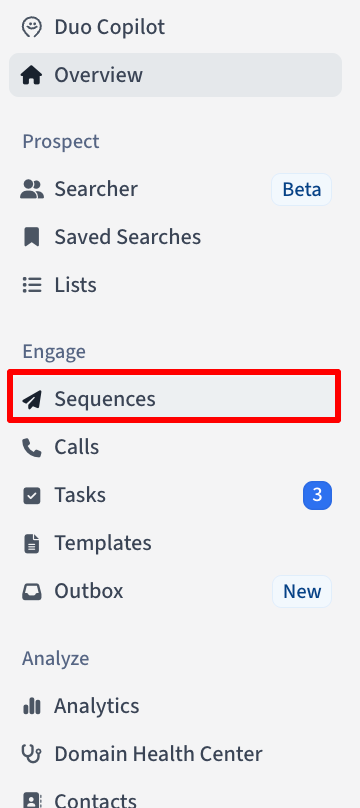
Select an Active or Paused Sequence
Click on the "Contacted Leads" tab to view all leads currently engaged in your sequences.
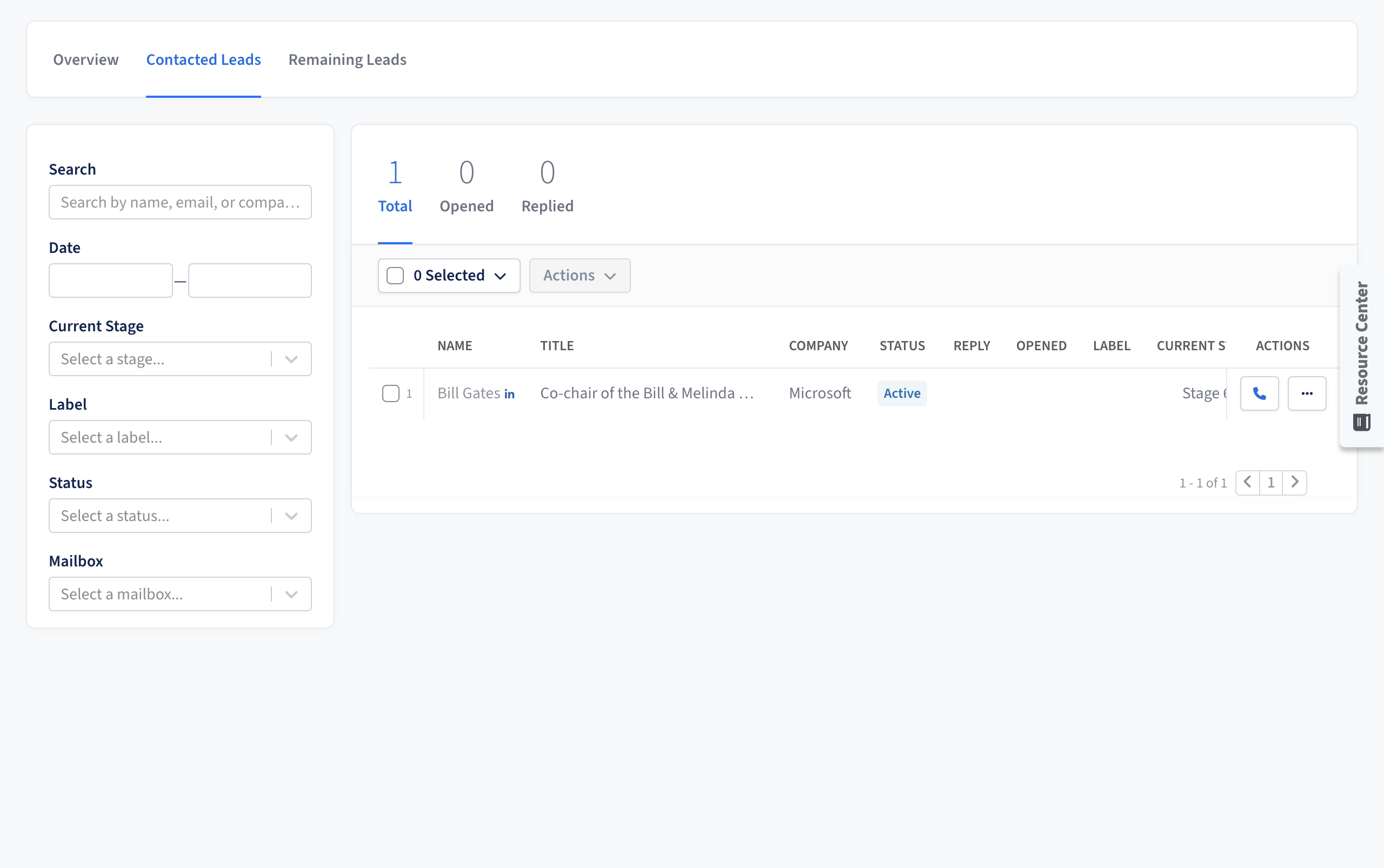
Actions You Can Perform on Contacted Leads
You can perform several actions on leads within the "Contacted Leads" tab to manage their progress through your sequences:
Removing leads from your Sequence
You can manually remove leads from your Sequence. Any tasks or automatic emails associated with them will stop.
Steps to Remove Leads:
Click the "More Actions" icon (ellipsis) next to the lead you wish to remove
Select "Remove from Sequence" from the dropdown menu
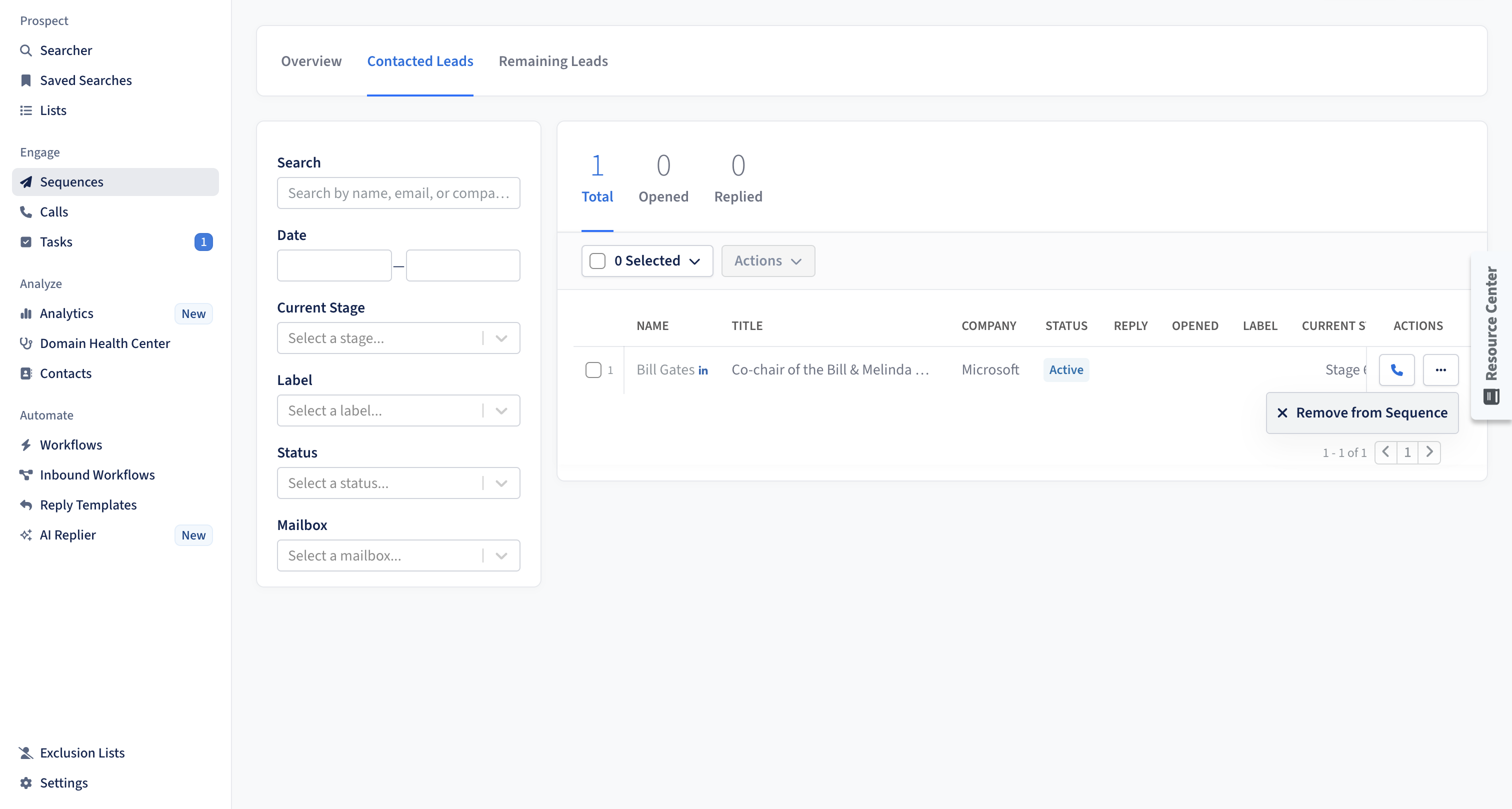
Best Practice: Removing leads can be useful if they are no longer relevant to your sequence or if they need to be contacted through a different approach.
Retrying leads
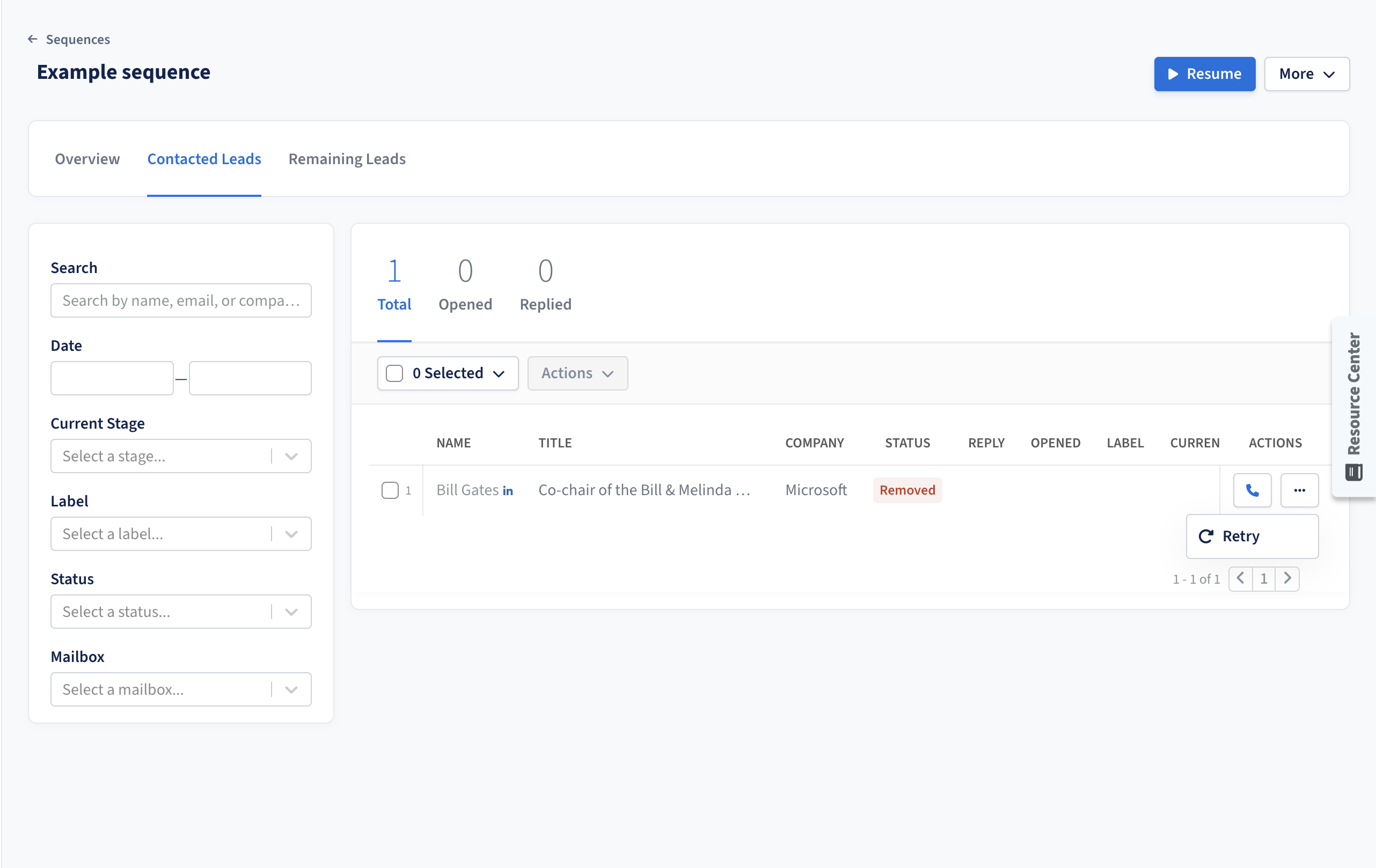
If a lead is removed or encounters an error, it will stop progressing through the sequence. You might want to retry the lead to continue the sequence from the last stage they executed before being removed.
Conditions for Retrying Leads:
If a lead was removed due to legal reasons (such as GDPR), or if the lead is still in the same conditions that generated the error, retrying the lead will not be permitted.
If the lead was removed due to the exclusion list (such as having an "Excluded Flag" or "Unsubscribe flag" set to true in your CRM) or because it was recently contacted, you can override these protections and retry the lead by selecting "contact even if in exclusion list" during the retry process.
If a lead is already enrolled in another active sequence, they will be automatically removed from the new sequence to prevent conflicts.
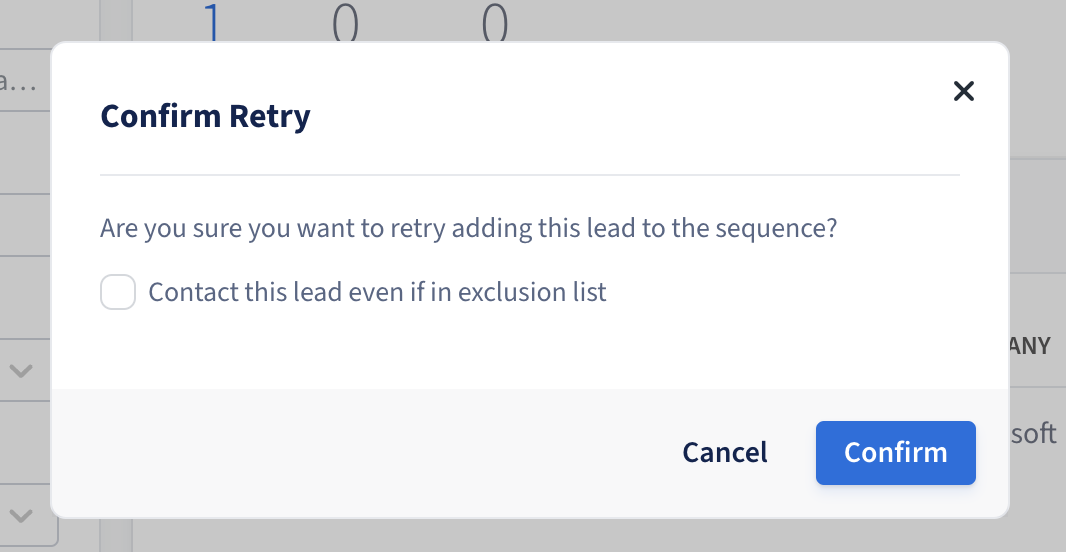
Steps to Retry Leads:
Click the "More Actions" icon (ellipsis) next to the lead you wish to retry.
Select "Retry" from the dropdown menu.
If the lead was removed because they were already in another sequence, you can select "Contact lead even if recently contacted" to override this protection and proceed with the retry.
Bulk Retrying Removed Leads
For situations where multiple leads have been removed due to exclusion list reasons (such as when contacts are added to exclusion lists after sequence enrollment), you can bulk retry them:
Filter the Contacted Leads tab to show only "Removed" leads
Select all the leads you want to retry using the bulk selection checkbox
Click "Retry Leads" from the bulk actions menu
Check the box "Contact even if in exclusion list" to override exclusion protections
The leads will pick up from where they left off in the sequence
Note: This bulk retry method is particularly useful when leads were not in the exclusion list during sequence creation but were added later due to CRM synchronization or other automated processes.
Tip: To identify why a lead was removed, hover over the "removed" status in the Contacted Leads tab to see the specific reason for removal. This can help you determine if the retry function is appropriate for that lead.
Note: Retrying leads can be particularly useful if the initial failure was due to a temporary issue, such as an email server error.
Detailed Behavior:
The system will check if the failure or error reason still exists.
If the issue is resolved, the lead will be re-sent to the stage they were removed/failed from.
If the issue persists, the lead will remain in the failed/removed status.
Important Limitations:
You can only retry leads that have been removed or are in error status. Leads that have completed the entire sequence cannot be retried.
The platform does not permit re-adding leads to the same sequence once they have been completely removed. This prevents sending the exact same messaging to a prospect more than once.
If you need to contact a removed lead again, clone the sequence and add the lead to the cloned version instead.
Alternative Method: Retrying Failed Emails via Outbox
For leads with failed email delivery (such as due to blocked mailboxes), you can also retry them through the Outbox:
Navigate to the Outbox in your Amplemarket dashboard
Filter by status "failed" to see all failed email attempts
Bulk select the failed emails you want to retry
Use the retry function to attempt sending those emails again
Note: Ensure any underlying issues (like unblocking your mailbox) are resolved before retrying failed emails.
Moving leads to a specific stage
You can skip over a number of stages for certain leads by moving them to a specific stage within the sequence.
Steps to Move Leads to a Specific Stage:
Click the "More Actions" icon (ellipsis) next to the lead you wish to move.
Select "Move to Stage" from the dropdown menu.
A modal will appear allowing you to choose the stage the lead should execute next. The stages in-between the current sequence stage and the target stage will be skipped.
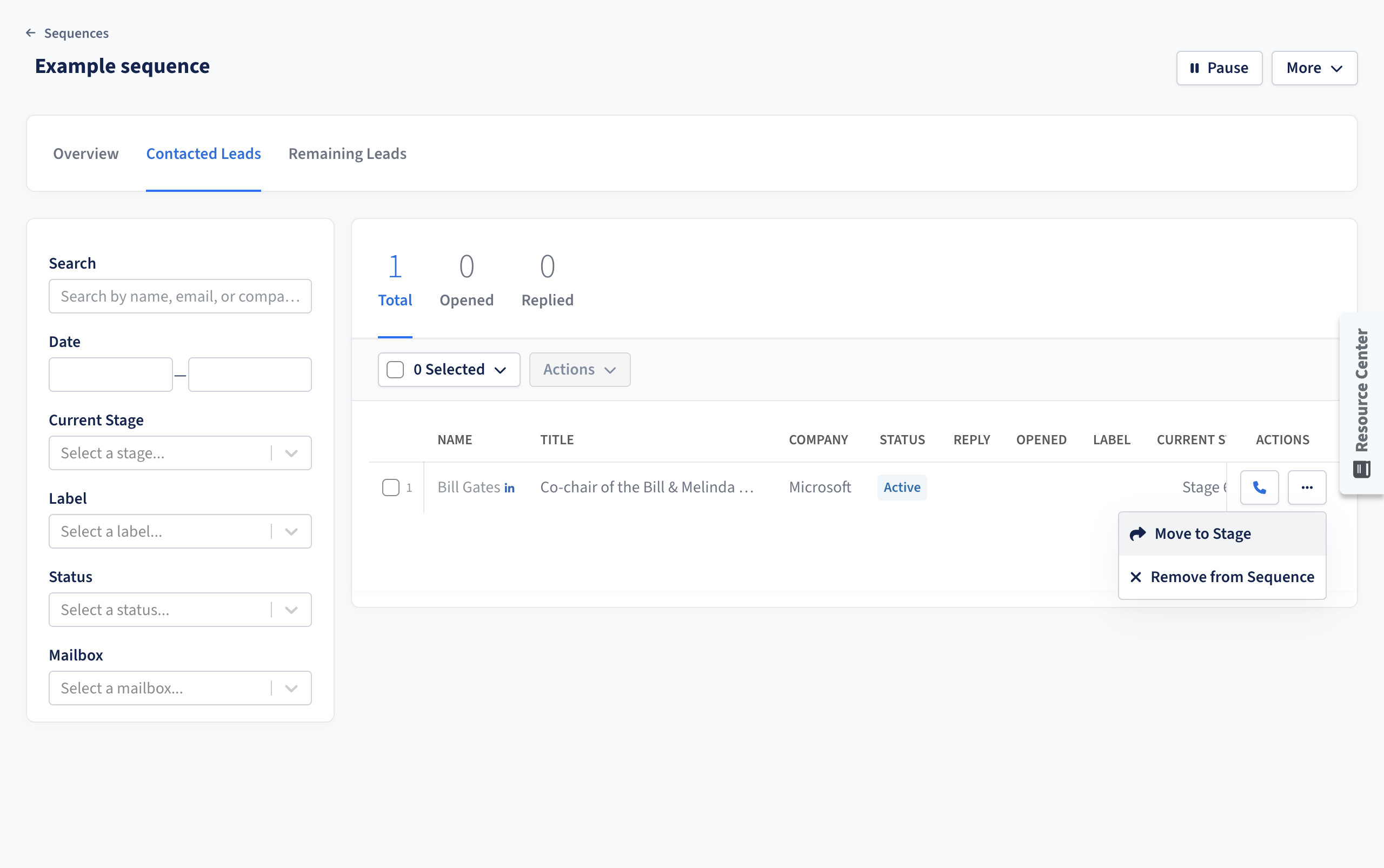
Best Practice: Use the "Move to Stage" feature to expedite leads that require urgent follow-up or to bypass steps that are not relevant for specific leads.
Permissions Based on Sequence Sharing Settings
The actions available for managing leads depend on the sequence sharing settings:
Private and Organization can view: Only the sequence owner can perform actions such as "Remove from Sequence," "Move to Stage," or "Retry."
Organization can edit: Any member of the organization is allowed to perform these actions.
Feedback and Notifications
After performing an action, a success toast notification will appear confirming the action. This ensures you are aware that the lead has been successfully moved, retried, or removed.
Editing Lead Information
You can now edit lead information directly from the Contacted Leads tab in live sequences. The edit drawer is now structured into two sections:
Fields used in the sequence (so users can focus only on relevant info).
Fields not used in the sequence.
Once updated, the changes automatically reflect in all upcoming stages of the sequence.
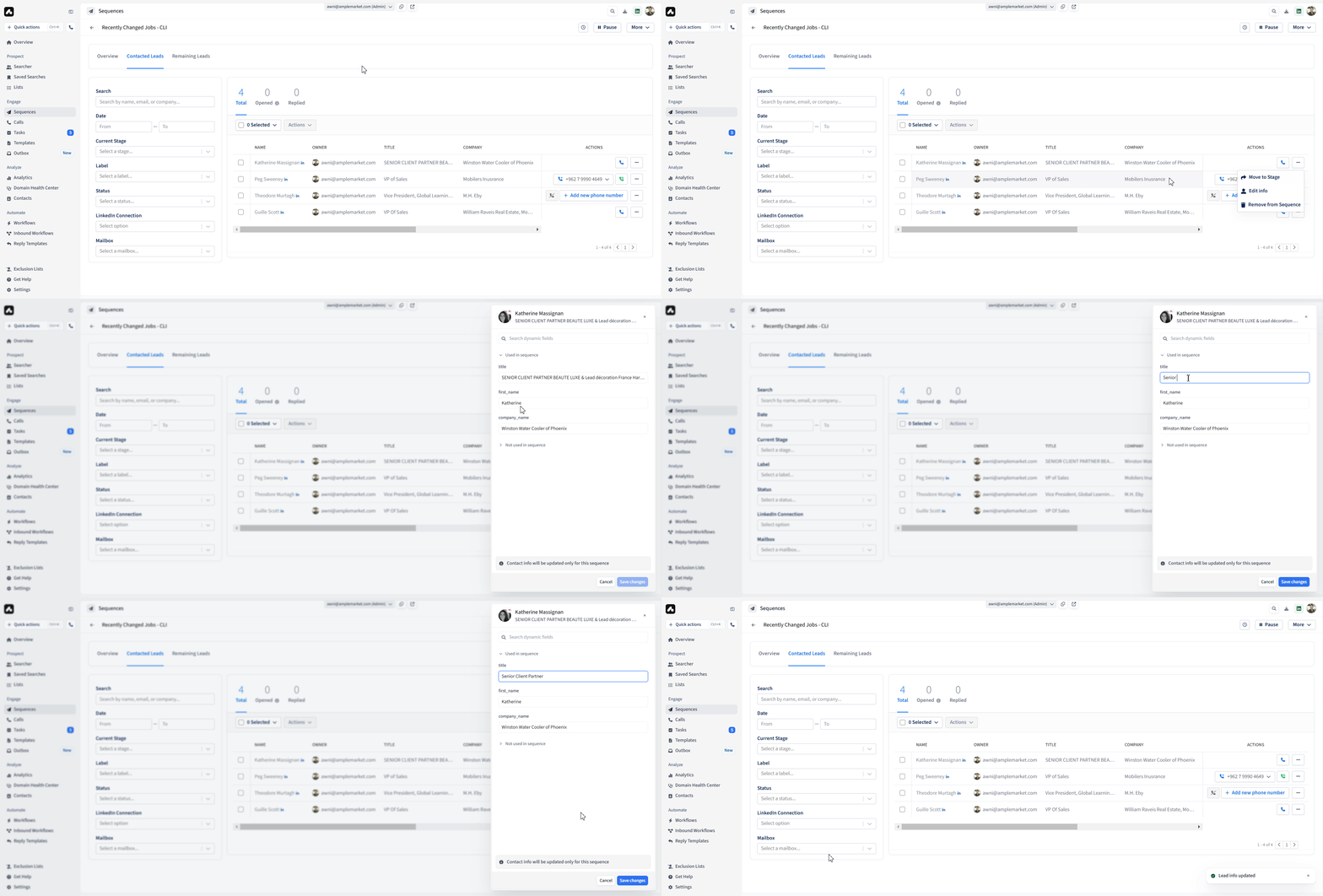
Note that you cannot currently change fields like "Email" or "LinkedIn", only Dynamic fields!