Revenue tab: how deals are attributed
Last updated: November 18, 2026
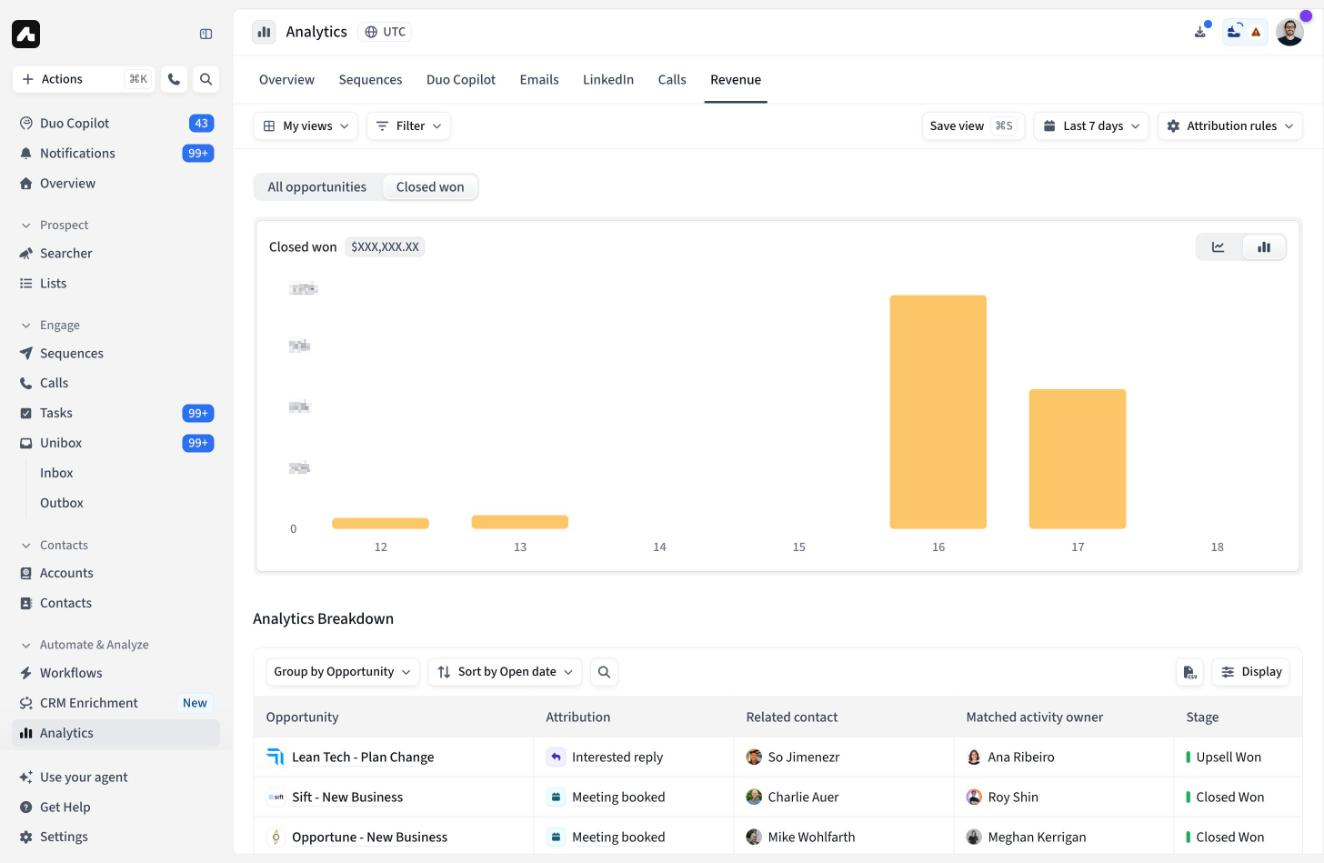
The Revenue tab shows the CRM pipeline Amplemarket helped create and close. Each deal is credited to one Amplemarket activity that happened before the deal was created, so you can see which reps, sequences and teams it came from. Find it under Analytics → Revenue.
Before you start
Connect Salesforce or HubSpot and pull Opportunities (Salesforce) or Deals (HubSpot). The CRM user needs read access to them.
Pick the revenue field in the Opportunities or Deals pull settings (Opportunity revenue field, by default Amount). After a change, new amounts show up after the next sync.
How attribution works
Three settings decide which activity gets credit. Users who can manage integrations set the workspace defaults in Settings → Integrations → Salesforce or Settings → Integrations → HubSpot, under Pull Records → Opportunities (HubSpot: Deals).
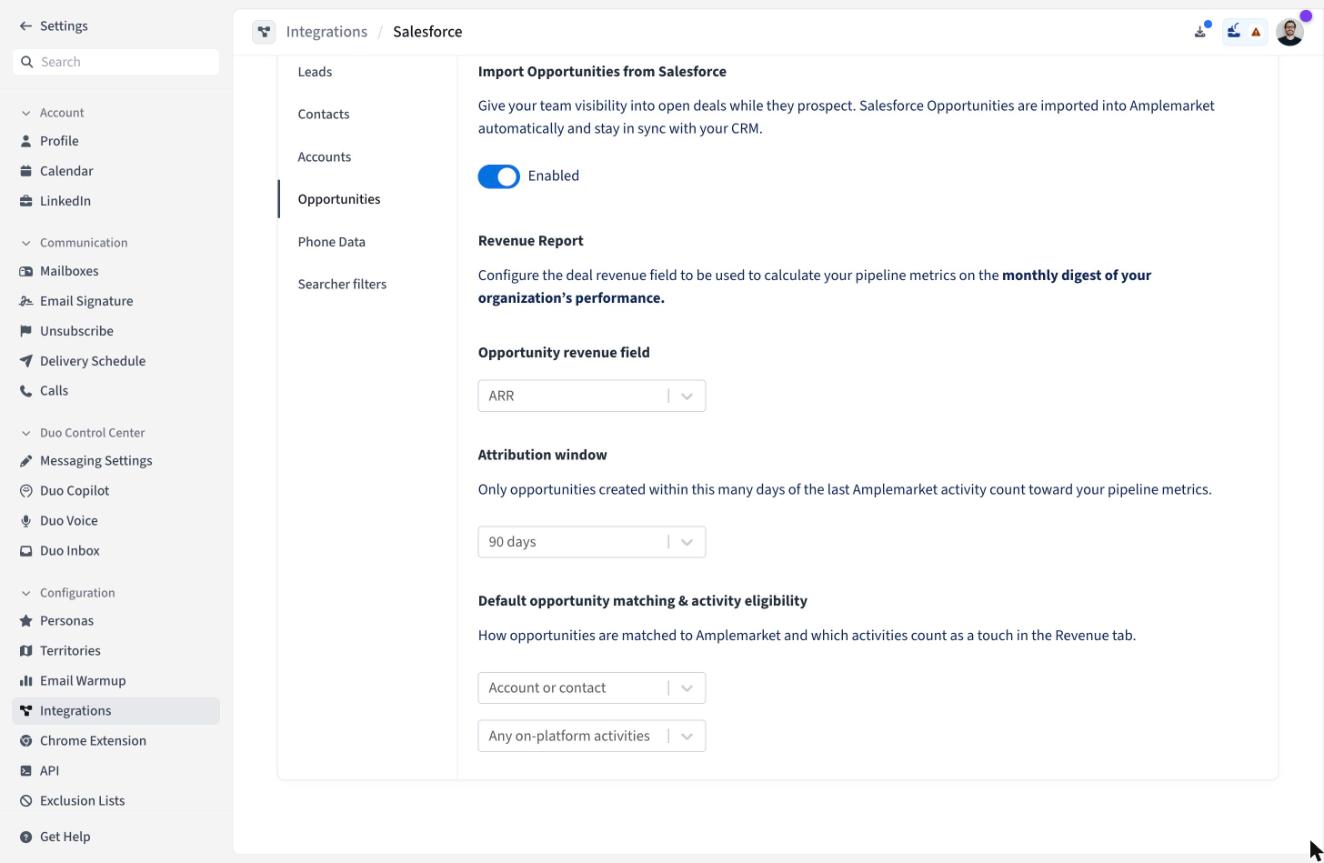
Opportunity matching
This decides whose activity can count toward a deal.
Account or contact (default): contacts on the deal, plus any contact on the deal's account.
Contact only: only contacts on the deal (Salesforce contact roles, HubSpot deal contacts), even if they belong to another account.
Matching uses the account linked to the deal in your CRM, not email domains.
Qualifying activity
Activities fall into three levels.
Level | Activities |
|---|---|
Strong | Meetings linked to a sequence or reply sequence, replies tagged Interested (email or LinkedIn), calls with an Interested disposition |
Engagement | Emails sent from Amplemarket (sequence and one-off), other replies, LinkedIn messages and connection accepts, calls, completed sequence steps (LinkedIn visits, tasks), one-off tasks |
Reveals and exports | Email reveals, phone reveals, exports to your CRM |
Choose one option:
Only interested replies & booked meetings: strong only.
Any on-platform activities (default): strong and engagement.
Any activities, exports, and reveals: all three levels.
Attribution window
The activity must happen within 14, 30, 60 or 90 days (default 90) before the deal was created in your CRM. Activity after that never counts.
What doesn't count
Emails sent directly from Gmail or Outlook, even if Amplemarket tracks them.
Meetings not linked to a sequence. A meeting is linked when the contact was added to the sequence before the meeting was booked, wasn't removed, and the sequence was running or had ended within 30 days. See criteria for the Meeting Booked label.
Notes, skipped steps, and adding a contact to a sequence.
Renewals: deals with "renewal" in the name, when the same account won another deal in the previous 90 days.
How one activity is picked for each deal
If several activities qualify, one gets credit:
The strongest level wins. A reply not tagged Interested counts as engagement, like a sent email.
Within a level, the most recent activity wins.
For example, an Interested reply 40 days before the deal was created beats an email sent 2 days before. With a 30-day window, the reply falls outside it, so the email gets credit.
The credited activity sets the deal's contact, rep and sequence. Deals show under each of the rep's current teams. If nothing qualifies in the window, the deal doesn't appear.
This is single-touch attribution. Revenue is never split: if several reps or channels worked a deal, one gets credit. For multi-touch reporting, use your CRM. See Reporting in Salesforce.
Reading the tab
All opportunities (HubSpot: All deals) shows attributed deals by created date, whatever their status. Closed won shows deals won in the period by close date.
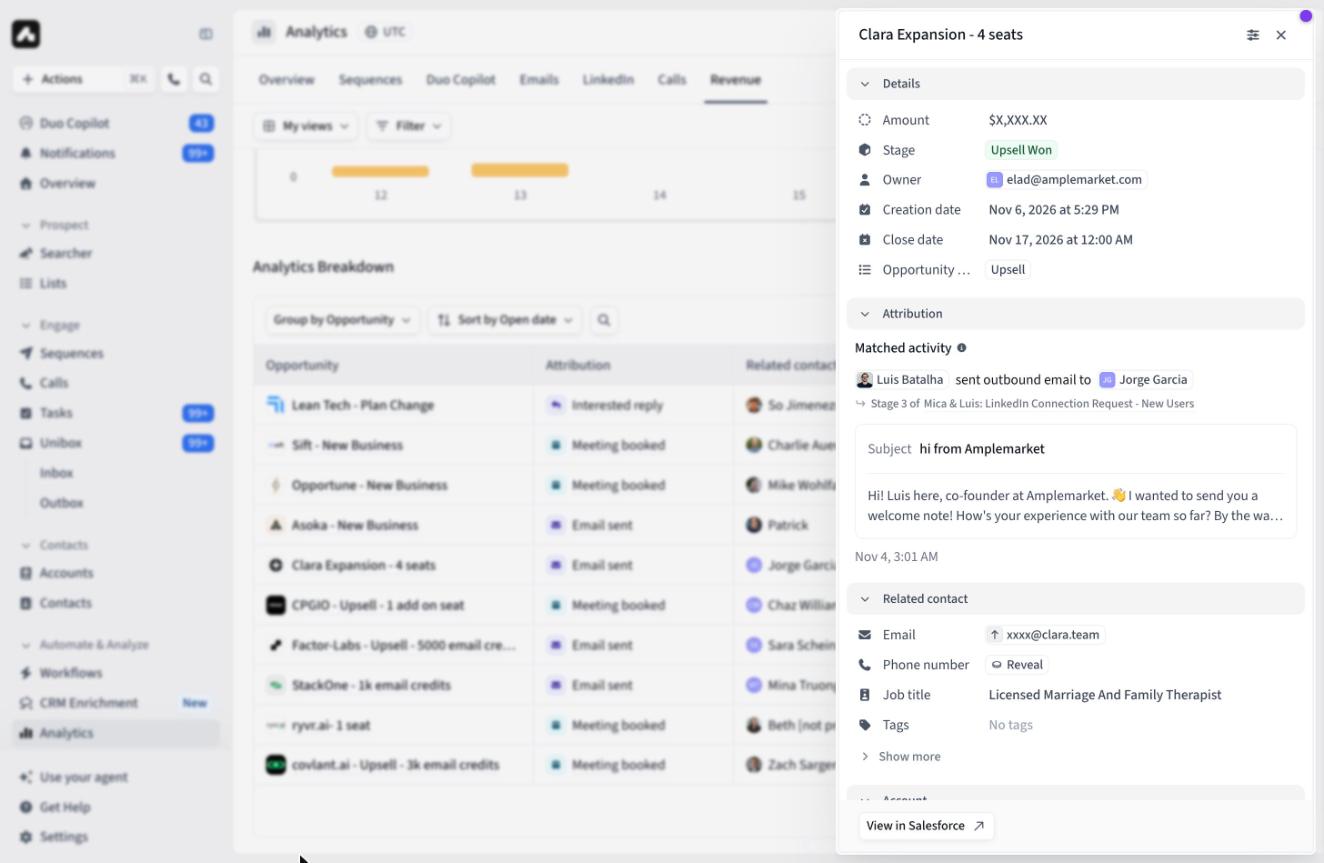
Click a deal to see the matched activity. Open the contact or account from there to see every other touch.
Filter by deal, account, contact, persona and sequence fields, including mapped custom fields. Group by user, team, CRM owner, or a custom field that holds a user. Save combinations as views.
Export by clicking a number in the grouped table, then Export to CSV.
Tip: before a pipeline review, agree on the settings your team trusts, make them the workspace defaults, and save a view with your filters. For example, filter Opportunity type to New Business to leave out upsells.
Changing the rules for yourself
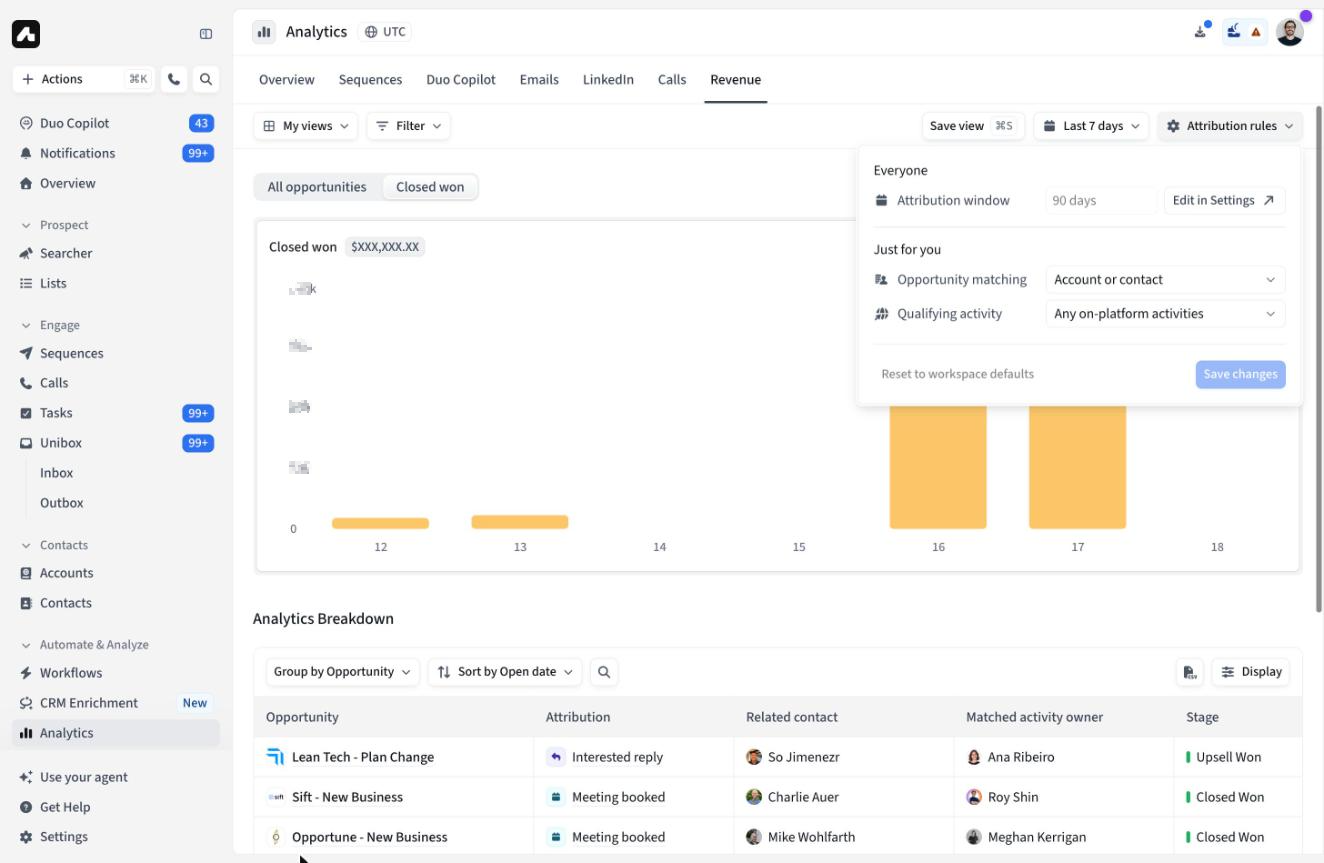
The Attribution rules button changes matching and qualifying activity for you only, in this browser. Views don't save it, and the window always follows the workspace default. To give everyone the same numbers, change the workspace defaults.
Good to know
Amounts aren't converted. They're shown with $, and different currencies are added together as they are.
Updates take 15-30 minutes after your CRM sync brings in the deal.
Dates use UTC, so totals can differ slightly from tools that use your local time.
Removing a CRM integration removes its deals. A temporary disconnection keeps them.
FAQ
Our sales cycle is longer than 90 days. Will deals be missed?
No. The window runs from the activity to the deal's creation, not to its close.
Why don't I see any deals?
Check Before you start, and that the deal's account or contacts exist in Amplemarket.
Why do my deals show $0?
Check the revenue field in your Opportunities or Deals pull settings. A deal with no amount counts as $0.
Questions? Contact Support or your Customer Success Manager and mention Revenue tab so we can help quickly.