CRM fields in Searcher
Last updated: October 26, 2026
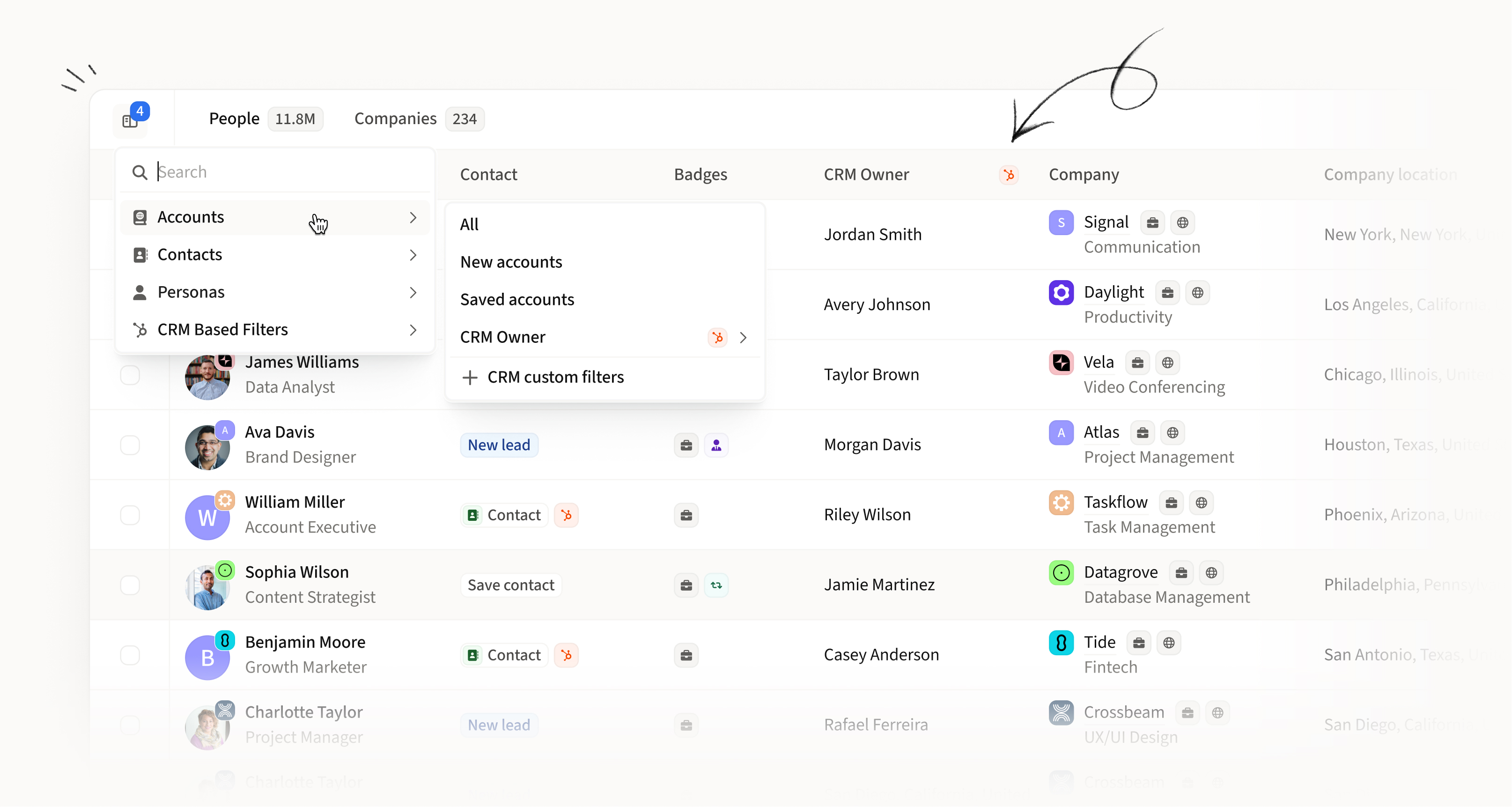
See your CRM data in Searcher. Filter by it, add it as columns, and use your own custom CRM fields.
What you can do
Filter people and companies in Searcher by your CRM fields
Same filters as on your Contacts and Accounts pages
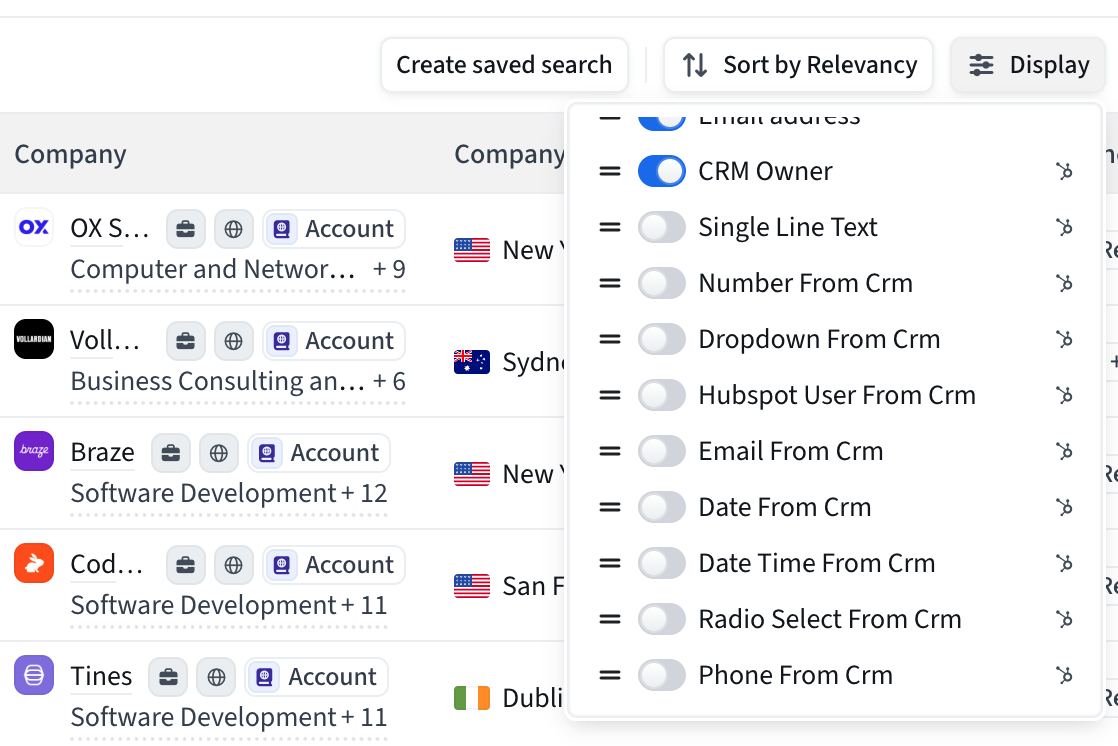
Show CRM fields as columns in the Searcher table
Use your own custom CRM fields, once you map them
Which fields are available
There are two kinds of fields.
Standard fields
These are always available once your CRM is connected.
For contacts:
CRM Record: whether the contact is in your CRM
CRM Owner: the owner of that CRM record
For accounts:
CRM Record: whether the company/account is in your CRM
CRM Owner: the owner of that CRM record
Opportunities: open opportunities on the account
Account/Company Owner and Account/Company Type
Custom fields
These are the extra fields you choose to bring in. Any custom Contact or Account field you map in your CRM integration settings shows up in Searcher.
How to use them
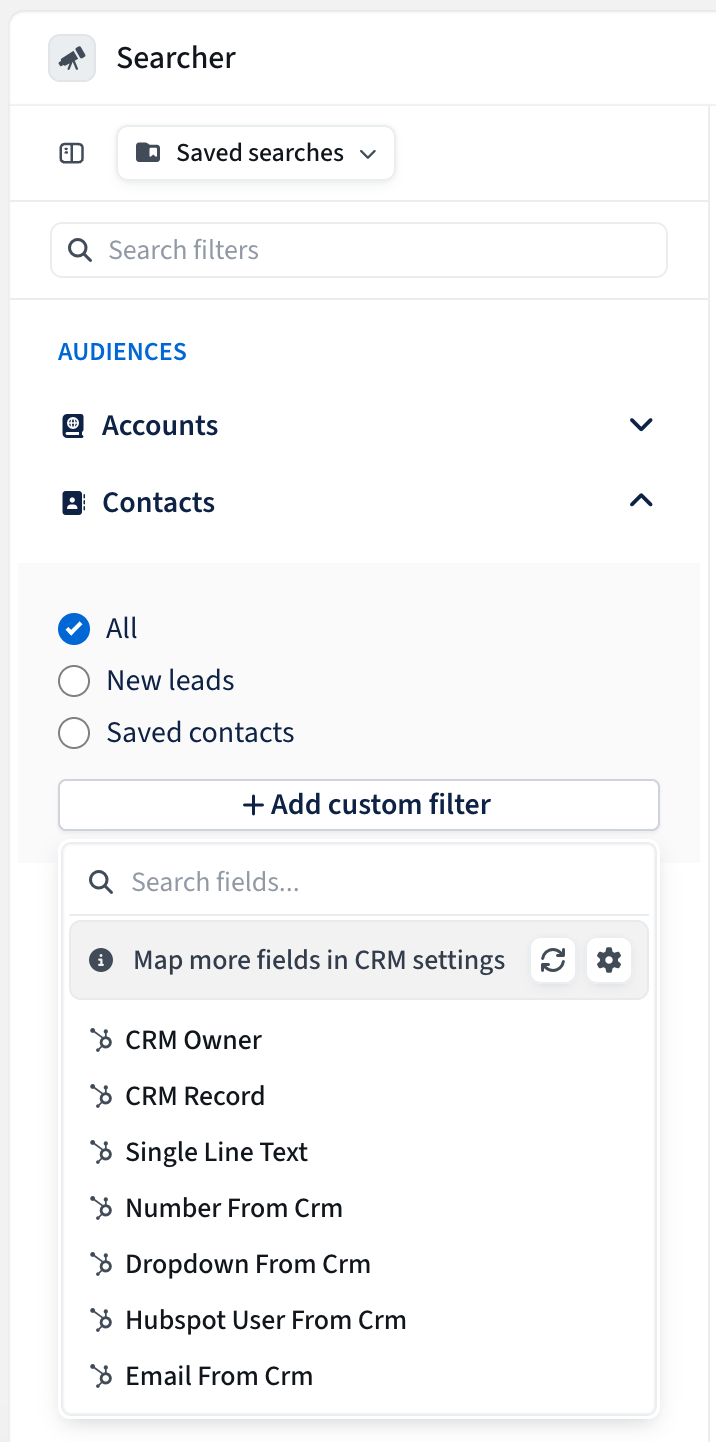
Filters
Open Searcher and choose Contacts or Accounts.
Click Add custom filter.
Pick a CRM field and set your value.
Columns
Open the Display menu.
Turn on the CRM fields you want to see.
Missing a field? Map it
You only see the custom fields you mapped. To add more:
Go to Settings > Integrations and open your CRM.
Select Mapping tab and map the field as a custom Contact or Account field.
Wait for the next sync. The field then appears in Searcher as a filter and a column.
Read more about the CRM custom fields and how to map them here.
How records are matched to your CRM
Searcher shows CRM data only when a record matches one in your CRM.
People are matched by email. If your CRM has more than one record with that email, we pick the best one:
the same type you push as (contact or lead)
the same company
the one with the most recent activity
Companies are matched by domain. If you mapped a company ID field in your integration, we match by that ID instead.
If there is no match, the CRM fields stay empty. This is expected. It means the record isn’t in your CRM yet.
FAQ
I mapped a field but I can’t see it in Searcher.
Wait for the sync to finish, then reload Searcher. Check that the field is a supported type.
Why is a CRM column empty for some rows?
We couldn’t match that record to your CRM. See “How records are matched”.
Do I need to map fields for CRM Owner and CRM Record?
No. These are always available.
Can I save a search with CRM filters?
Yes.
Are Salesforce and HubSpot fields the same?
Yes, they work the same way. Field names follow your CRM.