Why are my leads showing as "Recently Contacted" or "Excluded"?
Last updated: November 25, 2025
If you're seeing leads marked as "Recently Contacted" or "Excluded" when you haven't actually contacted them, there are several common reasons this can happen:
Common Causes
1. Export Actions
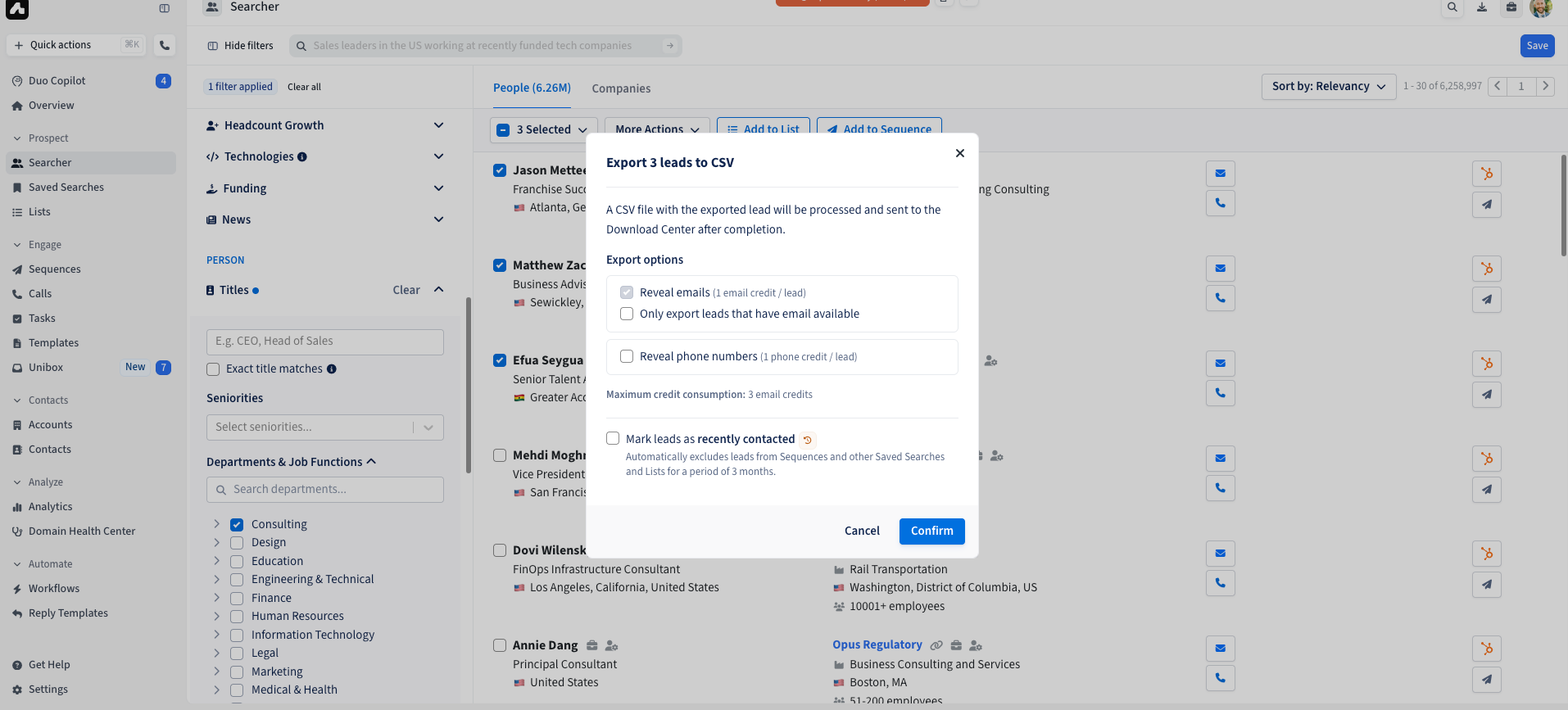
When exporting leads from the searcher or lists to CSV, you may have accidentally checked the "Mark leads as recently contacted" option. This checkbox appears during the export process and will mark all exported leads as contacted even though no actual outreach occurred.
2. CRM Integration Pulls
If you have HubSpot or Salesforce integrated, contacts can be automatically added to your exclusion list based on your pull configuration settings:
HubSpot Integration: Pulls contacts based on Lifecycle Stage every 3 hours, automatically adding customers and opportunities to your exclusion list
Salesforce Integration: Pulls leads, contacts, and accounts based on configured criteria
3. Pushing Leads to CRM
When pushing leads to HubSpot, a window appears with an option to "Mark leads as recently contacted." If this option is checked by mistake, all leads will be marked as contacted.
4. Automated Workflow Actions
Workflows and automated signals can automatically add contacts to exclusion lists when prospects reply with unsubscribe requests or other automated triggers are activated. However, some automated signals like Duo Copilot may not be configured to exclude recently contacted prospects by default. Each signal has its own exclusion settings that determine whether it respects the "Recently Contacted" status.
5. Cross-Sequence Removal
When you add leads to a new sequence, they may be automatically removed from existing sequences due to your organization's "recently contacted" limit (typically set to 1 month). This means:
Leads will show as "Recently Contacted" in the new sequence if they were contacted in another sequence within the limit period
They will appear as "Removed" in their previous sequences
This automatic removal helps prevent over-contacting the same leads across multiple campaigns
6. Impact on Active Sequences
When leads are marked as "Recently Contacted," they are automatically removed from any active sequences they were part of. This can make sequences appear inactive or empty, even though the leads are still technically assigned to the sequence (which is why you'll see "cannot add as already in sequence" when trying to re-add them).
How to Investigate
To find out exactly why a contact was excluded:
Go to Settings > Exclusion Lists
Search for the contact's email or domain in the search bar
The system will show you the specific source of the exclusion (e.g., manual upload, HubSpot integration, recently contacted during export, etc.)
Check your automated signals: If leads are appearing in Duo Copilot or other automated sequences despite being recently contacted, verify that the signal is configured to exclude recently contacted prospects. Contact your administrator to enable this exclusion filter if needed.
You can also hover over the "Excluded" status in your lists to see the reason for exclusion.
How to Add Recently Contacted Leads to Sequences
You can still add recently contacted leads to sequences or retry leads that were removed from sequences due to being marked as recently contacted by:
Note: When leads are removed from sequences due to recently contacted limits, they will show a status of "Removed" rather than "Recently Contacted" in the original sequence, but will appear as "Recently Contacted" when you try to add them to new sequences.
Method 1: From Saved Search Excluded Leads Tab
Open your saved search
Go to the "Excluded Leads" tab
Select the recently contacted leads you want to add
Click "Add to Sequence"
You'll receive a warning that you can override to add them to the sequence
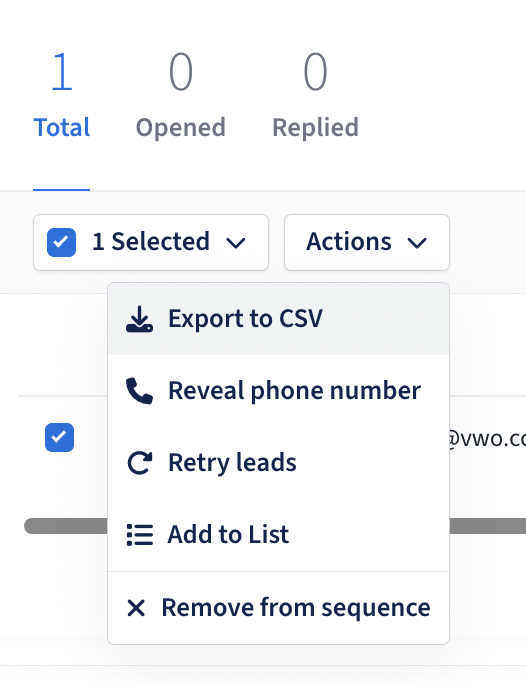
Method 1: From Contacted Leads Page
Go to the "Contacted Leads" page
Select the leads you want to retry
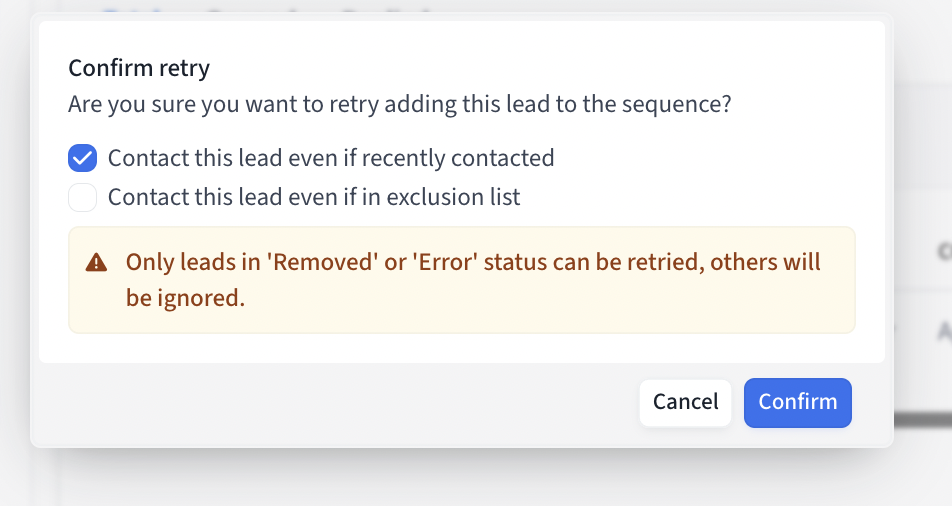
Click "Retry Leads"
Check the box to contact them even if recently contacted
Method 2: Override During Sequence Creation
When adding leads to a new sequence, you'll see a confirmation popup warning you about recently contacted leads. You can choose to proceed and add them anyway.
Important Limitation: Once a lead has been enrolled in a sequence, they cannot be re-added to the same sequence even after being removed, as the system stores their enrollment history. If you need to re-add a previously enrolled lead, you must clone the sequence and add the lead to the cloned version instead.
Prevention Tips
Always uncheck "Mark leads as recently contacted" when exporting to CSV
Review your CRM integration pull settings to ensure they're not too broad
Be careful when pushing leads to your CRM to avoid accidentally marking them as contacted
Note: only "Error" or "Removed" contacts can be retried, "Completed" contacts cannot be retried!
If you need to re-add leads that were previously enrolled in a sequence, clone the sequence first rather than trying to add them back to the original
Be aware that adding leads to new sequences will automatically remove them from existing sequences if they fall within your organization's recently contacted limit period
Note: If you accidentally marked leads as contacted during export, this action cannot be undone through the platform. Contact support for assistance with bulk corrections.