How to Create Personalized Sequences with the Amplemarket MCP
Last updated: April 15, 2026
Overview
While you can't create sequences from scratch through the MCP, there's a powerful workaround:
👉 Create a template sequence in Amplemarket where each stage uses dynamic fields as placeholders, then use your AI assistant to add leads with fully personalized copy for every stage.
The result: every lead in the sequence gets their own personalized subject lines, email body, call scripts, and LinkedIn messages — all generated and loaded by your AI assistant.
How It Works
Create a template sequence in Amplemarket with dynamic fields (data fields) where you want personalized copy
Ask your AI assistant to research your targets and add them to the sequence with custom data for each field
The MCP’s
add_leads_to_sequencetool fills in the dynamic fields per lead, so each lead gets unique, personalized copy
Step 1: Create Your Template Sequence
In Amplemarket, create a new sequence and set up your stages. Instead of writing fixed copy, use data fields (dynamic fields) as placeholders for the content you want your AI assistant to personalize.
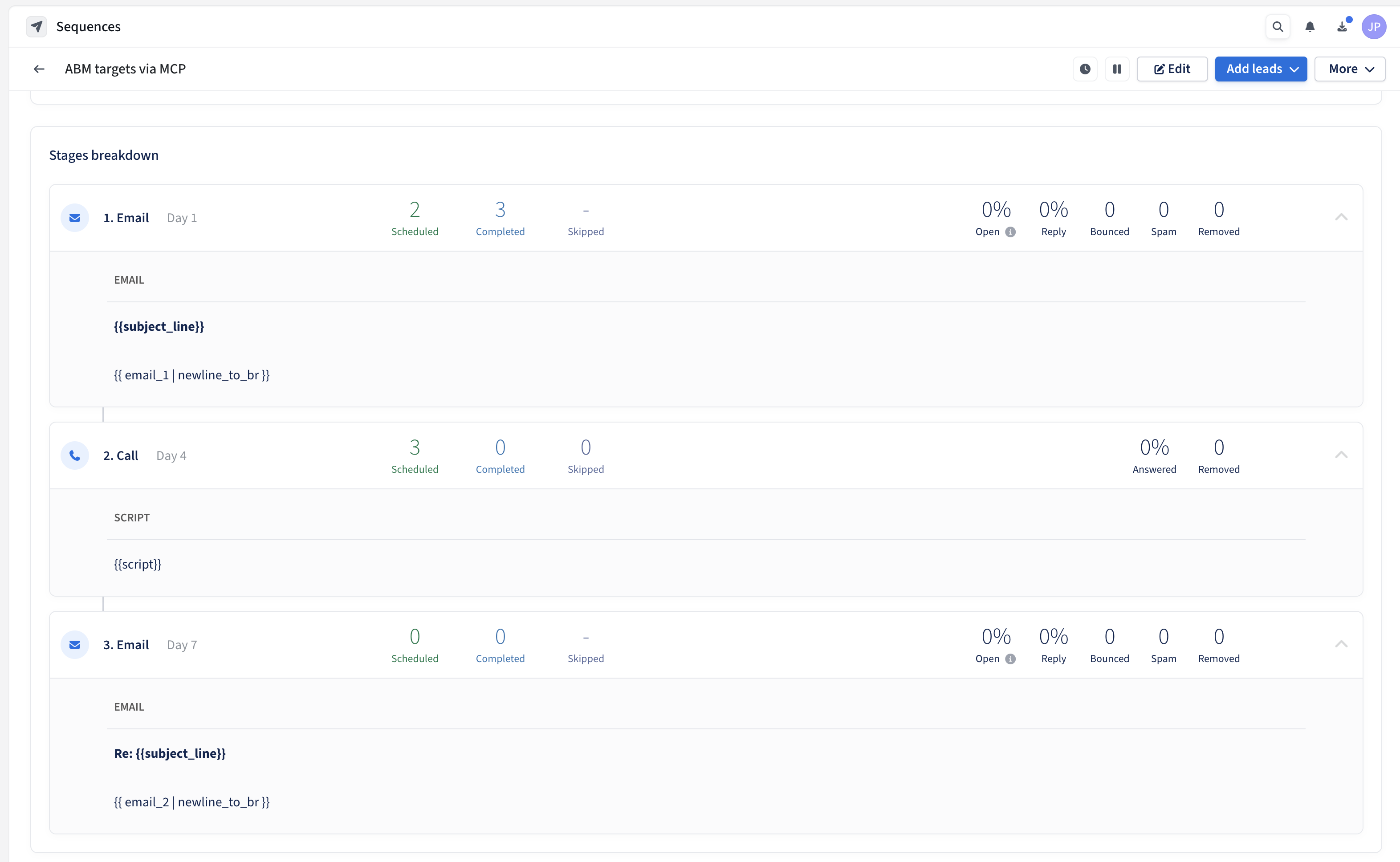
For example, a 3-stage sequence might look like:
Stage | Type | Content |
1. Email (Day 1) | Subject: {{subject_line}} Body: {{ email_1 | newline_to_br }} | |
2. Call (Day 4) | Call | Script: {{script}} |
3. Email (Day 7) | Follow-up | Body: {{ email_2 | newline_to_br }} |
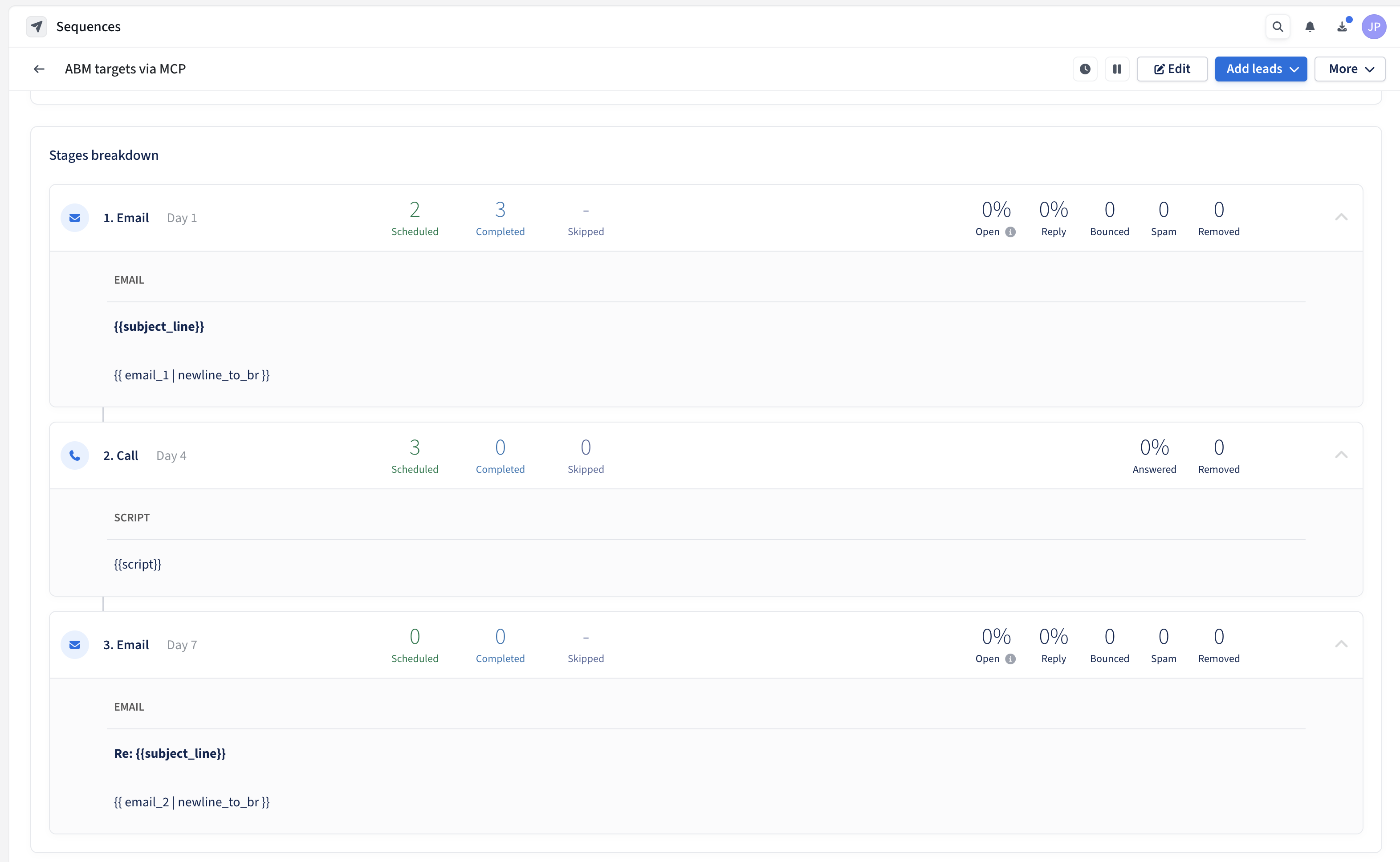
You can name the data fields whatever you want. You can also mix fixed-copy stages with personalized ones — only the stages where you want AI-generated content need dynamic fields.
Use descriptive field names. The AI assistant reads field names to understand what content to generate for each stage. Descriptive names like cold_call_script or follow_up_email2 produce much better results than generic names like field_1 or text_3. Think of the field name as a brief instruction to your AI assistant.
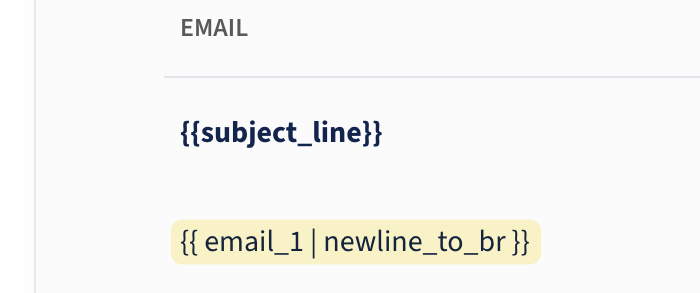
Formatting tip: For email or LinkedIn body fields, use the | newline_to_br syntax (e.g. {{ email_1 | newline_to_br }}). This ensures paragraph breaks in the AI-generated copy render correctly in the sent email. Without it, line breaks will be collapsed into a single block of text.
Step 2: Ask Your AI Assistant to Add Leads
Once your template sequence is set up, go to your AI assistant (Claude, ChatGPT, etc.) with the Amplemarket MCP connected and ask it to add your target leads to the sequence.
If possible, tell the AI assistant which data fields the sequence uses and any preferences you have for how to fill them. If the field names are self-explanatory (e.g. subject_line, cold_call_script), you can just list them and let the AI figure out the rest. If you don’t specify the fields at all, the AI will still figure it out — when it tries to add leads, Amplemarket returns validation errors listing the required fields, and the AI retries with the correct data.
Here’s an example prompt:
I have a sequence called "ABM targets via MCP" in Amplemarket
with these data fields: subject_line, email_1, cold_call_script, email_2.

Research the following leads, then add them to the sequence
with personalized copy for each stage:

- Nuno Placido, Chief of Staff at Amplemarket
- Joana Correia, Head of Finance at Amplemarket

Keep emails under 150 words and use a casual tone. Show me a draft here first.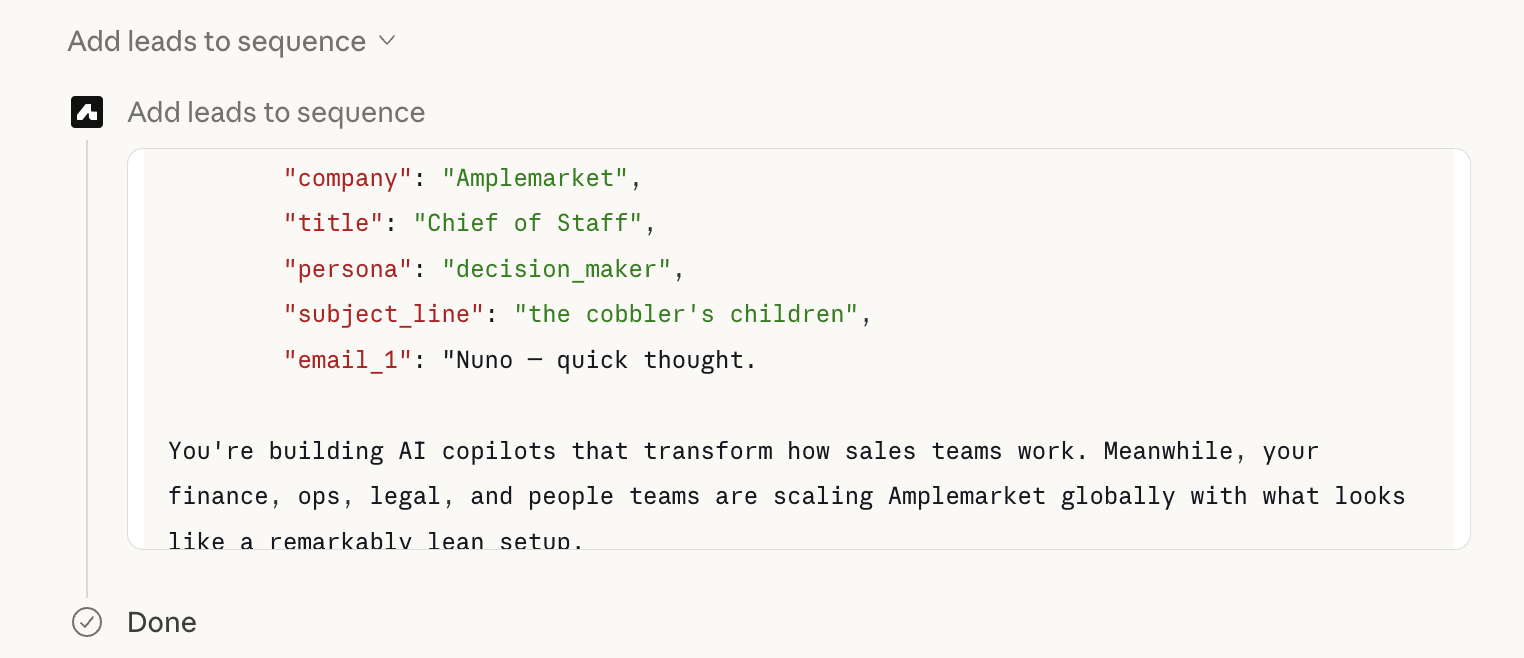
The AI assistant will:
Find the sequence in your Amplemarket account
Discover the required data fields — either from your prompt or by attempting to enroll a lead and reading the validation errors that list each dynamic field the sequence expects
Research each lead using Amplemarket enrichment, LinkedIn, and web search
Craft personalized copy for each data field
Add each lead to the sequence with the full data
Step 3: Review in Amplemarket Before Sending
We recommend keeping the sequence paused or in draft until you’ve reviewed the first batch of results in Amplemarket. This lets you verify the personalized copy looks right before anything gets sent.
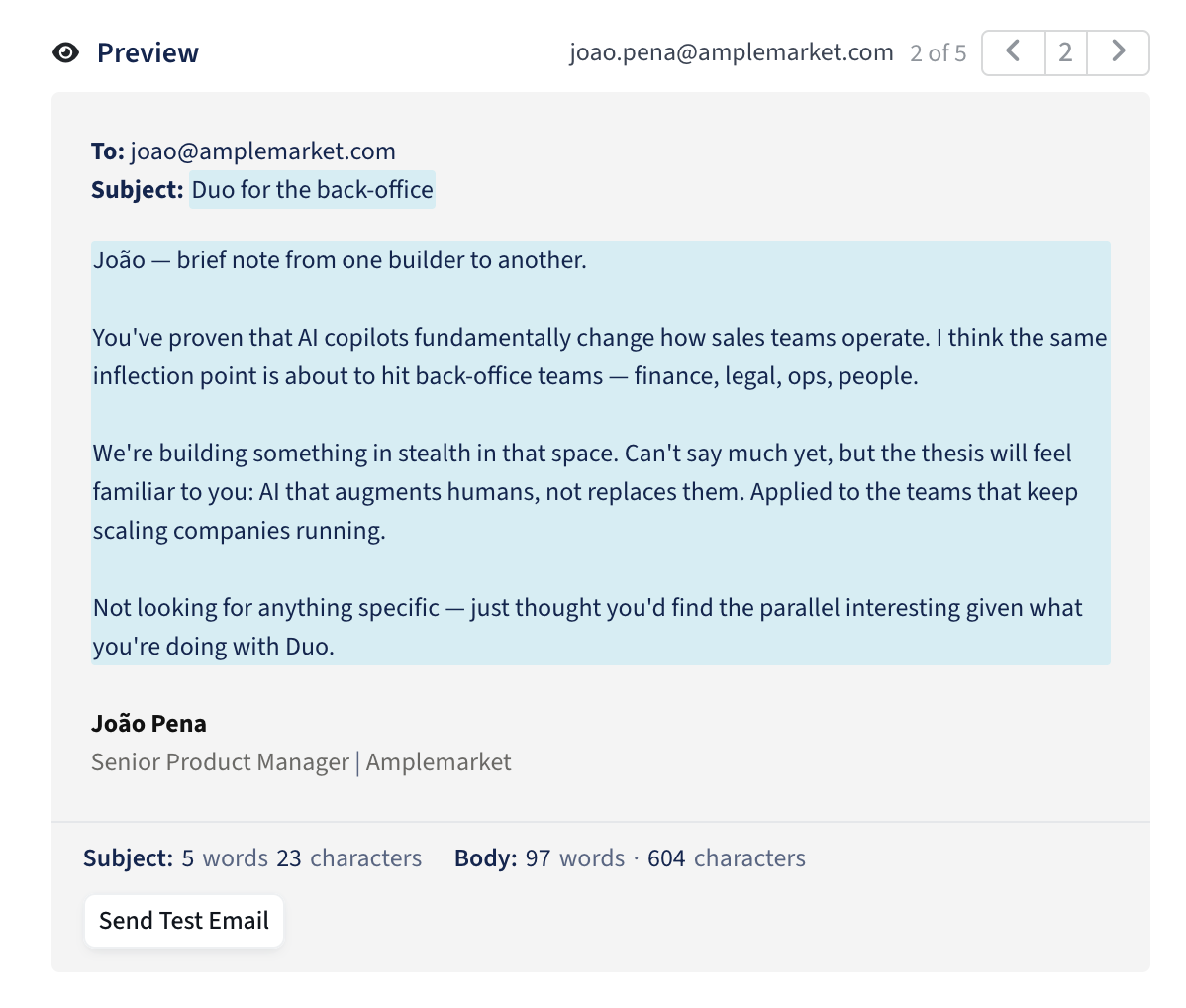
Once you’re happy with how things look, activate the sequence and let it run. As you get more confident with the results, you can start adding leads to active sequences directly.
What the Result Looks Like
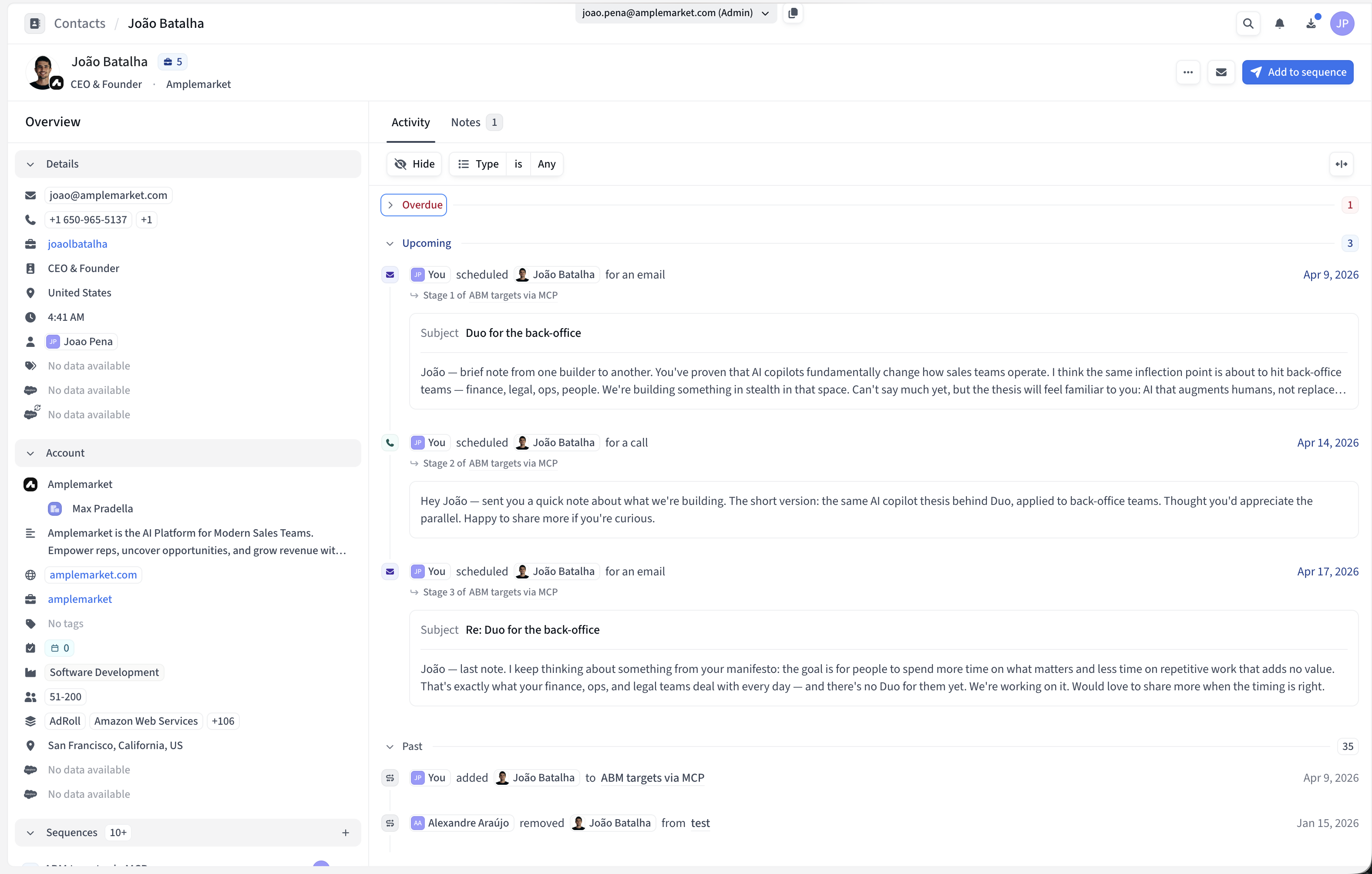
Each lead is enrolled in the same sequence, but every lead gets completely different, personalized copy. When you check a contact’s activity in Amplemarket, you’ll see the personalized emails that were generated for them specifically.
For example, a lead might receive:
Stage 1 email with a subject line referencing their specific role and a body that ties their work to your value prop
Stage 2 call with a script that references details from their LinkedIn profile
Stage 3 follow-up that builds on the angle from the first email