Creating Workflows with AI
Last updated: July 3, 2026
What is AI-assisted Workflow creation?
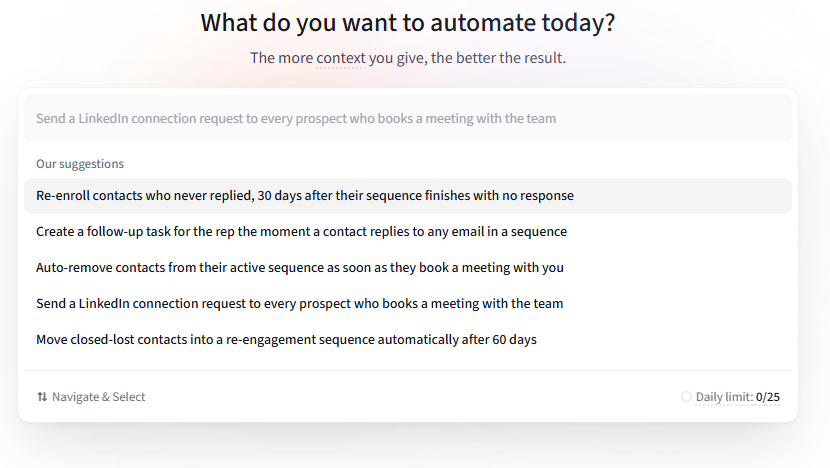
AI-assisted Workflow creation helps you create a Workflow draft from a simple prompt.
Instead of starting from a blank canvas and manually choosing every trigger, action, delay, filter, and setting, you can describe what you want to automate. Amplemarket will turn your request into a draft Workflow that you can review, edit, and publish from the existing Workflow editor.
Think of it as a faster way to create the foundation of a Workflow — not a replacement for reviewing and configuring it before it goes live.
Why use AI to create a Workflow?
Creating a Workflow from scratch can take time, especially if you’re not sure which trigger or action to use.
AI-assisted Workflow creation helps you:
Create a strong starting point faster
Avoid starting from a blank canvas
Translate an automation idea into Workflow blocks
See what parts of your request are supported
Finish configuration inside the regular Workflow editor
How it works
1. Describe what you want to automate
Start by entering a prompt that explains the outcome you want.
For best results, include:
What should trigger the Workflow
Who or what the Workflow should apply to
Any conditions that matter
What action should happen next
A useful structure is: When [event happens], if [condition is true], then [action should happen].
Example: When a Sequence finishes with no reply, wait 30 days, then add the contact to my nurture Sequence.
2. Amplemarket checks whether the Workflow can be created
After you submit your prompt, Amplemarket checks whether your request can be built using the Workflow blocks currently available in your account.
There are three possible outcomes:
Outcome | What it means |
|---|---|
Ready to create | Amplemarket can create the Workflow draft from your prompt |
Can create with changes | Part of your prompt is supported, but one or more steps need to be skipped, replaced, or configured |
Can’t create yet | The prompt cannot be mapped to supported Workflow blocks yet |
3. Review any unsupported steps
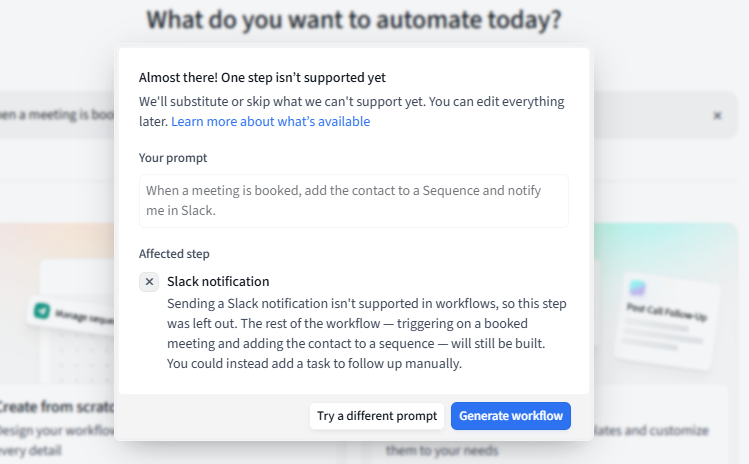
Sometimes your prompt may include something that is not supported yet.
For example: When a meeting is booked, add the contact to a Sequence and notify me in Slack.
If Slack notifications are not supported in Workflows yet, Amplemarket may tell you that it can create the meeting-booked trigger and the Sequence action, but cannot create the Slack notification step.
In that case, you may be able to continue by skipping the unsupported step or using a suggested workaround, such as creating a one-off task instead.
You’ll always be able to review what changed before creating the draft.
4. Open the draft in the Workflow editor
When the draft is created, you’ll land in the existing Workflow editor.
From there, you can:
Review the trigger
Edit or add actions
Configure missing details
Choose the right Sequence, list, mailbox, owner, or CRM field
Review Workflow settings
Publish the Workflow when ready
AI-created Workflows are saved as drafts. They do not go live automatically.
What AI can help create
AI can help create Workflows using blocks that are already available in the Workflow editor.
Depending on what is enabled in your account, this may include:
Triggers based on supported Amplemarket events
Actions such as adding contacts to Sequences or lists
Removing contacts from Sequences or lists
Marking contacts as completed
Creating one-off tasks
Updating supported CRM fields
Enriching data
Adding delays
Adding supported filters or branches
The exact options available may depend on your account setup, integrations, and the Workflow blocks enabled for you.
Example prompts
Here are some examples of prompts that work well:
(1) When a Sequence finishes with no reply, wait 30 days, then add the contact to a nurture Sequence.
(2) When a meeting is booked, add the contact to a follow-up Sequence.
(3) When a LinkedIn connection is accepted, create a task for the owner to follow up.
(4) When a call is logged with a specific outcome, add the contact to a call follow-up Sequence.
(5) When a contact’s CRM status changes to Recycle, remove them from their current Sequence and add them to a nurture list.
What AI can’t do yet
AI-assisted Workflow creation only creates new Workflow drafts using supported Workflow blocks.
It does not:
Launch Workflows automatically
Edit existing Workflows
Create blocks that are not supported by the Workflow editor
Guarantee that every prompt can be turned into a Workflow
Automatically connect unsupported tools or apps
Replace your final review before publishing
If your prompt includes unsupported steps, Amplemarket will explain what can’t be created and may suggest a workaround.