Webhook Triggers & HTTP Request Actions in Workflows
Last updated: June 24, 2026
Overview
Webhook Triggers and HTTP Request Actions let you connect Amplemarket Workflows with external systems.
They work in two directions:
Webhook Trigger: An external system sends data into Amplemarket and starts a Workflow.
HTTP Request Action: Amplemarket sends data to another system during a Workflow, or asks another system for data and uses the response later in the Workflow.
Together, they allow Workflows to connect with tools like Clay, Zapier, n8n, data warehouses, signup forms, Slack, Sendoso, enrichment tools, scoring APIs, internal systems, etc..
Think of it as a way to make Amplemarket Workflows part of your broader GTM stack, not just Amplemarket + CRM.
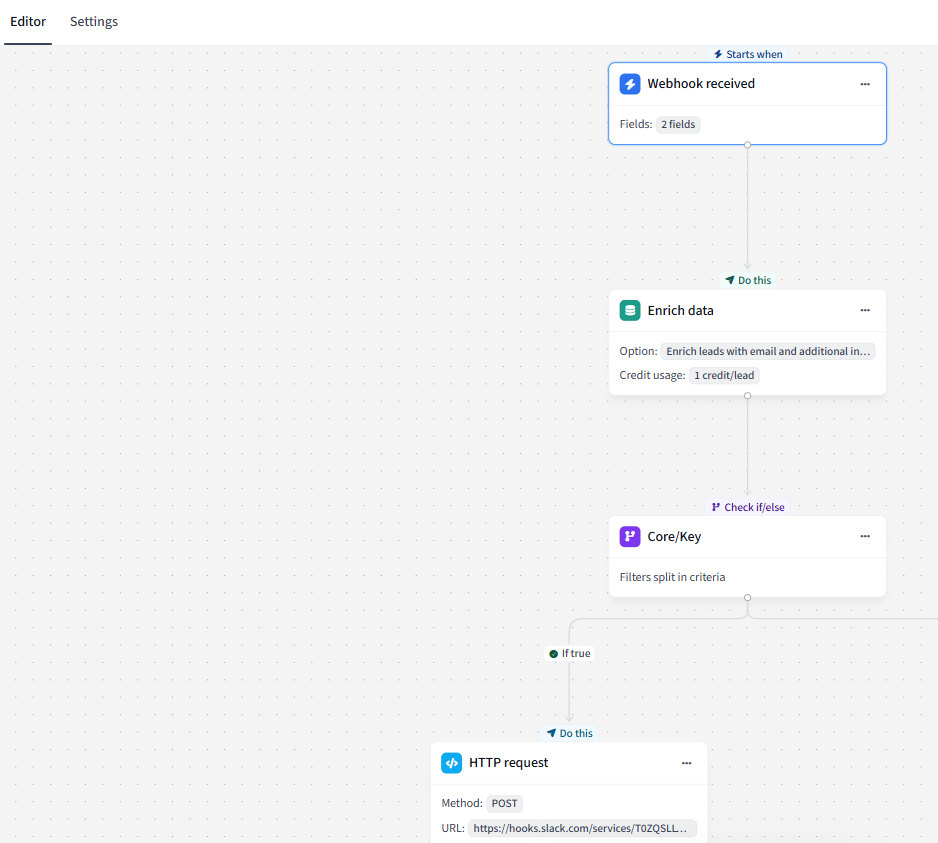
Webhook Triggers
What is a Webhook Trigger?
A Webhook Trigger starts a Workflow when another system sends a request to Amplemarket.
For example, Clay, Zapier, n8n, a signup form, or an internal tool can send a POST request to a unique Amplemarket webhook URL.
When Amplemarket receives the request, it can:
identify the right contact or account
capture fields from the payload
use those fields in filters and paths
enrich the contact
add the contact to a Sequence
update CRM fields
send HTTP Requests to other tools
How to set up a Webhook Trigger
1. Create or open a Workflow
Go to Workflows and create a new Workflow, or open an existing draft.
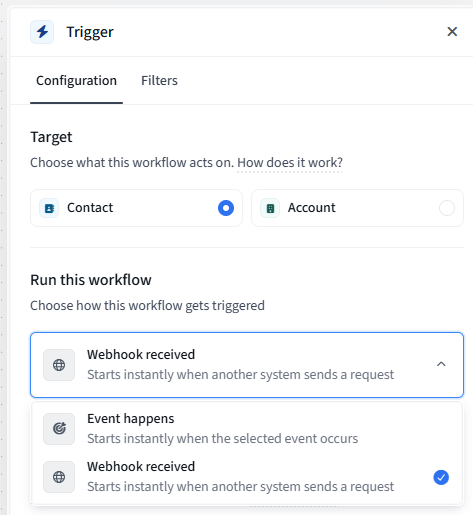
2. Choose Webhook received as the trigger
In the trigger configuration, select:
Webhook receivedThis means the Workflow will start when Amplemarket receives a request from an external system.
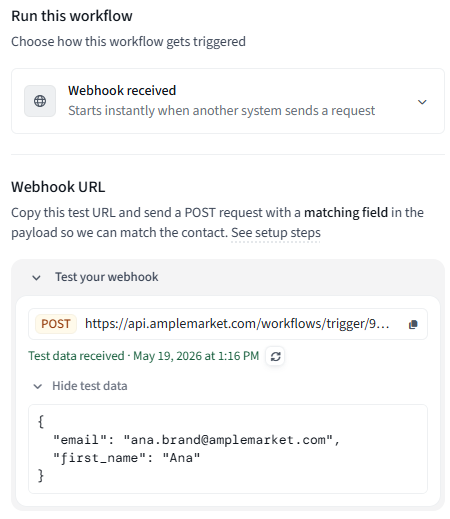
3. Send a test request
Before using the Workflow live, send a test request to the test webhook URL.
The test request helps Amplemarket detect the fields available in the payload, so you can use them later in the Workflow.
The request must be:
Method: POST
Content-Type: application/json
Example payload:
{
  "contact": {
    "email": "sarah.lee@acme.com",
    "first_name": "Sarah",
    "last_name": "Lee",
    "company_name": "Acme",
    "company_domain": "acme.com",
    "title": "VP Sales"
  },
  "extra_data": {
    "company_segment": "enterprise",
    "lead_score": 91,
    "urgency": "high",
    "source": "clay"
  }
}
4. Review captured fields
After the test request is received, Amplemarket will show the fields detected from the payload.
These fields can be selected and mapped so they can be used later in the Workflow.
For example, you may capture:
email
first_name
company_segment
lead_score
urgency
source
5. Use captured fields in the Workflow
Captured fields can be used in later Workflow steps.
For example, you can use them to:
branch into different paths
filter contacts or accounts
add context when enrolling contacts into Sequences
populate dynamic fields
send values in an HTTP Request body
update CRM fields, when supported
Example:
If company_segment = enterprise
→ Add contact to Enterprise Sequence

If company_segment = smb
→ Add contact to SMB Sequence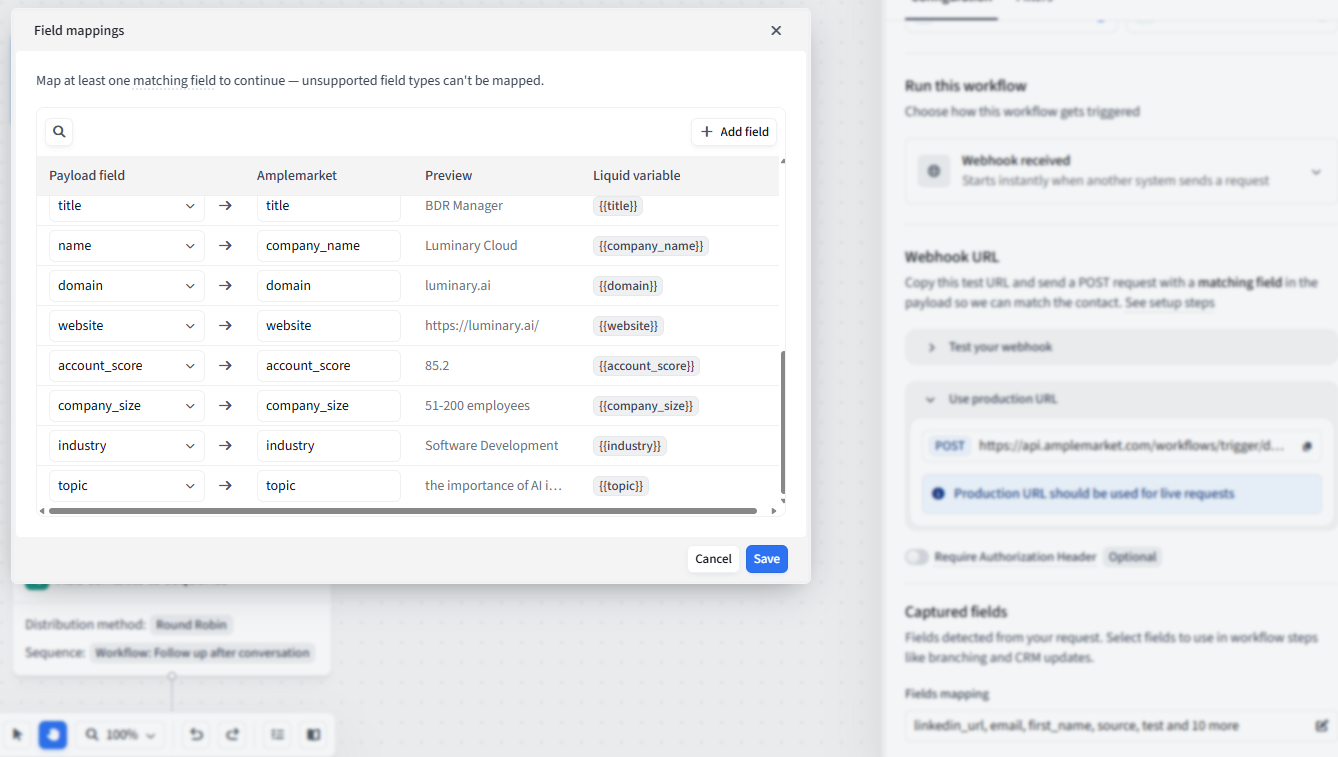
6. Publish the Workflow
After configuring your paths, filters, and actions, publish the Workflow.
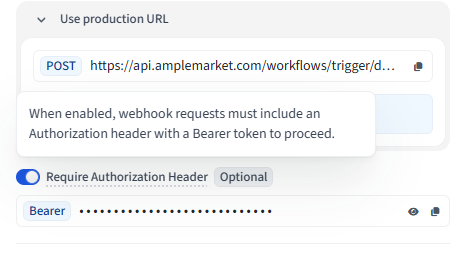
Once the Workflow is live, use the production webhook URL for real requests.
Important: the production URL should only be used for live requests. The Workflow must be active for the production URL to process requests.
Webhook authentication
Webhook authentication is optional.
If you enable authorization, external systems must send the request with the correct Authorization header:
Authorization: Bearer YOUR_API_KEYIf authorization is enabled and the request does not include a valid API key, Amplemarket will reject the request.
If authorization is disabled, Amplemarket will accept requests without an API key.
Supported captured field types
Webhook payloads can include many kinds of JSON data, but only some field types can be captured and reused in the Workflow.
Supported captured field types:
Text
Number
Boolean
Not supported as captured fields yet:
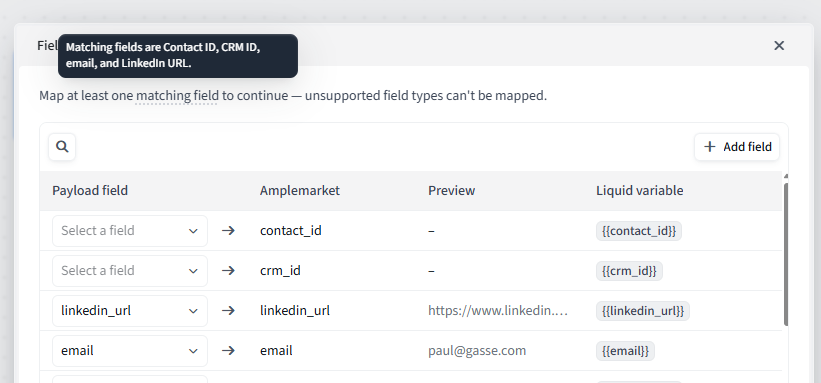
ArraysHow Amplemarket finds the right contact or account
When a webhook request is received, Amplemarket uses the payload to find the matching contact or account.
For contacts, Amplemarket prioritizes more specific identifiers first, such as:
contact_id
crm_id
email
For accounts, Amplemarket prioritizes:
account_id
crm_id
company_domain
If you provide a specific ID, such as contact_id, account_id, or crm_id, make sure it is correct. Amplemarket will use that identifier first.
If Amplemarket cannot find a matching record, the webhook request may be accepted, but no Workflow run may be created.
HTTP Request Actions
What is an HTTP Request Action?
An HTTP Request Action lets Amplemarket call another system during a Workflow.
You can use it to:
send lead or account data to another tool
call an external scoring or enrichment API
trigger a Slack notification
trigger a Sendoso campaign
send data to Zapier, n8n, or an internal system
get data back and use it later in the Workflow
How to set up an HTTP Request Action
Add an HTTP Request Action anywhere in your Workflow.
You’ll be asked to configure:
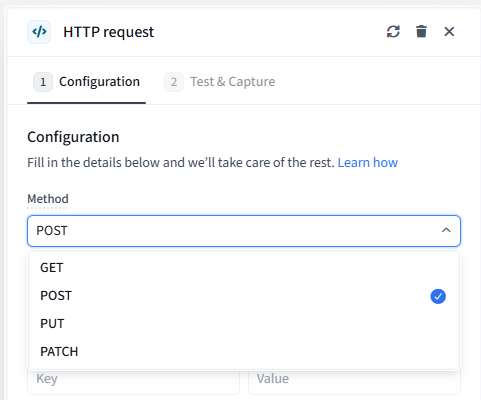
1. Method
This tells Amplemarket how to send the request.
Supported methods:
GET
POST
PUT
PATCH
Common usage:
GET→ retrieve informationPOST→ create or trigger somethingPUT→ replace or update somethingPATCH→ partially update something
2. URL
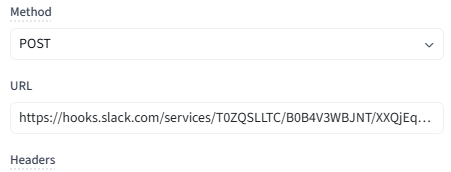
This is the destination endpoint Amplemarket will call.
The URL must be publicly reachable and use HTTPS.
Example:
https://api.example.com/score-leadImportant: private or internal URLs cannot be reached by Amplemarket. For example, URLs that resolve to private IPs like
10.x.x.x,172.16.x.x, or192.168.x.xwill fail.
If you are using a self-hosted n8n instance, make sure the webhook endpoint is exposed through a public HTTPS URL.
3. Headers
Headers are key-value pairs that provide extra information to the receiving system.
Common examples:
Content-Type: application/json
Authorization: Bearer YOUR_API_KEY
Use the headers required by the external system you are calling.
4. Body
The body is the content Amplemarket sends to the external system.
For example:
{
  "email": "{{email}}",
  "first_name": "{{first_name}}",
  "company_name": "{{company_name}}",
  "source": "{{source}}"
}
You can use dynamic fields from earlier Workflow steps, including fields captured from a Webhook Trigger or from a previous HTTP Request response.
Testing an HTTP Request Action
Before publishing your Workflow, use the test option to confirm the request works.
When you run a test, Amplemarket shows the request and response so you can confirm:
the URL is correct
headers are valid
the payload is valid
dynamic fields render correctly
the external system returns a successful response
response fields can be captured, if needed
A 2xx response means the request was successful.
Examples of successful responses:
200 OK
201 Created
202 Accepted
If the endpoint returns a non-2xx response, the request is considered failed.
Examples:
400 Bad Request
401 Unauthorized
403 Forbidden
404 Not Found
500 Server Error
Capturing fields from an HTTP response
If the external system returns JSON, Amplemarket can capture fields from the response and use them later in the Workflow.
Example response from an external scoring API:
{
  "qualified": true,
  "score": 91,
  "route": "enterprise_sequence",
  "reason": "Strong ICP fit and high urgency"
}
You could capture:
qualified
score
route
reason
Then use those fields later.
Example:
If qualified = true
→ Add contact to Enterprise Sequence
→ Send Slack notification

If qualified = false
→ Add contact to nurture Sequence
Requirements and limitations
Webhook Triggers
Webhook requests must use
POST.Request bodies must be valid JSON.
Production webhook URLs only process live requests when the Workflow is active.
Duplicate captured field names are not allowed.
Webhook requests are rate-limited to protect Workflow reliability.
HTTP Request Actions
URLs must use HTTPS.
URLs must be publicly reachable.
Private/internal URLs are blocked for security.
Up to 1 MB of the response body can be read.
Unknown dynamic fields may cause the request to fail before it is sent.
If captured response fields return an unexpected type, the action may fail.
Test response bodies may be saved in the Workflow configuration, so avoid returning secrets in test responses.