Add HubSpot contacts to Lists and Sequences
Last updated: November 5, 2025
Situation | You want to import or Sequence leads/contacts to Amplemarket directly from Hubspot |
Solution | Amplemarket's extension and native integration with Hubspot allows you to import leads or sequence them directly from multiple views in Hubspot:
As long as the table in the Hubspot page has an Email column, the extension should allow you to Import/Sequence to Amplemarket. |
Prerequisites
To use this functionality, there are a few things you need to check:
Your Hubspot account must be connected to Amplemarket. See our Hubspot Integration Guide for steps.
You must have Amplemarket's Chrome Extension installed.
The Hubspot view must have an Email Column. If not, the options to Import/Sequence will not be shown.
With Amplemarket's extension, you can easily sequence or import leads and contacts directly from Hubspot to Amplemarket. This eliminates the need to export and import CSV files every time you want to action leads.
Watch a video guide
Import from Hubspot
The following workflow steps apply for the Contacts and Reports views in Hubspot:
Log in to both your Hubspot and Amplemarket accounts.
In Hubspot, go to the section you want to pull from.
Use the checkbox to select the desired leads.
Click the
Add to Listoption from the Amplemarket extension.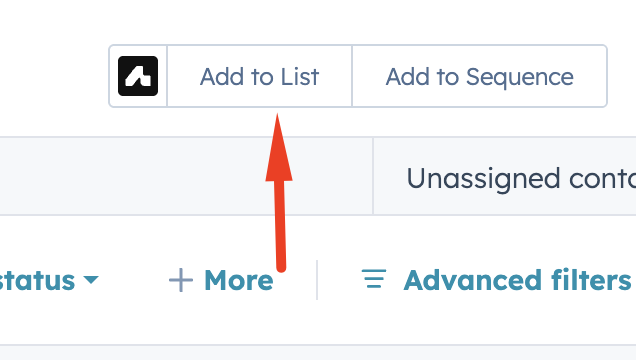
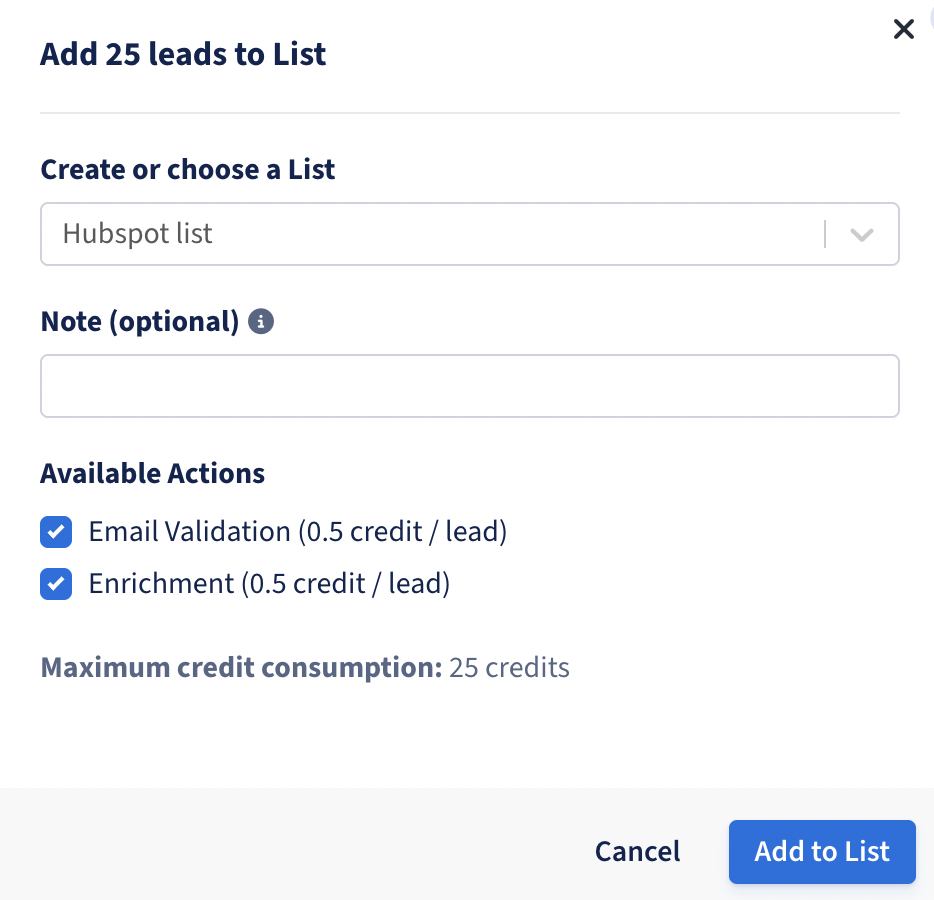
In the modal that opens, select an existing list or create an existing list by giving it a unique name.
Select/Deselect additional actions:
Note: if you are adding to an existing list, the additional actions will be "locked" based on whether the list was initially enriched.
Email validation (0.5 credits per lead)
Enrichment (0.5 credits per lead)
Click
Add to Listto start the import.
If the import was successful, you will see a notification; click the link in this notification to navigate to your Lists in Amplemarket. The leads will be in the list you created or selected during the steps above.

Sequence from Hubspot
Like above, the following steps apply for all supported Hubspot views.
Log in to both your Hubspot and Amplemarket accounts.
In Hubspot, go to the section you want to pull from.
Use the checkbox to select the desired leads, or leave them unselected to bring in all leads shown.
Click the
Add to Sequenceoption from the Amplemarket extension.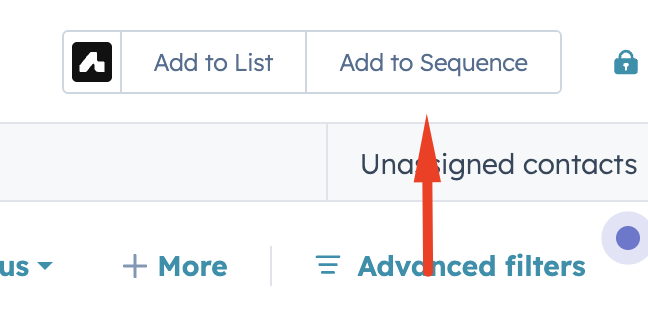
Note: If you encounter an issue where leads cannot be added to a sequence because they've already been marked as contacted, you can work around this by going directly to your list in Amplemarket, selecting the leads, and clicking "Add to Sequence." This will give you the option to override the warning and proceed with sequencing previously contacted leads.
In the modal that opens, either select an existing Sequence or create a new Sequence:
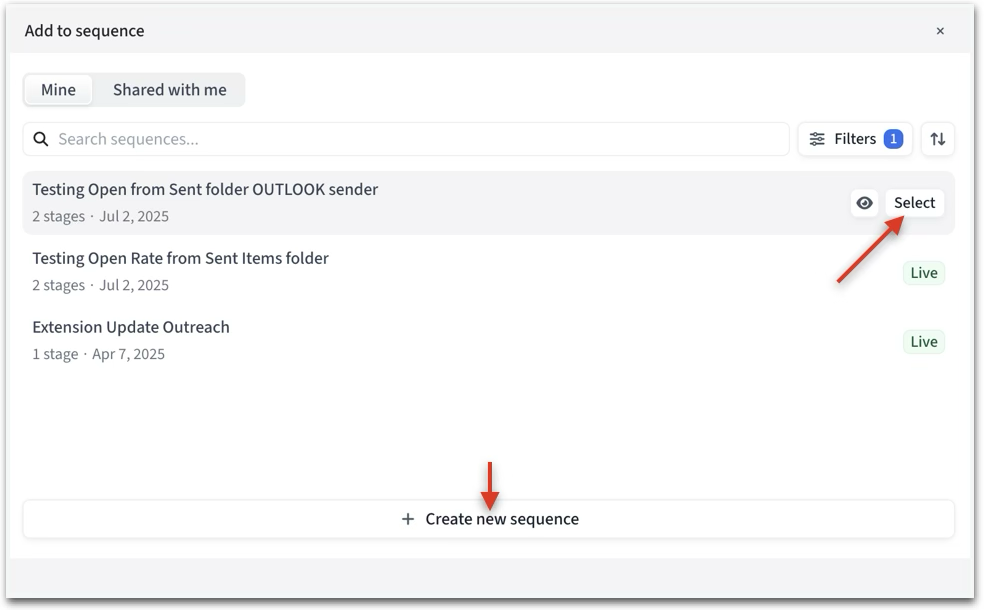
Note: If you plan to add leads from multiple sources (such as Hubspot and Sales Navigator), you can only do this after launching the sequence. Sequences in Draft state are limited to leads from a single source.
Existing Sequence - in the same modal, select the distribution method (leave unchanged for default) and then select
Add Lead(s)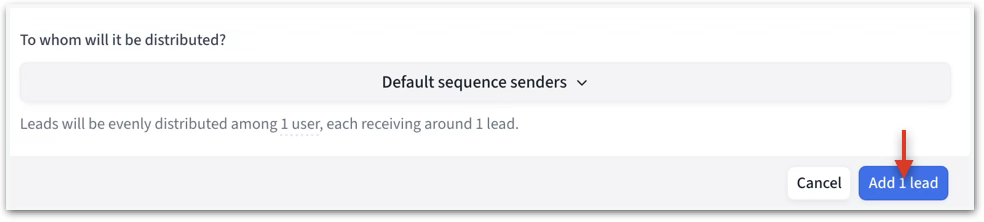
New Sequence - a new tab will be launched, and you will see a new draft Sequence with the leads you selected.
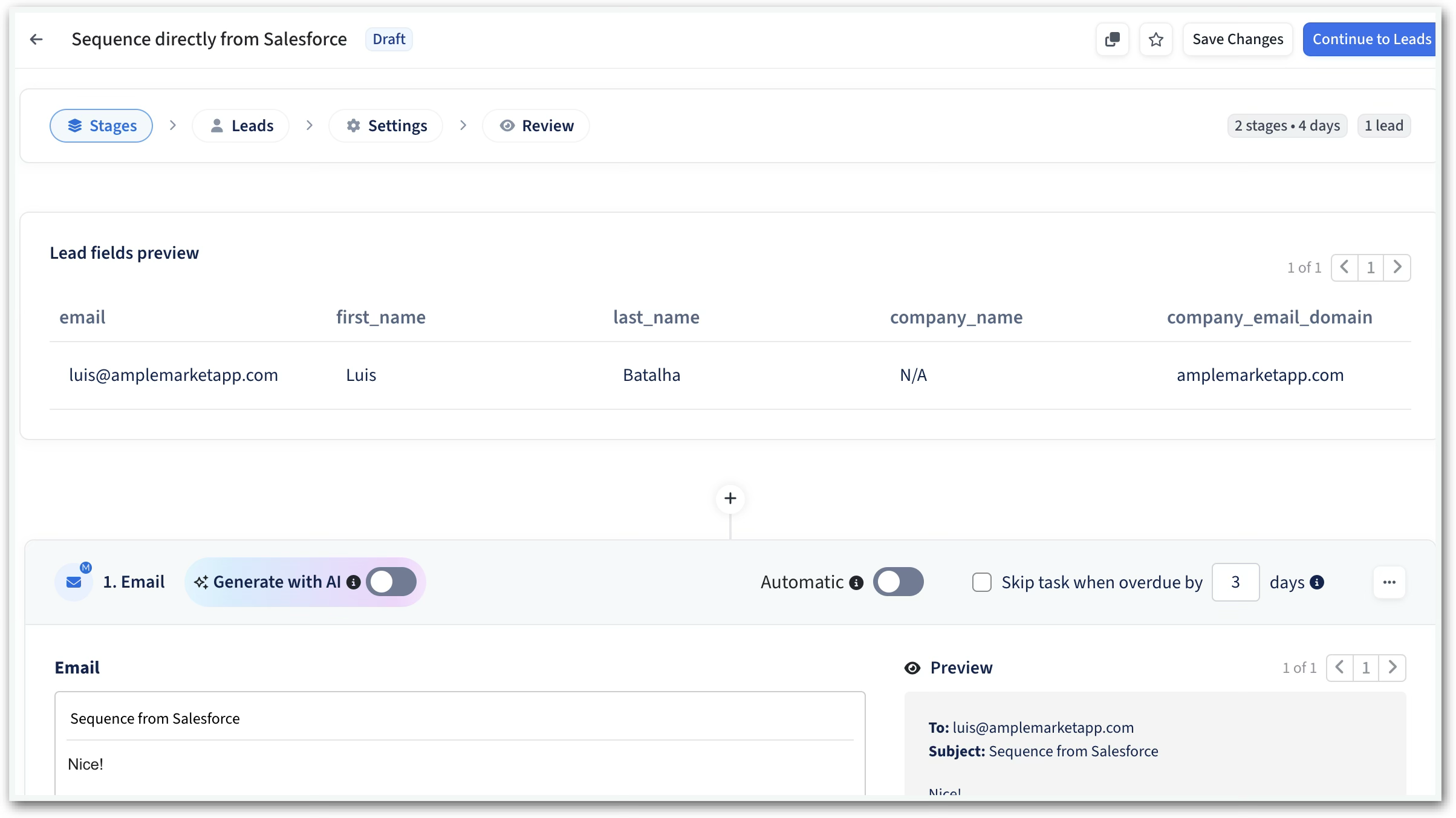
Follow the rest of the Sequence creation process to launch your Sequence.
Once completed, verify that the leads are in their respective Sequence in Amplemarket.