Integrating with HubSpot
Last updated: June 30, 2026
How it works
Amplemarket provides you with bi-directional integration with Hubspot. You can push & pull contacts and companies between the two platforms. This integration helps you, for example, to make sure your sales team avoids contacting the same contacts (or companies).
Step 2: Configuring Pull Records
Step 3: Configuring Push Records
Step 4: Configuring Mapping Fields
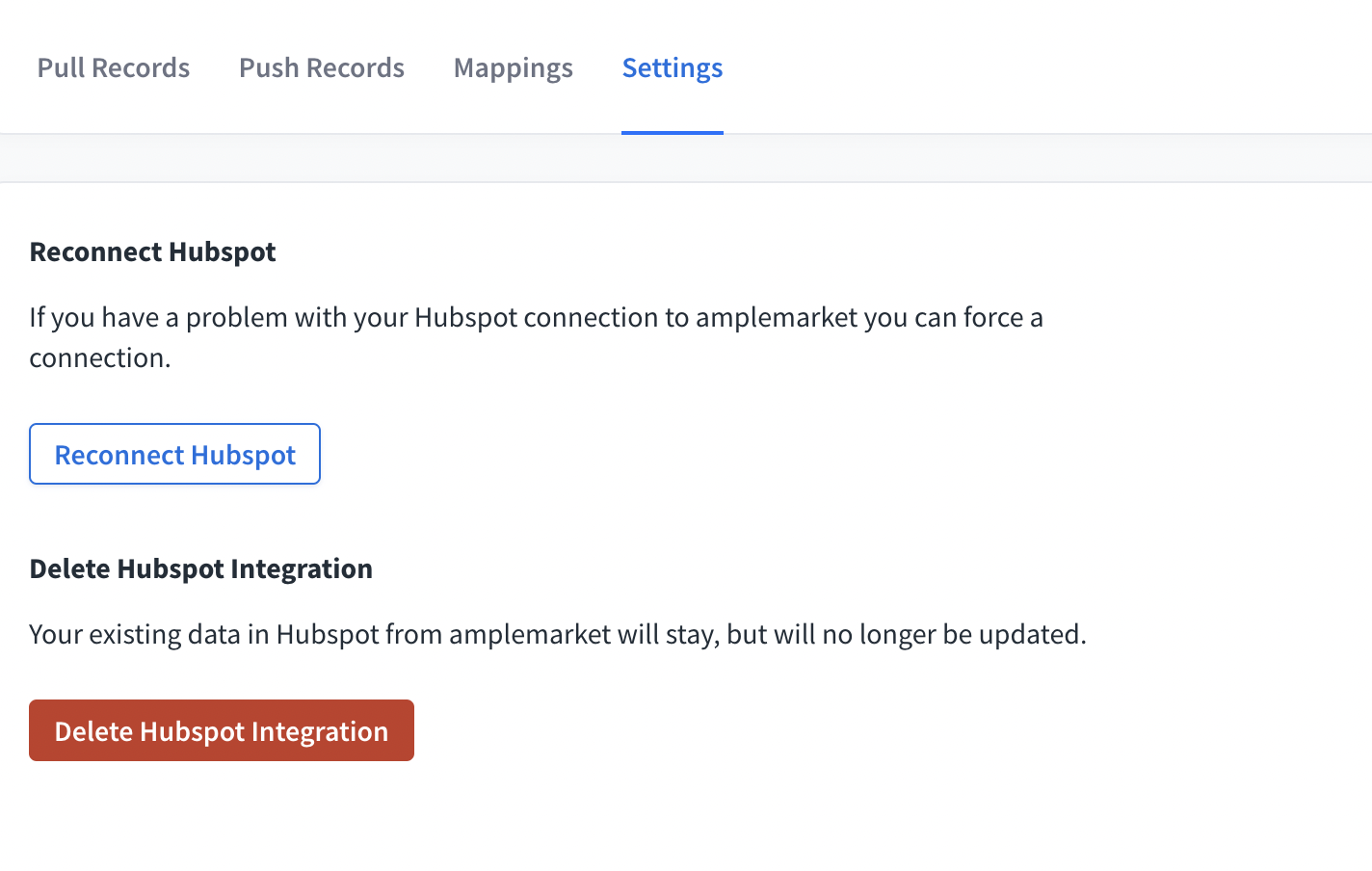
Step 5: Reconnecting & Deleting Hubspot Integration
Step 1: Connecting Hubspot
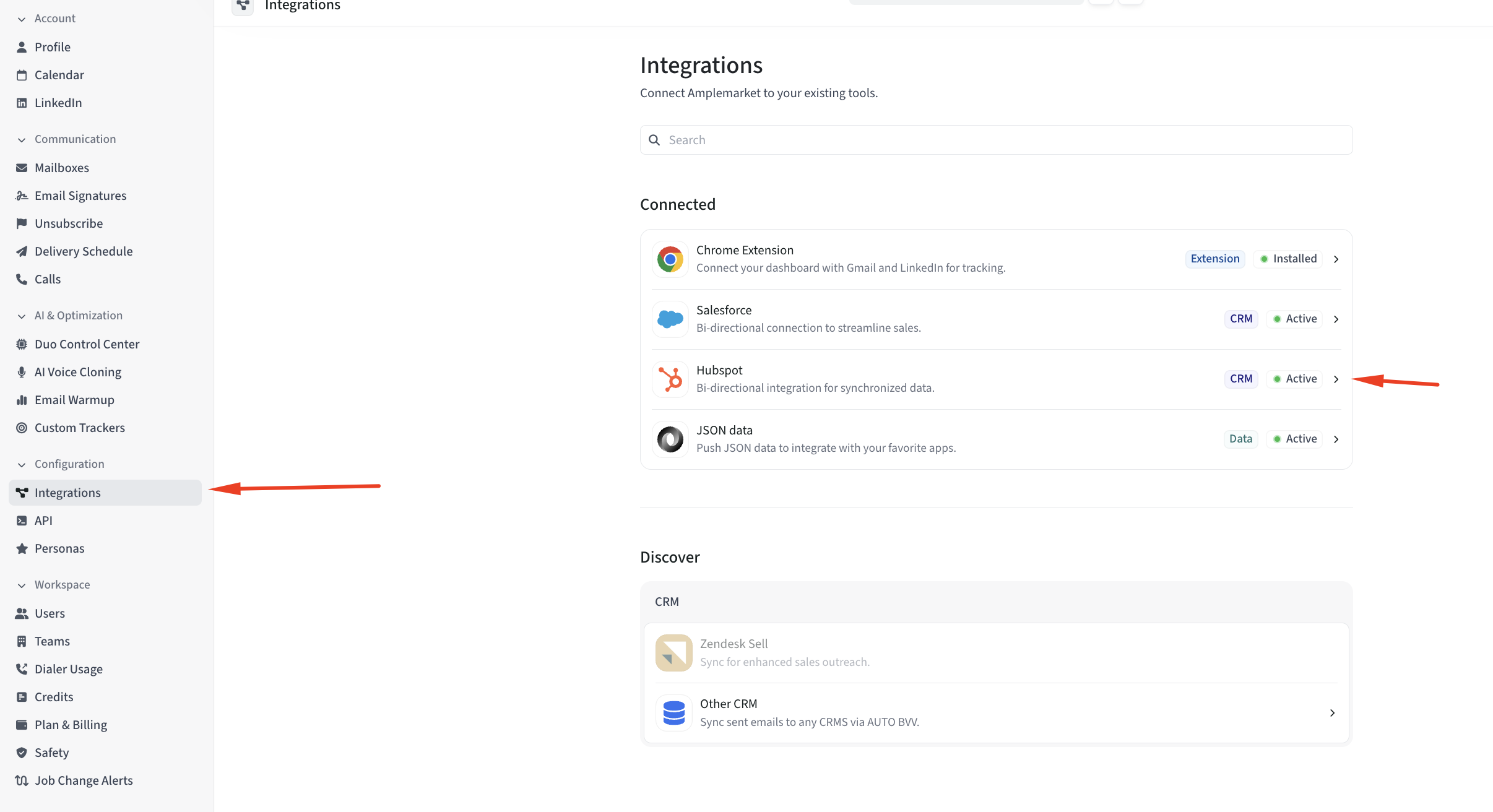
An Amplemarket admin can integrate your Amplemarket account with Hubspot by going to Account Settings--> scroll down to System Preferences --> Integrations. Find Hubspot on the list of integrations and click connect.
In order to successfully connect, these are the exact scopes needed for an administrator to have permissions over:
crm.objects.companies.read
crm.objects.companies.write
crm.objects.contacts.read
crm.objects.contacts.write
crm.objects.deals.read
crm.objects.deals.write
crm.objects.owners.read
crm.schemas.companies.read
crm.schemas.companies.write
crm.schemas.contacts.read
crm.schemas.contacts.write
crm.schemas.deals.read
crm.schemas.deals.write
oauth
crm.lists.write
Follow the authentication process on the Hubspot platform.
Note: Hubspot may show a warning message when connecting third-party apps, although it will not prevent you from connecting it. More information here
Step 2: Configuring Pull Records
After connecting Amplemarket with HubSpot, you'll have to configure how you want Amplemarket to work with the data it is pulling from HubSpot (HubSpot → Amplemarket).
This allows you to make sure that you add the relevant leads, contacts, and accounts to your Amplemarket exclusion list, which automatically prevents you from adding these people to your Amplemarket sequences in the future.
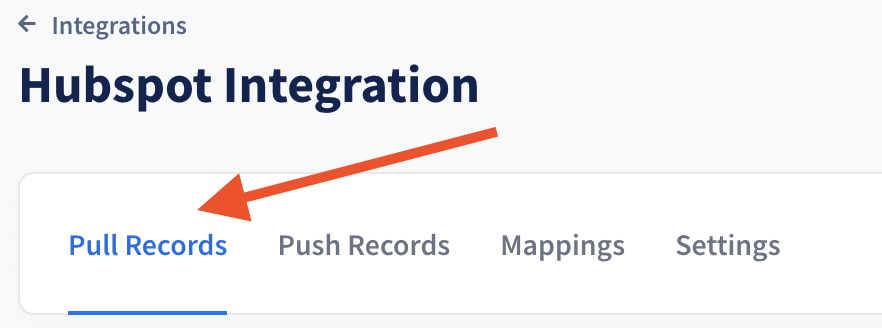
You can pull 2 types of records from HubSpot directly to your Amplemarket exclusion list:
Contacts
Companies
On each specific tab, choose what you would like to pull. For example, you can choose to pull Companies based on their Lifecycle Stage in HubSpot. In the example below, you can see how to automatically add all your customers and opportunities to Amplemarket’s exclusion list
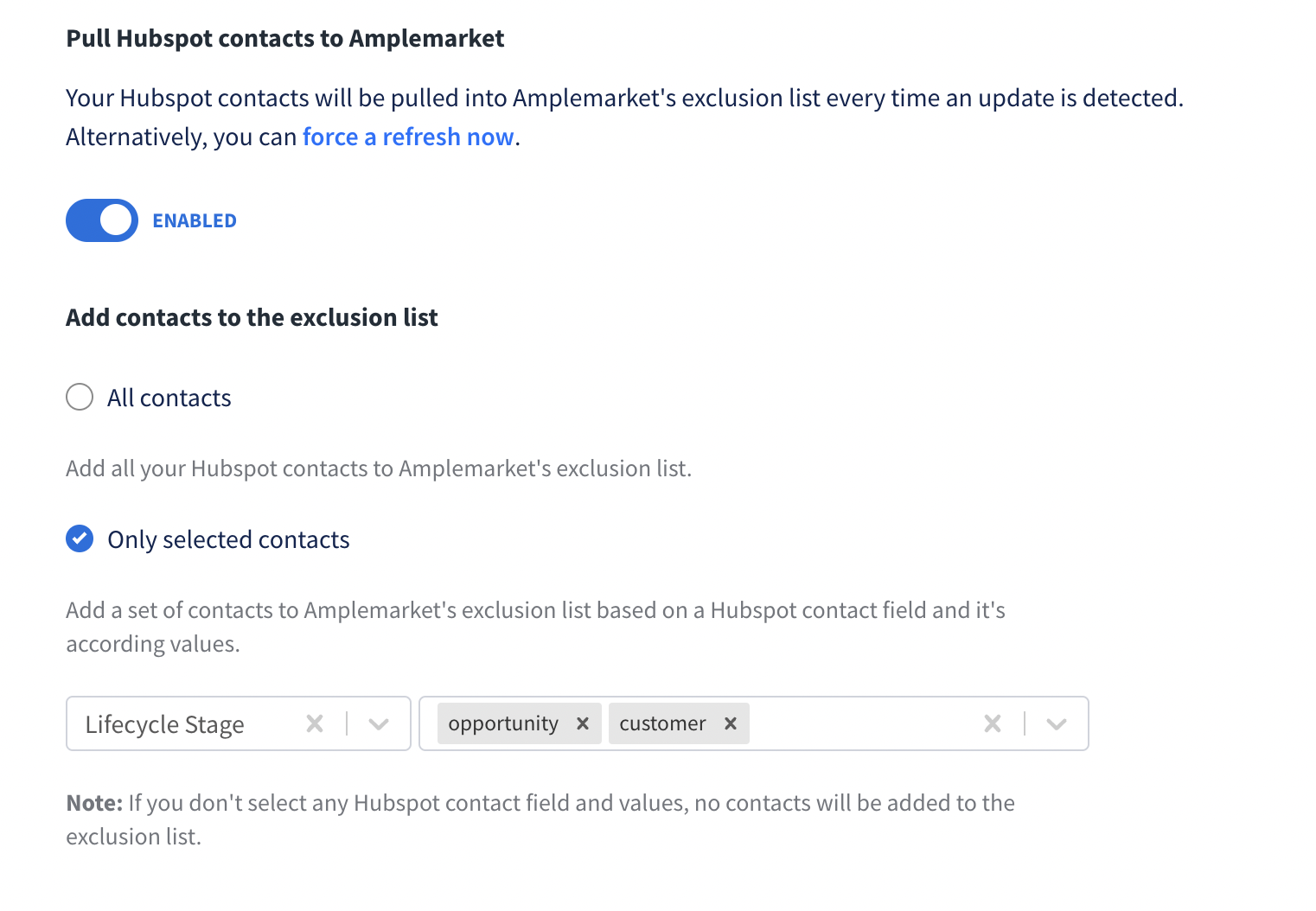
If you enable the pull settings and leave 'All contacts' selected, all Contacts and Companies are pulled automatically from HubSpot every 3 hours and added to your exclusion list. If this is done in error, head to your Exclusion List page and empty it.
Contacts that are updated or pushed to Hubspot by Amplemarket will not be pulled into the Exclusion List.
Step 3: Configuring Push Records
A - Contacts
Amplemarket also allows you to push data into your Hubspot CRM (Amplemarket → Hubspot). When sending out a sequence via Amplemarket we'll create "Contacts" on HubSpot for the leads you're reaching out to, as well as the companies they belong to. When a stage is sent to a lead or when the lead replies to a stage, we also add the email message as an "Engagement" to the "Contact" on HubSpot.
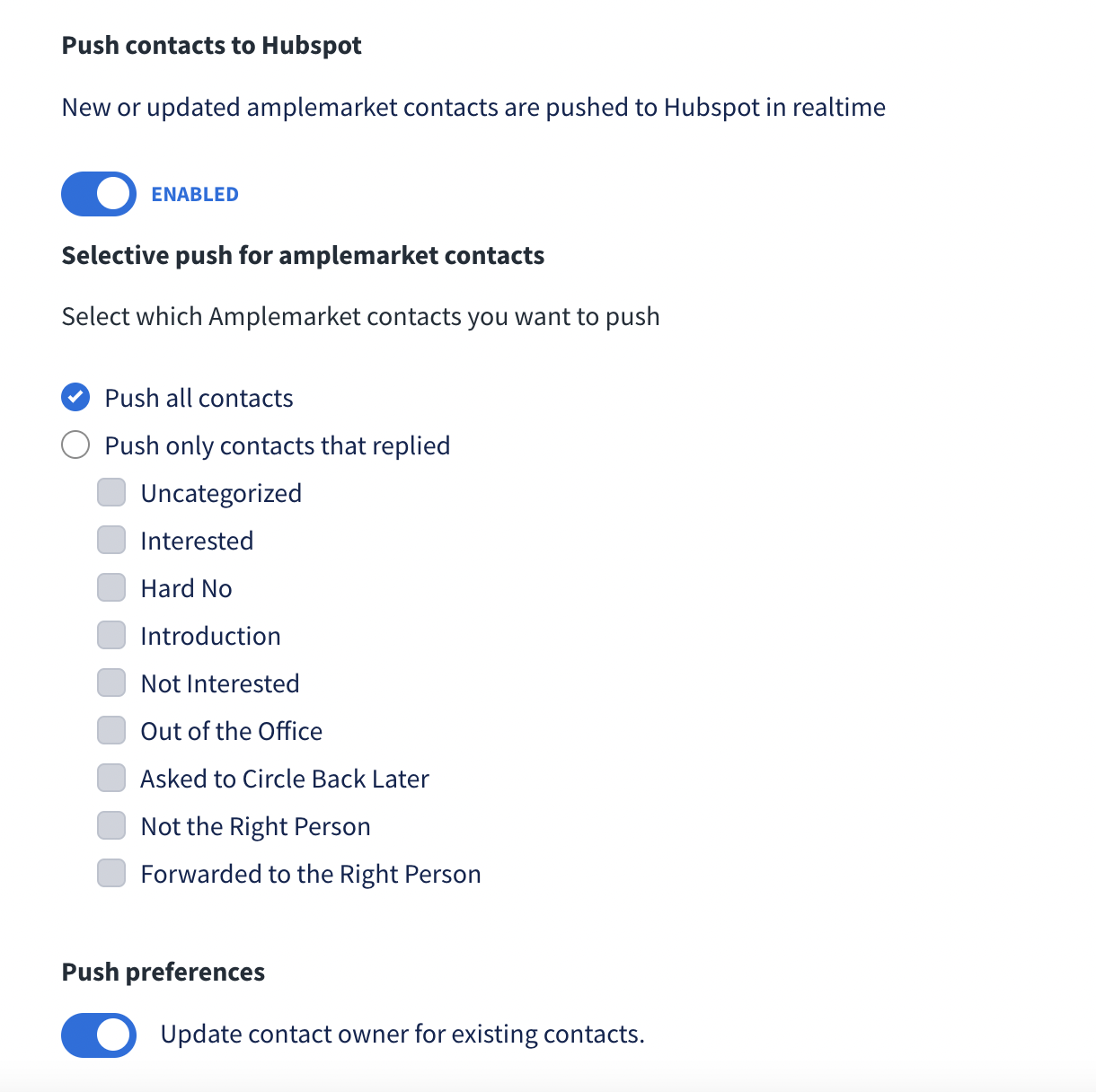
For this, you need to select which contacts you would like to push to Hubspot. You can either push:
All contacts in your Amplemarket sequences
Only contacts that replied to your sequence
Only contacts that replied to your sequence and were labeled with a specific Amplemarket category (“interested”, “introduction”, “asked to circle back”, etc)
You’ll find these configurations on your Hubspot settings.
After selecting what you would like to push, click on “Save changes” (top right corner of your screen).
To enable the push sync between Amplemarket and Hubspot, you should click on the first button on the Hubspot integration settings. Amplemarket will then update your data into Hubspot every three hours.
In situations of deciding pushes where the CRM has multiple contacts with the same email, Hubspot handles this at the API level using their own logic for the canonical record
B - LinkedIn, email activities, and phone calls
Push email and LinkedIn activities performed with Amplemarket to Hubspot (i.e. content of a sent/received email, LinkedIn connection invite sent, etc). This will save you manual work as you don’t have to insert tasks into Hubspot for each prospect you contact through Amplemarket. Additionally, you can push call activities that are completed using the Amplemarket dialer.
In this step, you should enable or disable each option based on how you wish to sync Amplemarket with Hubspot.
Since in the previous step you decided when you want to create a new Contact on Hubspot, here you are deciding if you wish to push the content of the email to that Contact on Hubspot.
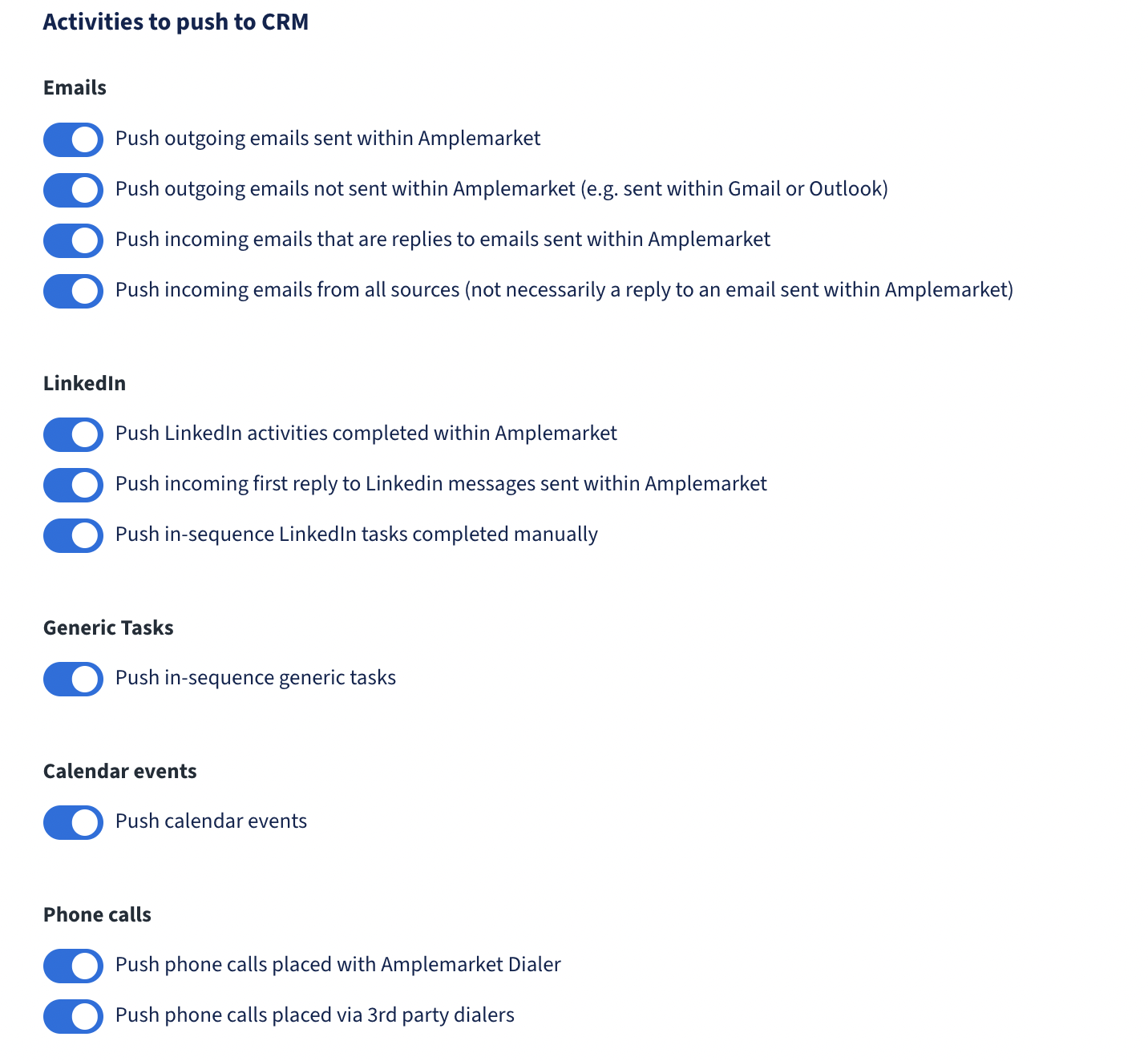
What "Push phone calls placed via 3rd party dialers" does
This setting controls whether phone calls made through third-party dialer services (external to Amplemarket's built-in dialer) are automatically synced to your CRM systems (Salesforce and HubSpot).
These are external dialer services that integrate with Amplemarket but aren't Amplemarket's native dialer
Examples include: Salesfinity, Trellus, and CRM dialer integrations
How it works:
When enabled: Phone calls made through third-party dialers will be automatically pushed to your connected CRM systems (Salesforce/HubSpot) as call activities or tasks
When disabled: These external calls will be logged in Amplemarket but won't be synced to your CRM
The setting is separate from:
"Push phone calls placed with Amplemarket Dialer" - which controls calls made through Amplemarket's native dialer
Both settings can be enabled/disabled independently
What gets synced:
Call details (date, duration, direction, disposition)
Call notes and recordings (if available)
Contact/lead association
Call outcomes and dispositions
Use case:
This is useful if your team uses multiple dialer tools but wants all call activity consolidated in your CRM. For example, if some team members prefer using Salesfinity or another dialer service, enabling this setting ensures those calls still appear in your Salesforce or HubSpot activity history.
Note 1: In order for in-sequence e-mails to be pushed to Hubspot, "Push Lead/Contact Records" must be enabled. Otherwise, only external e-mails, calls and calendar events will be pushed to already existing records, which are matched via e-mail address.
Note 2: Isolated calls that are made outside of a sequence, are still pushed to Hubspot as long as there is an existing contact linked to it in Amplemarket.
Note 3: When pushing calls with custom dispositions, it's important to understand that we support custom call dispositions in HubSpot, however, they're not explicitly mapped. They must have the exact same name in Amplemarket and in HubSpot. That way they will be identified and mapped. If you ever push a call disposition in Amplemarket that does not have a correlated call disposition in HubSpot, it's just going to be pushed without a call disposition.
Step 4: Configuring Mapping Fields
In this section, you will be able to configure all the fields you want to sync between Amplemarket and HubSpot records. You can choose field mapping for Contacts and Companies.
This allows you to set up the mappings once and have them sync to HubSpot according to the rules you defined when setting up your pipeline.
For example, for each Contact on HubSpot you can:
See what is the name of the field on Amplemarket
See and change what is the corresponding field on HubSpot
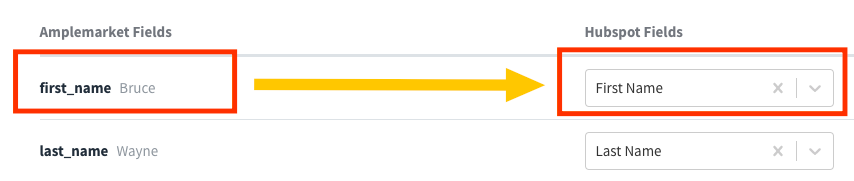
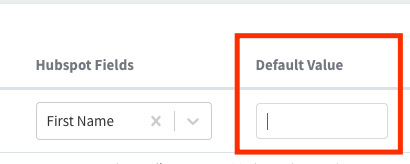
Decide what is the default value on HubSpot if the field is empty
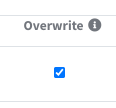
Decide if you want to overwrite the data on HubSpot with the information pushed from Amplemarket
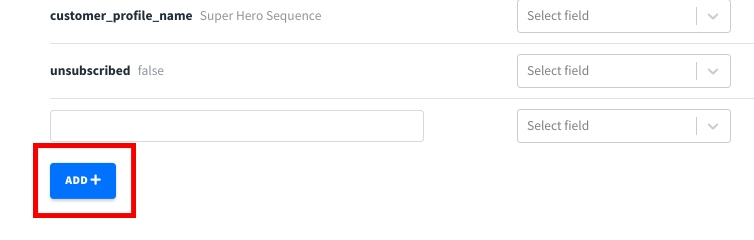
Decide if you want to add extra customized fields to HubSpot based on your own data fields (via CSV or added within Amplemarket)
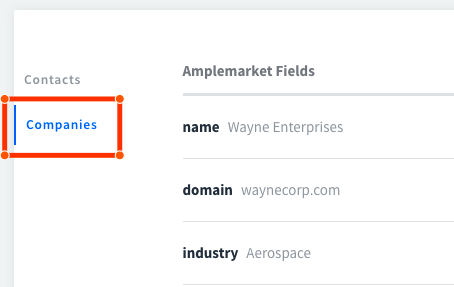
Repeat the process for Companies
Step 5: Reconnecting & Deleting Hubspot Integration
To reconnect or delete your Hubspot account while on Amplemarket dashboard, find the last toggle on the Hubspot integration menu.
For use case specific questions related to Amplemarket's bi-directional integration with Hubspot, feel free to reach out to support@amplemarket.com anytime.