Integrating Trellus with Amplemarket
Last updated: July 28, 2026
This guide will walk you through the process of enabling and using the Trellus integration with your Amplemarket account to supercharge your calling tasks.
Part 1: Enabling the Integration
To get started with Trellus, you first need to set up your account and activate the integration.
Install the Trellus Chrome Extension: Begin by installing the Trellus extension from the official installation page: https://app.trellus.ai/install. If you don't have a Trellus account, you will be prompted to create one during this process.
Activate the Integration: Once the extension is installed, you need to have the integration enabled for your account. You can do this by contacting the Trellus support team directly. Alternatively, you can reach out to the Amplemarket support team, and we will coordinate with Trellus to get it activated for you.
Part 2: Using the Trellus Parallel Dialer
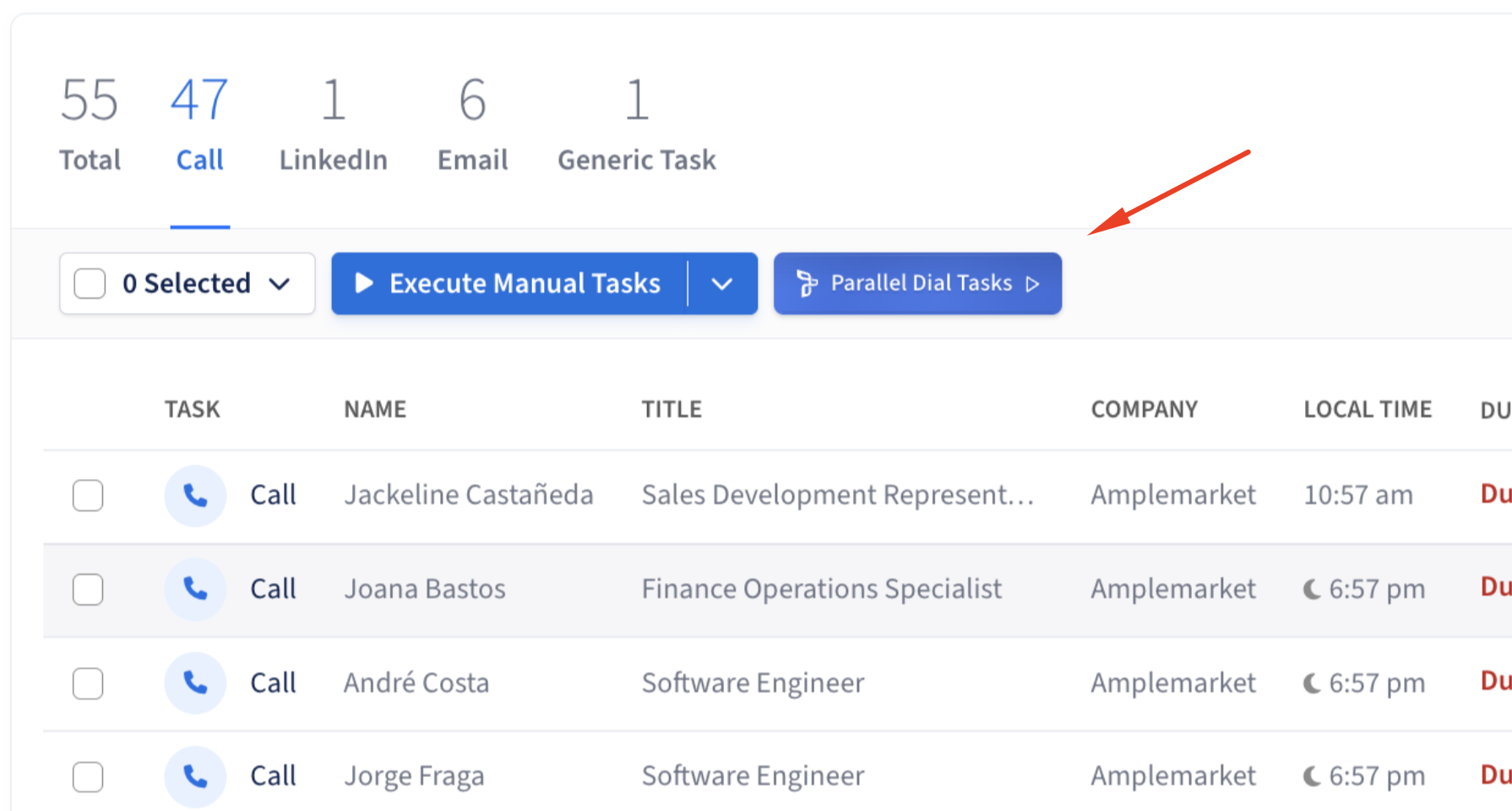
After the integration is enabled, you will see a new option on your Amplemarket "Tasks" page.
Accessing the Dialer: Navigate to your "Tasks" page. You will now see a button labeled "Parallel Dial Tasks".
Making Calls: Click the "Parallel Dial Tasks" button to open the Trellus dialer panel within the same window. From this panel, you can begin placing calls to the contacts in your task list.
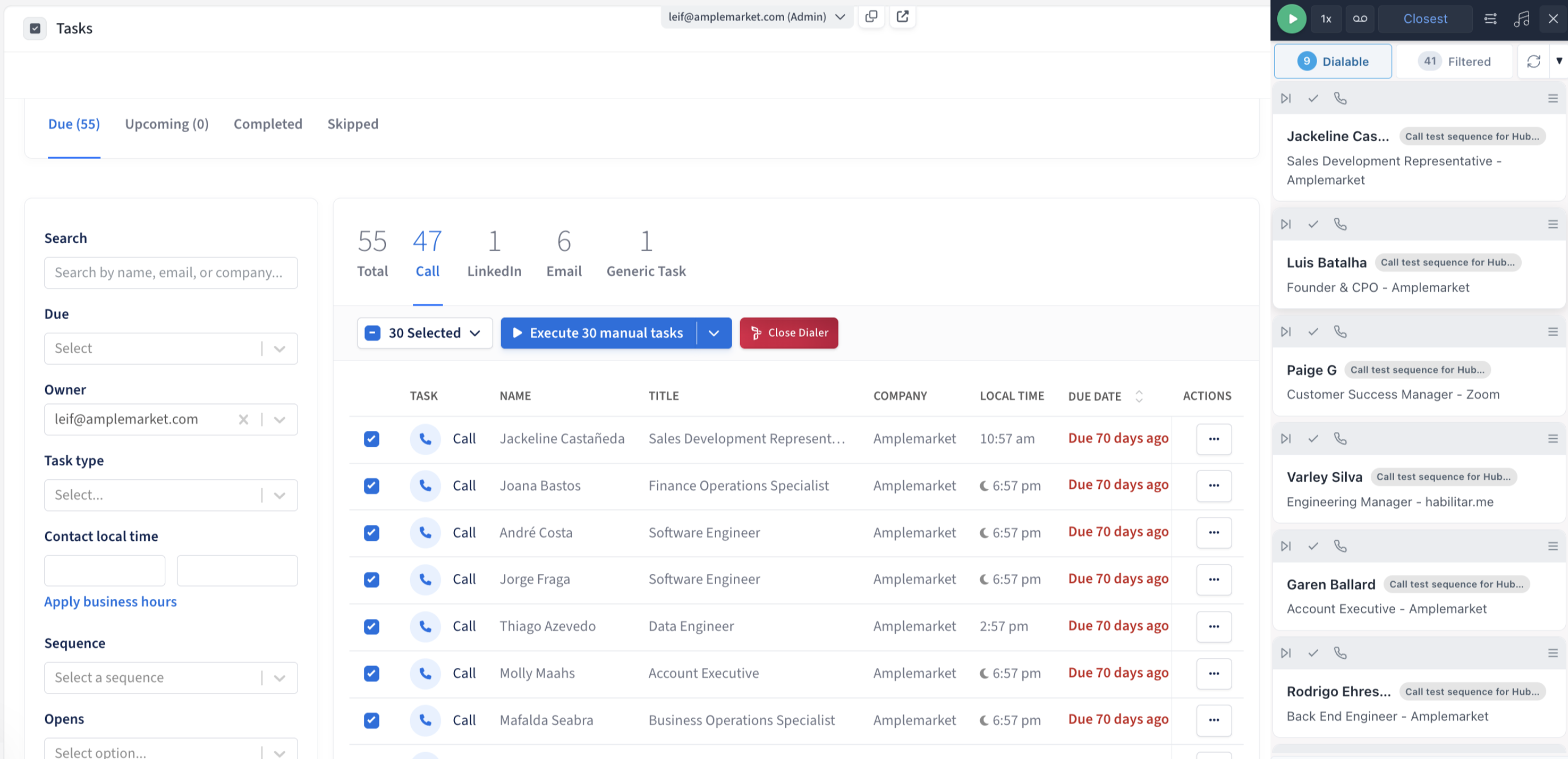
Controlling Your Calls: The Trellus dialer provides you with powerful features to manage your outbound calls:
Concurrent Calling: At the top of the dialer panel, you can adjust the number of calls that are placed simultaneously.
Number Rotation: The dialer also allows you to rotate through different phone numbers to improve your connection rates.
Troubleshooting: Sequence Tasks Remain Overdue After Logging a Call
If a Trellus call appears in Past activity but the same sequence step still remains in Due tasks as overdue, first make sure you are running the latest version of the Trellus Chrome extension.
To resolve this:
Update or reinstall the Trellus Chrome extension from https://app.trellus.ai/install.
Refresh Amplemarket and Trellus after updating the extension.
Log the call again and confirm whether the sequence task moves out of Due tasks.
Note: A call logged with a No Answer disposition may record the call activity without completing the sequence step, depending on the Trellus disposition and sequence configuration. If the issue persists after updating the extension, review the Trellus call disposition settings and the sequence's skip task when overdue setting.
By following these steps, you can seamlessly integrate Trellus with your Amplemarket workflow and enhance your calling efficiency.