How to Prioritise Sequences
Last updated: February 16, 2026
Situation | You want to prioritise a Sequence so that Amplemarket will schedule the tasks (emails, calls etc.) ahead of other less important Sequences |
Solution | This article explains why you would want to prioritise a Sequence and how to do it from multiple Sequence views. |
Why Prioritise a Sequence?
Imagine you are going to attend a conference in a week's time, and in the days leading up you want to fire off a few emails or LinkedIn Connections to some of the attendees, so you create and launch a Sequence in Amplemarket with some carefully crafted emails and LinkedIn connection requests. The day of the conference draws nearer, and you have yet to receive a reply or have any of your connection requests accepted. You check, only to find that the Sequence is stalled; no emails have been sent and there is no sign of LI activity!
The number of emails you can send in a day is a finite resource. So too is the amount of LinkedIn actions that Amplemarket can perform on your behalf. If you have multiple live Sequences made up of several email and/or LinkedIn stages, each with hundreds of leads, then they will all compete for those finite resources. On top of that, Amplemarket will automatically give slight priority to "older" tasks, so your shiny new Sequence has a lot of competition.
Choose which Sequence is more important
Amplemarket gives you the ability to choose which of your Sequences should have priority, giving precedence to the emails and other tasks associated with higher priority Sequences over normal priority Sequences. To keep it simple, there are only those two priorities, indicated by the icon under the Priority column of your Sequences view:
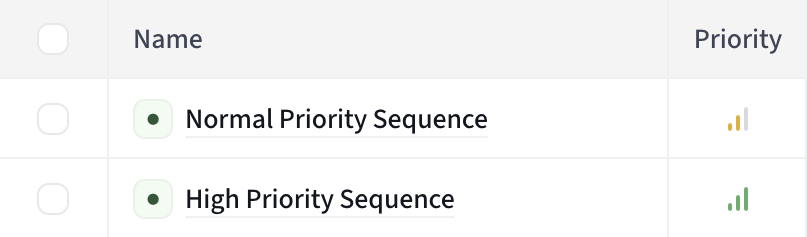
You can easily switch these priorities at any time and Amplemarket will act accordingly!
How to Change the Priority a Sequence
From the Sequences View
From your Sequences view, it is very easy to change the priority a Sequence. If you hover over the priority icon for the chosen Sequence, you will see text appear saying "Switch to High/Normal":
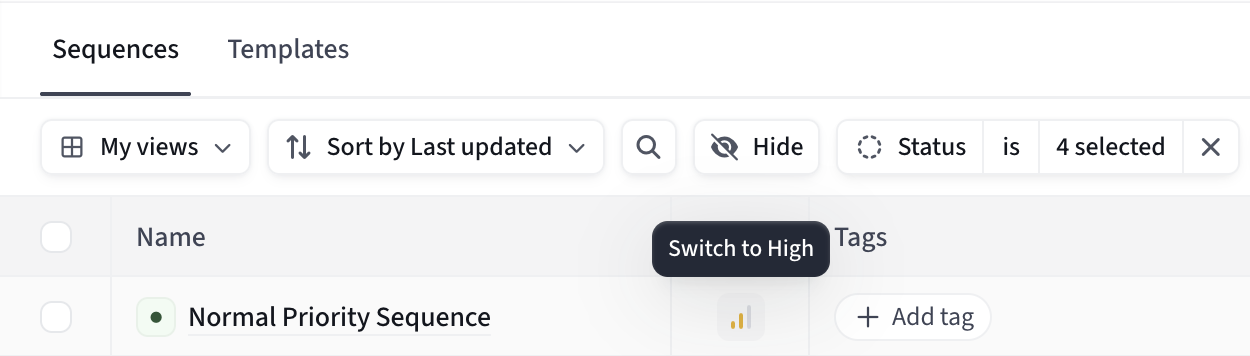
Simply click the icon and the Sequence priority will be switched to High:
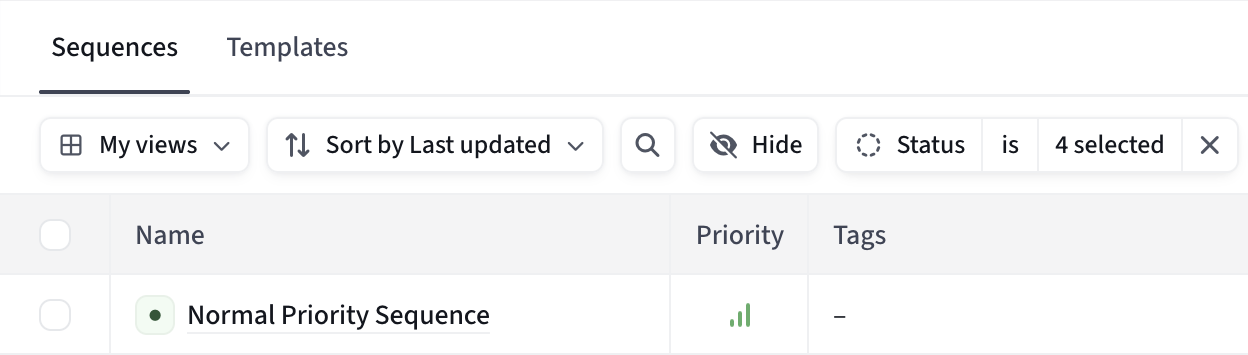
To do the opposite, click on the High priority icon of the Sequence, and it will be switched to Normal priority.
From Sequence Information View
If you click into a specific Sequence, you will be in the Sequence Information view. You can just as easily change the priority of the Sequence here too:
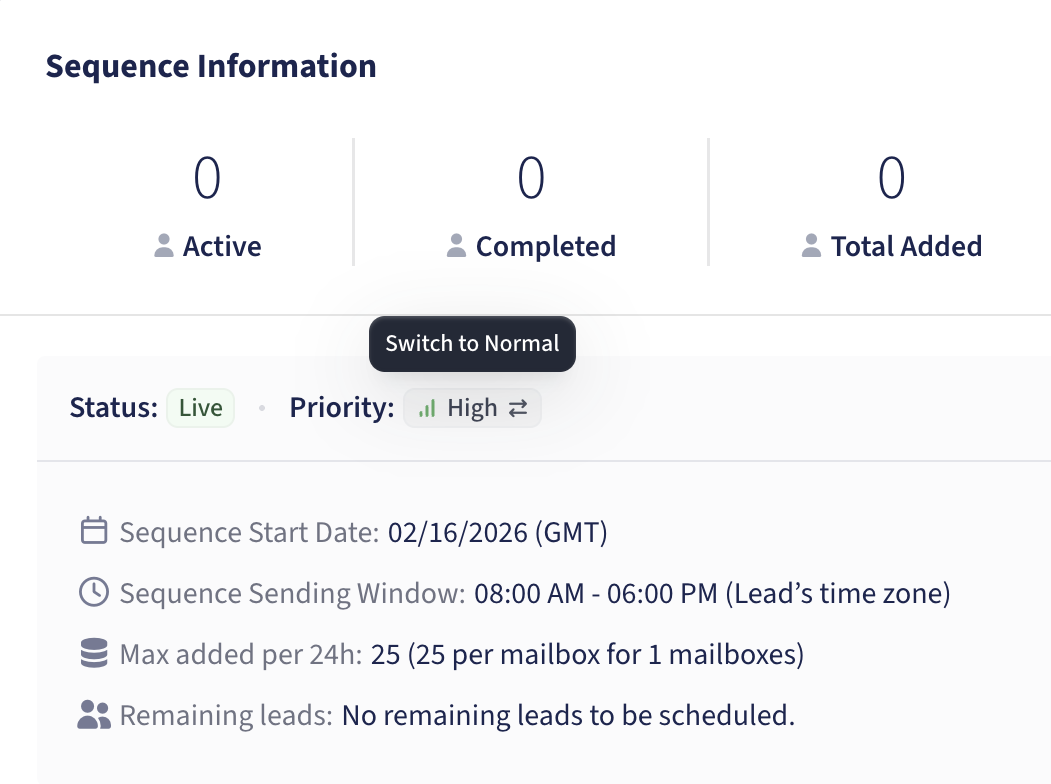
During Sequence Creation/Editing
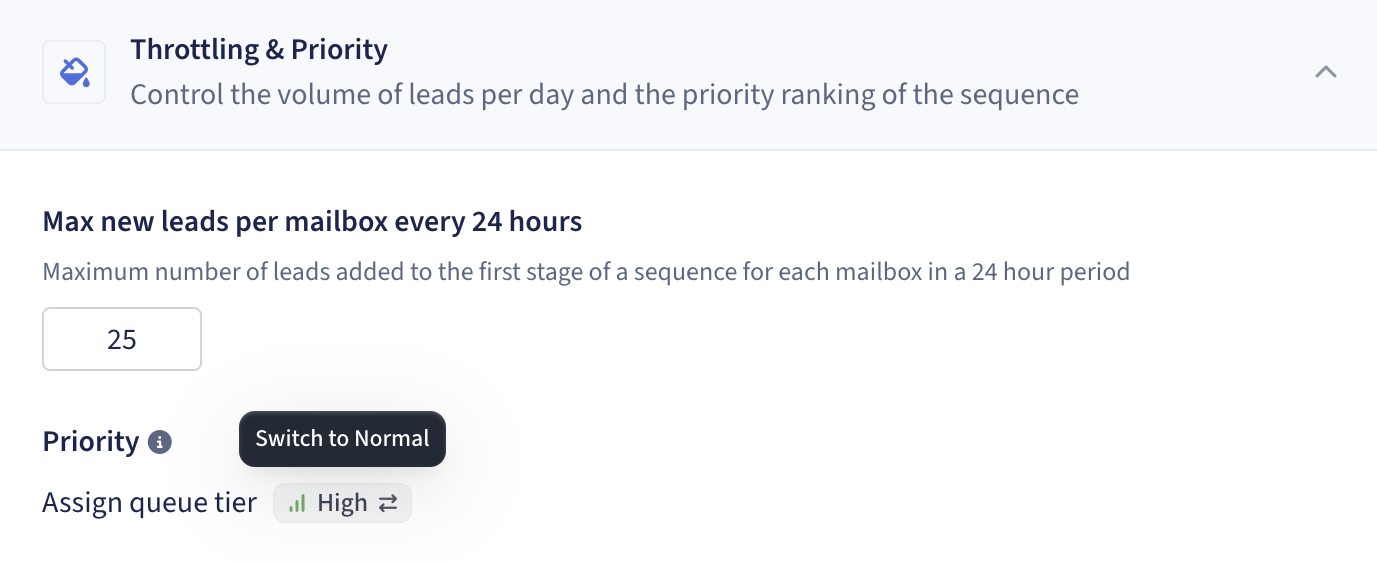
During the creation of a Sequence, or when editing a live Sequence, you can change the priority under the Settings tab, in the Throttling & Priority dropdown box: