Single Sign-On: Google SSO
Last updated: March 11, 2026
Amplemarket is now compatible with the Google SSO. The G-Suite admin can follow the steps in this article to set up the Google SSO in order to have access to Amplemarket.
Note: SSO is only available for Elite Plans
Log in to the Admin G-Suite Account
Select "Apps"
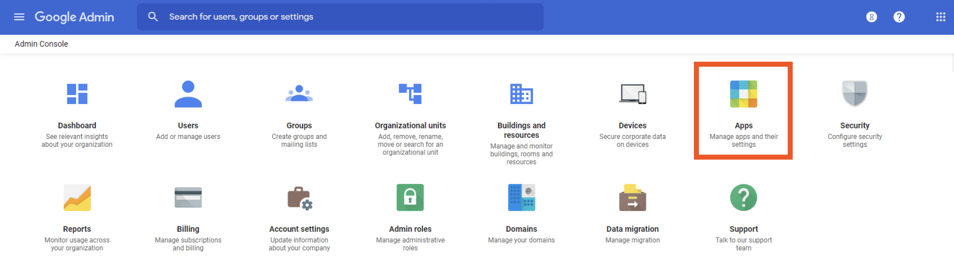
Select "SAML Apps"

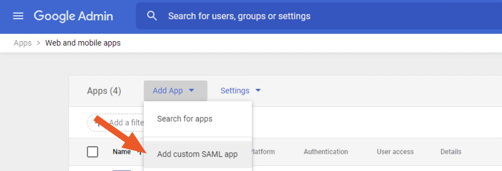
Select "Add App"
Select "Add Custom SAML app".
Enter "Amplemarket" in the application name.
Click "Continue"
Download the IDP metadata file from Google (download as XML)
Click "Continue"
Update the "Service Provider Details" with the following URL information:
ACS URL: https://app.amplemarket.com/users/auth/saml/callback
Entity ID: https://app.amplemarket.com/users/auth/saml/metadata
Name ID Format: “Email”
Name ID: “Basic Information” “Primary Email”
Click "Continue"
Click "Finish"
Select "SAML Apps"
Search for the SAML you created and select the three vertical dots to the right.
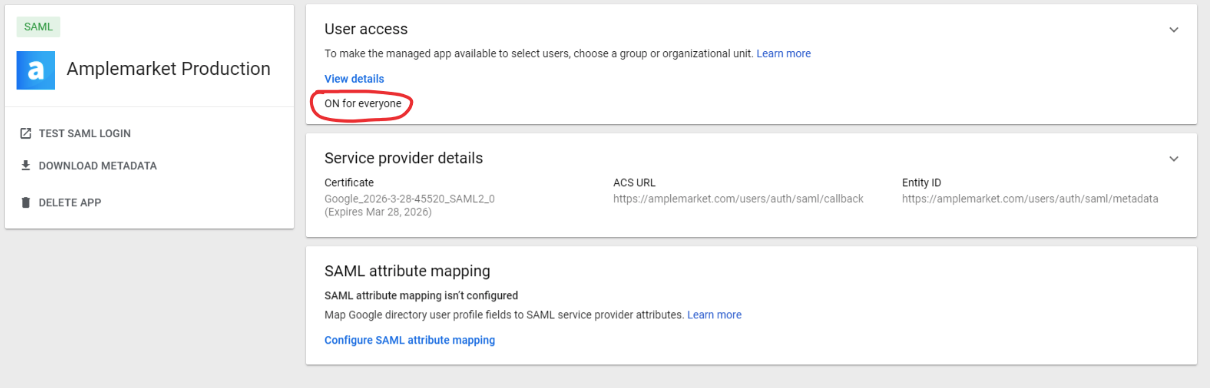
Select "Turn on for everyone" (or for the specific group you want to grant access)
Send the downloaded IDP metadata file from Google (download as XML) to our Support team at support@amplemarket.com so that the team can set up your identity provider.