Manage contacts in a live sequence
Last updated: November 26, 2026
A live sequence's Contacts tab lists every contact in it, with their status. From there you can remove contacts, retry them, move them to another stage, edit their data and more. This replaces the old Contacted Leads tab.
Open the Contacts tab
Go to Sequences.
Open a live or paused sequence.
Click the Contacts tab.
Each contact shows its Status (for example Ready, Removed or Hard bounced), a Status reason when there is one, and its Current stage. The footer counts how many contacts are remaining, active, completed, paused, spam or bounced, removed or in error, and unsubscribed.
To find contacts, use My views (for example Removed / Excluded contacts, Opened (3+) but didn't reply or Scheduled to start), Filter (by Status, Current stage, Engagement, Label, Error reason and more) or the search.
Actions on one contact
Hover over a contact's name to see its actions:
Add to sequence: add the contact to another sequence.
Edit: edit the contact's data for this sequence. See "Edit contact data" below.
… (more options): Move to stage, Reveal phone number, Retry, Assign to new mailbox, Copy to list.
Actions on several contacts
Select contacts with their checkboxes. A bar appears at the bottom with Add to sequence, Remove from sequence, Reveal phone number, and … for Retry, Move to stage, Assign to new mailbox, Copy to list and Export to CSV.
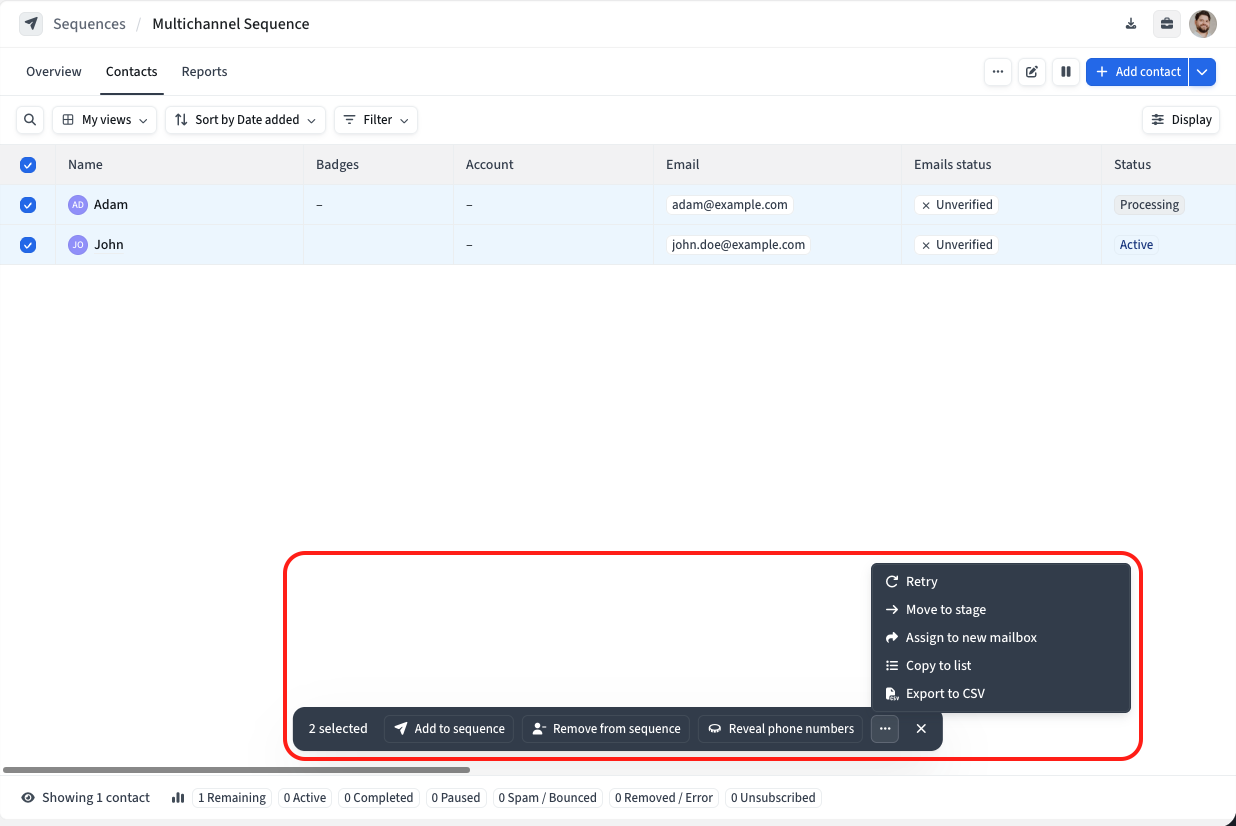
After each action, a confirmation message appears.
Remove contacts from the sequence
Removing a contact stops all their tasks and automatic emails in this sequence.
Select the contacts.
Click Remove from sequence in the bottom bar.
Best practice: remove contacts who are no longer relevant, or who need a different approach. For example, when someone replies from another address to say they're not interested.
You can only remove contacts who are Active or Paused. If you see "You can only remove Active or Paused contacts", check the status of the contacts you selected.
Remove a contact from their contact page
Go to Contacts.
Search for the contact by name or email and open them.
Click Actions, then Remove from sequence.
Contacts removed automatically
Replies: when a contact replies to any message in the sequence, they're marked as completed and removed, so no more outreach goes out.
Salesforce status changes: if your team syncs certain Lead Status values to the exclusion list (for example "SQL", "Passed to Partner" or "SDQL"), contacts are removed from active sequences when their status changes in Salesforce. This happens at their next scheduled step.
Stop all outreach to an account
To stop all outreach to an account, remove its contacts from every sequence they're in, including Duo Copilot sequences. Find them by account or domain with filters, select them, and remove them. Removing stops every future task, manual and automatic, so confirm carefully.
Skipping a task is not the same: it moves the contact to the next stage and keeps them in the sequence. Adding contacts to an exclusion list prevents future outreach too; with the Salesforce sync, it also removes them from active sequences at their next step.
Cancel one scheduled email
To cancel a single scheduled email without removing the contact:
Go to Outbox.
Find the email.
Skip it. The contact moves to the next stage.
Use this when you only want to cancel specific emails. To stop all communication with a contact, remove them from the sequence.
Retry contacts
A contact who was removed or ran into an error stops moving through the sequence. Retry them to continue from the last stage they completed.
Select the contacts, or open a contact's … menu.
Click Retry.
In Retry contacts, choose whether to override protections:
Retry these contacts even if recently contacted
Retry these contacts even if in exclusion list
Click Retry contacts.
Retry is only available for contacts in Removed or Error status. If none of the selected contacts qualify, the dialog says so.
When retry works
If a contact was removed for legal reasons (such as GDPR), or the condition that caused the error still applies, they can't be retried.
If a contact was removed because of the exclusion list (for example an "Excluded" or "Unsubscribe" flag set to true in your CRM) or because they were recently contacted, you can override this with the options above.
If a contact is already in another active sequence, they're removed from the new one automatically to prevent conflicts. Choose Retry these contacts even if recently contacted to override this.
Amplemarket checks whether the reason for the removal or error still exists. If it's resolved, the contact goes back to the stage where they stopped. If not, they stay Removed or in Error.
Retry many removed contacts at once
Use this when contacts were added to an exclusion list after they joined the sequence, for example through a CRM sync.
Filter the Contacts tab to Status Removed, or use the Removed / Excluded contacts view.
Select all the contacts you want to retry.
In the bottom bar, open … and click Retry.
Check Retry these contacts even if in exclusion list.
Click Retry contacts. They pick up where they left off.
Tip: to see why a contact was removed, check the Status reason column, or hover over their status. It helps you decide whether retrying makes sense.
Note: retrying is useful when the failure was temporary, such as an email server error.
Limits
You can only retry contacts that were removed or are in error. Contacts who completed the whole sequence can't be retried.
You can't re-add a contact to the same sequence once they've been completely removed. This prevents sending the same messages to someone twice.
To contact a removed contact again, duplicate the sequence and add them to the copy.
Retry failed emails from the Outbox
For emails that failed to send, for example because a mailbox was blocked:
Go to Outbox.
Filter by status failed.
Select the failed emails.
Retry them.
Note: fix the underlying problem first, such as unblocking the mailbox.
Move contacts to a specific stage
Skip contacts ahead to a later stage. The stages in between are skipped.
Select the contacts, or open a contact's … menu.
Click Move to stage.
Choose the stage the contacts should do next.
Best practice: use Move to stage for contacts who need urgent follow-up, or to skip steps that don't apply to them.
You can only move contacts forward, not back to stages they already completed. You can move a contact once they've gone through the first stage.
Move contacts to another sequence
Select the contacts and click Add to sequence in the bottom bar.
Or export them: select them, open … and click Export to CSV, then add the file to the other sequence.
Contacts always start a sequence at its first stage; you can't add them at a later step. To skip steps, duplicate the target sequence and remove the steps you don't want, or build a new sequence with only the steps you need.
If you get "dynamic fields missing" errors, make sure the target sequence's dynamic fields are filled in for these contacts. You can add them to a list first, fill in the missing fields there, then add them to the new sequence.
Contacts removed because their mailbox was disabled can't go back into the same sequence with a different mailbox. Export them to CSV, duplicate the sequence if needed, and add them to the copy.
Contacts who already completed a sequence don't go through stages you add later. To include them, create a sequence with just the new steps and add them to it.
Edit contact data
Hover over the contact and click Edit.
The panel lists the contact's fields in two groups: Used in sequence and Not used in sequence. Use Search dynamic fields to find one.
Change the values and click Save changes.
Changes apply only to this sequence ("Contact info will be updated only for this sequence") and show in all of the contact's upcoming stages. You can't change fields like email or LinkedIn URL here, only dynamic fields.
Who can do what
Private and View only sequences: only the sequence owner (and admins) can remove, move or retry contacts. These levels used to be called Private and Organization can view.
View and edit sequences (formerly Organization can edit): anyone in your organization can.
Reps can only edit contacts they own. On other contacts, Edit is unavailable and shows "You don't have access to this contact". See Sequence permissions.
Retried contacts scheduled too far ahead
If retried contacts are scheduled far in the future, or tasks are delayed, set the sequence's priority to High. It reschedules the sequence's tasks and prioritizes it for the next day. Keep High for at most 2 sequences, to avoid conflicts between them. See Set a sequence's priority.
LinkedIn stages are delayed
LinkedIn connection stages can be delayed by:
A backlog of pending connection requests.
An inactive LinkedIn session while Amplemarket is running.
Your browser being closed during working hours.
To avoid delays, keep an active LinkedIn session, keep your browser open during working hours, and let sequences run to their daily limits without interruption.