About Email Warmup
Last updated: October 20, 2026
Email warmup helps your mailboxes build a good sending reputation, so your emails reach the inbox and not the spam folder.
What is email warmup?
Email warmup is Amplemarket’s deliverability service. It sends and replies to short emails between mailboxes in the Amplemarket network. Mailbox providers like Google and Microsoft see this as normal, healthy email use. Over time, this builds trust in your mailbox.
When should I use it?
New domains or mailboxes. They have no history yet, so warmup adds activity that mailbox providers can see.
Older domains or mailboxes. Warmup keeps your sent-to-received balance healthy next to your sequences.
After spam problems. Together with other good practices, warmup can help your domain recover.
How does warmup work?
Each weekday (Monday to Friday), warmup starts 2 to 4 new conversations from your mailbox. It does not run on weekends.
The conversations go to random mailboxes from other accounts in the network. Never to your own team.
The emails are short and sent at random times, so they look natural.
The other mailbox replies to most of them. Your mailbox also replies to the emails it receives.
If a warmup email lands in spam, warmup moves it out of spam and marks it as read.
Warmup subjects start with amplemarketwarmupemail:. You can use this to keep these emails out of your inbox (see "Set up inbox filters" below).
The 12-week plan
Warmup follows a plan of 12 weeks. As the weeks go by, your mailbox can handle more sending volume.
Week | Recommended daily volume |
|---|---|
1 to 2 | Up to 5 |
3 to 4 | 5 to 10 |
5 to 7 | 10 to 15 |
8 to 10 | 15 to 20 |
11 to 12 | 20 to 30 |
After week 12 | Up to 30. Increase slowly from here. |
The daily volume is the number of net new leads you should send per day from this mailbox in your sequences. It is not the number of warmup emails.
How do I read the warmup table?
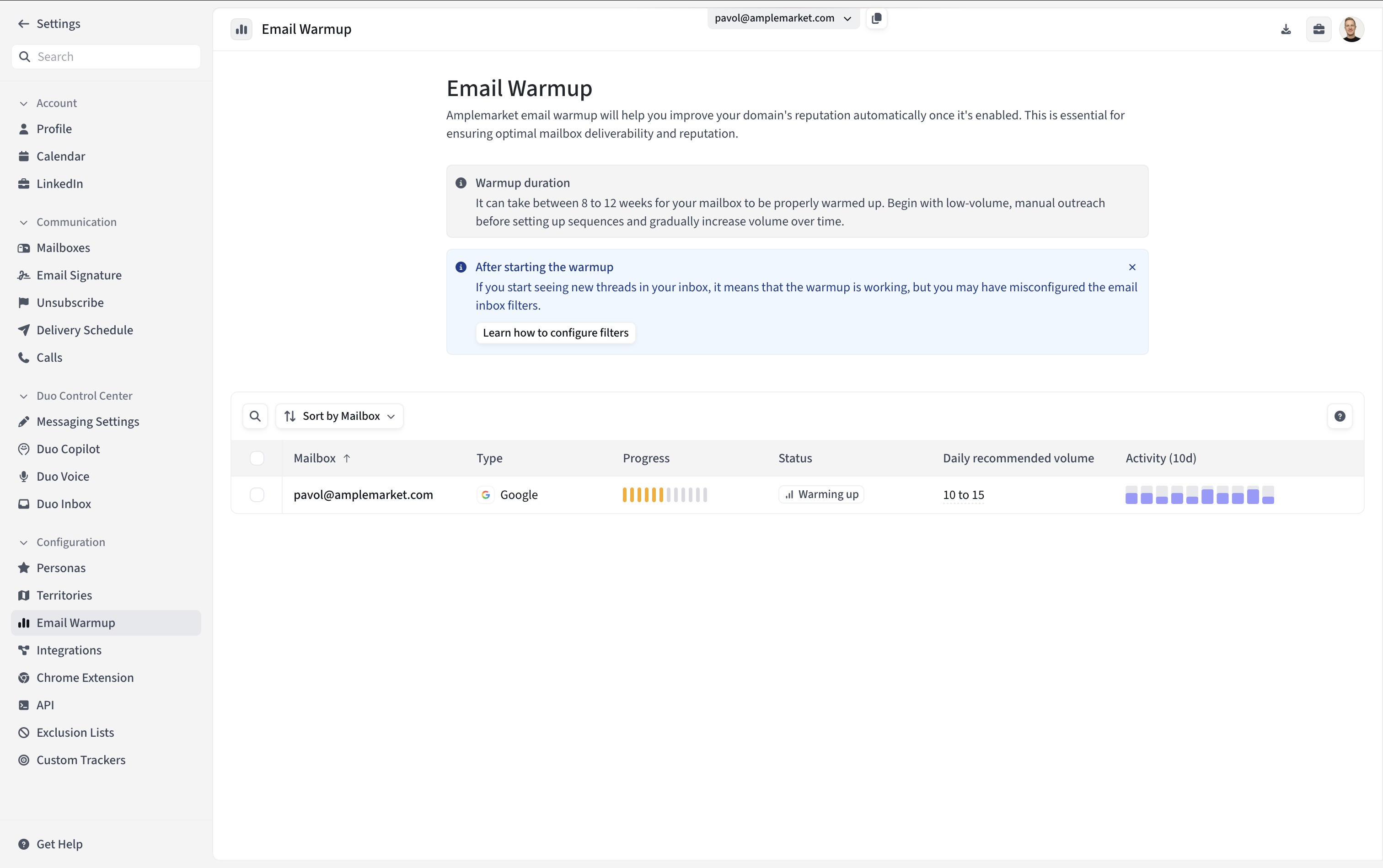
Go to Settings > Email Warmup. Each row is one mailbox.
Type: Google, Outlook, or Other
“Other” is a provider that is not Google or Outlook, or a mailbox where the IMAP and SMTP servers are different and set up by hand
Progress: 12 bars, one for each week
You can hover to see the current week, the start date, and when the next stage starts
Status: where the mailbox is in the plan
See more details in the table below
Daily recommended volume: the volume for the current week of the plan
You can hover for more detail
Activity (10d): the last 10 working days
Each bar is the number of warmup conversations started that day
Statuses
Status | What it means |
|---|---|
Ready to start | The mailbox is ready. Start warmup to build reputation before you send at volume. |
Warming up | Warmup is in progress. |
Paused | Warmup is paused. Resume it to keep building reputation. |
Disconnected | The mailbox lost its connection. Click the status to reconnect and resume warmup. |
Completed | The 12 weeks are done. The mailbox is ready to send at volume. |
How do I start warmup?
Go to Settings > Email Warmup.
Select a mailbox and click Start warmup. Use the same button to pause.
Connect the mailbox:
Google: use Google OAuth (recommended) or an app password. Follow Enable Email Warmup for Gmail. With OAuth, a Google Workspace admin must approve the app once.
Other providers: you may be asked for your SMTP and IMAP details.
To change the connection later, use the gear icon. To start or pause several mailboxes, select them with the checkboxes. A mailbox that needs to be reconnected or set up first cannot be selected.
If you have a Google Account, you can use the Google Oauth for a quick and easy connection. Follow this interactive guideflow:
Alternatively, if you would like to connect via SMTP/IMAP and App passwords, follow the instructions in this article: Enabling SMTP/IMAP settings for Google.
Troubleshooting Connection Issues: If Google blocks the connection as a security measure, you may see an error when trying to connect. To resolve this, follow the steps in this article to grant Amplemarket the necessary permissions to access your account.
Set up inbox filters (recommended)
Warmup emails will show up in your inbox. A filter keeps them out of the way.
Gmail
In Gmail, click Show search options in the search bar.
Paste
amplemarketwarmupemail:into the Subject field.Click Create filter.
Enable the following actions Skip the Inbox (Archive it), Mark as read, Never send it to Spam, and Always mark it as important.
Click Create filter.
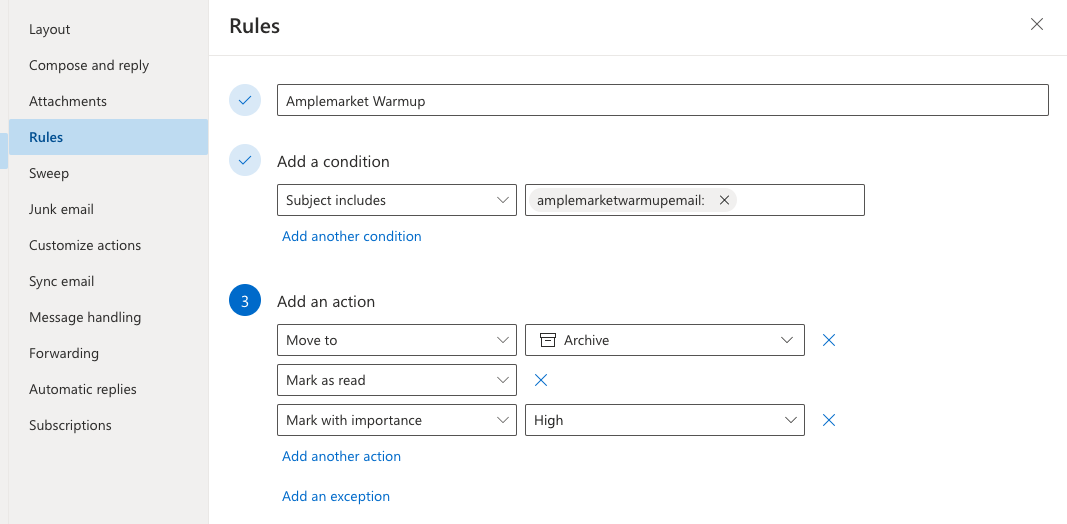
Outlook
Go to Mail Settings and add a rule.
Add the condition Subject includes and paste
amplemarketwarmupemail:.Add the actions Mark as read, Move to: Archive, and Mark with importance: High.
Frequently asked questions
How long does warmup take?
The plan takes 12 weeks.
Can I send sequences while my mailbox is warming up?
Yes. Keep your daily volume close to the recommended volume for the current week.
Why does Activity show “N/A”?
Warmup has not started for that mailbox. The status is “Ready to start”.
Why are there empty bars in Activity?
No conversation was started that day. Check the status. The mailbox may be paused or disconnected.
Can I keep warmup on after week 12?
Yes. Warmup keeps your sent-to-received balance healthy next to your sequences.
My Outlook mailbox was blocked by Microsoft. Can warmup fix it?
No. An admin has to unblock the mailbox first. After that, ramp up your volume slowly. See this article.
I see an “untrusted app” error when I connect with Google OAuth.
A Google Workspace admin has not approved the Amplemarket Warmup app yet. See Enable Email Warmup for Gmail.