Recipe: Adding Leads to Dynamic Videos in SendSpark
Last updated: September 12, 2025
🎯 Use Case
Kick off your Sequence by generating a personalized video for every new lead.
As soon as a lead enters the Sequence, Amplemarket will notify SendSpark through the HTTP Request stage. SendSpark creates a unique video using the lead’s details, which you can then reference later in your outreach.
This way, your outreach feels personal without you manually recording or managing individual videos.
⚙ How it works
Before setting up the steps below, you may want to review SendSpark’s own API documentation for adding a single prospect to a dynamic campaign: SendSpark API – Automatically Create Dynamic Videos.
Now, here’s how it works in Amplemarket:
Lead is added to your Sequence.
Step 1: HTTP Request Stage → Amplemarket sends the lead’s details to SendSpark (e.g. first name and company name).
SendSpark generates a dynamic video tailored to that lead using this info. Read more about SendSpark Dynamic videos in this article.
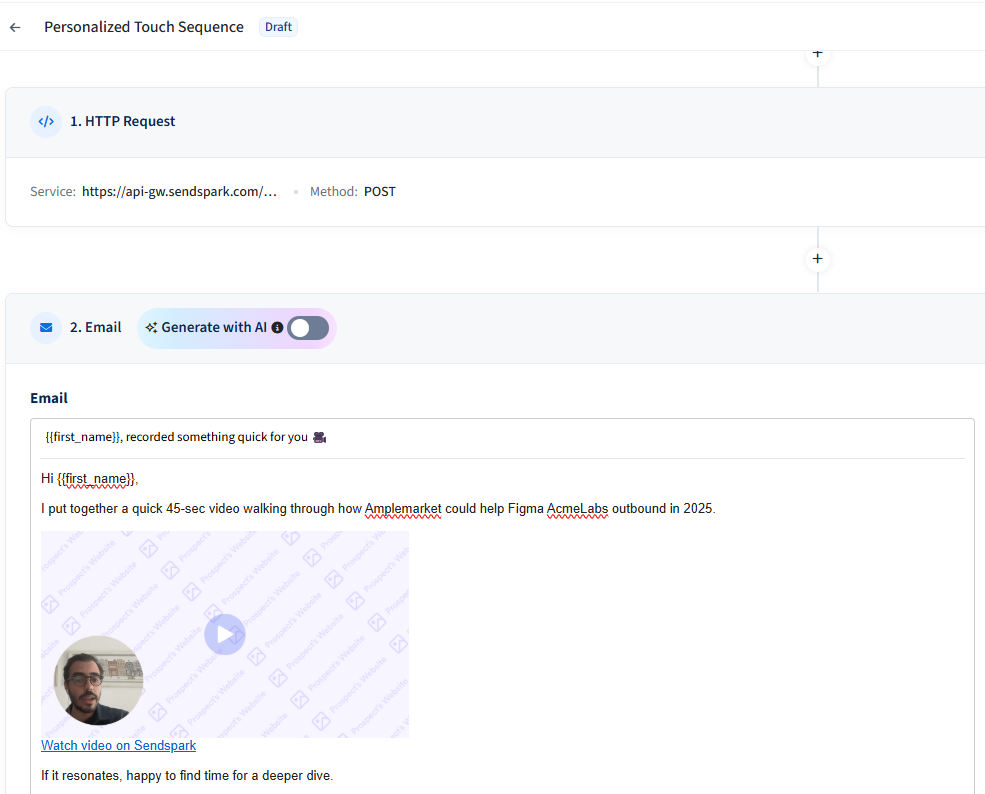
Step 2: Email → You reference that personalized video in your outreach.
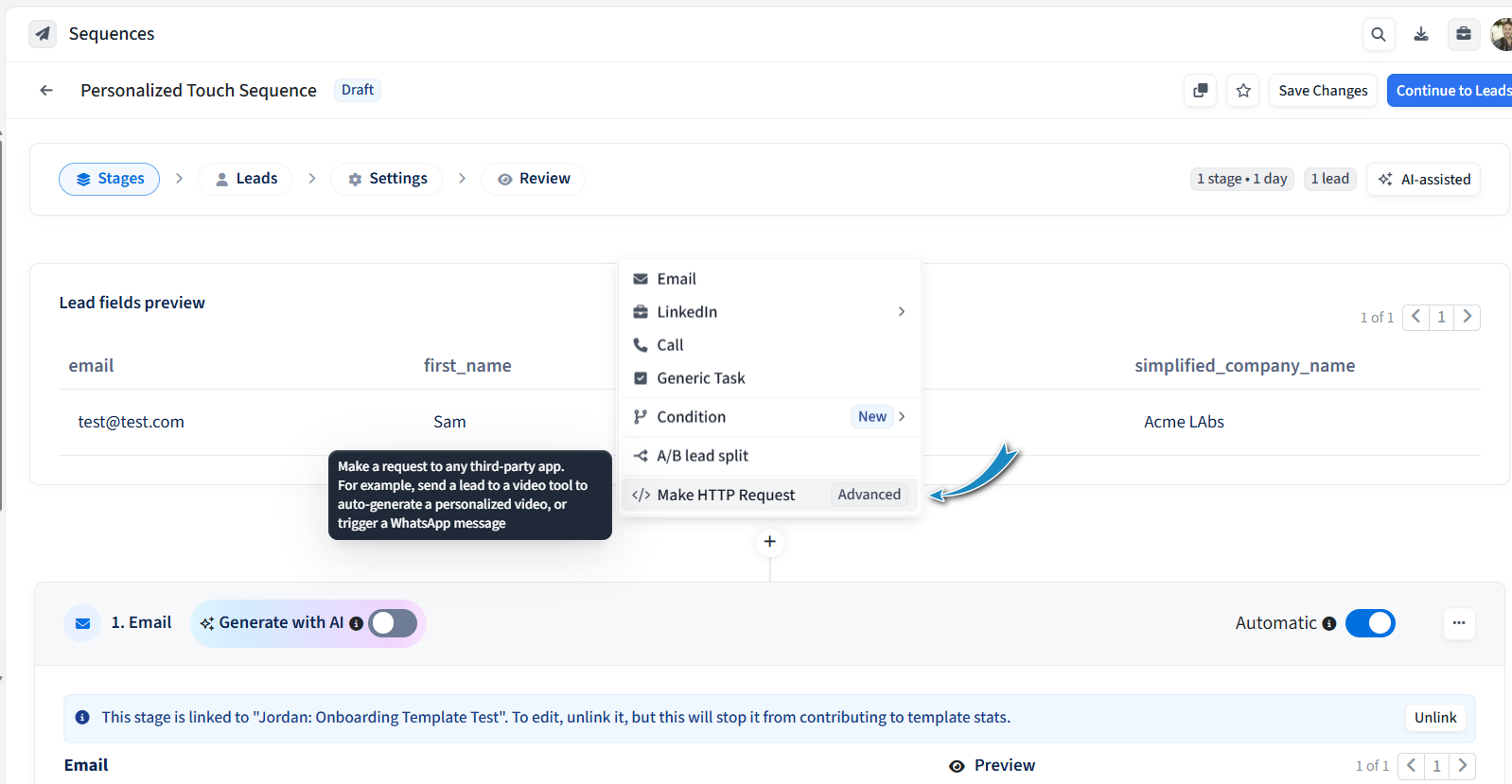
🔁 Step 1: HTTP Request Stage – Configure SendSpark Trigger
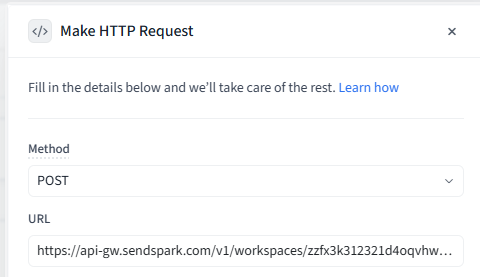
Method:
POSTURL:
https://api-gw.sendspark.com/v1/workspaces/{workspaceId}/dynamics/{dynamicId}/prospect👉 Replace {workspaceId} with the ID from your API credentials page in SendSpark, and {dynamicId} with the ID of the dynamic video campaign you want to use.
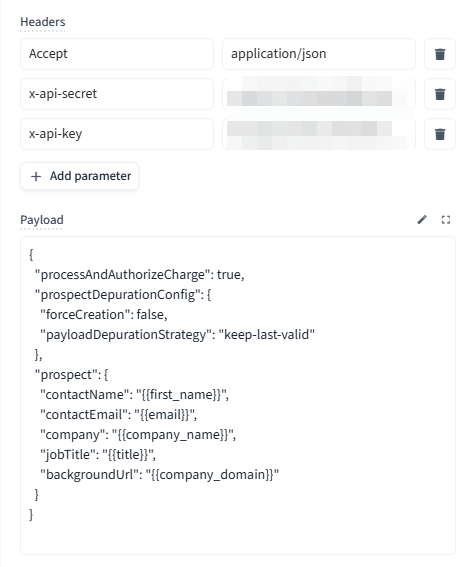
Example Headers:
{
  "x-api-secret": "YOUR_API_SECRET",
  "x-api-key": "YOUR_API_KEY",
  "Accept": "application/json"
}
Example Payload (with Amplemarket dynamic fields):
{
  "processAndAuthorizeCharge": true,
  "prospectDepurationConfig": {
    "forceCreation": false,
    "payloadDepurationStrategy": "keep-last-valid"
  },
  "prospect": {
    "contactName": "{{first_name}}",
    "contactEmail": "{{email}}",
    "company": "{{company_name}}",
    "jobTitle": "{{title}}",
    "backgroundUrl": "{{company_domain}}"
  }
}
⚠ Note: The payload field is very flexible — you can use JSON, XML, or another format. But it’s also highly unforgiving: if your syntax is wrong (e.g., missing quotes, brackets, tags), the request will fail for all leads.
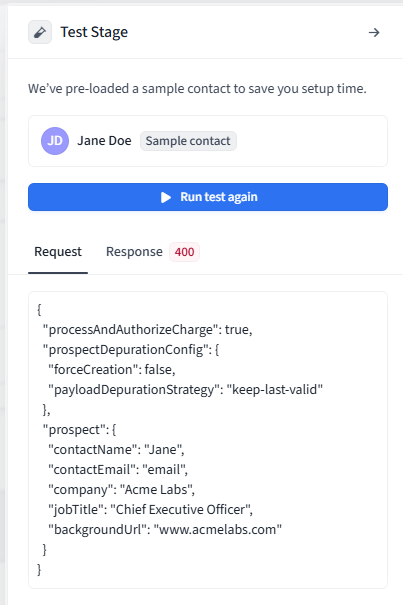
🧪 Step 2: Test the Request
Before saving, always run a test:
Amplemarket will send a dummy request to the endpoint with your configured headers and payload.
Dynamic fields are replaced with dummy values during the test. For example,
{{first_name}}may be replaced with"Jane". If Amplemarket can’t resolve a placeholder, it will fall back to echoing the field name itself — for example,{{first_name}}becomes"First Name".A 2xx status (for example, 200 OK) means the request was successful and SendSpark received it.
⚠ If the test fails, fix the issue before saving — otherwise all live leads hitting this stage will fail.
✉ Step 3: Configure the Outreach Email
Once your HTTP Request stage is tested successfully and leads are being sent to SendSpark, it’s time to embed the dynamic video in Amplemarket. In SendSpark, click “Share Campaign”
Select “Amplemarket” as the sharing option.
Copy the video link that SendSpark provides.
Paste the link into your email step in the Sequence.
Example Email:
And that’s it — you’ve now connected SendSpark with Amplemarket to automatically generate and share personalized videos inside your Sequences.