Notification Center
Last updated: August 4, 2026
The Notification Center tells you what just happened on your leads and your mailboxes. Find it under Notifications in your sidebar.
Video: using the Notification Center
Watch this short walkthrough to see both tabs, the actions on each notification, and where to configure what you receive.
What is the Notification Center?
A notification records an event as it happens, and links to the contact or mailbox it's about.
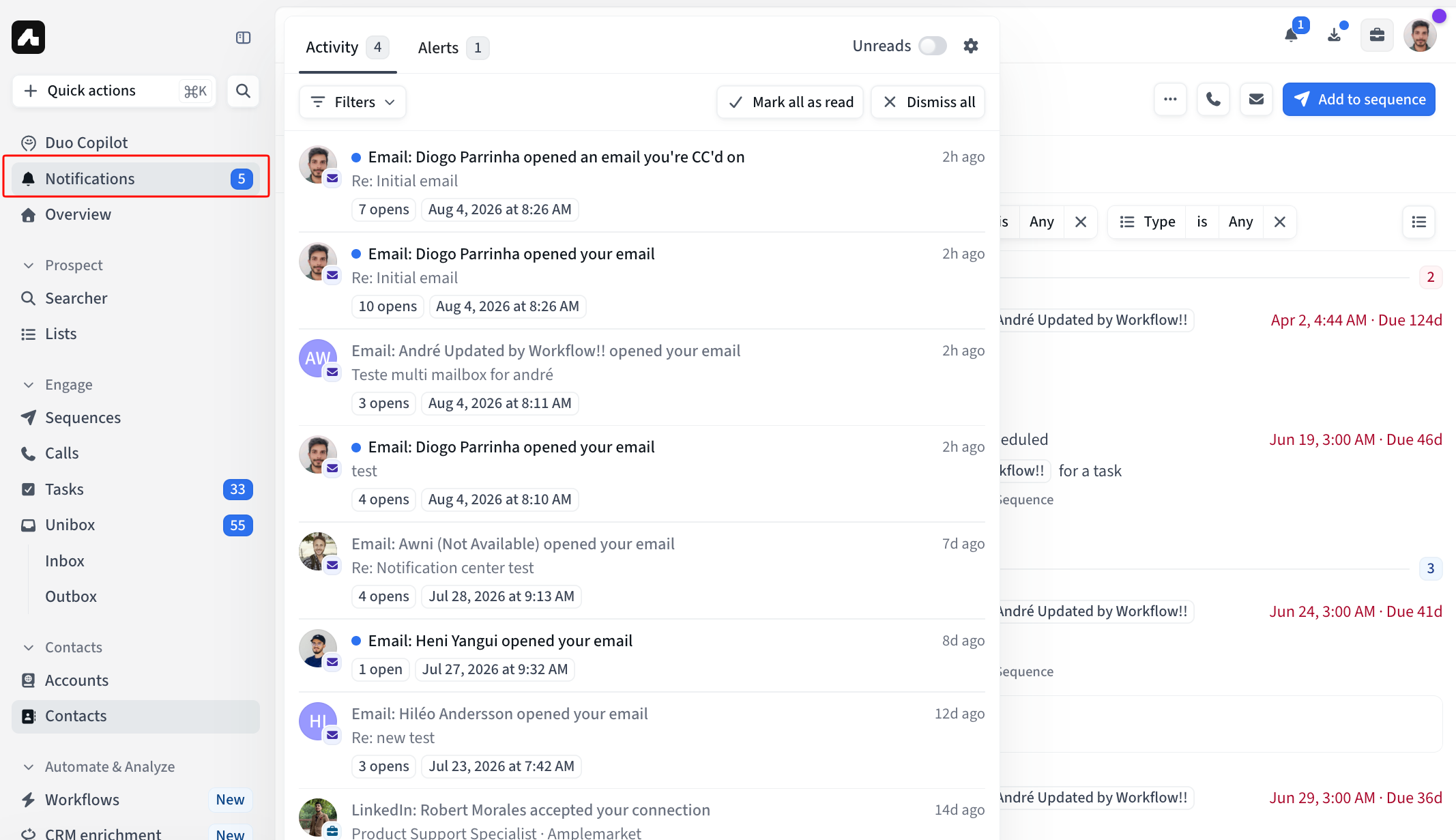
The panel has two tabs, Activity and Alerts, each with a count badge, and the sidebar shows your unread count. New notifications appear without refreshing the page. The panel covers the last 30 days.
Activity
The Activity tab covers engagement events on your leads.
Missed call — an inbound call from a lead that went unanswered. Open the contact, or call them back from the notification. See Enabling the Amplemarket Dialer.
Email opened — a lead opened an email you sent. Open the contact, or open the thread in your Unibox. Opens are grouped into one notification per email, showing the open count and the most recent open. Hover over the count for each individual open time.
LinkedIn message opened — a lead opened a LinkedIn message. Open the contact, or their LinkedIn profile.
LinkedIn connection accepted — a lead accepted a connection request. Open the contact, or their LinkedIn profile.
Unibox reminder — a follow-up reminder you set on a Unibox thread has come due. Open the thread.
Email open notifications depend on open tracking. If open tracking is off for your account, no open notifications are sent, including the ones Amplemarket infers when a prospect replies. Turning open tracking on or off requires the Manage safety settings & compliance permission. An open doesn't always mean someone read your message. See Understanding Open Rates: Why They're Not Always 100% Accurate
Alerts
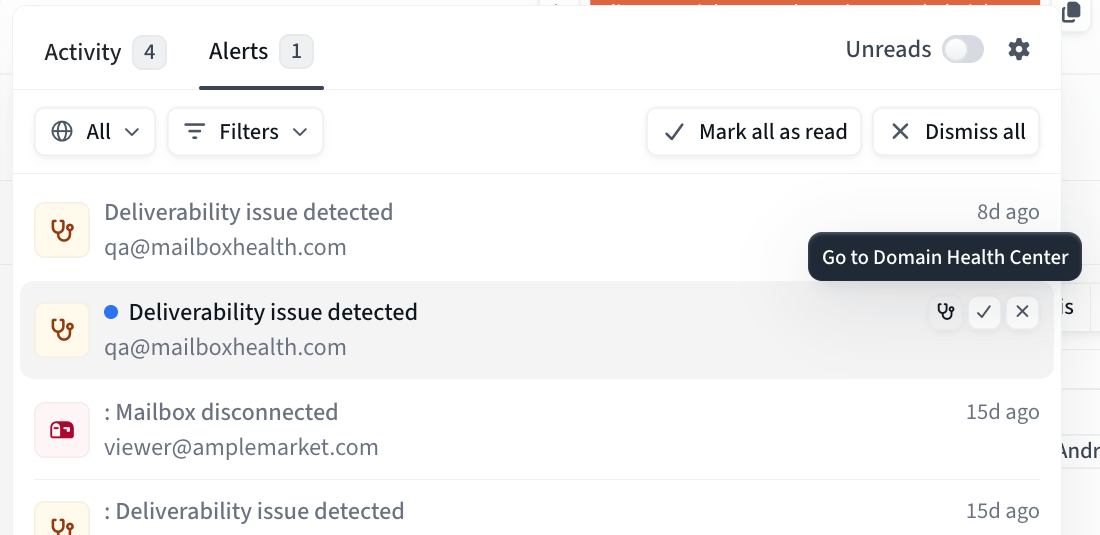
The Alerts tab covers two kinds of mailbox problem.
Mailbox disconnected — a mailbox has lost its connection to Amplemarket. Click Go to Settings to reconnect it. See Troubleshooting: Mailbox Disconnected and Reconnecting your mailbox
Deliverability issue detected — a mailbox has a warmup or deliverability problem. Click Go to Domain Health Center to open the Domain Health Center, filtered to that mailbox. See About the Domain Health Center and Email Placement Tests.
Each alert shows the mailbox address on its second line. When the alert is about someone else's mailbox, the title starts with the owner's name.
An alert goes to the mailbox's owner, and to anyone subscribed to their team's or the workspace's alerts. You can't fix someone else's mailbox from the alert, so follow up with the owner. Alerts don't clear themselves when the problem is fixed, so dismiss them once you've handled it.
Reading, dismissing, and filtering notifications
Unread notifications carry a blue dot, the same as in Unibox. Opening one marks it read, and so does using one of its actions. Hover over a notification to see its actions, including one that switches it between read and unread.
The Unreads toggle at the top right of the panel limits the list to what you haven't read. Switch it off to see everything again.
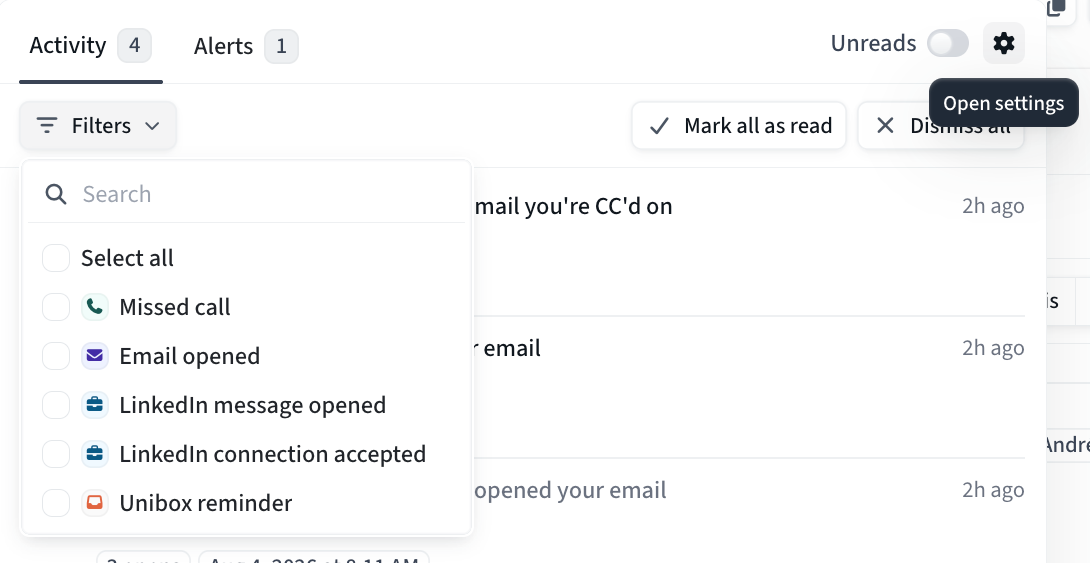
The Filters dropdown, below the tabs, narrows the list by type and shows how many filters you've applied. The types on offer follow the tab you're on, and Select all picks every one of them. Your choices are kept when you refresh the page.
Dismissing removes a notification from your list, and only from yours. A teammate's copy of the same alert is untouched. A dismissal can be undone.
Mark all as read and Dismiss all sit on the same row as Filters. Neither is limited by your filters. Both apply to the whole list, including anything a filter is currently hiding.
Dismiss all shows a confirmation with an option to undo. Undoing restores the notifications in their original order.
The gear icon at the top right of the panel, labeled Open settings, takes you to your notification settings.
What doesn't create a notification
These don't create a notification:
Link clicks.
Replies to your emails or LinkedIn messages.
Answered or outbound calls.
Meetings booked, or a LinkedIn account disconnecting.
LinkedIn activity that reaches Amplemarket more than a day late. The event still counts for the contact and the sequence, but no notification is created.
Notifications aren't retroactive: turning a type on won't produce one for an event that already happened.
We're always looking at which events to add next, so tell us what you're missing.
Choosing which notifications you receive
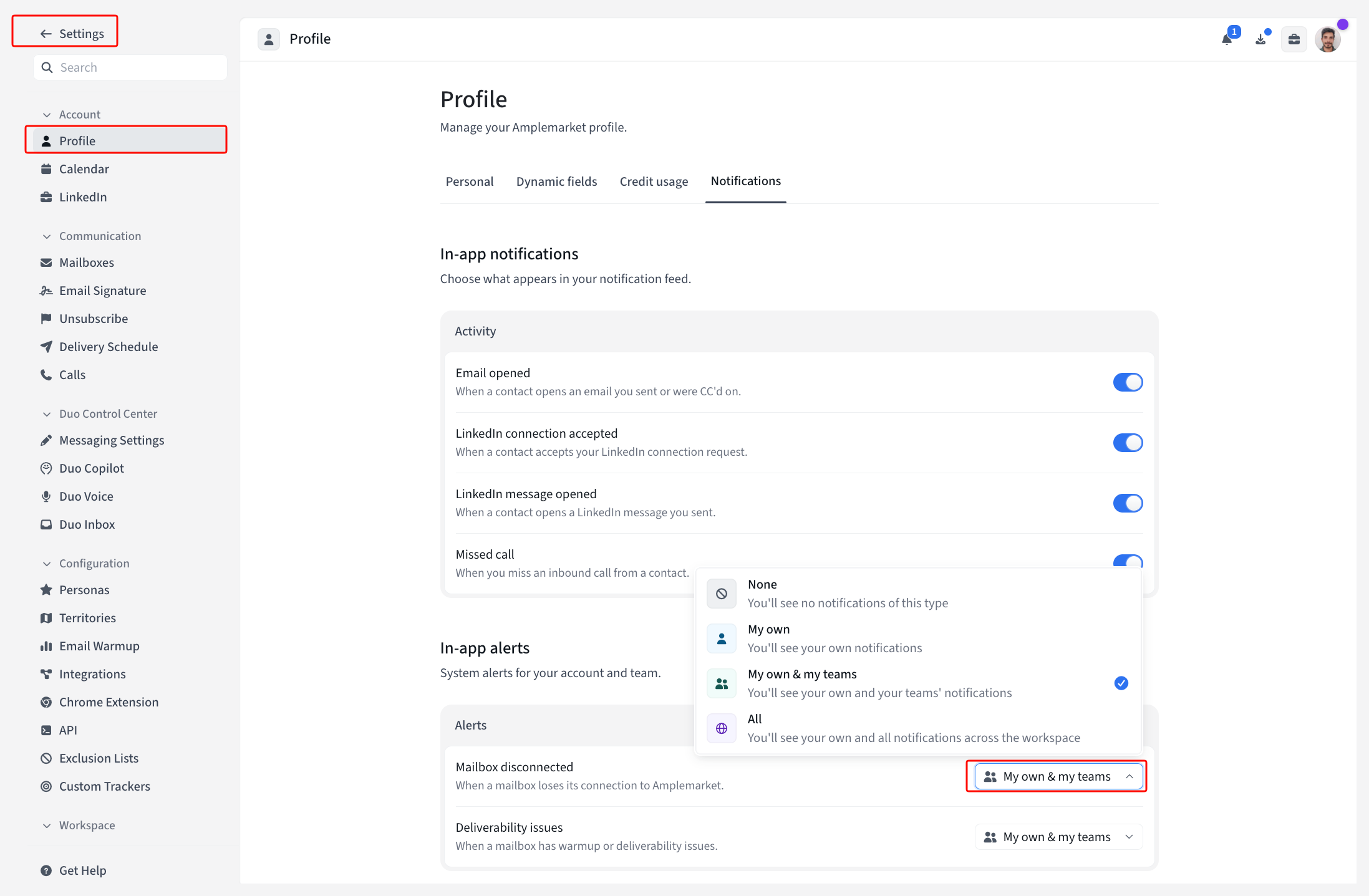
Go to Settings → Profile → Notifications, or click the gear icon in the Notification Center panel. Your in-app settings sit above Email notifications, which you configure separately.
Under In-app notifications, the Activity card has an on/off toggle for each type:
Email opened
LinkedIn connection accepted
LinkedIn message opened
Missed call
Turning a type off stops those notifications from being created, so nothing accumulates while it's off. Turn it back on and you start getting notified about new events again.
Follow-up reminders on Unibox threads have no toggle of their own. They arrive on the Activity tab, and you can filter for them there.
Under In-app alerts, the Alerts card has a row for Mailbox disconnected and a row for Deliverability issues. Each row is a dropdown: you pick how far that alert reaches as well as whether you get it.
Subscribing to alerts beyond your own mailbox
Alerts reach three levels: your own mailboxes, your teams' mailboxes, or every mailbox in the workspace.
Each alert type is set separately, so you can follow mailbox disconnections across your team while keeping deliverability alerts to your own.
On the Alerts tab, a switch changes which level you're viewing. Your own alerts show by default, and your choice is remembered.
You can subscribe up to the maximum your role permits. Levels above it don't appear, and if your role allows only your own alerts, the switch isn't shown.
Team membership comes from .
Limiting which alerts a role can subscribe to
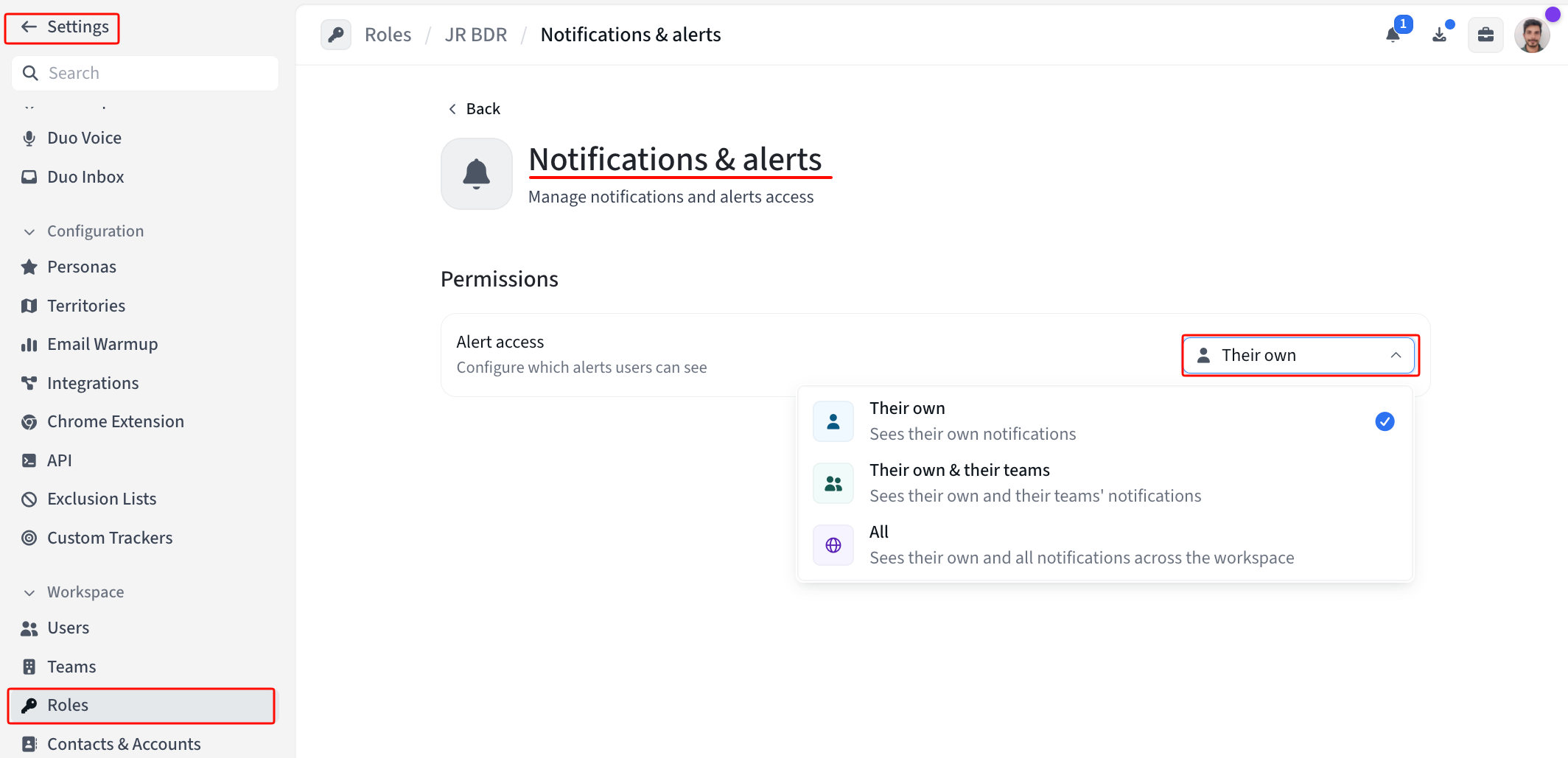
Go to Settings → Roles and open the role. Under Notifications & alerts, Alert access sets the highest level that role's users can subscribe to:
Their own — users see their own alerts.
Their own & their teams — users see their own alerts and their teams' alerts.
All — users see every alert across the workspace.
Users then pick any level up to that limit in their own settings. Lowering a role's limit moves anyone subscribed above it down to the new limit.
Only custom roles can be edited. System roles are built in, so their Alert access can't be changed.
Editing a role needs the Manage users, teams, and roles permission. Admins have it by default.
See to learn more about configuring roles.
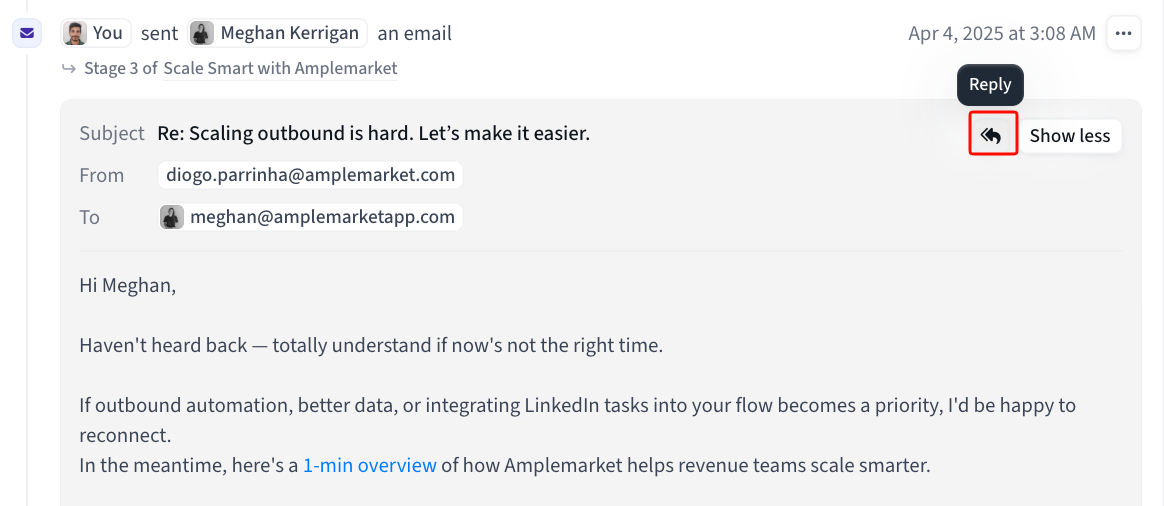
Replying inside an existing email thread
You can reply to any email thread you can see on a contact or account. That includes a thread a teammate sent, and a thread where the prospect hasn't written back yet.
To reply:
Open the contact or account and find the thread in the activity feed. If you're coming from a notification, open the contact first. See .
Hover over the message you want to reply to and click Reply.
Write your reply and send.
The reply attaches to the email you picked, not to the newest one in the thread. Reply to an older message and the reply appears in the right position in that thread.
Replying opens a composer, the same as replying from Unibox, with CC filled in from the recipients already on the thread. If the mailbox behind the thread is disconnected, the reply actions explain why they're unavailable.
Sending works like any one-off email, and it creates and completes a task for you. The reply then shows in the activity feed as a manual email, noting which sequence the thread belongs to. If the prospect replies, the sequence stops for that lead. Anyone who can see the thread can reply, with no separate permission.
Who gets the email-open notification
When the lead opens one of these emails, two people can be notified:
The person whose mailbox sent it. Their notification reads opened your email.
Every teammate on your Amplemarket account who is in CC. Their notification reads opened an email you're CC'd on.
Each person needs Email opened turned on, and open tracking has to be on for the account. People in CC who aren't on your Amplemarket account don't get one.
This applies to every tracked email Amplemarket sends, not only to replies you send from a contact or account page.
Two example setups
An SDR and an AE working the same thread — the AE picks up the lead when they engage.
Both the SDR and the AE keep Email opened on under Settings → Profile → Notifications.
The SDR sends the outbound from their own mailbox and puts the AE in CC.
The lead opens the email, and both of them get an email-open notification.
The AE opens the contact from the notification, finds the thread in the activity feed, and replies to the lead inside it. The lead sees one conversation.
A manager watching their team's mailboxes — seeing which teammates' mailboxes have problems.
Ask an admin to set your role's Alert access to Their own & their teams under Settings → Roles.
Under Settings → Profile → Notifications, set Mailbox disconnected and Deliverability issues to My own & my teams.
Open the Alerts tab, switch the view to My teams, and message the owner when an alert names their mailbox.
Best practices
Switch off the activity types you don't act on. Every type you leave on adds to the list you work through.
Use the Unreads toggle as your working list, and mark an item unread to revisit it.
Reply inside the existing thread rather than starting a new email that loses the context.
Set each role's Alert access to the level that role needs.
Frequently asked questions
Can I reply to a prospect straight from a notification?
Not from the notification itself. Open the contact from the notification, then reply to the email in the activity feed.
Why can't I subscribe to my team's alerts?
Your role's Alert access is most likely set to Their own. Ask an admin to raise it under Settings → Roles.
Can I get these by email, Slack, or as a browser notification?
Not currently. The Notification Center is in-app only. Amplemarket does send other notifications through those channels, and they aren't unified here yet. See for Duo Signals and digests in a Slack channel, and , , and for the ones that arrive by email.
Why is a tab empty?
The panel tells you which it is: nothing has come in, nothing matches your filters, or you've switched off every type on that tab.
Who can change a role's Alert access?
Anyone with the Manage users, teams, and roles permission, which admins have by default. Alert access can only be changed on a custom role.
Email open tracking compliance: Depending on the purpose and applicable legal basis, prior recipient consent may be required. Review your practices, obtain consent where required, and disable open tracking when you do not have an appropriate legal basis. See for details and regulator guidance.