Setting up Authentication for Amplemarket in Okta SSO
Last updated: March 5, 2026
This guide is designed to help Amplemarket Admins set up Single Sign-On (SSO) with Okta quickly and efficiently.
What You’ll Need:
✅ Admin access to your Amplemarket account
✅ Admin privileges in Okta
✅ Elite Plan in Amplemarket
Not sure who manages your Okta settings? Your IT team should be able to help!
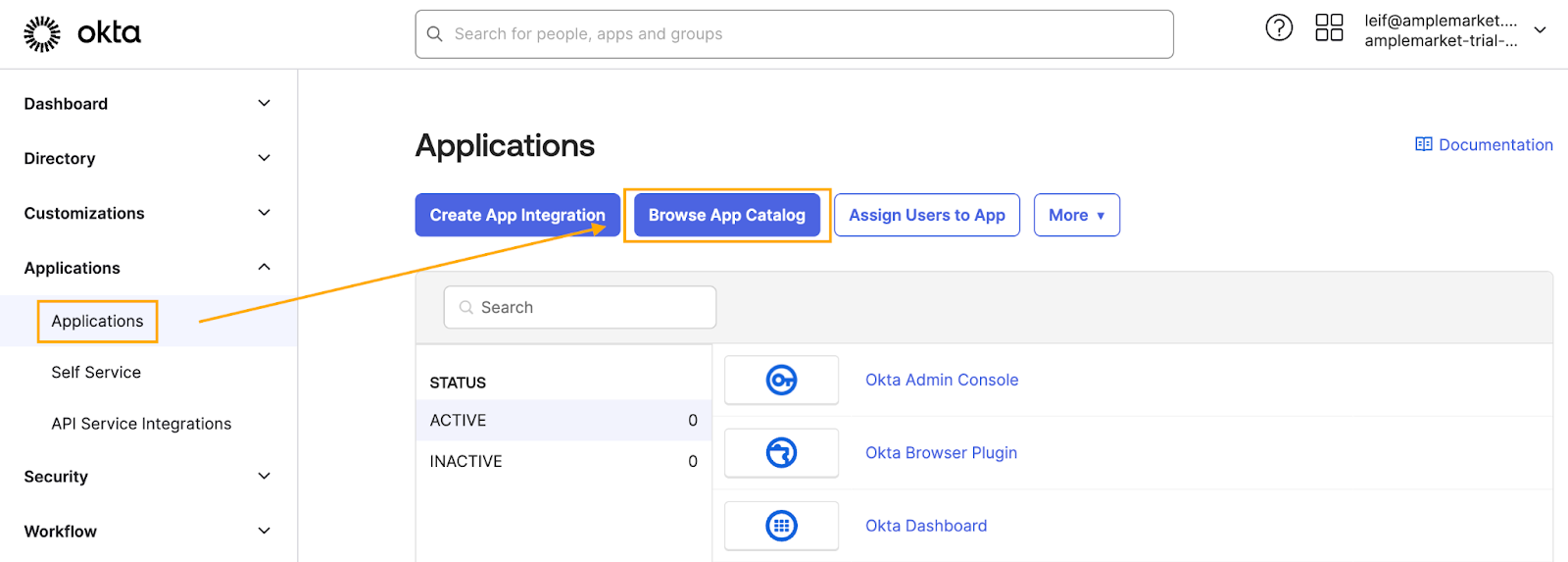
As an Okta Admin, log in to login.okta.com and navigate to the Admin Dashboard. From there, go to the Applications tab and click "Browse App Catalog"
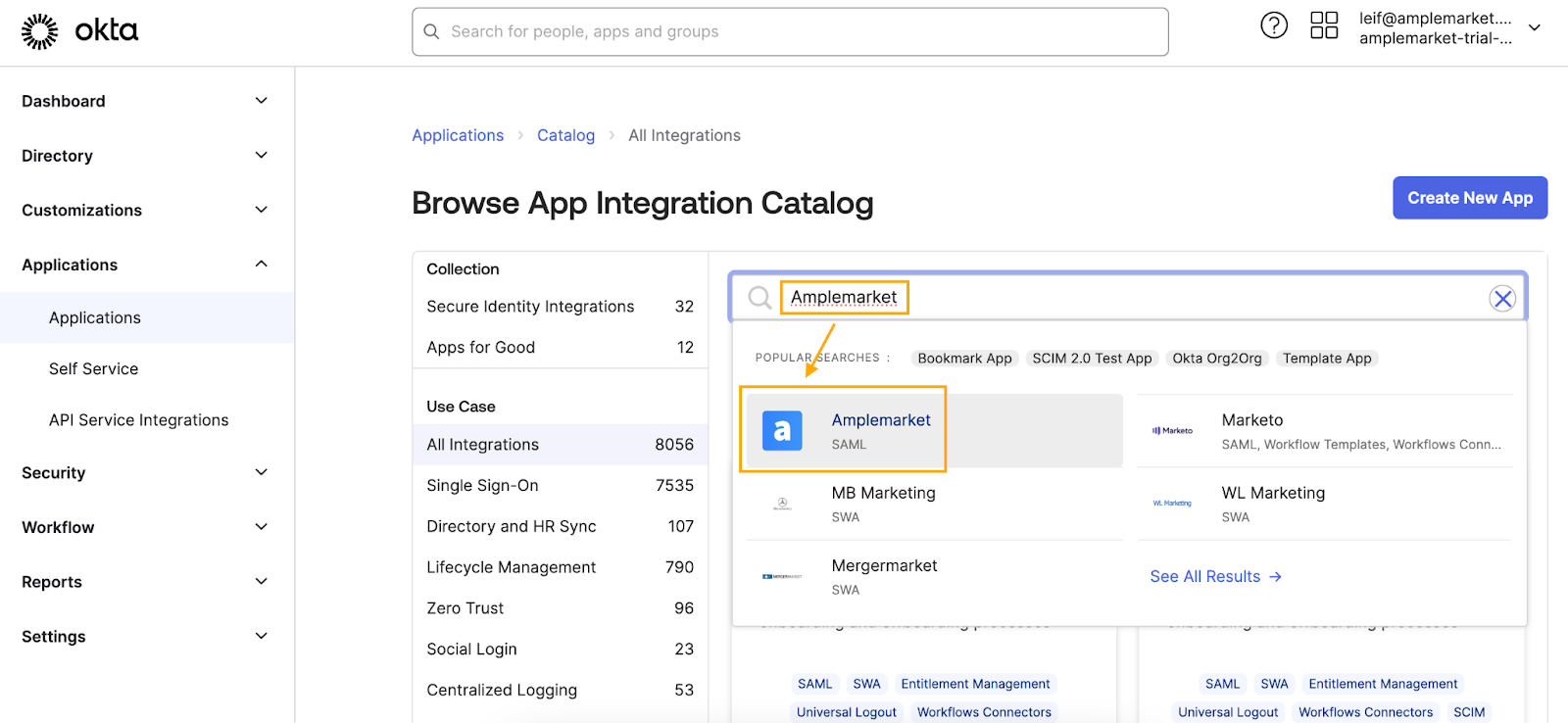
In the App search box, Type “Amplemarket” and select the App that appears
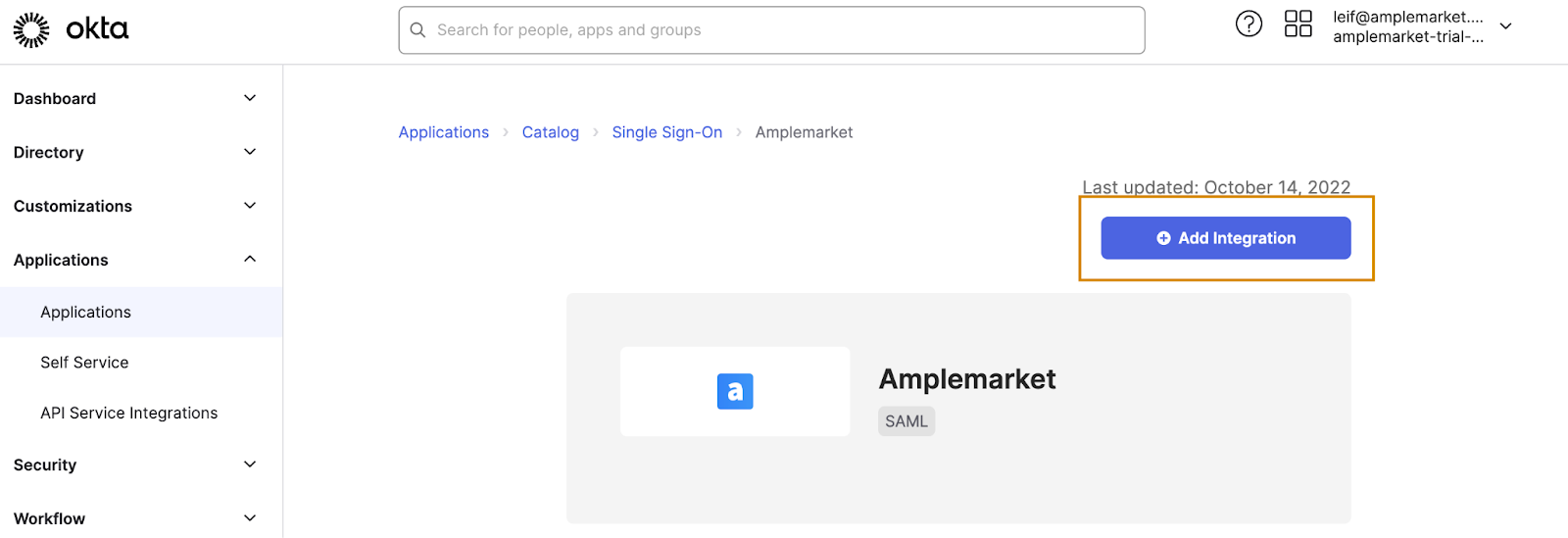
On the Amplemarket App page, select “Add Integration” to add this app to your Okta environment
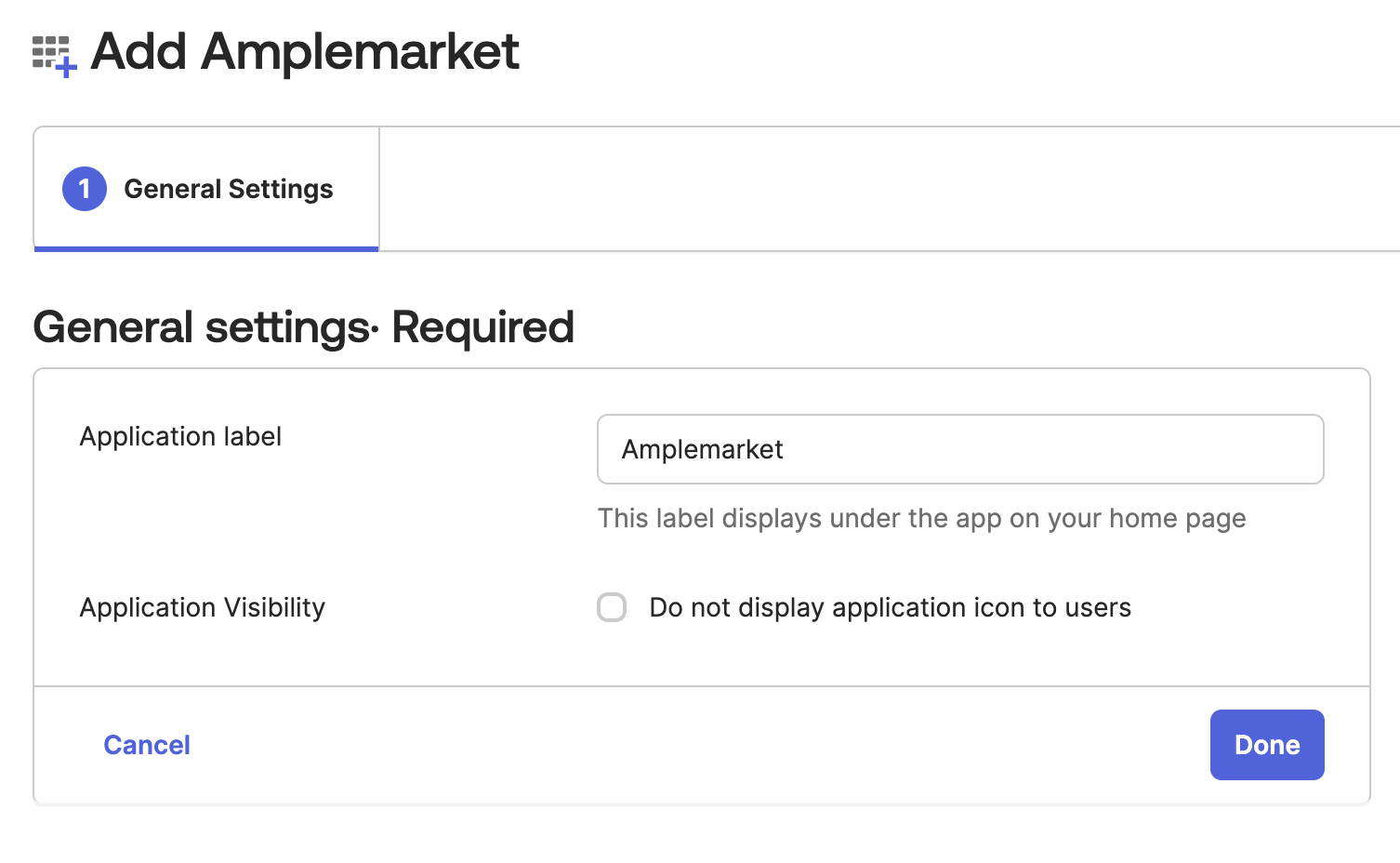
Select “Done” unless you wish to change the name of the Application away from the default of “Amplemarket
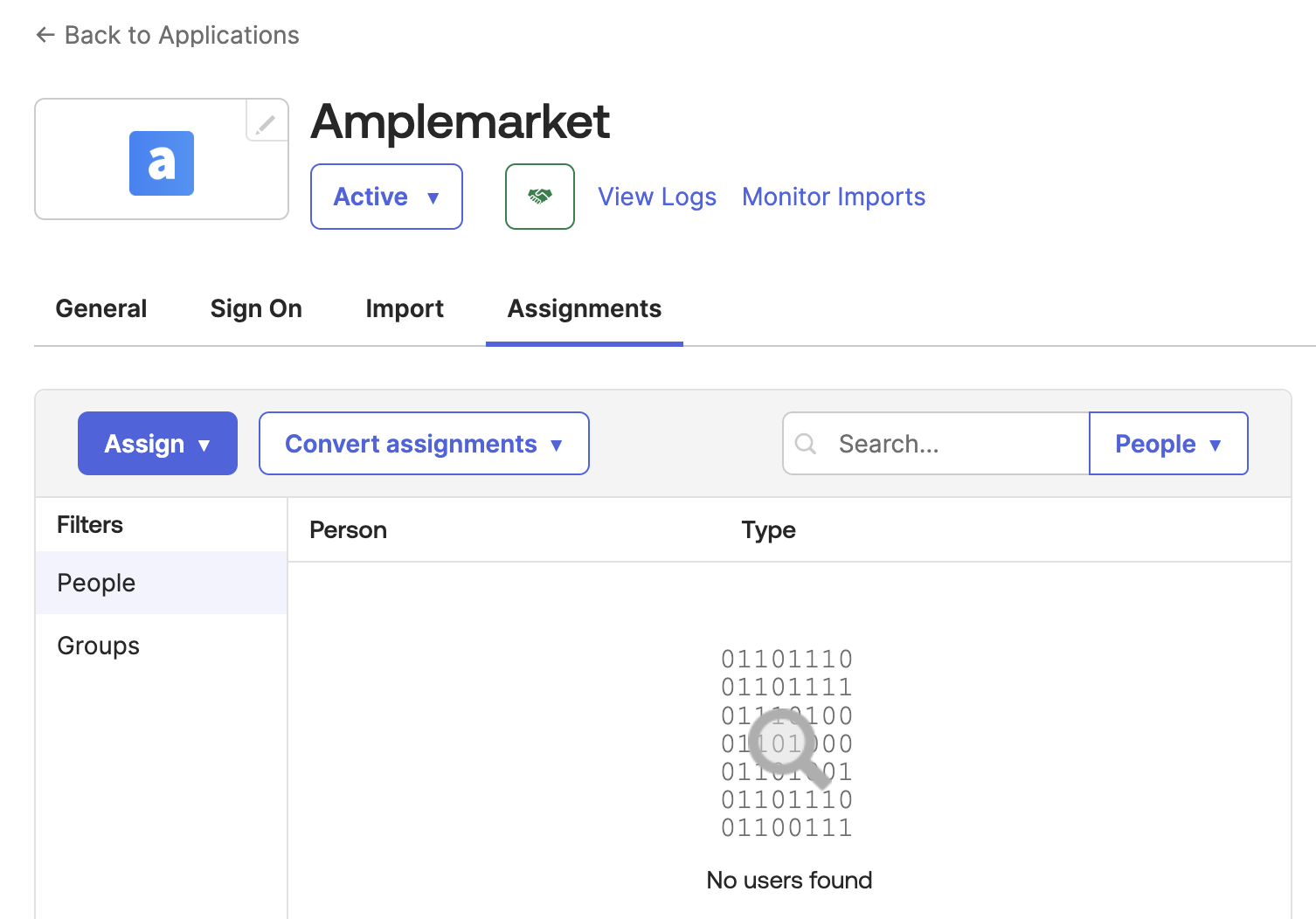
Configure the users with access to the App to your desire. You can select all users, or make a group of Amplemarket users. Regardless of who you select they won’t be able to log in unless they have an existing account in Amplemarket as we do not do provisioning today. In addition, any Amplemarket user not listed in Okta will lose access to Amplemarket once the SSO is enabled on the Amplemarket end.
Select the “Sign On” Tab
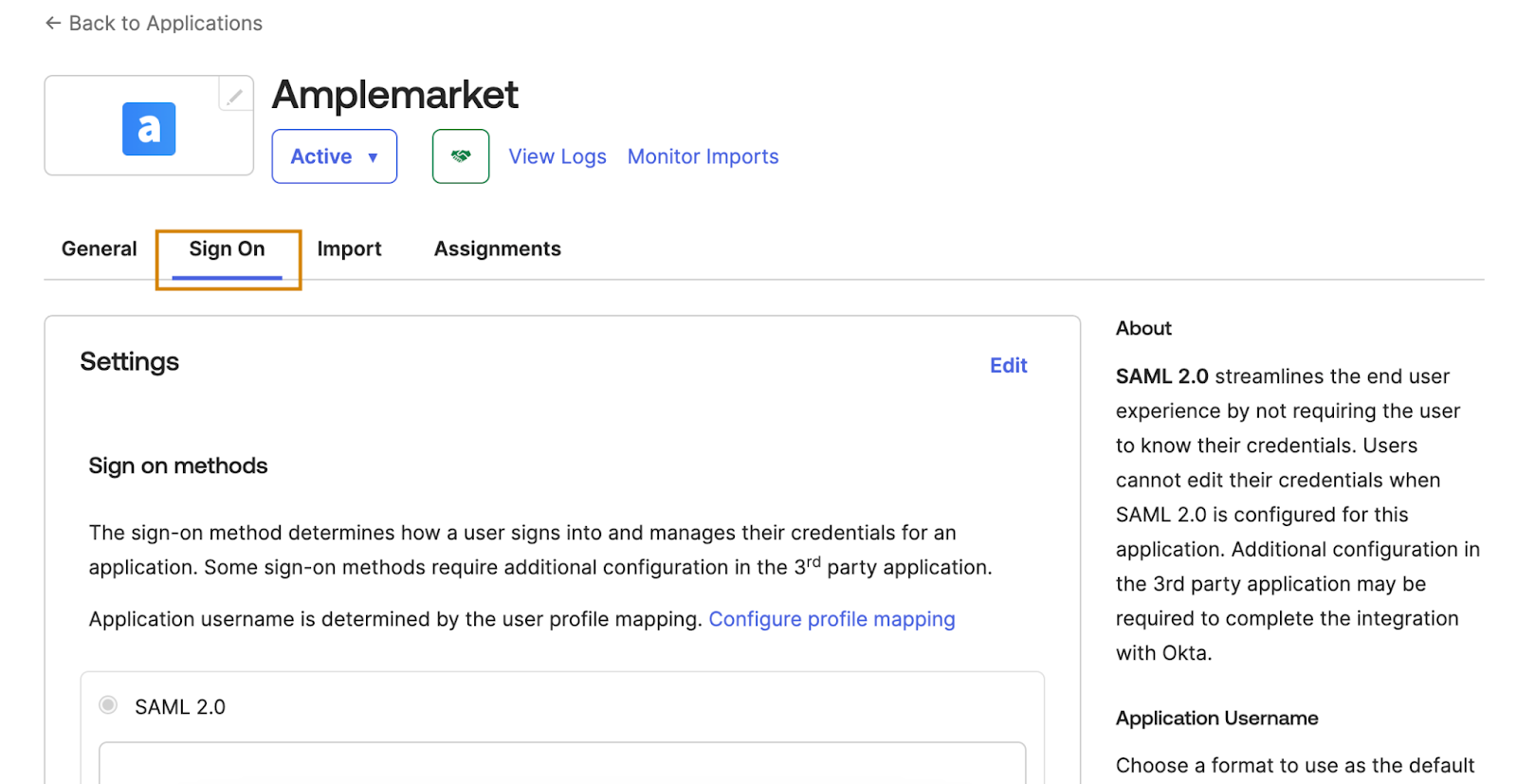
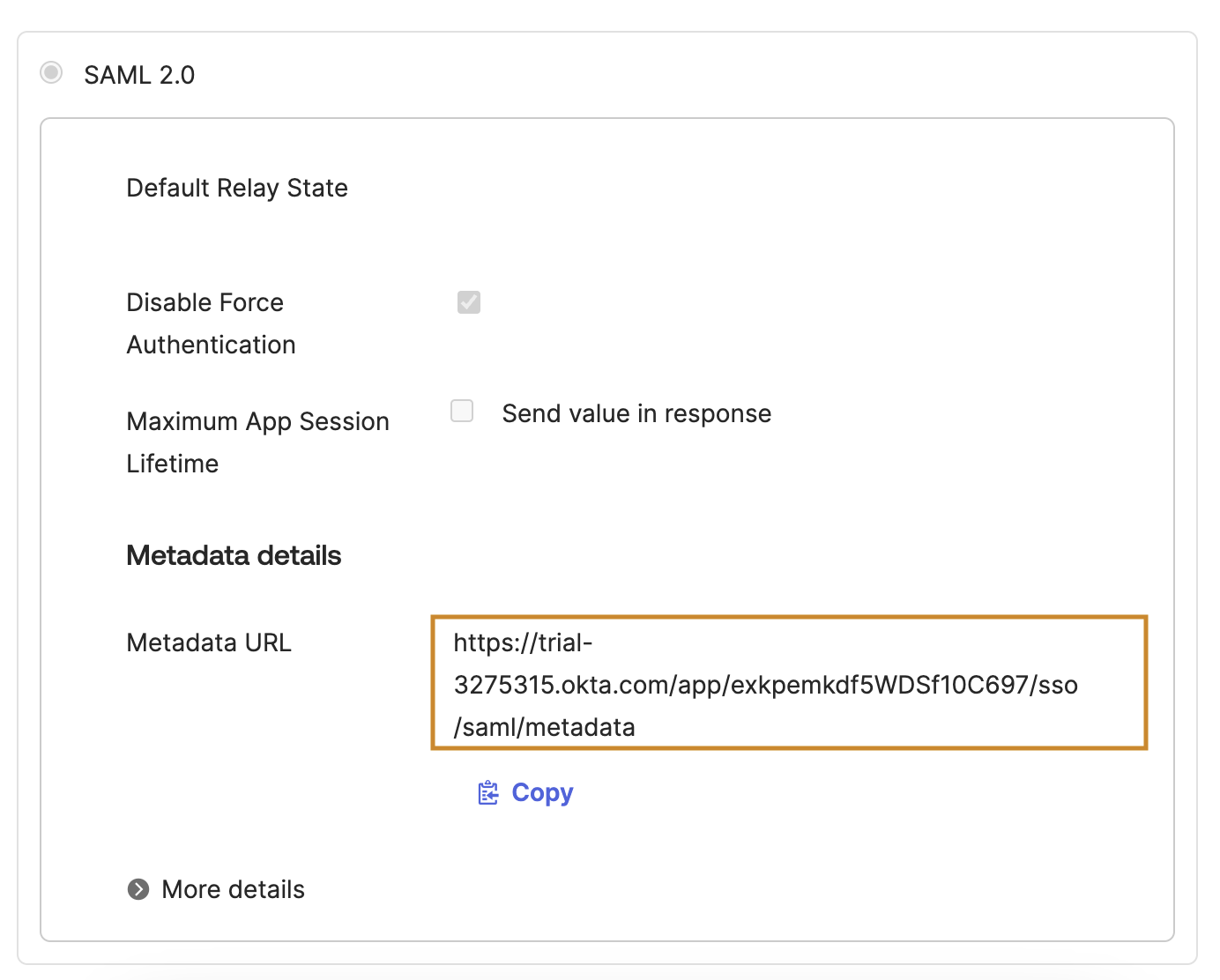
Scroll down to the SAML 2.0 section that holds the “Metadata Details”. Copy the “Metadata URL” and send it to support@amplemarket.com confirming that you want the Okta SSO enabled for your account!