CRM Connected Dialer (Orum, Nooks, etc) - Setup Guide
Last updated: August 24, 2026
Overview
The CRM-Connected Dialer integration enables seamless connectivity between Amplemarket and any dialer that's connected to your CRM, including Orum, Nooks, or native CRM dialers. This integration automatically synchronizes call tasks and dispositions between Amplemarket and your external dialer through your CRM.
Video: end-to-end setup & walkthrough
Watch this comprehensive video tutorial to see the complete setup process and learn how to configure your CRM-connected dialer with Amplemarket.
How It Works
When enabled, Amplemarket:
Creates call tasks in your CRM for contacts/leads that have due or overdue call tasks in Amplemarket
Automatically generates dynamic reports containing all contacts with pending (due/overdue) call tasks
Syncs call dispositions from your external dialer back to Amplemarket
Advances sequences based on call outcomes
Logs all interactions in Analytics for comprehensive tracking
A few limitations to keep in mind:
Only due or overdue tasks are pushed - upcoming tasks remain in Amplemarket until they become due.
Only one call task per contact is pushed at a time — the earliest-due one. The next is pushed once it's completed.
By default, the sync is limited to 250 call tasks per user to protect against API overuse. Adjust or remove this limit in Advanced Settings.
Prerequisites
Before configuring this integration, ensure you have:
Basic Requirements
An active CRM connection (Salesforce or HubSpot) configured in Amplemarket
A dialer that's connected to your CRM (Orum, Nooks, etc.)
Admin access to configure integrations in Amplemarket
The dialer integration option will be grayed out if you don't have an active CRM connection. Ensure your CRM is connected first.
User Requirements
Each Amplemarket user must have a corresponding CRM user account with the exact same email address (case sensitive) for the integration to work
If a user appears grayed out in the selection dropdown, see our troubleshooting guide for solutions
CRM Permissions
The Amplemarket integration user must be able to:
create and delete tasks assigned to users using the integration
create and delete reports public in folders (salesforce)
create and delete lists (hubspot)
The integration will show a banner with specific missing permissions if required permissions are not granted, and the "Enable" button will be disabled.
Contact your CRM administrator to grant the required permissions listed during setup
If your Amplemarket integration user is positioned lower in the role hierarchy than your sales reps, it cannot delete their tasks (see article).
See our FAQ guide for detailed steps on resolving role hierarchy issues
CRM Field Mappings
Ensure critical fields are mapped in your CRM integration settings
(Settings → Integrations → CRM → Mappings):
Phone number fields (required for dialing)
Last Sequence Name (helpful for filtering and context)
Location fields (helpful for timezones & territories)
Any other fields your team needs during calls
Call Script / Task Notes
The call script attached to a call step is pushed to the call task's notes field in your CRM, so reps can read it in the dialer:
Salesforce: Task
Descriptionfield (surfaces as the "Full Comments" column in the Amplemarket SFDC report)HubSpot: Task
hs_task_bodyproperty
The script comes from the call step's Notes in the sequence. If the step has no script, Amplemarket pushes only "via Amplemarket" to this field.
For Nooks, the task body field must be explicitly added in Nooks' settings — it is not picked up automatically.
Contact/Lead Push Settings
For the dialer to reach out to a prospect, they must be pushed to your CRM before the call task is created. Ensure one of the following:
Enable "Push all Contacts" in your CRM push settings, OR
Enable the "Early Push" toggle in the dialer integration's advanced settings
To be pushed to the CRM, all prospects must have email addresses in Amplemarket, OR "Push placeholder emails" must be enabled in advanced settings to create temporary addresses for these contacts.
(e.g.
22731351abfbec506d3adebae03f6337@amplemarket-placeholder.com)
API Considerations
This integration will increase your CRM API call consumption due to frequent syncing
Monitor your API limits, especially during high-volume calling periods
By default, up to 250 call tasks per user sync at a time. Adjust the cap in Advanced Settings to manage API usage.
Configuration Steps
Step 1: Access the Integration
Navigate to Settings → Integrations in your Amplemarket account
In the Dialer section, locate Dialer connected via CRM
Click Configure to begin setup
Note: Clicking "Configure" does not immediately start your integration. The integration remains disabled until you explicitly enable it.
Step 2: Map Call Dispositions
This is the most critical step in the configuration process. You must ensure exact one-to-one mapping between your external dialer's dispositions and Amplemarket's dispositions.
Understanding Default Dispositions
Amplemarket includes six default call dispositions that cannot be edited:
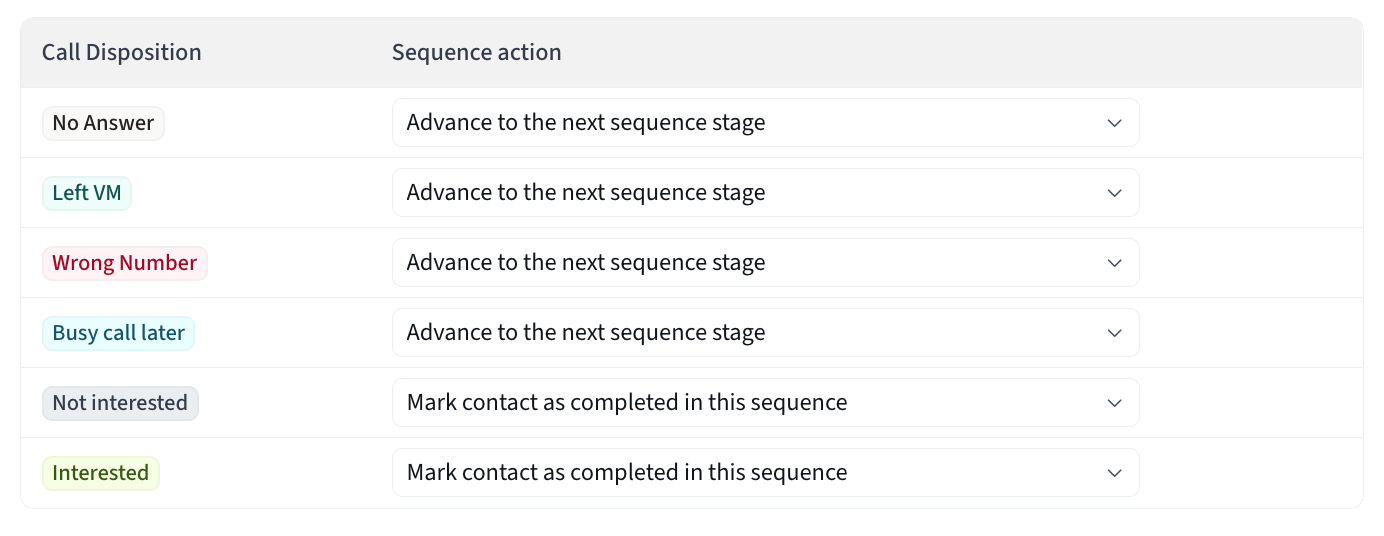
Disposition Actions
Each disposition triggers one action:
Advance to the next sequence stage — Continues the contact in this sequence.
Mark contact as completed in this sequence — Completes only the sequence the call belongs to; the contact stays active in others. Not applicable for ad-hoc or inbound calls.
Mark contact as completed in all sequences — Completes the contact in every sequence they're in.
Recommendation: Use "Mark contact as completed in all sequences" when using a CRM-connected dialer to avoid unwanted re-dials. External tools have less control over sequence flow, contacts may be in several sequences at once, and ad-hoc and inbound calls are not associated with any sequences.
Mapping External Dispositions
Identify all call disposition strings used by your external dialer
For each disposition, map it to the corresponding Amplemarket disposition
Ensure exact matching (including capitalization, spaces, and special characters)
Example mappings:
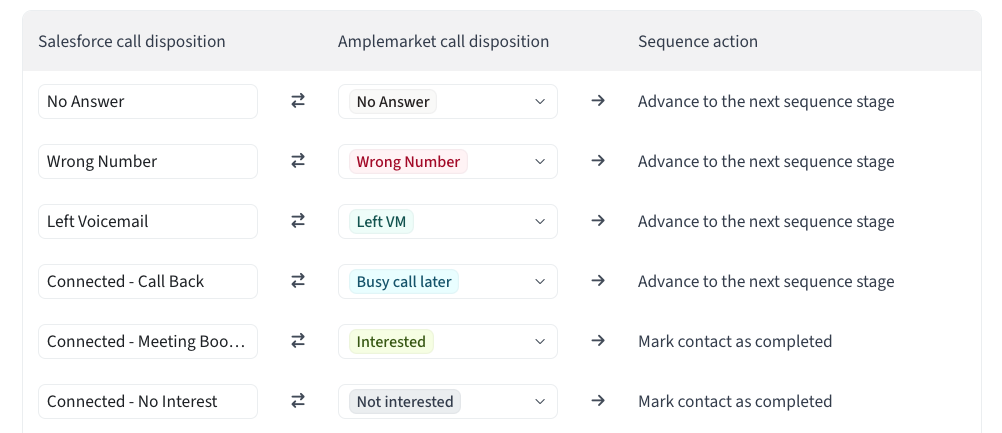
Important: Disposition Field Requirements
Call dispositions must be written to the Call Outcome field on the call task for Amplemarket to recognize them:
Salesforce:
CallDispositionfield on the call taskHubSpot:
hs_call_dispositionfield in properties
Configure your dialer to write dispositions to the correct field. See your dialer's documentation for CRM call logging settings.
Dispositions not syncing? See our troubleshooting guide for help
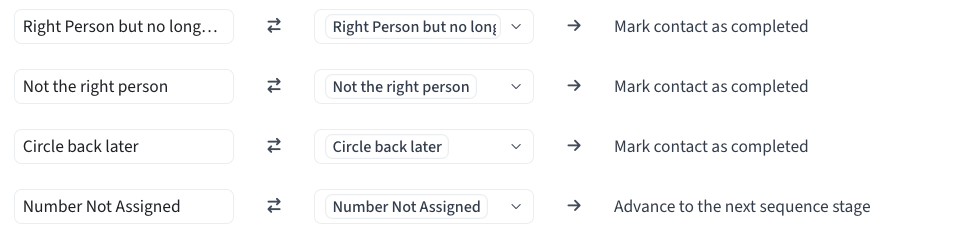
Creating Custom Dispositions
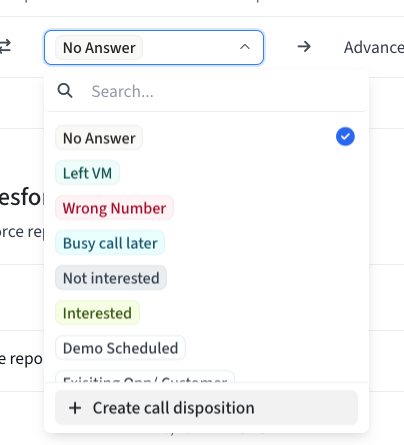 |  |
For dispositions that don't match defaults:
Click Add mapping
Enter the disposition name exactly as it appears in your CRM
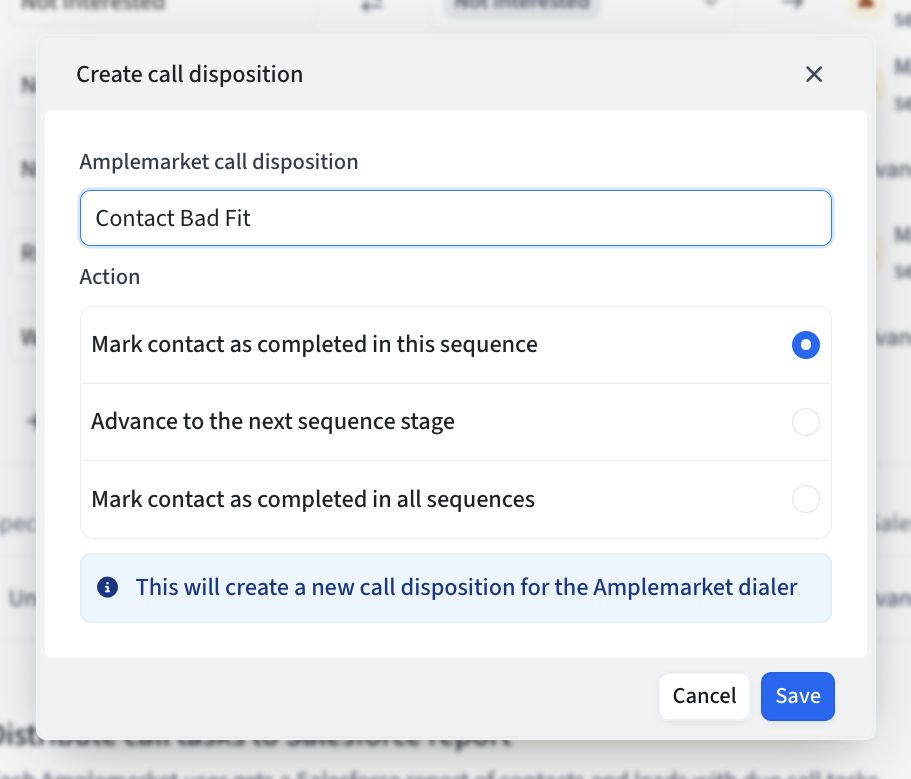
Click Create new disposition
Name the disposition (typically matching the external name)
Select the appropriate action
Example custom dispositions:
Setting a Fallback Disposition

Configure a fallback for unrecognized dispositions:
Select a default disposition (e.g., "No Answer")
This handles any unmapped dispositions from your CRM
Step 3: Configure Users and Reports
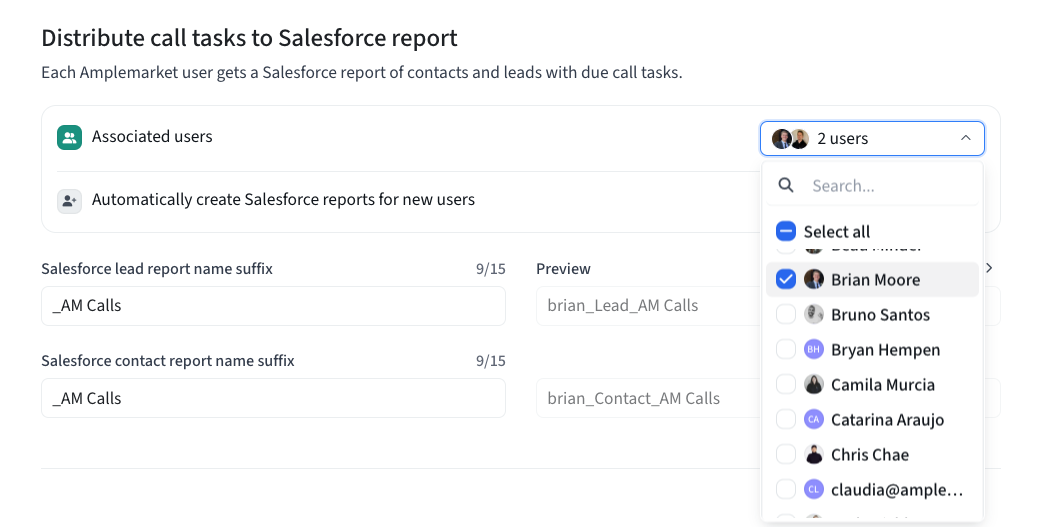
Select Users
Use the dropdown to select users who need this integration
Optionally enable Automatically create reports for new users
If a user is grayed out in the dropdown, see our troubleshooting guide.
Understanding Report Generation
Amplemarket creates personalized reports for each user:
Lead report:
[Username]_Lead_[Suffix]Contact report:
[Username]_Contact_[Suffix]
You can customize the suffix:
Default: "_AM Calls" (e.g.,
john_Contact_AM Calls)Custom example: "_Amplemarket" (e.g.,
john_Contact_Amplemarket)
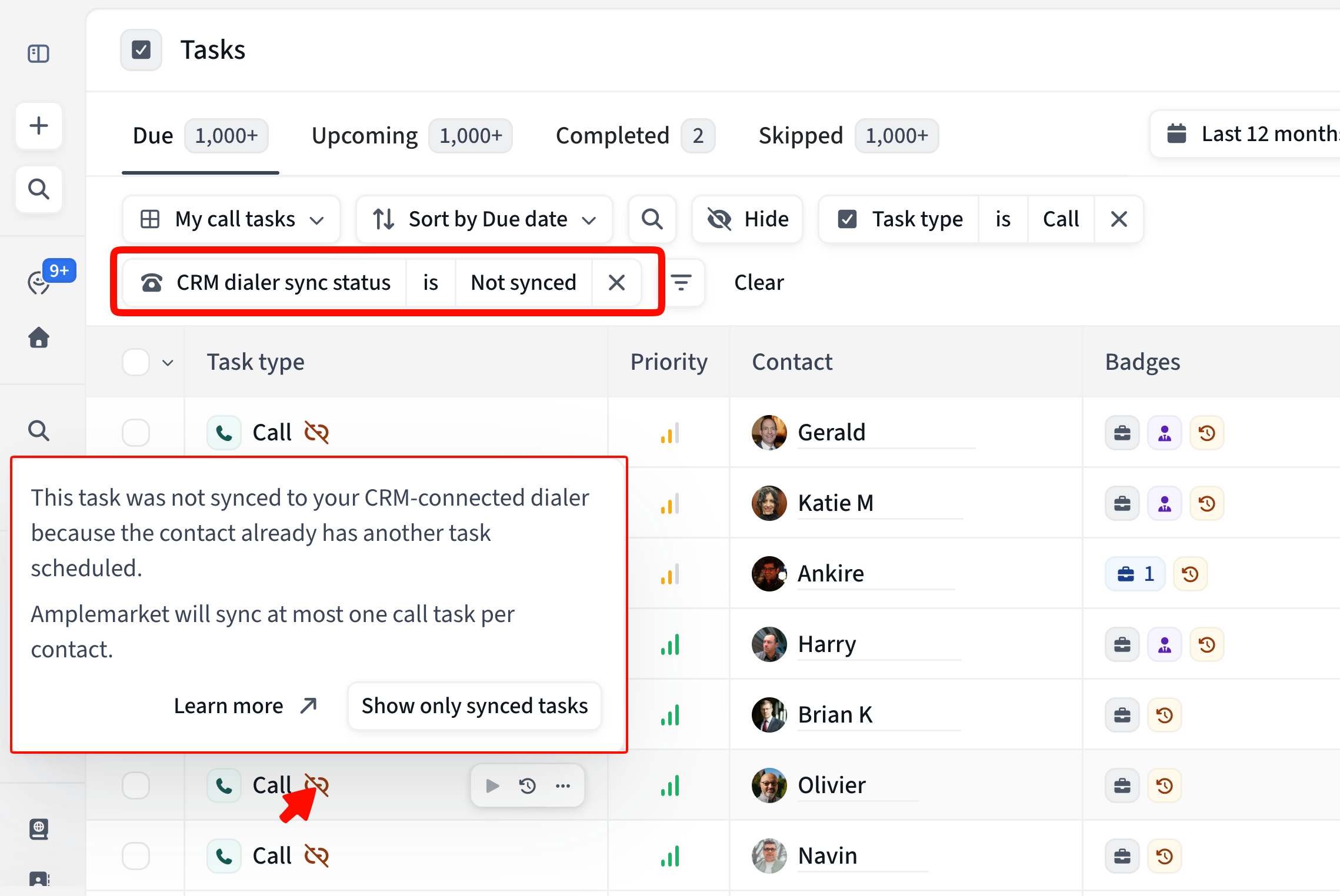
Checking sync status
The Tasks page shows each call task's CRM-dialer sync status. Filter by CRM dialer sync status: Not synced to find tasks that haven't reached your CRM, with the reason in the badge tooltip.
Step 4: Configure Advanced Settings
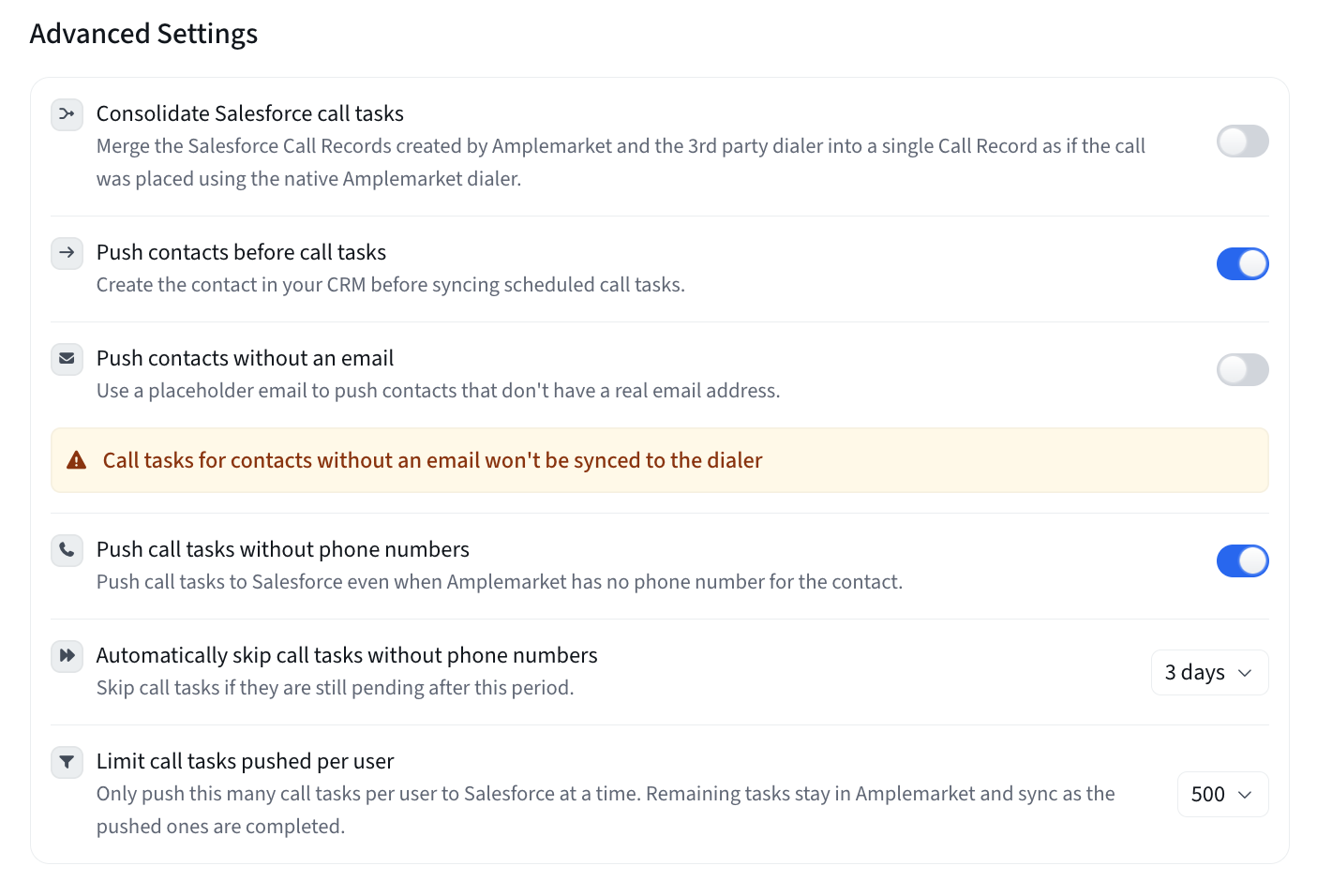
Consolidate CRM Call Tasks
Default: Disabled
You may see multiple call tasks in your CRM for each call because both Amplemarket and your third-party dialer independently log activities.

When enabled, Amplemarket will consolidate all three Call Tasks into a single record.
Early Push Contacts
Default: Enabled
Recommended if: "Push All Contacts" is NOT already enabled in your CRM Push settings
This ensures contacts are pushed to your CRM before the first sequence step runs, which is essential when the first step is a call. If you already have "Push All Contacts" enabled in your main CRM integration settings, this setting is redundant.
Push Placeholder Emails
Default: Disabled
This setting creates placeholder emails for contacts without email addresses (e.g., 22731351abfbec506d3adebae03f6337@amplemarket-placeholder.com).
Configuration options:
Can be enabled globally in your main CRM integration settings
Can be enabled locally here just for contacts with call tasks
If enabled globally, the local setting is unnecessary
Consider the trade-off:
Enabling allows calling contacts without emails
Some CRM admins prefer not to have placeholder emails in their system
Call tasks without a phone number
Keep — stays in Amplemarket, not pushed (default)
Push — push to the dialer anyway
Skip — auto-skip immediately or after N days (default: 3)
Rate limiting
Tasks per user — max synced per user (default: 250). Lower if hitting API limits.
Ad-hoc and inbound calls
Import calls placed in your dialer outside of Amplemarket tasks and apply their dispositions. Three settings (default: off):
Import off-platform calls — Capture dialer calls made outside Amplemarket tasks (re-dials, ad-hoc). Don't import / Known dialers only / All off-platform calls.
Import inbound calls — Capture inbound dialer calls. Applies even when off-platform import is off.
Apply dispositions from imported calls — Run each imported call's mapped disposition action. Only "complete in all sequences" dispositions affect ad-hoc/inbound calls.
Step 5: Enable the Integration
Review all settings
Click Enable to activate
Amplemarket immediately begins:
Pushing all due and overdue call tasks to your CRM
Creating reports for enabled users containing these tasks
Setting up sync mechanisms based on your CRM
Using the Integration with Your Dialer
Call Task Flow
Due tasks are pushed from Amplemarket to your CRM
Dialer accesses tasks via the CRM report/list
Call placed and disposition selected in dialer
Disposition syncs back to Amplemarket
Sequence advances or terminates based on disposition actionr
Example: Orum Integration
Open Orum connected to your CRM
In the CRM integration section, look for the Amplemarket report
(e.g.,
john_Contact_AM Calls)Use built-in filtering on any available fields like Sequence Name or Location
Salesforce vs. Hubspot: CRM-Specific Differences
While the integration works similarly for both CRMs, there are important differences to understand:
Call Dispositions
Salesforce: Dispositions are simple strings that you manually enter during setup. You must type each disposition exactly as it appears in your dialer.
HubSpot: Dispositions are objects that Amplemarket automatically loads from HubSpot. If you don't see the dispositions your dialer uses, add them in HubSpot first. See HubSpot's documentation on managing call outcomes.
Sync Timing
Salesforce: Uses periodic polling every 10 minutes. Call dispositions may take up to 10 minutes to appear in Amplemarket after completion.
HubSpot: Uses webhooks for near-instant updates. Call dispositions appear in Amplemarket almost immediately.
Report/List Control
Salesforce: Amplemarket will automatically add mapped fields like Sequence Name and Location into the SFDC Report.
HubSpot: You must manually configure field visibility in HubSpot List settings.
Field Visibility for Dialers
Salesforce + Orum: Smoothest experience
Report auto-populated with mapped Amplemarket fields
Orum automatically picks up all Contact/Lead fields from the report
Salesforce + Nooks: CRM fields need to be explicitly mapped into Nooks.
HubSpot + Any Dialer: Fields must be configured in HubSpot List settings.
Dialer Compatibility
This integration is extensively tested with Nooks and Orum. Other dialers can work if they meet these requirements:
Call contacts from Salesforce reports or HubSpot lists
Create call tasks in your CRM after calls
Write dispositions to the Call Outcome field:
Salesforce:
CallDispositionfieldHubSpot:
hs_call_dispositionfield
Without proper dispositions, Amplemarket cannot advance sequences based on call outcomes and will use your fallback disposition.
Testing Compatibility:
Run a test call with your dialer
Check the call task in your CRM
Verify the disposition appears in the correct CRM field
Check CRM integration logs for any errors (see our troubleshooting guide for details)
Best Practices
Disposition Mapping: Document all disposition strings before starting configuration
Test First: Start with a small batch to verify configuration, and check that the Contact & Call Tasks are correctly flowing to your CRM
Monitor Sync: Plan your calling schedule around sync timing (10 minutes for Salesforce, near-instant for HubSpot)
API Management: Avoid excessive Force Resync usage
Field Mapping: Ensure all necessary fields (especially phone numbers and sequence name) are mapped in your CRM integration before enabling
FAQ & Troubleshooting
CRM Dialer Integration - FAQ & Troubleshooting Guide - Common problems and solutions
Salesforce Errors FAQ - Salesforce-specific errors
HubSpot Integration Errors FAQ - HubSpot-specific errors