CRM Dialer Integration - FAQ & Troubleshooting
Last updated: August 24, 2026
This guide covers common issues, troubleshooting steps, and frequently asked questions for the CRM-Connected Dialer integration.
📘 New to this integration? Start with our CRM Connected Dialers - Setup Guide for complete installation and configuration instructions.
User Not Available for CRM Dialer
Problem: A user appears grayed out in the selection dropdown when configuring the integration.
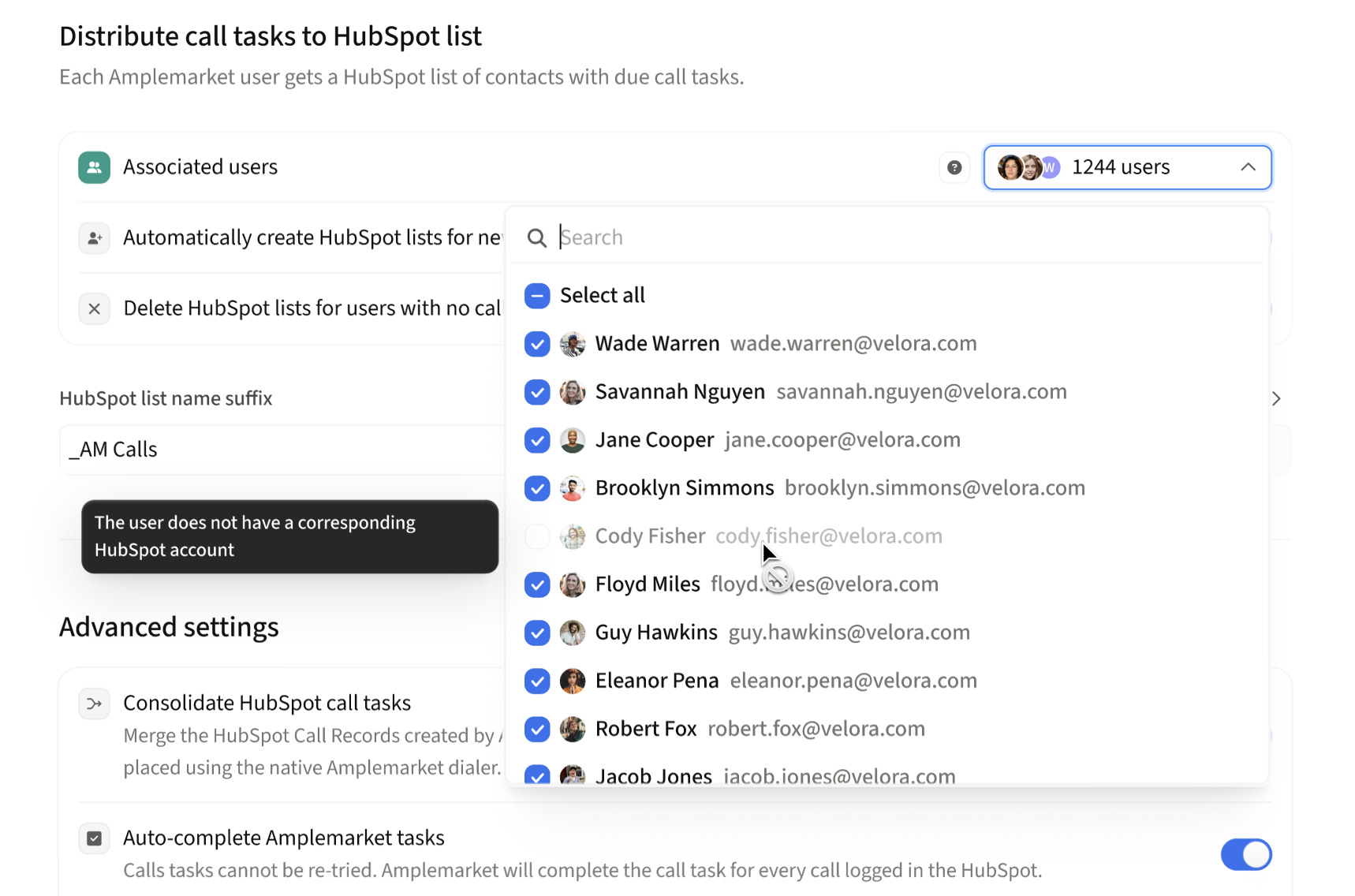
Cause: Each Amplemarket user must have a corresponding CRM user account with the exact same email address (case sensitive) for the integration to work.
Solution:
Verify the user's email address in Amplemarket matches their CRM email exactly (including capitalization)
If no matching CRM account exists, create a CRM account with the same email address
Contact your CRM administrator if you don't have permissions to create users
Return to Amplemarket and try adding the user again
Multiple Call Tasks in CRM
Problem: You see multiple call tasks in your CRM for each call
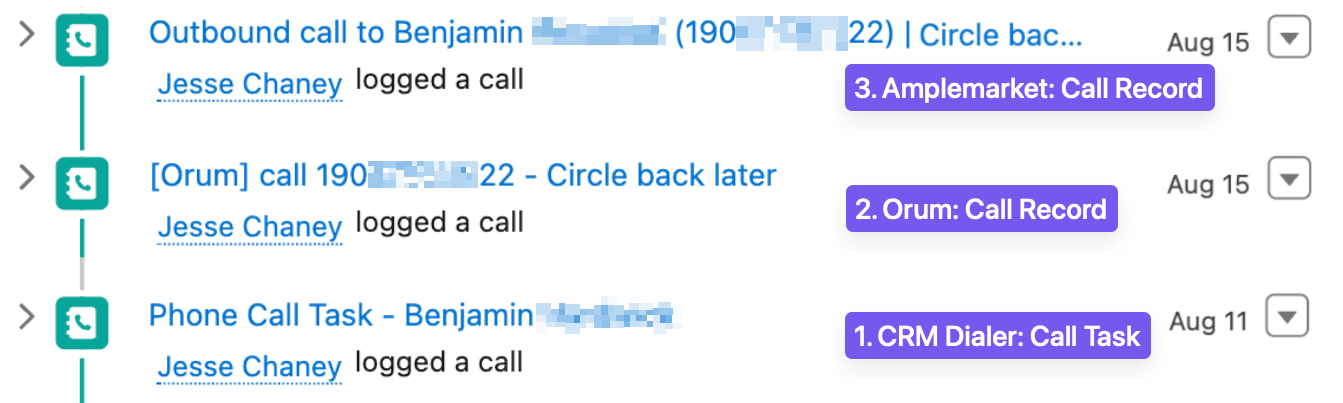
Cause: Both Amplemarket and your third-party dialer independently log activities to your CRM, in addition to the Call Task created by the CRM connected dialer integration:
Amplemarket's CRM Dialer integration says that a call needs to be placed
External Dialer records that a call has been placed by a rep
Amplemarket records that a call step has been completed
Solution: Enable Call Task Consolidation

Go to Settings → Integrations → Dialer connected via CRM
Under Advanced Settings, enable Consolidate Salesforce call tasks
Amplemarket will automatically merge all 3 call records into one unified task
Note: Nooks users have an alternative way to task consolidation -- see below
Reports or Lists Not Appearing in Nooks
Problem: You've enabled the CRM Dialer integration, but your Salesforce reports or HubSpot lists are not visible in Nooks.
Note: Nooks is limited to only one integration at a time. If you have already connected with another integration (ie Outreach, Salesloft, Apollo), then you will need to reach out to your Nooks CSM or AE to connect your CRM
Step 1: Confirm the Report or List Exists in Your CRM
Amplemarket creates personalized reports (Salesforce) or lists (HubSpot) for each enabled user. Search for them directly in your CRM:
Salesforce: Search for reports like
john_Contact_AM Callsorjohn_Lead_AM Callsin the Reports tab (the suffix is configurable — default is_AM Calls)HubSpot: Search for lists like
john_AM Callsin the Lists section
If the report/list exists → skip to Step 3.
If the report/list does not exist → continue to Step 2.
Step 2: Check the CRM Integration Logs on Amplemarket
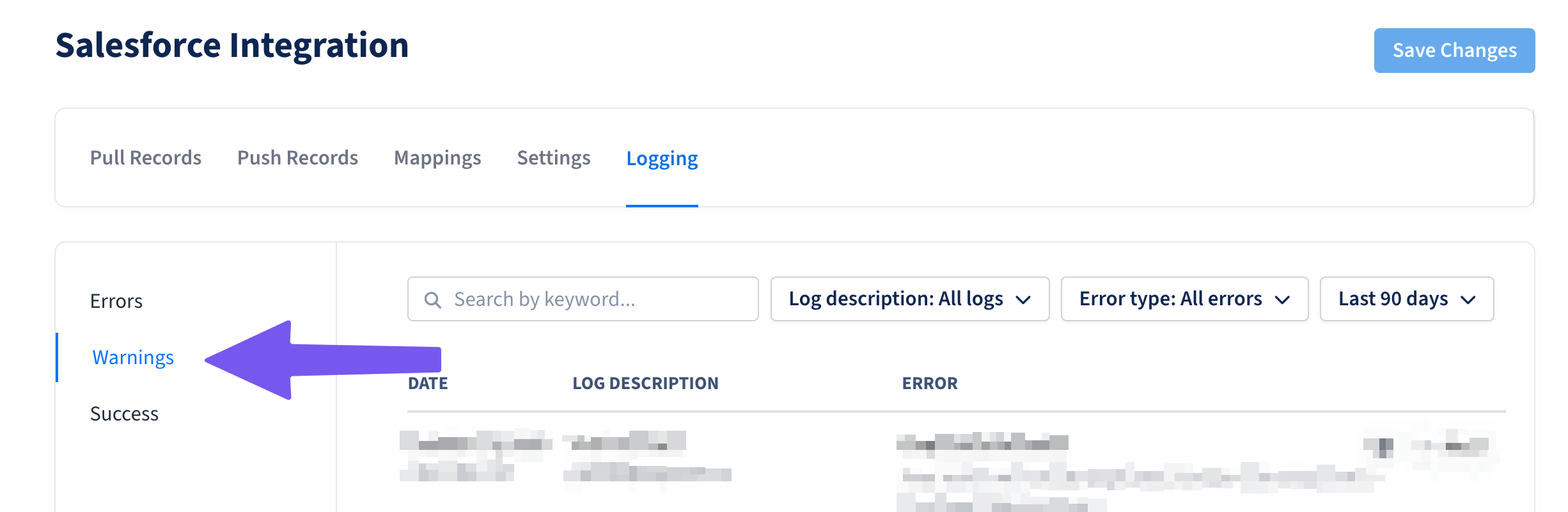
If the report or list wasn't created, Amplemarket may have encountered a permissions issue when writing to your CRM.
Go to Settings → Integrations → CRM → Logging → Errors
Review errors for report or list creation
Common causes:
Missing permissions: The Amplemarket integration user may not have permission to create and delete reports or public report folders (Salesforce) or lists (HubSpot). See Missing CRM Integration Permissions for solutions.
No due or overdue call tasks: Reports are only created for users who have due or overdue call tasks in Amplemarket. Upcoming tasks won't trigger report creation.
User not selected: Verify the user is selected in Settings → Integrations → Dialer connected via CRM
After resolving any errors, click Force Resync to recreate all reports and tasks. See How to Force Re-Sync the Integration for details.
For help interpreting specific Salesforce errors, see Salesforce Errors FAQ.
Step 3: Configure the Report or List in Nooks
Once you've confirmed the report or list exists in your CRM, configure it in Nooks:
Salesforce: Follow Nooks' documentation on Salesforce reports and fields to connect the Amplemarket report to your Nooks calling session.
HubSpot: Follow Nooks' documentation on preparing contact lists in HubSpot to make the Amplemarket list available in Nooks.
Note: Amplemarket creates separate Lead and Contact reports in Salesforce. Make sure you are connecting the correct report type for the records you want to call.
Nooks Call Task Handling
How Nooks is Different:
Nooks modifies Amplemarket's existing call task instead of creating a new one. This is unique behavior compared to other dialers.
What You'll See:
Instead of three tasks (Amplemarket task + Nooks task + Completion task), you'll see only two:
The original Amplemarket task (modified by Nooks)
Amplemarket's completion task (if enabled)
To Get a Single Task with Nooks:
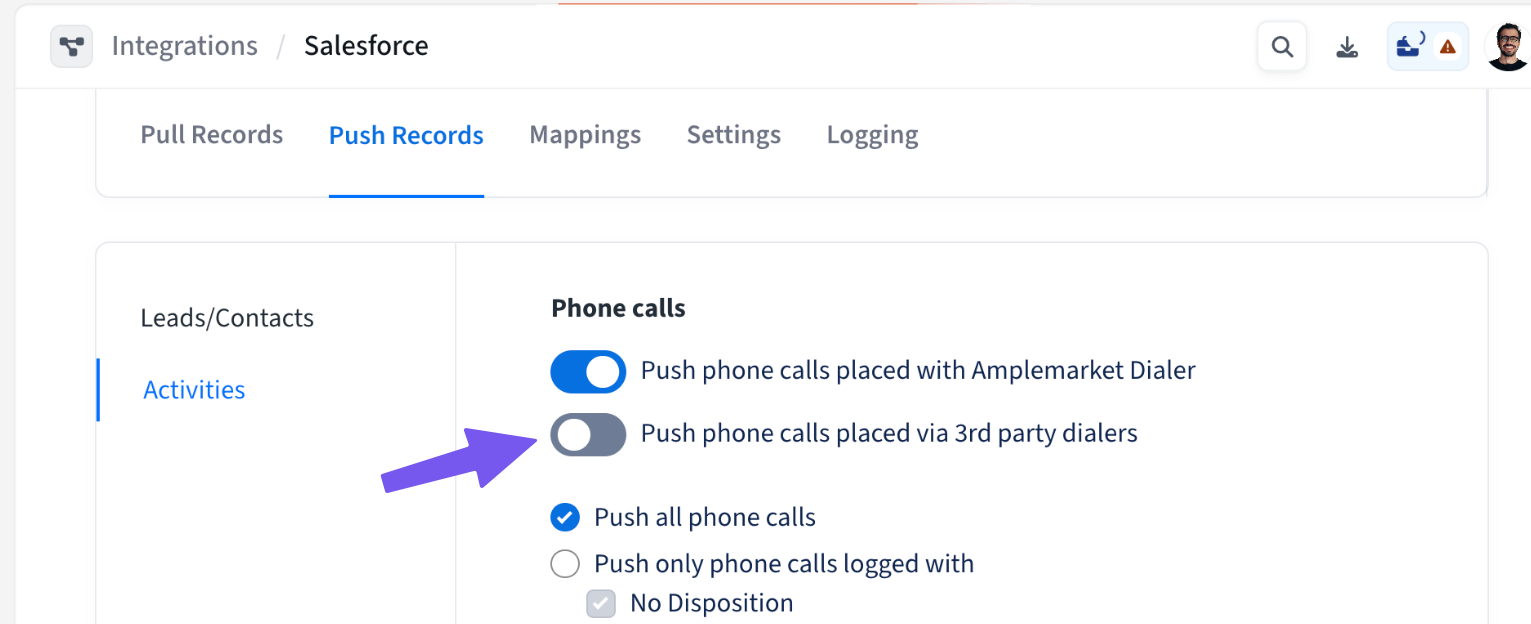
Go to Settings → Integrations → CRM (Salesforce/HubSpot)
Disable Push phone calls placed via 3rd party dialers
Sequences will continue to advance properly based on Nooks dispositions
Important Notes:
Once Nooks modifies a task, Amplemarket will no longer write to or delete that task to prevent data conflicts
This is intentional behavior to avoid overwriting Nooks' data
For call task consolidation with Nooks, use the method above (disable completion task)
Call Dispositions Not Recognized
Problem: Call dispositions from your dialer are not syncing to Amplemarket, or Amplemarket is not recognizing them.
Cause: Dispositions must be written to the correct CRM field and must match your configured mappings exactly.
Step 1: Check if Dispositions Are Being Written
Make a test call using your dialer
Go to your CRM and find the call task
Check if the disposition appears in the correct field:
Salesforce:
CallDispositionfield on the call taskHubSpot:
hs_call_dispositionfield in properties
If the disposition is empty:
Your dialer isn't writing to the correct field
Configure your dialer to write dispositions to the Call Outcome/Result field
Step 2: Check the Logs in Amplemarket
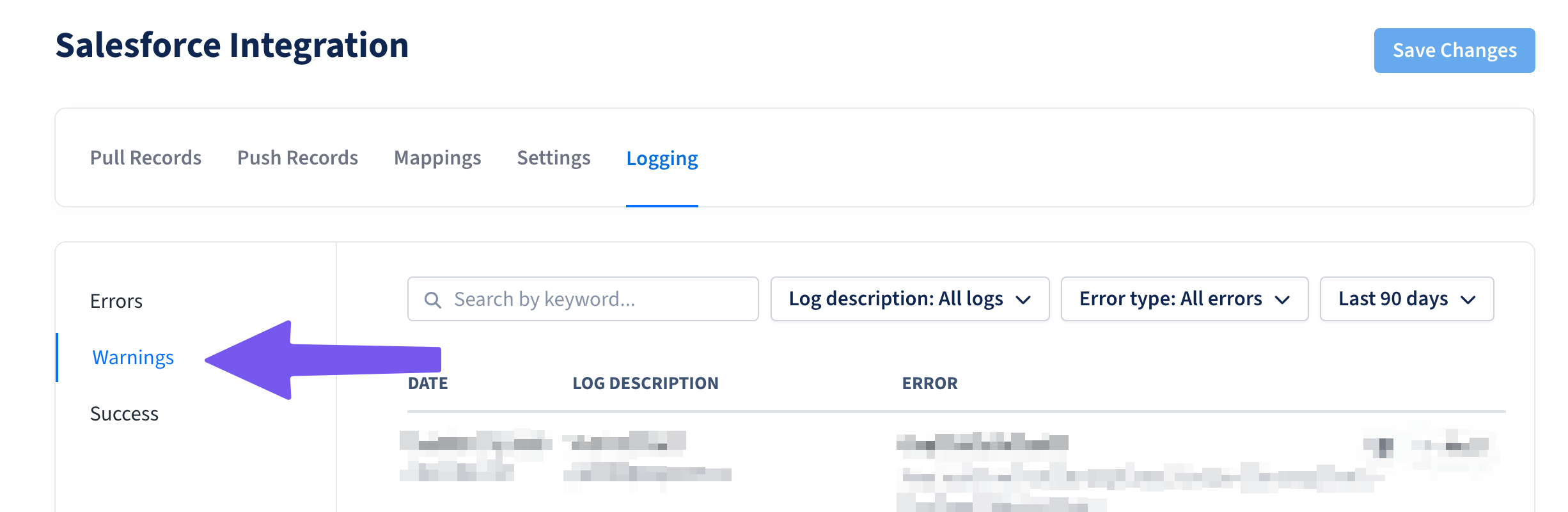
Go to Settings → Integrations → CRM → Logging → Warnings
Look for "Failed to parse disposition" entries
Note the exact disposition string shown in the warning log
Step 3: Add Missing Disposition Mappings

If disposition is unrecognized:
Note the exact disposition string from the warning log (including capitalization, spaces, special characters)
Go to Settings → Integrations → Dialer connected via CRM
In Disposition Mappings, click Add mapping
Enter the disposition name exactly as it appears in the log
Map it to an existing Amplemarket disposition or create a new one
Key Points:
Ensure exact string matching (capitalization matters!)
Verify complete mapping for all dispositions your dialer uses
Check that your fallback disposition is configured correctly
Without proper dispositions, Amplemarket will use your configured fallback
Call Tasks Not Appearing in Dialer
Problem: Some or all of your Amplemarket call tasks aren't showing up in your dialer.
Step 1: Filter the Tasks page sync status. Every call task shows a CRM-dialer sync status. Filter by CRM dialer sync status → Not synced; the badge tooltip tells you exactly why.
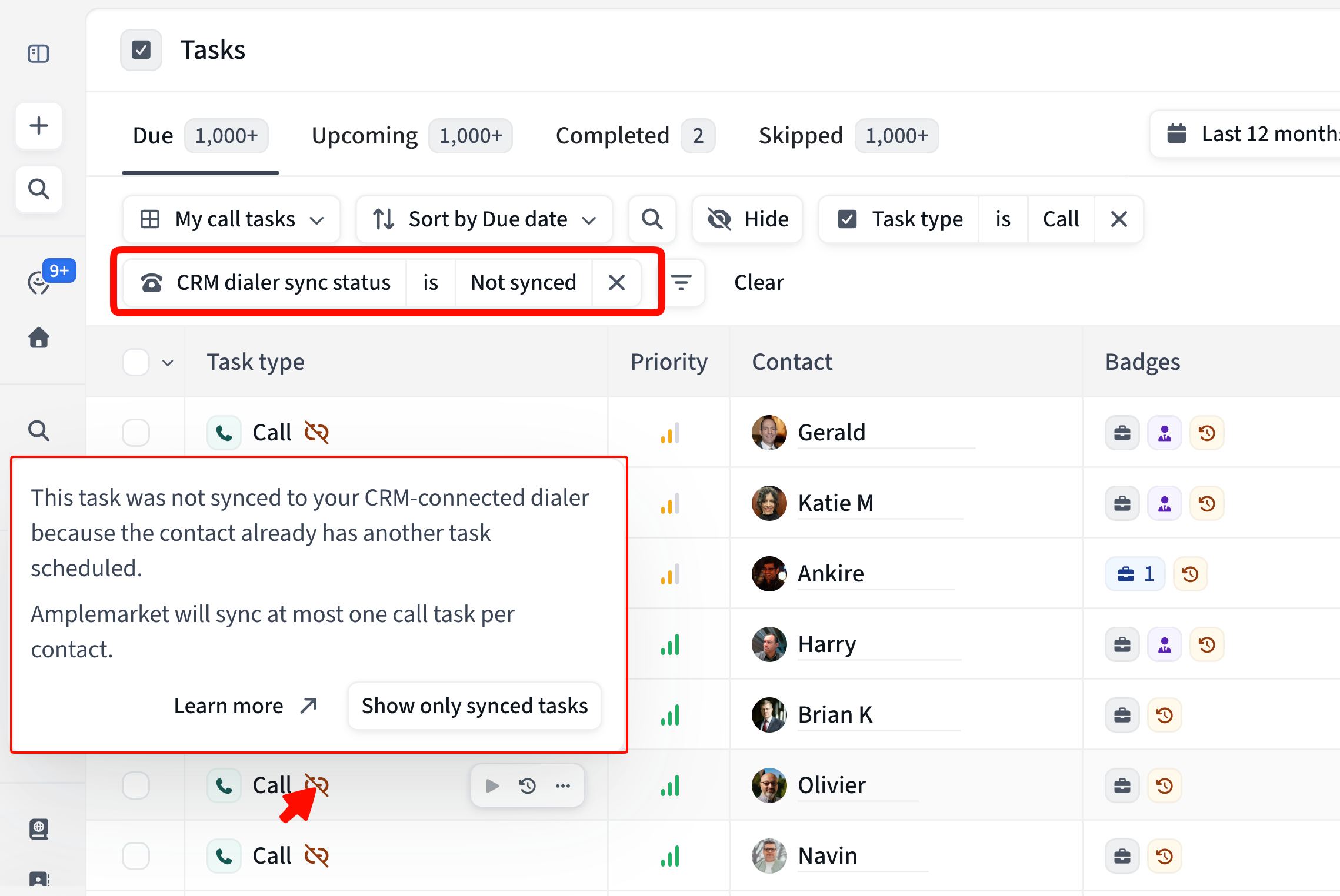
Most reasons are expected, not errors:
Another task is already scheduled — only one call task per contact syncs at a time; the next syncs once the current is completed.
Too many pending tasks for this user — the per-user sync cap (default 250) was reached. Adjust it in Advanced Settings → Rate limiting.
Not due yet — the task isn't due in the contact's time zone.
No phone number — by default these still sync; if you've set phone-less tasks to Skip or Keep (Advanced Settings), they won't.
No email, or placeholder email only — enable "Push placeholder emails" in Advanced Settings to sync these.
Recently created — still syncing; allow a few minutes (Salesforce syncs every ~10 min).
Older than 90 days — the sync reason is no longer stored.
If the tooltip shows an unexpected error (missing field, permissions), check the logs below.
Step 2: Check the CRM Integration Logs
Go to Settings → Integrations → CRM → Logging → Errors
Review errors for pushing Contacts, Leads, and Activities
Refine by filtering to Log description → Push to CRM dialer
Step 3: Common Errors and Solutions
Failed to push contact:
Missing email address: Enable "Push placeholder emails" in Advanced Settings if needed
Field validation rules: Check error details for specific CRM validation rules blocking the push
Failed to push task:
The call task couldn't be created in your CRM
Check the error details for the specific reason
See Salesforce Errors FAQ for field validation errors
Reports not appearing:
Verify user is selected in settings (Settings → Integrations → Dialer connected via CRM)
Check that you have due or overdue call tasks (upcoming tasks won't appear)
Reports will not be created for users without call tasks
Wait ~10 minutes for the sync cycle to complete, or try a force sync (see Force Resync below)
Phone numbers not appearing in CRM:
Ensure phone number fields are properly mapped:
Go to Settings → Integrations → CRM → Mappings
Map Amplemarket "Phone" field → CRM "Phone" or "Business Phone" field
Map Amplemarket "Mobile Phone" field → CRM "Mobile Phone" field (if applicable)
Confirm phone numbers exist in Amplemarket for the contacts being pushed
Missing contacts:
Confirm "Early push contacts" is enabled in Advanced Settings
Check placeholder email settings if contacts don't have email addresses
Verify sequence has active call steps
Missing CRM Integration Permissions
Problem: The integration shows a critical banner about missing permissions, or the "Enable" button is disabled.
Cause: Your Amplemarket CRM integration user doesn't have all required permissions in Salesforce or HubSpot.
Salesforce Solution:
Note the specific permissions listed in the error banner & contact your CRM administrator to request the listed permissions to the Amplemarket integration user.
Once permissions are updated, the "Enable" button should become available
Hubspot Solution:
Go to Settings → Integrations → CRM → Settings
Click "Reconnect" and provide the credentials of your Amplemarket Integration user for Hubspot
Accept Amplemarket's request for expanded permission scopes, with your CRM administrators approval
Once permissions are updated, the "Enable" button should become available
CRM Admin Resources:
Cannot Delete Tasks for Salesforce Users
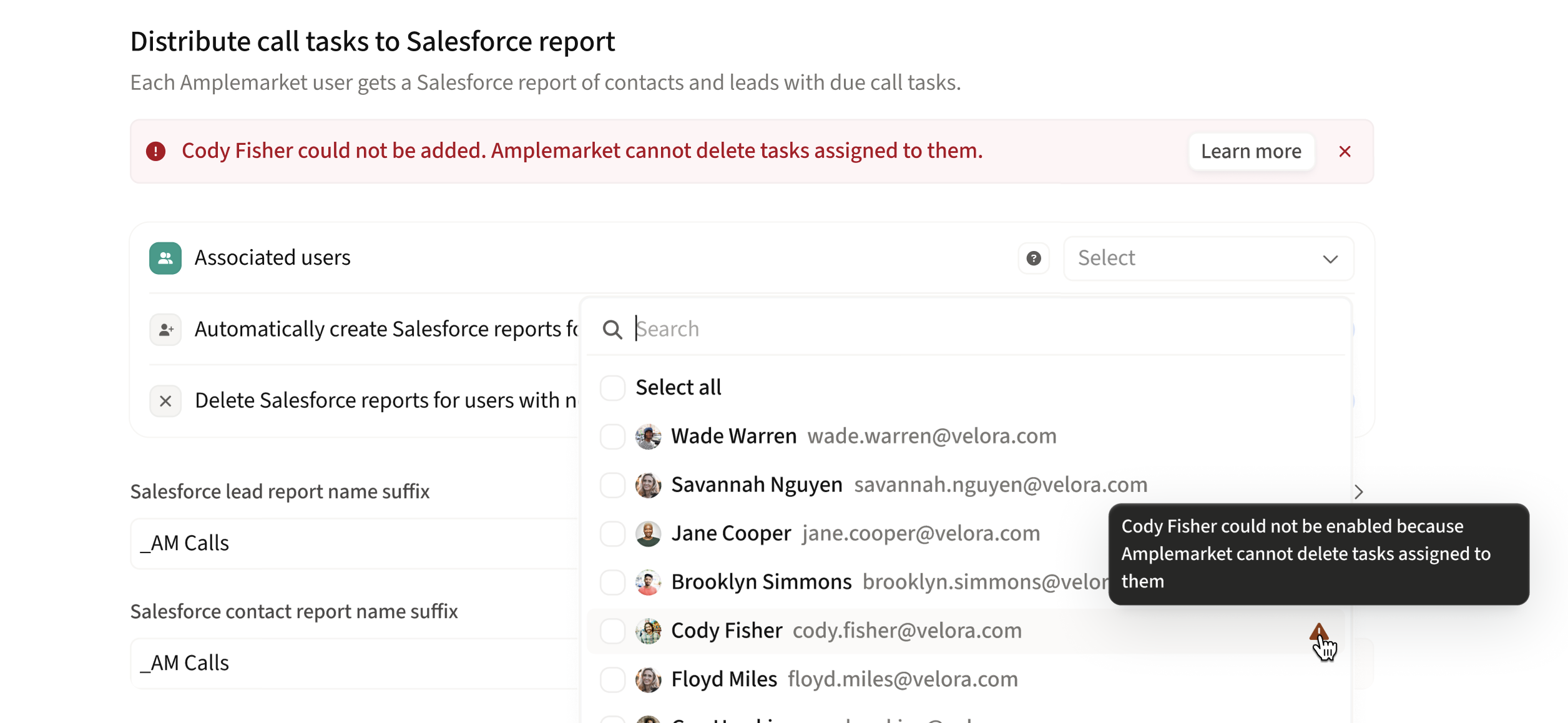
Problem: When adding a user, you see:
"{{user_name}} cannot be added to the integration. Amplemarket cannot delete tasks assigned to them."
Cause: This is caused by Salesforce Role Hierarchy, not missing permissions. If your Amplemarket integration user is positioned lower in the role hierarchy than your sales reps, it cannot delete their tasks. Here is a helpful article about Role Hierarchies.
Solution:
Work with your Salesforce Admin to re-configure Roles for the Amplemarket Integration user such that it can delete Tasks assigned to your Sales Reps.
In our experience, moving the Amplemarket Integration user into the same role hierarchy as the sales reps can resolve the issue.
To verify the issue together with your Salesforce Admin
As the Amplemarket Integration user, run SOQL to DELETE a task assigned to the sales rep whose account cannot be enabled
DELETE https://<ORG>.my.salesforce.com/services/data/v51.0/sobjects/Task/<ID>Typical failures look like this
[{"message":"insufficient access rights on object id","errorCode":"INSUFFICIENT_ACCESS_OR_READONLY","fields":[]}]Still having issues? Contact support@amplemarket.com with details about your role hierarchy setup.
Mapping Fields to Your Dialer
Problem: Additional Amplemarket fields (like Sequence Name or Contact Location) are not showing up in your dialer.
Cause: Fields must be mapped in Amplemarket and configured in your CRM/dialer.
Step 1: Map the Field in Amplemarket
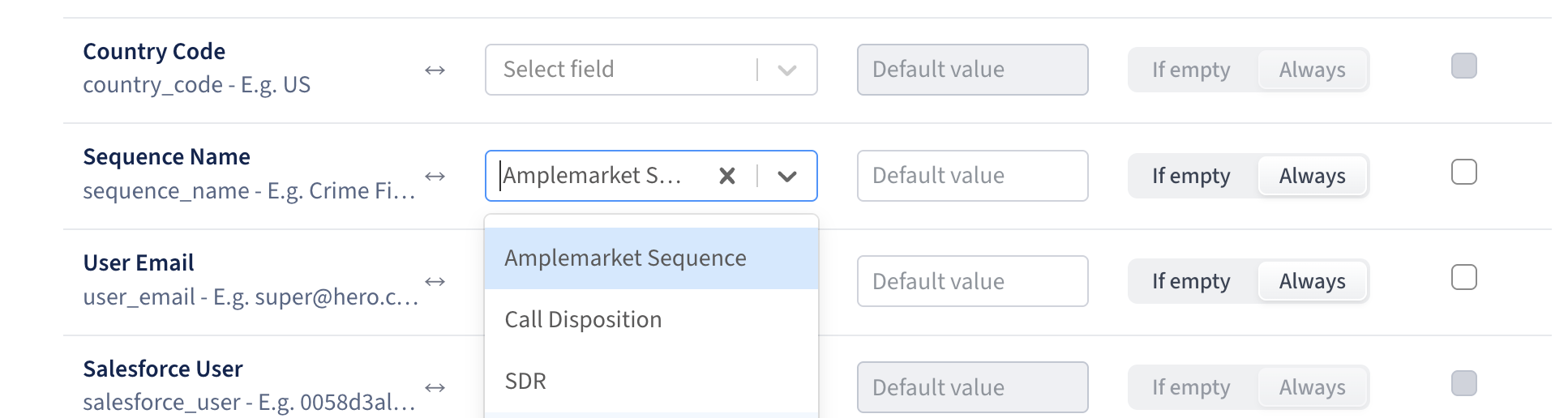
Go to Settings → Integrations → CRM → Mappings
For Salesforce: Map the field on both Lead and Contact tabs
For HubSpot: Map the field on the Contact tab
Step 2: Add to Your CRM List/Report
Salesforce:
Go to Settings → Integrations → Dialer connected via CRM
Click Force Resync to update the report with newly mapped fields
The report will be recreated with all currently mapped fields
HubSpot:
In HubSpot, navigate to your CRM dialer list (e.g
john_AM Calls)Click Actions → Edit columns
Select the newly mapped field
Click Apply
Step 3: Configure in Your Dialer (if needed)
Orum:
No additional configuration needed
Orum automatically picks up all columns from your Salesforce report
Nooks:
Follow Nooks' documentation on Salesforce reports and fields
Map the field explicitly in Nooks' admin settings
Other Dialers:
Check your dialer's documentation for field mapping instructions
Most dialers either auto-detect fields or have a field mapping section in settings
Call Script Not Showing in My Dialer (Nooks, Orum)
Problem: The call task syncs, but the script/notes field is empty in the dialer.
Check, in order:
Does the call step have a script? Open the sequence and confirm the call step's Notes contain the script. If empty, there's nothing to push — the CRM field will show only "via Amplemarket."
Check the CRM task directly, not the Amplemarket task view. The script is pushed to the Task
Description(Salesforce) /hs_task_body(HubSpot) field. The notes column on the Amplemarket admin task record can be blank for sequence call tasks even when the script pushes correctly — the script lives on the step and is pulled in at push time.Map the field in your dialer. If the script is in the CRM task field but not visible in the dialer, add the task body/description field in the dialer's field config. HubSpot + Nooks requires this to be configured explicitly.
Nooks modifies Amplemarket's existing call task rather than creating its own, and Amplemarket stops writing to a task once Nooks touches it. If Nooks claimed the task before Amplemarket populated the body, the field can be empty.
How to Force Re-sync the Integration

When to Use: If reports aren't being created, tasks aren't syncing, or you need to refresh all reports after mapping new fields.
How to Force Resync:
Go to Settings → Integrations → Dialer connected via CRM
Click Force Resync
⚠ Warning: This will delete all call tasks & reports, and re-create them all from scratch, which may consume a significant number of API requests for large accounts. Use sparingly.
What It Does:
Deletes all existing CRM dialer reports
Deletes all call tasks created by the integration
Recreates reports with current configuration
Pushes all due/overdue call tasks to CRM
When You Might Need It:
Reports missing for some users
Newly mapped fields not appearing in reports (Salesforce)
Integration seems "stuck" or not syncing
After major configuration changes
Dialer Compatibility
Extensively Tested: Nooks, Orum
Will Work If Your Dialer:
Calls contacts from Salesforce reports or HubSpot lists
Creates call tasks in your CRM after calls
Writes dispositions to the Call Outcome field:
Salesforce:
CallDispositionfieldHubSpot:
hs_call_dispositionfield
Testing Compatibility:
Run a test call with your dialer
Check the call task in your CRM
Verify the disposition appears in the correct CRM field
Check CRM integration logs (Settings → Integrations → CRM → Logging) for any errors
Confirm the call appears in Amplemarket Analytics
Without proper dispositions, Amplemarket cannot advance sequences based on call outcomes and will use your fallback disposition.
Frequently Asked Questions
Can I use multiple dialers with this integration?
Yes, as long as all dialers are connected to your CRM and use consistent disposition values. You'll need to map all unique dispositions from all dialers in your configuration.
What happens if a disposition doesn't match any mapping?
The fallback disposition you configured will be used, and the contact will be processed according to that disposition's action (either marked as completed or advanced to the next stage).
How quickly do completed calls sync back to Amplemarket?
HubSpot: Near real-time (typically seconds)
Salesforce: Up to 10 minutes from the time the dialer logs the call in the CRM
Can I change disposition mappings after enabling the integration?
Yes, you can modify mappings at any time in Settings → Integrations → Dialer connected via CRM. Changes will apply to future calls; existing completed calls won't be affected.
What if I need to call contacts without email addresses?
Enable the "Push placeholder emails" setting in Advanced Settings. This creates temporary email addresses for contacts without emails
(e.g., 22731351abfbec506d3adebae03f6337@amplemarket-placeholder.com).
Some CRM admins prefer not to have placeholder emails in their system, so discuss with your team before enabling.
How do I get the Sequence Name and other Amplemarket fields to show up in my dialer?
See the detailed guide in Mapping Fields to Your Dialer above.
Quick answer: Map the fields in Amplemarket CRM settings, then:
Orum (Salesforce): Force resync - fields appear automatically
Nooks (Salesforce): Map explicitly in Nooks settings
HubSpot dialers: Configure list columns in HubSpot
Why is a user grayed out in the selection dropdown?
Each Amplemarket user must have a corresponding CRM user account with the exact same email address (case sensitive). See User Not Available for CRM Dialer for the full solution.
Why am I seeing multiple call tasks in my CRM for each call?
Both Amplemarket and your dialer log activities independently. See Multiple Call Tasks in CRM for two solutions to consolidate tasks.
How do I fix the "Cannot delete tasks" error for Salesforce users?
This is a Salesforce Role Hierarchy issue. See Cannot Delete Tasks for Salesforce Users for the complete solution.
What if call dispositions aren't being recognized?
See Call Dispositions Not Recognized for a comprehensive troubleshooting guide including checking logs and adding mappings.
How often should I use Force Resync?
Sparingly. Force Resync deletes and recreates everything, consuming significant API calls. Only use it when:
Reports are missing after configuration
Tasks aren't syncing and other troubleshooting hasn't worked
You've added new field mappings and need them in Salesforce reports
For most issues, check the integration logs first before resorting to Force Resync.
Why can't i see my amplemarket lists/reports in Nooks?
First, verify the report or list actually exists in your CRM — Amplemarket only creates reports for users with due or overdue call tasks. If the report is missing, check Settings → Integrations → CRM → Logging → Errors for permission issues, then use Force Resync. If the report exists in your CRM but isn't visible in Nooks, you need to configure it in Nooks' settings. See Reports or Lists Not Appearing in Nooks for the full walkthrough.
After completing Call 1 in my Orum, the next call tasks don't appear. Is my Orum stalling?
Most likely, no. Amplemarket sequences advance one stage at a time. A task for a future stage (e.g., Call 2) does not exist until every earlier stage is completed or skipped.
Example:
Stage 1: Call (completed in Orum ✓)
Stage 2: LinkedIn profile visit (not yet done)
Stage 3: Manual email (not yet done)
Stage 4: Call ← this task doesn't exist yet
Since the Stage 4 call task hasn't been created, there's nothing to push to your CRM, and nothing for Orum to pull.
What to do: Complete or skip the intermediate steps (LinkedIn visit, manual email, etc.) in Amplemarket. Once those are done, the next call task will be created, pushed to your CRM, and appear in Orum.
Tip: If your reps are primarily using Orum for calling, consider designing sequences where call steps are not separated by manual steps that require action in the Amplemarket UI, or train reps to check Amplemarket between calling sessions to advance non-call steps.
Still Need Help?
Related Articles:
CRM Connected Dialers - Setup Guide - Complete installation and configuration
Salesforce Errors FAQ - Salesforce-specific errors
HubSpot Integration Errors FAQ - HubSpot-specific errors