Pre-meeting intelligence in Google Calendar
Last updated: June 17, 2026
Never switch tools to prepare for a call again. The Amplemarket meeting view brings everything you need to know directly into Google Calendar — one click before you join.
How to access it
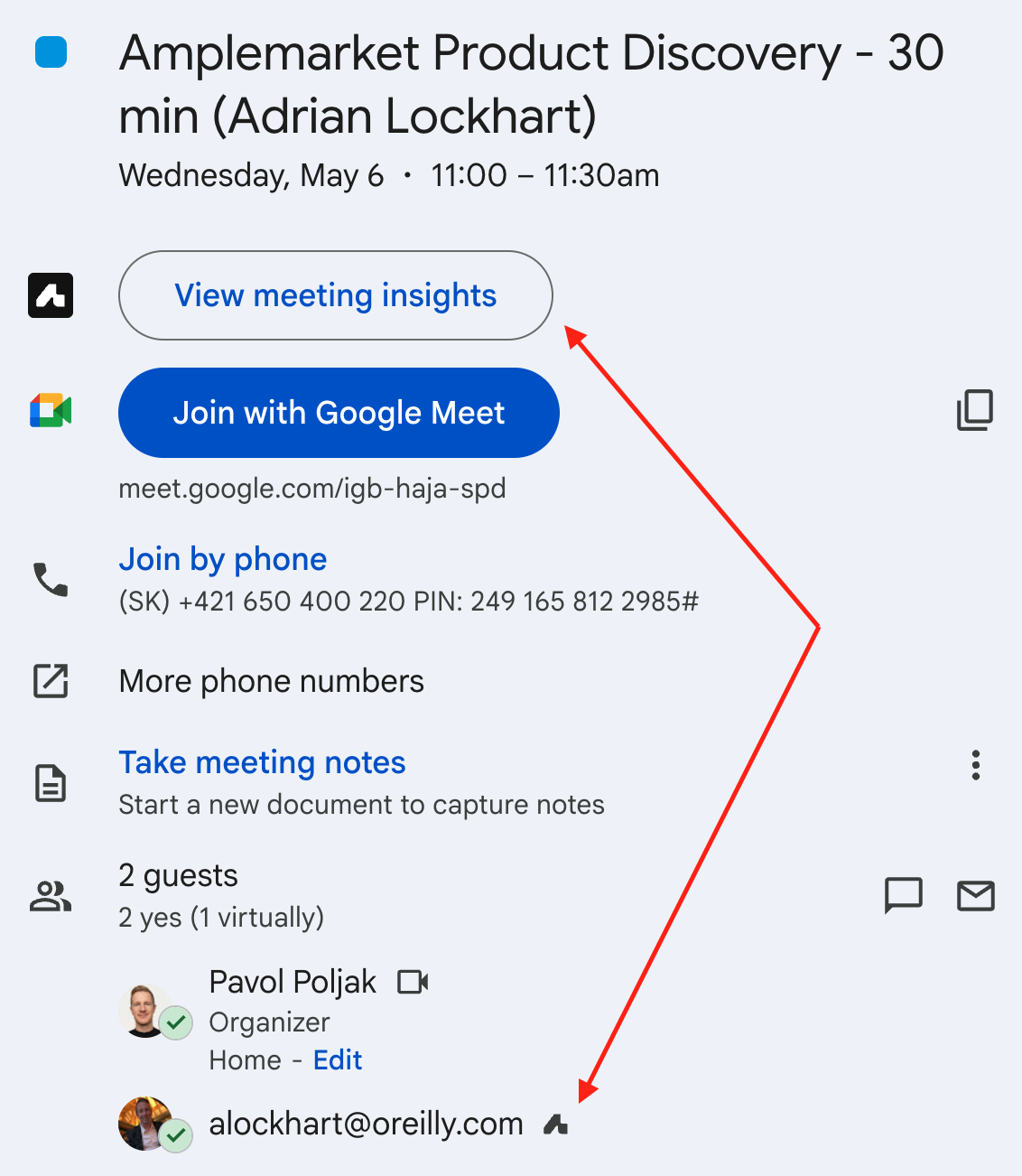
Open any upcoming external meeting in Google Calendar. You will see two Amplemarket entry points:
View meeting insights button — click it to open the full meeting view in the extension. If the extension is already open it refreshes automatically to show the meeting view. If it is closed it opens and loads the meeting view directly.
Amplemarket icon next to each attendee — click it to open the full extension panel for that specific person. Same experience you already know from LinkedIn.
Which meetings show the meeting view
The meeting view is available for external meetings only. The following are excluded:
Internal meetings
All attendees share the same email domain as the organizer
Large meetings
More than 7 attendees
Personal meetings
All attendees have personal emails such as gmail.com
The meeting will show if at least one attendee has a work email
Meetings with hidden participants
Meeting view does not run when guest list visibility is turned off
You must be the organizer or an internal participant from the same Amplemarket account
What you see in the meeting view
The meeting view has two layers designed to give you the right level of context without overwhelming you.
Layer 1 — Meeting view
The first layer covers what you need for the vast majority of meetings. No scrolling, no switching tools. It has three sections, all collapsible and configurable:
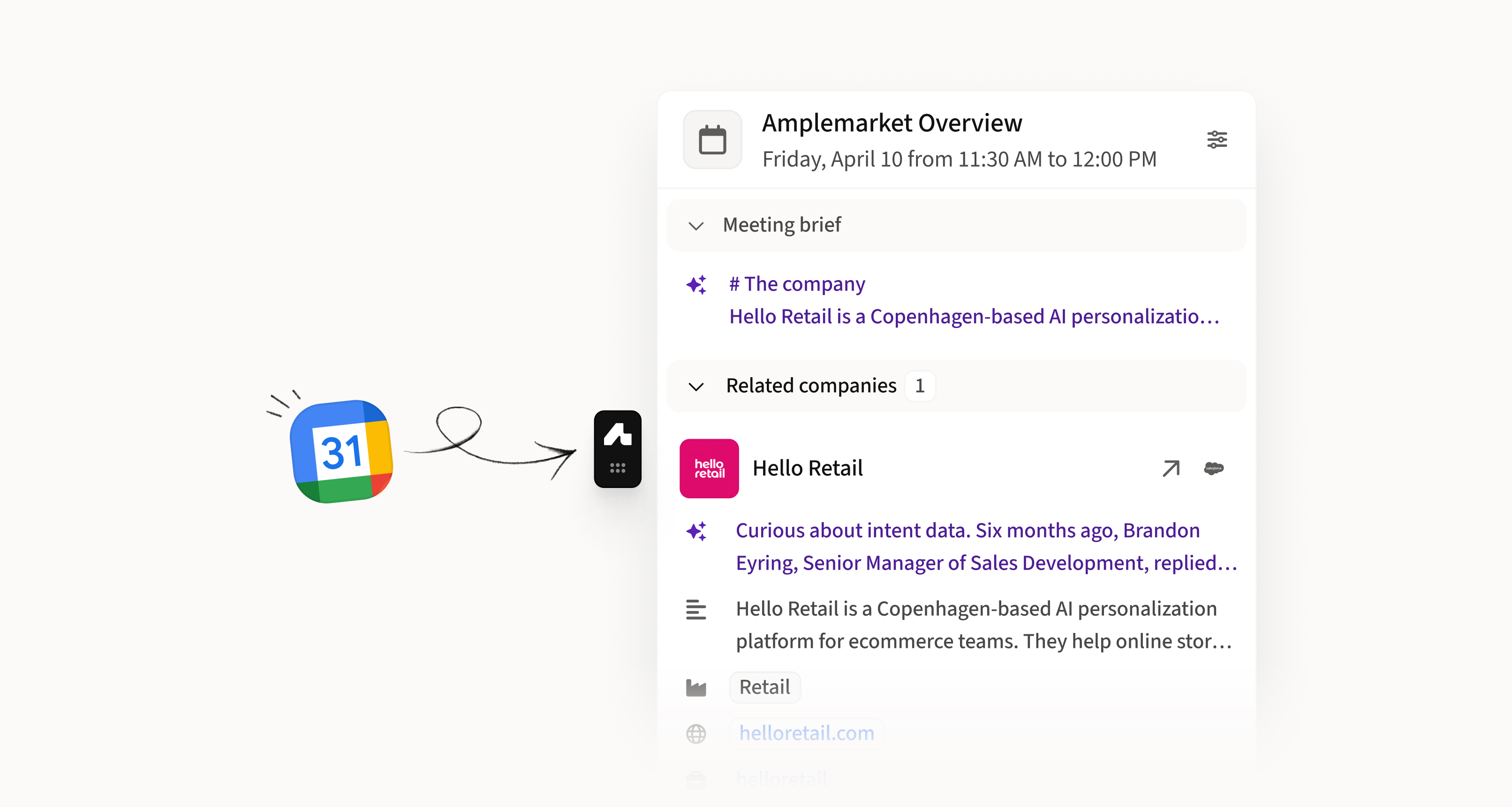
Meeting brief
An AI-generated briefing covering what the company sells, who their ICP is, recent signals from the last 90 days, and your activity history with the account. Uses Amplemarket data and web search to keep the brief current and relevant.
Related companies
One block per external company on the call. Default fields shown:
Account name and owner
Created at
Account insights (when available)
Description
Domain
LinkedIn
Industry
Additional fields including custom CRM fields can be added via the Display settings. The full section is personalizable.
Attendees
External attendees only, internal excluded. Default fields shown:
Name
Badges
LinkedIn
Job title
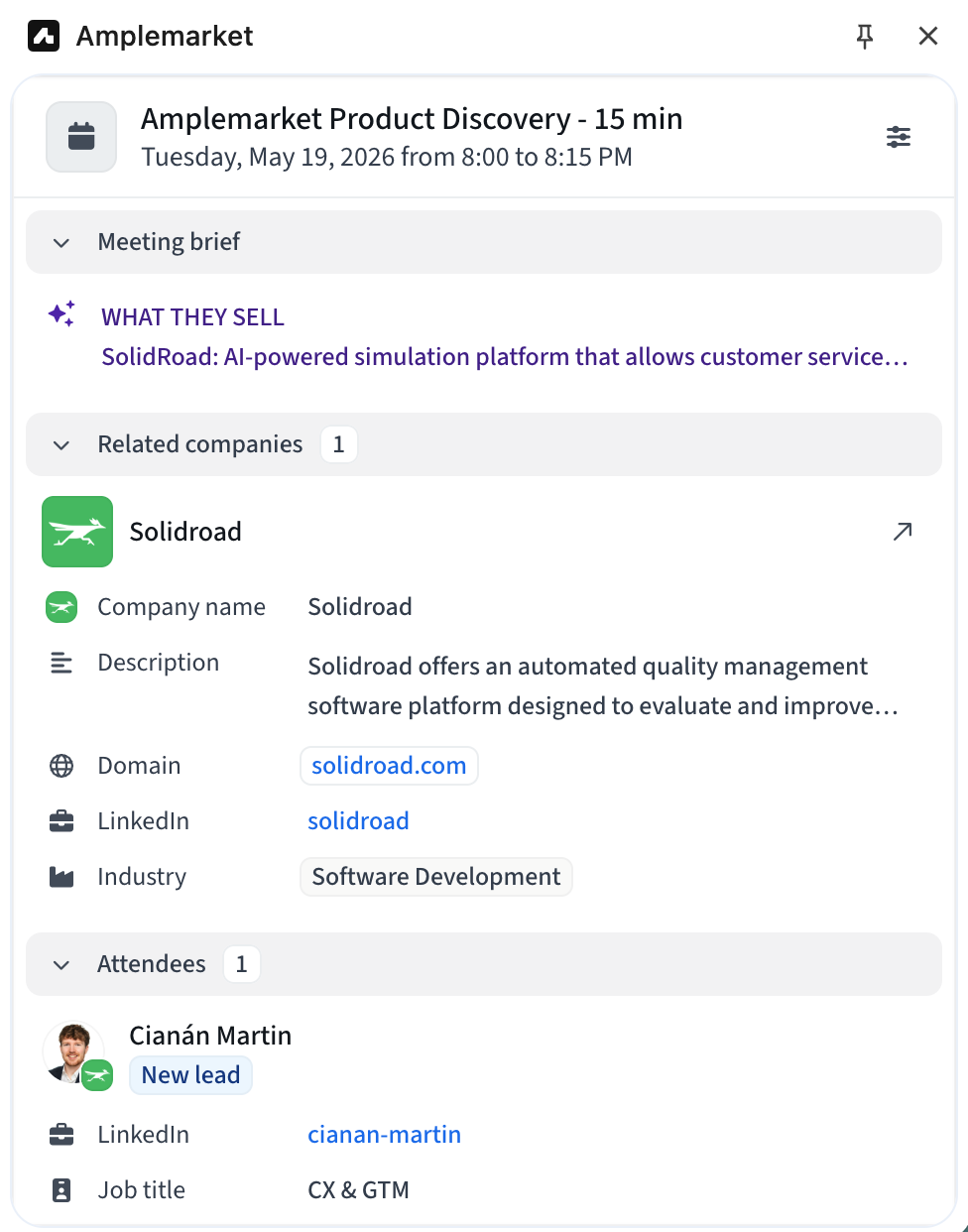
All three sections are fully personalizable via Display settings.
The meeting view comes with smart defaults designed to cover most meetings out of the box. You can personalize it via the sliders icon in the top right corner of the meeting view:
Show or hide sections
Reorder sections
Show or hide individual fields within each section
Toggle Show labels and Show empty fields
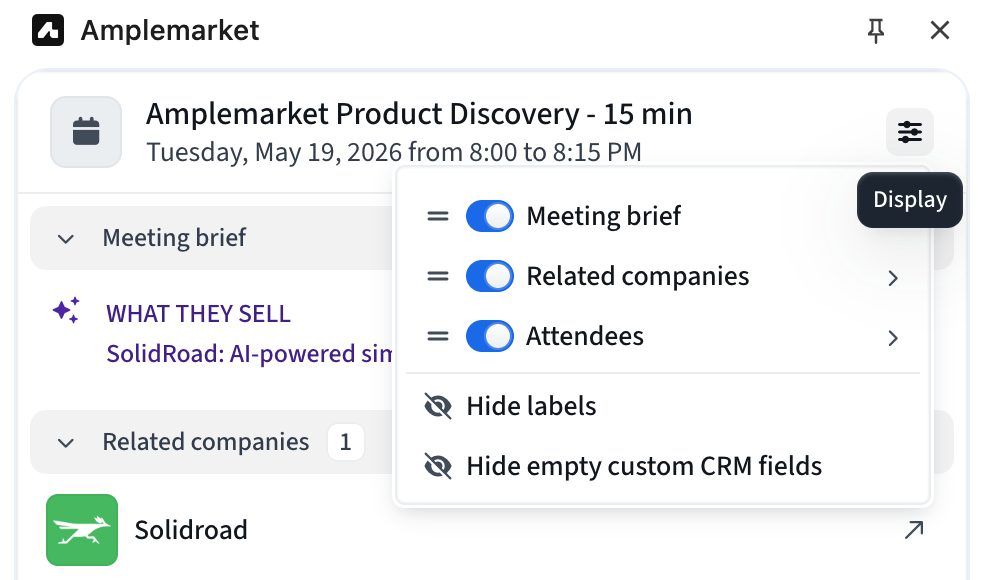
Your configuration is saved independently per surface.
Layer 2 — Drill down
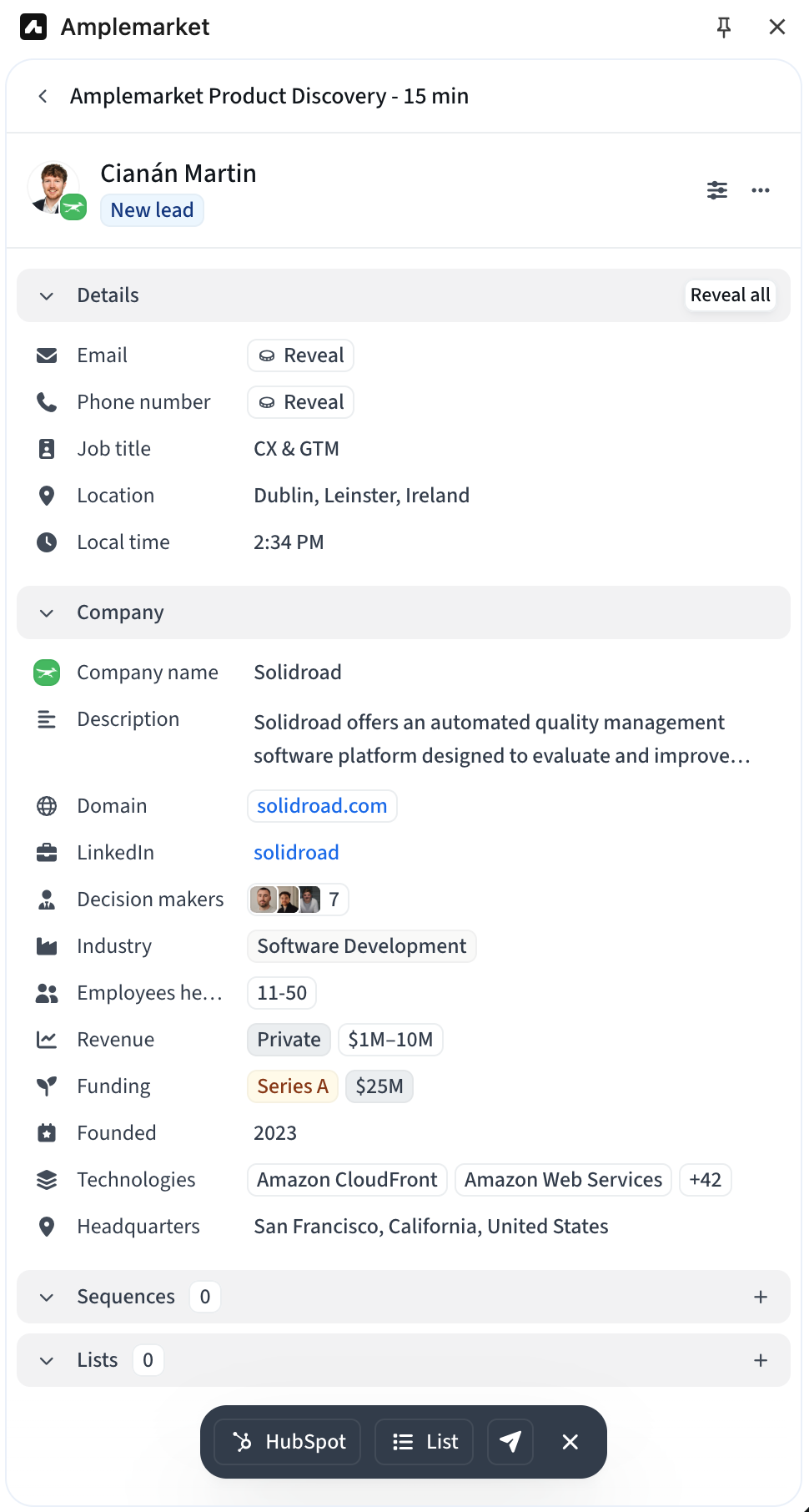
Clicking on any attendee or company in Layer 1 navigates within the extension to the full profile view. This is the same experience you already know from LinkedIn — full contact or company details, activity history, notes, and actions like Add to Sequence, Add to List, and Push to CRM. Use this when Layer 1 is not enough or when you want to take action directly from the meeting context.
Click the back arrow to return to the meeting view.