Editing Contacts
Last updated: August 4, 2026
You can edit a contact's name, job title, email address, and LinkedIn URL directly in Amplemarket. Edits push to your CRM, are recorded in the contact's activity feed, and can be applied to sequences the contact is already in.
Video: editing a contact
Watch this short walkthrough to see the edit drawer, an edit reaching the CRM, and the option to update live sequences.
What you can edit
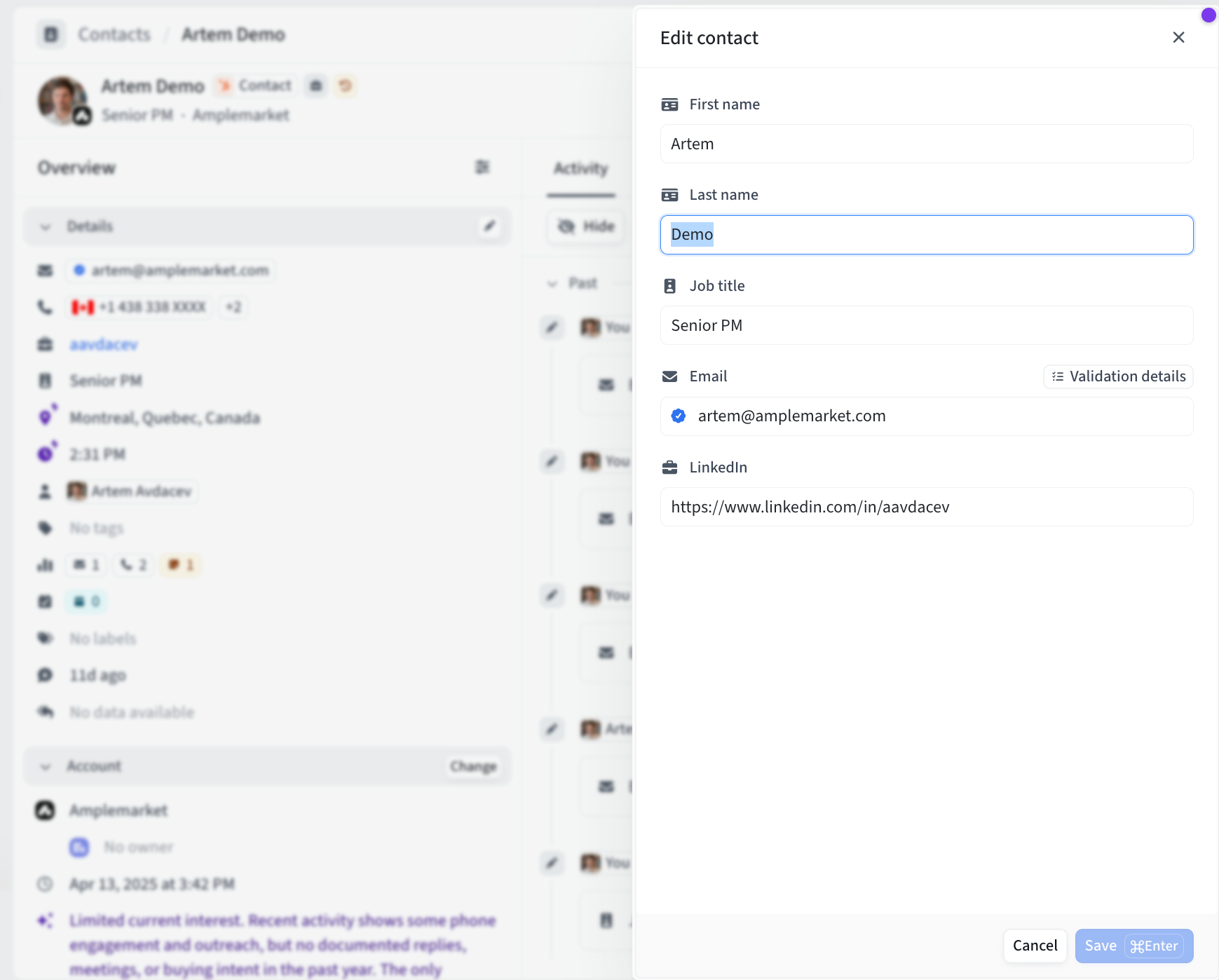
Five fields on a contact are editable today, with more to come:
First name
Last name
Job title
Email
LinkedIn
Phone numbers aren't in the editor. Click the phone chip on the contact to add, edit, or delete a number.
Editing requires the Manage contacts & accounts permission. Admins have it by default; to grant it to sales reps, create a custom role with the permission. Users without it don't see an Edit option. See Roles & Permissions.
Opening the editor
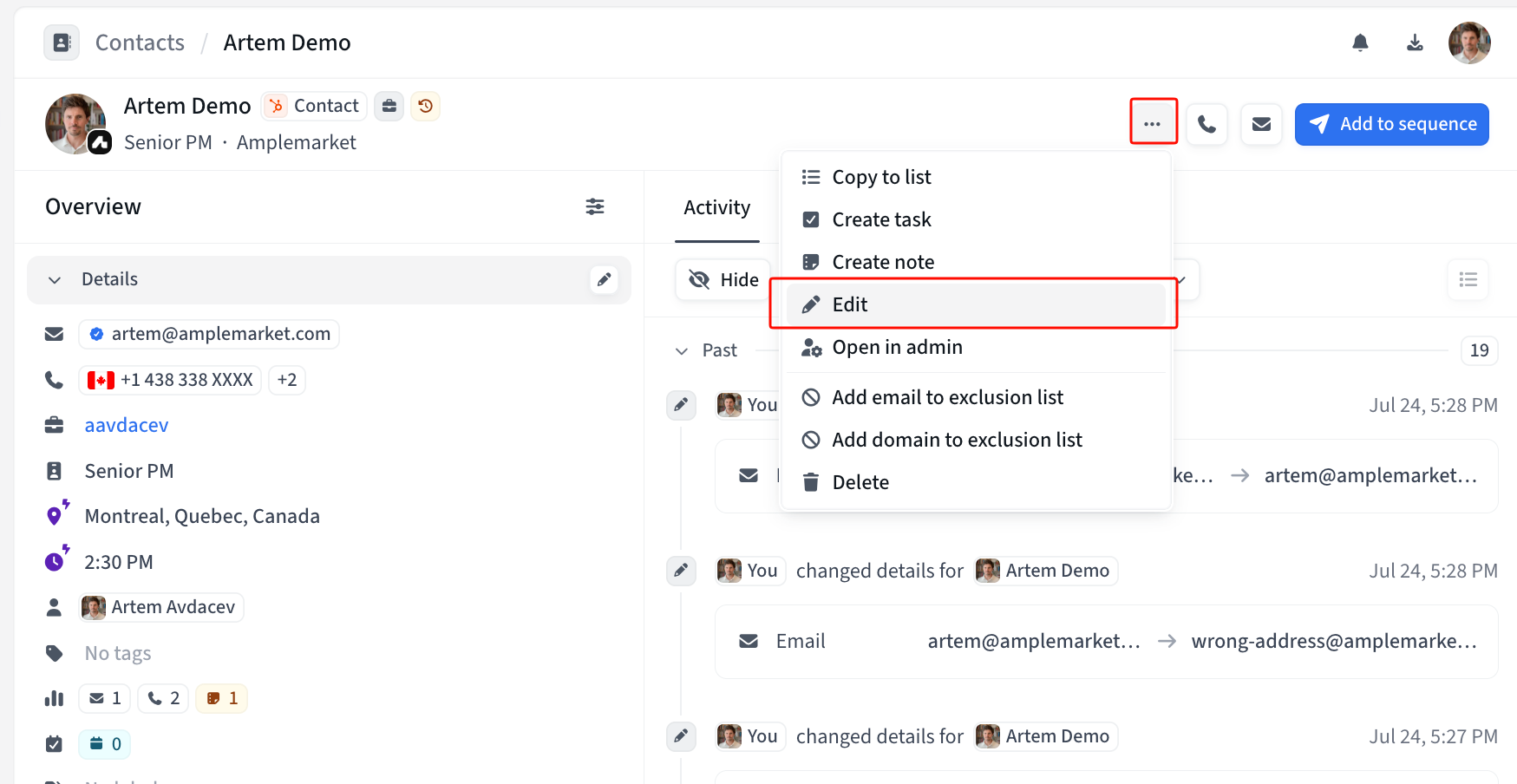
All three paths open the same Edit contact drawer:
On a contact's page, click the ⋯ menu and choose Edit.
On the Contacts page, hover a row, click ⋯, and choose Edit.
Hover a field on the contact's page and click the pencil. The drawer opens with that field focused.
Making an edit
Change the fields you need and click Save. If you close the drawer with unsaved changes, you'll be asked whether to discard them.
Rules the editor enforces
A contact must always keep an identifier — an email, a LinkedIn URL, or a first and last name together. This is checked on every save, not only on the field you touched.
Contacts that aren't in your CRM need an email.
Email addresses are unique in your workspace. Two contacts can't share an address, even where your CRM allows duplicates.
LinkedIn URLs must be personal profile URLs, e.g. https://linkedin.com/in/janedoe.
Checking an email against Amplemarket's data
An email that came from your CRM or a CSV may be out of date. You can ask Amplemarket to look for a verified address — the same email reveal you run in the Searcher, here run on an existing contact.
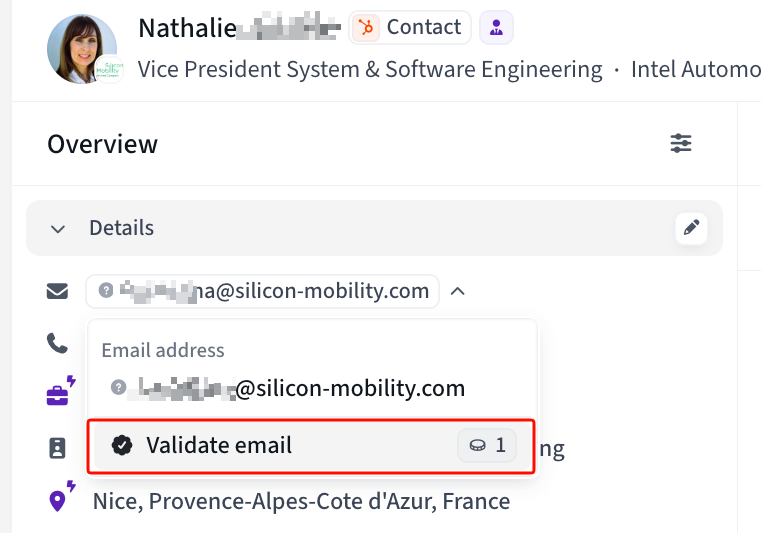
Next to the Email field you'll see one of two actions, each costing 1 email credit:
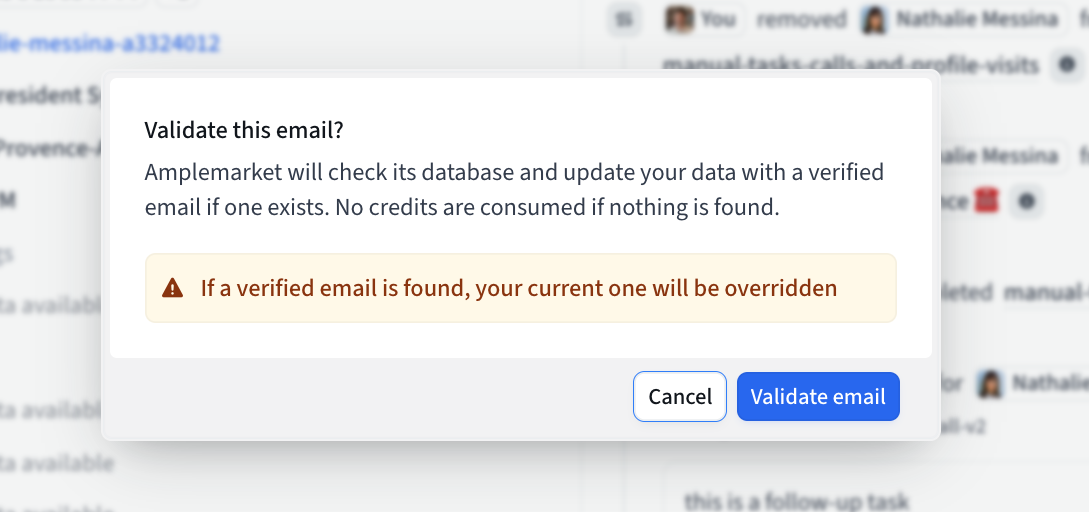
Validate — the contact already has an email. You'll be asked to confirm before it runs.
Reveal — the contact has no email. Runs immediately.
If Amplemarket finds an address, click the Use verified email button to fill it in. It's free and stays available, so you can always return to Amplemarket's address later. The email shows Verified by Amplemarket while it matches Amplemarket's result, and Not verified by Amplemarket once you edit it by hand.
About credits: a credit is charged whenever Amplemarket finds an email, including when it matches the one you already had. Nothing is charged when the search comes up empty. Each person is only checked once per workspace; re-checking is free, and typing an address by hand never costs a credit. See Managing phone and email reveal credits.
Contacts already in a sequence
If you change the first name, last name, or job title of a contact who's in a running sequence, you'll be asked whether to apply the change there too.
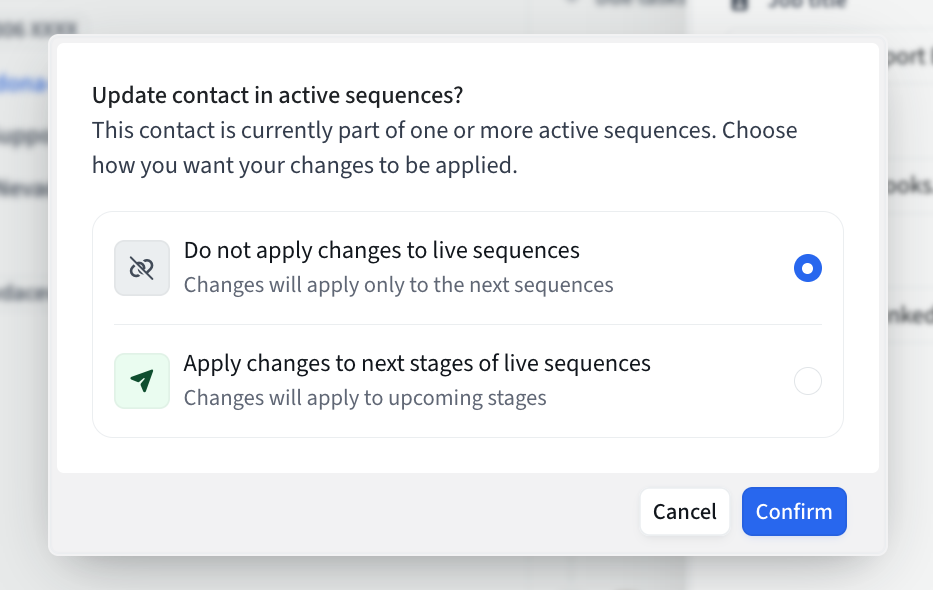
Applying it updates the contact's leads in every running sequence — including sequences owned by teammates — refreshes their pending tasks, and re-renders queued emails so merge fields pick up the new values.
Email and LinkedIn changes never reach a running sequence
A lead keeps the email address it was enrolled with for the life of the sequence. To send to a corrected address, remove the lead and re-add them.
LinkedIn works the same way, with one exception: if a lead entered a sequence with LinkedIn steps before it had a LinkedIn URL, you can add one directly to the lead via Edit info on the sequence page. See How to manage Contacted Leads in Sequences.
What isn't rewritten
Emails that have already been sent.
Emails you edited by hand, and stages written by AI — both keep the copy you approved.
AI snippets that have already been generated.
One-off tasks.
Nothing is re-approved or rescheduled. Only the field values change.
What reaches your CRM
Edits push to Salesforce and HubSpot within seconds of saving.
Only contacts that already exist in your CRM are updated. Editing a contact never creates a new CRM record.
Only mapped fields are sent. First name, last name, email, and job title are mapped by default; LinkedIn URL is not. See Amplemarket CRM Field Mappings.
A manual edit always wins over the mapping's If empty setting. Because someone deliberately typed the value, it overwrites the CRM field even when the mapping is set to update only empty fields. Clearing a field in Amplemarket clears it in the CRM too.
If an edit doesn't appear in your CRM, check Settings → Salesforce/HubSpot → Logging → Errors for the contact's email address. We're working on surfacing these failures on the contact itself.
Changes made in the CRM sync back the other way and replace the Amplemarket value. They never update live sequences — only edits made in Amplemarket offer that choice. If a field is contested between the two systems, set the mapping direction to match who owns it.
Reading a contact's edit history
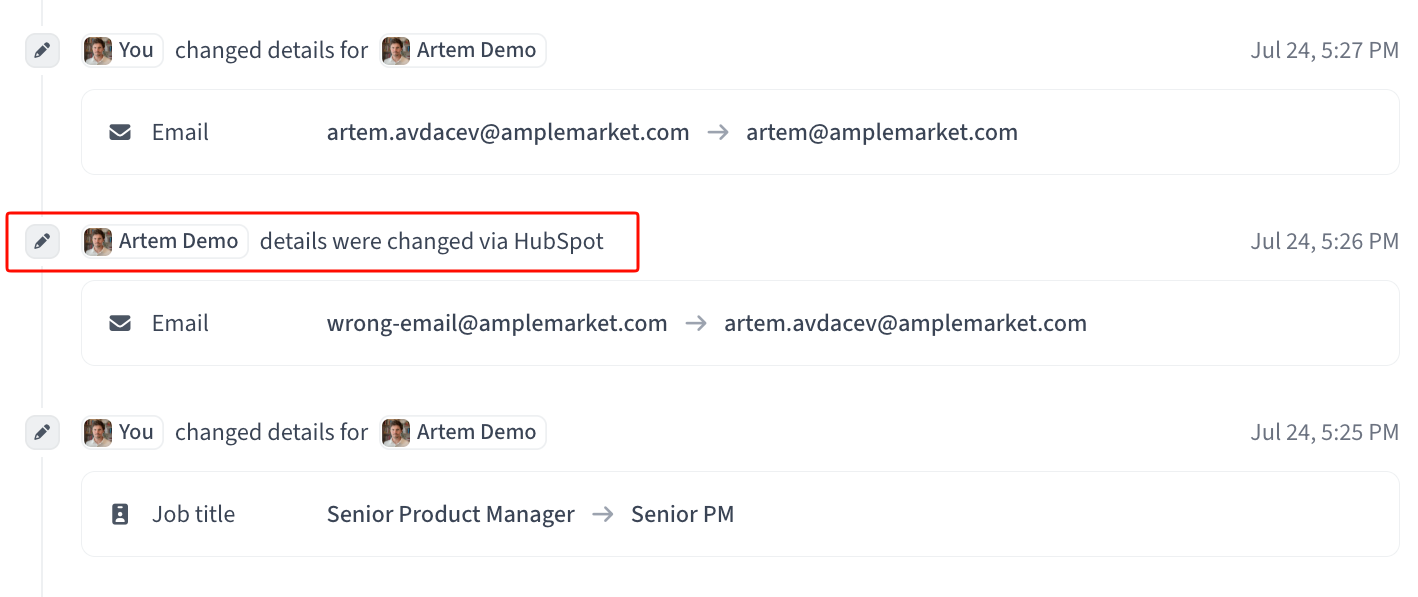
Every edit is recorded in the contact's activity feed with old and new values — shown by default on contacts, hidden in account feeds.
An edit applied to running sequences carries an info icon reading Changes were applied to upcoming stages of live sequences.
There is no undo. To restore an old value, read it from the feed and edit the field back.
Reading the history doesn't require the Manage contacts & accounts permission — everyone who can see the contact can see who changed what.
Best practices
Fix the contact record itself rather than re-uploading the person or editing a list row. A list row is a snapshot and won't update the contact or your CRM.
Map LinkedIn URL in your CRM field mappings if you want LinkedIn corrections to reach your CRM.
Correct contacts before adding them to a sequence — emails can't be changed once a sequence is running.
Check the activity feed before re-fixing a field that keeps reverting. It shows whether a teammate or your CRM changed it.
Frequently asked questions
Why don't I see an Edit option?
Your role is missing the Manage contacts & accounts permission. Ask an admin to check Settings → Roles.
Can I edit several contacts at once?
No. Editing is one contact at a time. There's no bulk edit or inline editing in the Contacts table.
Does editing cost credits?
No. Typing a value is free. Only Validate and Reveal on the email field cost a credit, and only when Amplemarket finds an address.
I edited the email but my sequence still uses the old one.
Email addresses are fixed for the life of a sequence. Remove the lead and re-add them to use the new address.
Why hasn't my edit reached Salesforce?
Most often the field isn't mapped — LinkedIn URL has no mapping by default. Otherwise the contact may not exist in your CRM yet, or the CRM rejected the write. Check Settings → Salesforce → Logging → Errors.
Can I undo an edit?
Not directly. The activity feed shows the old value, and you can type it back. For an email, the Use verified email button restores the address Amplemarket found.
My CRM keeps overwriting my change.
A non-empty CRM value replaces the Amplemarket one on every sync. Change the field's mapping direction to Sync to CRM so Amplemarket owns it, or make the correction in your CRM instead.
Can I edit a contact a teammate owns?
Yes. The permission applies to every contact in your workspace.
It's asking for a last name and I only changed the job title.
Every save re-checks that the contact keeps an identifier — an email, a LinkedIn URL, or a first and last name together. Fill in one of them and the save will go through.